Windows 11 KB5101684 packs a wave of hidden features ahead of the official August 2026 update, and you can enable most of them early with a free tool called ViVeTool.
Microsoft uses a system called Controlled Feature Rollout, which ships many Windows 11 features in a disabled state and turns them on gradually for different users over weeks or months. Installing KB5101684 alone does not guarantee you will see every change Microsoft has planned, since the feature stays switched off behind the scenes until your device is selected. ViVeTool flips that switch manually, so you can test the new features right away instead of waiting.
Install the Windows 11 August 2026 Update Early
ViVeTool only unlocks features that already exist in your current build, so you need the update installed before running any commands.
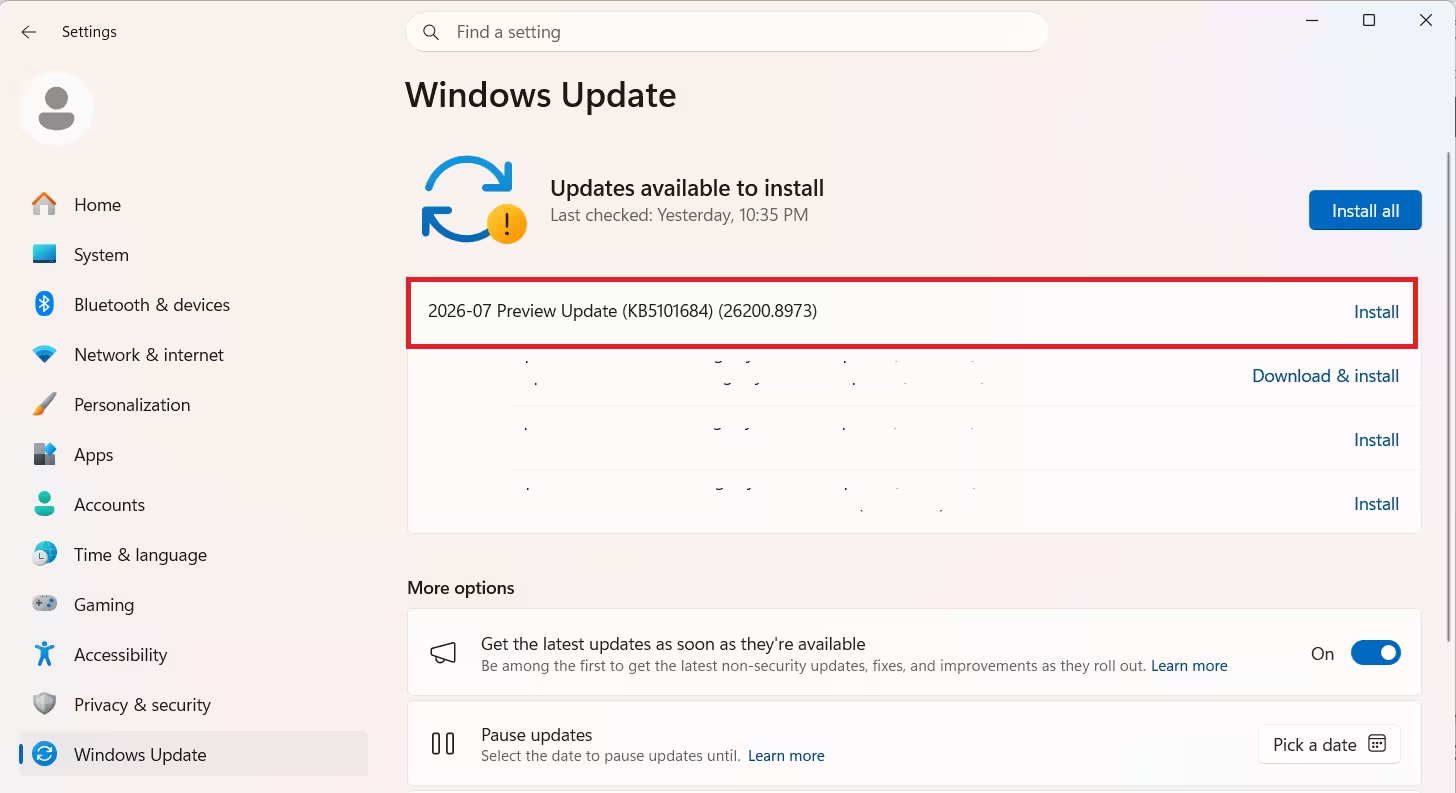
To check which path applies to you, open Settings > Windows Update and click Check for updates. If KB5101684 shows up as an optional download, it is already generally available on your device and you can install it directly. If nothing appears, it has not reached your device yet, so you will need to enroll in the Release Preview channel first.
If the update is not generally available yet:
- Open Settings and go to Windows Update > Windows Insider Program.
- Link your Microsoft account, select the Release Preview channel, agree to the terms, and restart your PC.
- After rebooting, return to Windows Update and turn on Get the latest updates as soon as they're available.
- Click Check for updates to download and install KB5101684.
If the update is already generally available:
- Open Settings and go to Windows Update.
- Turn on Get the latest updates as soon as they're available.
- Click Check for updates, then click Download and install under the KB5101684 entry.
- Restart your PC when prompted.
If you would rather skip Insider enrollment entirely, or need to install on several PCs at once, download the standalone .msu package from the Microsoft Update Catalog and double-click it to install offline. This works regardless of whether the update is generally available yet.
Enable Hidden Features With ViVeTool
Once KB5101684 is installed, use ViVeTool to force on features that Microsoft has not rolled out to your device yet.
- Open the ViVeTool releases page on GitHub.
- Download the latest
ViVeTool-vx.x.x.ziprelease. - Right-click the downloaded zip folder and select Extract All, then click Extract to unpack the files to a folder you can find easily, such as the desktop.
- Open the extracted folder in File Explorer, click inside the address bar at the top of the window to highlight the full path, and copy it. You will paste this into Command Prompt in the next step.
- Open Start, search for Command Prompt, right-click the top result, and choose Run as administrator.
- Use the
cdcommand to navigate to the ViVeTool folder, for examplecd c:\folder\path\ViveTool-v0.x.x, replacing the path with your actual folder location. - Run the following command to enable virtually all the new features tied to this update:
vivetool /enable /id:61160789- Run this second command as well if you specifically want File Explorer's new file size display turned on, since it uses a separate ID from the main command in step 7:
vivetool /enable /id:61014711- Restart your computer for the changes to take effect.
Feature IDs for ViVeTool change often. Once Microsoft folds a feature permanently into Windows 11, the ID tied to it stops working, so these specific commands may need to be replaced with newer ones in future builds.
If a feature misbehaves after enabling it, or you would rather go back to Microsoft's normal gradual rollout, you can undo the change at any time.
How to Disable Features Enabled by ViVeTool
If a feature causes issues or you want your system back to its default gradual rollout state, you can undo the changes.
- To turn off the August 2026 feature set specifically, run
vivetool /disable /id:61160789in an elevated Command Prompt, then restart. - To clear every customization you have made with ViVeTool, run
vivetool /fullresetinstead.
Frequently Asked Questions
Does the ViVeTool command guarantee every new feature will appear?
No. Some features stay behind server-side rollout flags that ViVeTool cannot override, so a small number of changes may still not appear even after running the command.
Do I need to install KB5101684 before using ViVeTool?
Yes. ViVeTool only unlocks features that already exist in your current build, so the update must be installed first.
What happens if I skip this and wait for August 11, 2026?
Nothing extra to do. Microsoft delivers the same fixes and features automatically as part of the mandatory Patch Tuesday security update, and gradual rollout still applies unless you use ViVeTool.
Is KB5101684 safe to install early?
It is an optional, non-security preview update meant for testing. It carries the same code that ships in the general release, so it does not require special caution beyond what applies to any preview update.
How do I undo the changes made with ViVeTool?
Run vivetool /disable /id:61160789 in an elevated Command Prompt to turn off just the August 2026 feature set, or run vivetool /fullreset to clear every ViVeTool customization on your device.