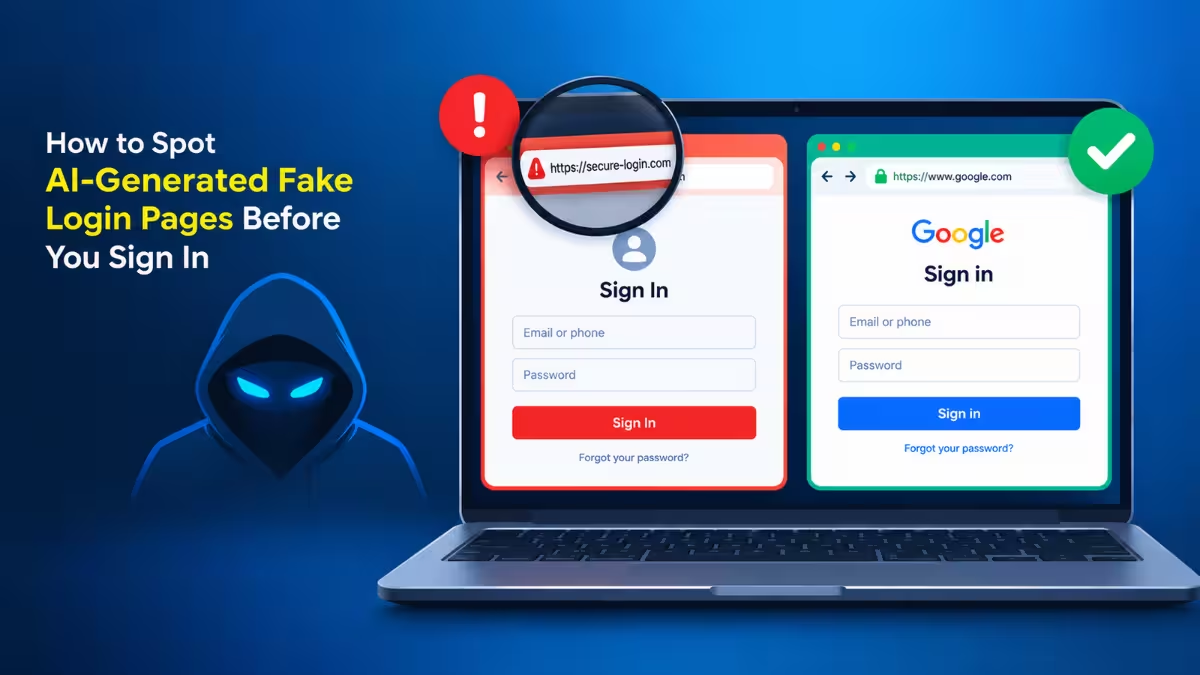
A sign-in page with the right logo, clean fonts and a familiar layout no longer proves you are on the real site. Generative AI tools now let scammers clone a bank, email or workplace portal in minutes, and some kits even stream the genuine login screen through a browser the attacker controls. That shifts the job of detection away from how a page looks and toward where it lives, how you reached it and what it asks you to do.
This guide walks through the checks that still catch fake login pages today, the attack styles you are most likely to meet, and what to do if you already typed your password into one.
How AI Makes Fake Login Pages More Convincing
Older phishing pages gave themselves away; AI-built ones rarely do.
A few years ago, a fake sign-in form often had blurry logos, broken buttons or clumsy wording. Today an attacker can ask an AI website cloner to copy a portal's design and behavior, then publish it on a free hosting service within the same session. AI also writes the lure: a polished IT notice, a password expiry warning or a document-signing request that matches your company's tone.
Attackers then pair these pages with lookalike domains that swap or add a single character, so a quick glance at the link misses the difference. Because AI speeds up every step, scammers can rotate through fresh domains faster than blocklists can flag them.
How to Tell if a Login Page Is Fake by Checking the Domain
The address bar remains the single most reliable clue on any login page.
- Click the address bar and read the full domain from right to left, starting at the part just before the first single slash.
- Confirm the main domain matches the service exactly, for example
microsoft.comorgoogle.com, notmicros0ft-login.comorsecure-google.account-verify.net. - Watch for doubled letters, missing letters and swapped characters. A bank scam once used
wellfargoss.comin place of the real Wells Fargo domain. - Treat long subdomains with suspicion. Scammers often stuff a brand name into the front of an address they control.
The padlock icon does not help here. HTTPS only means your connection to the site is encrypted, and scammers get free certificates for their fake domains just as easily as real businesses do.
Check How You Reached the Login Page and Where It Redirects
The path that brought you to a login screen often reveals more than the screen itself.
Ask yourself what put this page in front of you. A bookmark or a URL you typed yourself is low risk. An unexpected email, text message, chat message, QR code, search ad or file attachment carries far more risk, even when it appears to come from a colleague or a trusted brand.
AI chatbots and AI search summaries add a newer route. Security researchers have caught AI assistants recommending phishing links when users asked how to log in to their bank. Treat a login link from an AI answer like any other search result: verify the domain before you trust it.
Also look for redirect chains. One recent campaign sent victims from a genuine Confluence page to a malicious SVG file and then on to a fake Gmail and Microsoft 365 sign-in page. The trusted first stop made the final page feel safe. Always judge the domain on the page where you actually type your password.
Common Types of Fake Login Pages and How Each One Works
Fake login pages come in several distinct forms, and each one leaves different traces.
Cloned Portals
An attacker copies the look of a real sign-in page and hosts it on a different domain. AI cloners occasionally invent a logo when they cannot find the real one, so an oddly drawn or slightly off-brand logo is worth a second look. The domain check catches these in most cases.
Browser-in-the-Middle Kits
Kits such as Bluekit load the genuine login page inside a browser the attacker runs, then stream that screen to you. Because you see the real page, visual checks fail completely. Watch for a slight lag between your typing and what appears on screen, and for CAPTCHA boxes that do not look like the standard Google or Cloudflare versions.
Can a Fake Login Page Bypass MFA?
Yes, several attack styles defeat standard MFA, and the two below are the most common.
Adversary-in-the-Middle Proxies
Here the fake site sits between you and the real service and relays everything in real time. You enter your password, approve your MFA prompt and land in your real account, while the attacker grabs the session cookie that keeps you signed in. With that cookie, they can open your account without your password or a second MFA check. The domain in your address bar is still wrong, which is your best defense.
Device Code and OAuth Consent Tricks
Some attacks never ask for your password at all. You receive a message with a short device code and a link to Microsoft's real verification page. Entering the code grants the attacker's app access tokens to your account. If you did not start a sign-in on a TV, printer or other device, never enter a code someone sent you. Read every permission screen before you click Accept.
Warning Signs on a Fake Login Page Beyond the Design
Fake pages often slip up in how they behave, even when they look perfect.
- Unexpected MFA prompts: A push notification or code request you did not trigger means someone else holds your password. Deny it and change your password.
- Login loops: A page that rejects a correct password and asks again may be harvesting a second attempt.
- Odd urgency: Messages that threaten account suspension within hours push you to act before you think.
- Autofill silence: Your browser or password manager usually refuses to autofill on a domain it does not recognize. Treat that silence as a warning, not a glitch.
- Strange requests after login: A sign-in page that then asks for your card number, recovery codes or full date of birth goes well beyond what a normal login needs.
Best Ways to Block Fake Login Pages (Passkeys, Password Managers, MFA)
The strongest protections do not rely on your eyes at all.
Switch to Passkeys or Security Keys
Passkeys and FIDO2 security keys tie your login to the real website's domain through cryptography. A fake site on a lookalike domain simply cannot trigger them, so even a perfect clone gets nothing. Turn on passkeys wherever your accounts support them, starting with email, banking and work accounts. Google, Apple and Microsoft all offer them on personal accounts.
Let a Password Manager Do the Matching
A password manager fills credentials only on the exact domain you saved them for. If it offers nothing on a page that claims to be your bank, stop and check the address. Avoid copying and pasting the password manually to "make it work."
Prefer App-Based MFA Over SMS
Authenticator apps and hardware keys resist SIM swap attacks far better than text message codes. They still cannot stop a proxy attack on their own, which is why passkeys sit at the top of this list.
Keep Browser Protection Turned On
Chrome Safe Browsing, Microsoft Defender SmartScreen and similar features block many known phishing sites. Set Chrome's protection to Enhanced protection under Settings > Privacy and security > Security. These filters miss brand-new domains, so treat them as a safety net, not a guarantee.
Safe Sign-In Habits That Prevent Phishing Login Pages
A few routine habits remove most of the risk before you ever see a fake page.
- Open important accounts from bookmarks or by typing the address yourself.
- Never sign in through a link in an email, text or chat message about account problems. Open the service directly and check for alerts there.
- Confirm unusual requests from colleagues, especially payment or bank detail changes, through a phone number you already know.
- Review your active sessions and connected apps in your Google, Microsoft and banking accounts every few weeks.
- Report suspicious pages to your IT team or through your browser's report option so others get protected faster.
What to Do If You Entered Your Password on a Fake Login Page
Fast action limits the damage when a fake page captures your details.
- Go to the real site directly and change your password right away. Change it anywhere else you reused it.
- Sign out of all sessions from the account's security settings. This kills any session cookie the attacker stole.
- Review and remove unknown devices, apps, forwarding rules and recovery email addresses or phone numbers.
- Revoke access for any third-party app you approved during the suspicious sign-in.
- Tell your IT or security team immediately if it was a work account, and contact your bank if you entered card or banking details.
- Watch your account activity and email for unusual messages over the following weeks.
Frequently Asked Questions
Can a fake login page steal my account even with two-factor authentication turned on?
Yes. Proxy and browser-in-the-middle attacks capture the session after you complete MFA, and device code tricks grab access tokens directly. Passkeys and FIDO2 keys block these attacks because they only work on the genuine domain.
Is a fake login page with HTTPS still unsafe?
Yes. The padlock confirms an encrypted connection, not the identity of the site owner. Scammers routinely run fake login pages over HTTPS.
Can AI chatbots recommend fake login pages?
Yes. Researchers have found AI assistants linking to phishing pages when users asked how to log in to a bank. Check the linked domain against the company's official address. If it differs at all, close the page and type the real address yourself.
Why did my password manager not autofill on a login page?
Your password manager matches saved logins to exact domains. If it shows nothing on a page claiming to be a service you use, the domain likely does not match, which points to a fake page.
What should I do with a device code I did not request?
Ignore it and delete the message. Only enter a device code when you personally started a sign-in on another device, such as a smart TV or a new laptop.