The 1000 Backend Error in Escape from Tarkov appears when the game fails to connect to Battlestate’s backend services. You might see it as a plain popup saying “1000 backend error,” or a longer message reading “Object reference not set to an instance of an object.” Either way, it blocks you from loading into raids, completing transactions, or finishing character creation after a wipe.
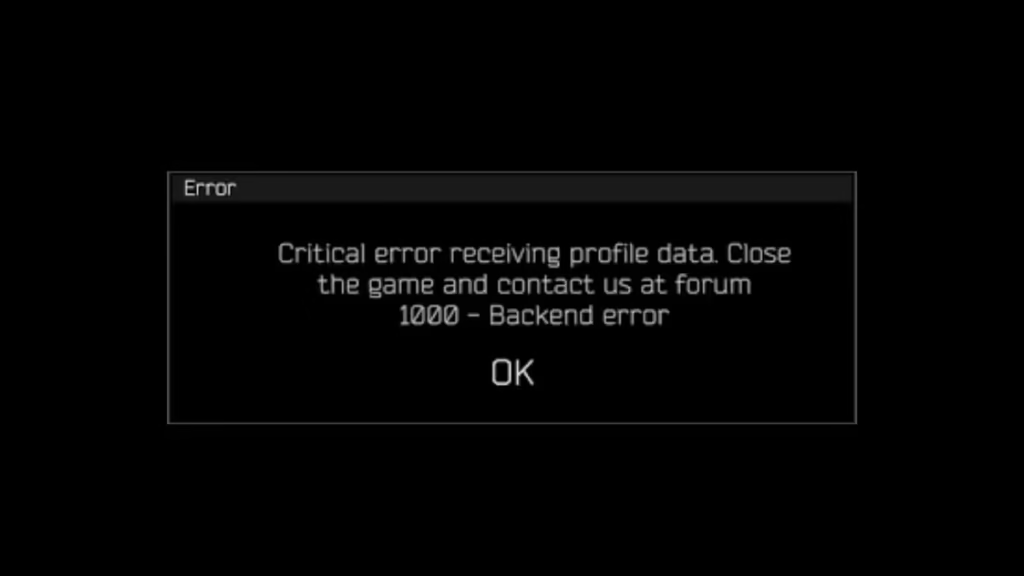
Several things trigger this error: server overload or maintenance on Battlestate’s end, corrupted local cache or game files, Windows Firewall blocking the game’s connection, and certain item combinations (such as a Razor scope on an M700 or cultist knives) that cause a backend sync failure when you extract.
Work through the fixes below in order. The first few take under a minute and resolve the issue in most cases.
1. Check Server Status
Before touching anything on your system, confirm the problem is not on Battlestate’s end. Server outages and scheduled maintenance both produce this error, and no local fix will help until the servers recover.
Check the official EFT status page or Down Detector to see if other players report the same issue. If an outage is active, wait it out and try again once the servers are back online.
2. Restart the Game and Your PC
A clean restart clears temporary connection glitches and resets the game’s state. Close Escape from Tarkov through Task Manager rather than the in-game menu to make sure no background processes remain.
- Right-click the taskbar and select Task Manager.
- Find all processes related to Escape from Tarkov.
- Right-click each one and choose End Task.
- Restart your PC, then relaunch the game.
Rebooting your router at this step is also worth doing if you suspect a network hiccup caused the error.
3. Clear the Launcher Cache
Corrupted cache data in the BSG Launcher is one of the most common triggers of this error, especially after a wipe or major update.
- Search for BSG Launcher and run it as Administrator.
- Click the arrow next to your username.
- Select Clear Cache.
- Close the launcher, reopen it, and install any available game updates before launching.
Clearing the cache does not delete your Tarkov profile, character, or inventory. It only removes temporary launcher data.
4. Run an Integrity Check on Game Files
Missing or corrupted game files cause backend sync failures when the client tries to communicate with the server. The BSG Launcher has a built-in tool to scan and repair them.
- Launch the Battlestate Games Launcher.
- Click the gear icon in the upper-right corner.
- Select Integrity Check and let the process complete.
- Restart the launcher, then load the game.
If the scan flags any files, the launcher replaces them automatically. This step also resolves the checksum mismatch issues covered in Tarkov Error 108003 that can appear after a partial or failed update download.
5. Add Tarkov to Windows Firewall Exemptions
Windows Firewall sometimes blocks Escape from Tarkov’s outbound connections, cutting off communication with the backend servers entirely.
- Search for Firewall and Network Protection in the Start menu and open it.
- Click Allow an app through firewall.
- Click Change Settings, then Add another app.
- Click Browse, navigate to your Escape from Tarkov installation folder, and select EscapeFromTarkov.exe.
- Click Network Types and check both Private and Public.
- Click Add to save the rule.
If you want more granular control, open Windows Defender Firewall with Advanced Security and create a dedicated Inbound Rule for the executable, then repeat the process for an Outbound Rule.
6. Flush Your DNS Cache
A stale or corrupted DNS cache can disrupt connectivity to Tarkov’s servers and produce backend errors even when your internet connection appears stable.
- Search for cmd in the Start menu and select Run as Administrator.
- Type the following command and press Enter:
ipconfig /flushdns- Restart your PC, then relaunch the game.
7. Disable VPN or Proxy
A VPN or proxy can throttle or block traffic to Battlestate’s servers. If you have one active, disable it temporarily and test whether the error clears.
If you rely on a VPN for privacy reasons, try switching to a server location closer to your region before disabling it entirely.
8. Delete Old .ini Configuration Files
Outdated or corrupted .ini files store game settings that can conflict with the current game version after an update. Deleting them forces Tarkov to generate fresh configuration files on the next launch.
Back up the files before deleting them in case you want to restore your custom settings.
- Press Windows + R, type
%localappdata%, and press Enter. - Open the Escape from Tarkov folder.
- Locate settings.ini, right-click it, and choose Delete.
- Launch the game and check if the error is gone.
9. Avoid Known Bugged Items
Certain item combinations trigger a backend sync failure when you try to extract from a raid. Reported triggers include:
- An M700 rifle equipped with a Razor scope
- Cultist knives
- Small gift items (presents) picked up during raids
If the error appears consistently after specific raids, check your recent loot. Dropping or avoiding the bugged items before extracting can stop the error from firing.
10. Reinstall Escape from Tarkov (Last Resort)
If every fix above fails, a full reinstall removes any deeply corrupted files that the integrity check cannot repair on its own.
- Uninstall Escape from Tarkov through the BSG Launcher or Windows Settings.
- Manually delete any remaining files in the Tarkov installation folder.
- Reinstall the game through the BSG Launcher or Steam.
Your account data, character, and inventory live on Battlestate’s servers, so a reinstall does not wipe your progress.
Contact Battlestate Support
If the 1000 Backend Error persists after trying everything above, the problem may be tied to your account or Battlestate’s infrastructure. Submit a ticket on the official Escape from Tarkov support page and include:
- The exact error code and message
- A list of steps you already attempted
- Your system specs and network setup
- A screenshot or error log file
Battlestate’s support team can investigate account-level issues and backend problems that local fixes cannot address.

