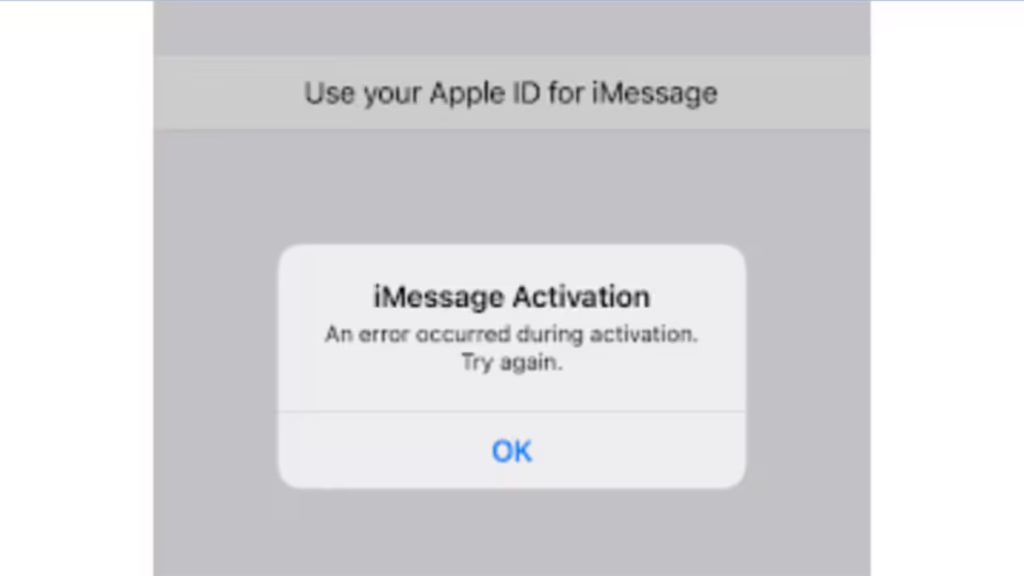
If you see “Waiting for activation,” “Activation unsuccessful,” or “An error occurred during activation” when turning on iMessage, your iPhone cannot complete Apple’s verification process. This guide walks you through every proven fix, starting with quick checks and moving to advanced solutions only if needed. The steps below follow official recommendations from Apple and real-world troubleshooting that consistently resolves activation failures.
What You Need Before You Start
Make sure these basics are in place. Skipping them often causes repeated activation failures.
- Connect to Wi-Fi or mobile data with a stable signal
- Install the latest iOS update
- Enable Set Automatically for Date and Time
- Confirm your carrier allows SMS (Apple uses SMS to verify your number; charges may apply)
Step 1: Check Apple System Status
Before trying any fix, confirm Apple’s servers are actually running.
- Open a browser and go to apple.com/support/systemstatus
- Look for iMessage and FaceTime in the list
- If either shows a yellow or red indicator, Apple is experiencing an outage
If the servers are down, no fix on your device will work. Wait for Apple to resolve the issue, then restart your iPhone and try activating again.
Step 2: Confirm Apple ID Sign-In
Open Settings and tap your name at the top.
If you see the wrong Apple ID, sign out, restart your iPhone, then sign back in with the correct account. iMessage will not activate if the Apple ID session is invalid.
Step 3: Turn iMessage Off, Force Restart, Then Turn It On
This refreshes the activation request and clears stubborn registration state.
- Go to Settings > Messages > turn iMessage off
- Go to Settings > FaceTime > turn FaceTime off
- Force restart your iPhone:
- iPhone 8 or later: Quickly press and release Volume Up, quickly press and release Volume Down, then press and hold the Side button until the Apple logo appears
- iPhone 7: Press and hold both the Volume Down and Sleep/Wake buttons simultaneously until the Apple logo appears
- iPhone 6s or earlier: Press and hold both the Home and Sleep/Wake buttons simultaneously until the Apple logo appears
- Turn iMessage and FaceTime back on
Leave iMessage enabled and connected to the internet while activation runs.
Step 4: Set Date and Time Automatically
Wrong time or region blocks Apple’s servers.
- Go to Settings > General > Date and Time
- Turn Set Automatically on
Step 5: Disable VPN Temporarily
Some VPNs block Apple’s activation servers, which causes the request to fail silently.
- Go to Settings > General > VPN and Device Management > VPN
- Turn off any active VPN connection
- Try activating iMessage again
- Re-enable the VPN after activation completes
If you use a VPN app, open it and disconnect from within the app as well.
Step 6: Check SMS Can Send Normally
Apple verifies your phone number by SMS.
- Turn iMessage off temporarily
- Send a regular text message to any contact
- If SMS fails, contact your carrier and ask them to enable international SMS
Step 7: Switch Networks (Wi-Fi to Mobile Data or Vice Versa)
Some public or office networks block Apple services.
- Try activating on mobile data
- If you were on mobile data, switch to a trusted Wi-Fi network
Step 8: Reset Network Settings
This clears corrupted network profiles without deleting your data or messages.
- Go to Settings > General > Transfer or Reset iPhone
- Tap Reset > Reset Network Settings
- Reconnect to Wi-Fi and try activation again
Step 9: Update iOS and Carrier Settings
Outdated software can break activation.
- Go to Settings > General > Software Update and install any available update
- Go to Settings > General > About and install any Carrier Settings Update if prompted
Step 10: Activate Online via Apple’s Portal
If number verification keeps failing on your device, you can trigger activation through Apple’s web portal.
- On any browser, go to apple.co/IMFT-mac
- Under Enable Apple Account, tap Get Started
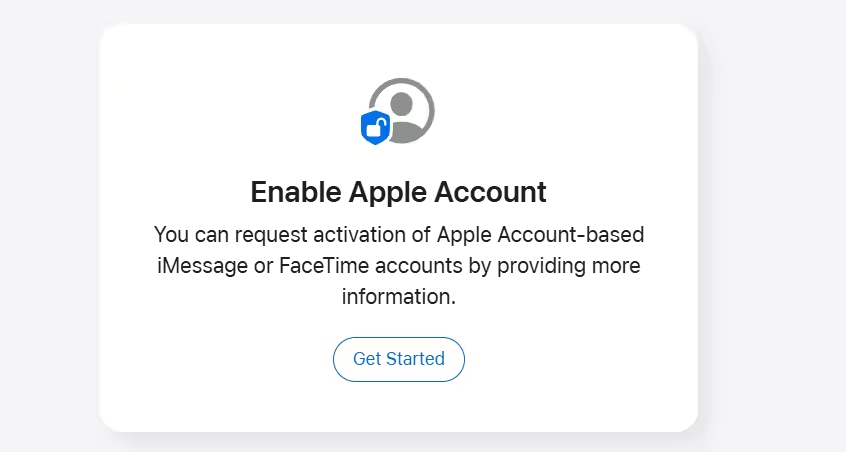
- Sign in with your Apple ID and follow the on-screen instructions
- Enter the phone number associated with your iPhone when prompted
- Apple will send you an email once your account is ready for iMessage and FaceTime
Step 11: Use Email Instead of Phone Number (Temporary Fix)
If number verification stalls, activate with your Apple ID email first.
- Go to Settings > Messages > Send and Receive
- Select your Apple ID email address
- You can add your phone number later once carrier verification completes
To also enable FaceTime via email:
- Go to Settings > FaceTime
- Scroll to You Can Be Reached By FaceTime At and select your email address
Step 12: Wait Up to 24 Hours
Carrier verification can take up to 24 hours. If you see a spinning gear next to your number, do not keep toggling iMessage. The phone retries automatically.
Step 13: Contact Carrier or Apple Support
If activation still fails after 24 hours:
- Ask your carrier to confirm international SMS is enabled and not blocked by plan or fraud filters
- If you recently ported your number or changed SIM or eSIM, ask the carrier to refresh line provisioning
- Contact Apple Support and ask them to check whether your phone number has a server-side block. Some users report blocks applied on Apple’s end that prevent number activation until manually removed. Be ready to verify account ownership and your phone number
Special Case: iOS 26 eSIM Setup
If you set up a new iPhone with iOS 26 and added your eSIM later from Settings rather than during initial setup, iMessage does not activate automatically. You may notice a “Not Delivered” alert, messages appearing as green SMS bubbles, or messages coming from your email address instead of your phone number.
To fix this:
- Go to Settings > Apps > Messages
- Turn iMessage off, then turn it back on
This triggers a fresh registration after the eSIM is in place.
Factory Reset (Last Resort Only)
If every step above has failed and Apple Support has not found a server-side issue, a factory reset can clear deep software conflicts that no other fix addresses.
Back up your iPhone before proceeding. A factory reset deletes everything on your device.
- Go to Settings > General > Transfer or Reset iPhone
- Tap Erase All Content and Settings
- Set up your iPhone and test iMessage activation before restoring from backup
Wait at least 24 hours after all other fixes before attempting this step.
Common iMessage Activation Error Messages on iPhone
| Error Message | What It Means |
|---|---|
| Waiting for activation | Carrier verification is in progress; allow up to 24 hours |
| Activation unsuccessful | Apple ID or SMS verification failed |
| An error occurred during activation | Network issue or temporary Apple server problem |
| iMessage is Signed Out | Your Apple ID session expired; sign back in |
| Could not sign in | Re-enter Apple ID and check your network connection |
| Unable to contact server | Network block, VPN interference, or temporary server outage |
FAQs
What is an iMessage activation error?
An iMessage activation error occurs when Apple cannot verify your phone number or Apple ID, preventing iMessage from turning on.
Why does iMessage say “Waiting for activation”?
iMessage shows “Waiting for activation” when Apple or your carrier is still verifying your phone number. This process can take up to 24 hours.
How do I fix an iMessage activation error on iPhone?
Check Apple’s system status first, then verify your internet connection, enable automatic date and time, confirm SMS works, force restart your iPhone, and reset network settings if needed.
How long does iMessage activation take?
iMessage activation usually completes within minutes, but carrier verification can take up to 24 hours in some cases.
Does iMessage activation require SMS?
Yes. Apple uses an SMS message to verify your phone number. If SMS is blocked or unavailable, iMessage activation will fail.
Does resetting network settings delete iMessages?
No. Resetting network settings only removes Wi-Fi passwords, VPNs, and saved networks. Your messages remain intact.
Why does iMessage activation fail while traveling?
iMessage activation can fail while traveling because some carriers block or charge for international SMS used during verification.
Can VPN cause iMessage activation error?
Yes. Some VPNs block Apple’s activation servers. Turning off the VPN temporarily can resolve the activation failure.
What does “Activation unsuccessful” mean in iMessage?
“Activation unsuccessful” means Apple could not verify your Apple ID or phone number due to network, SMS, or carrier issues.
Leave iMessage on, keep your iPhone connected to the internet, and avoid repeatedly toggling settings during verification. In most cases, activation completes once the carrier finishes SMS validation.
Related iPhone How-To
- How to Clear System Data on iPhone (Free Up Storage Fast)
- How to Clear Cache on iPhone (Safari, Chrome, Firefox & Apps)
- How to Protect Your iPhone Data Before Handing It In for Repair
- How to Unlock iPhone If You Forgot Your Passcode
- How to Disable Video on Spotify (PC, Android & iPhone Guide)
- How to Fix Apple CarPlay Not Working on iPhone: 10 Proven Fixes
