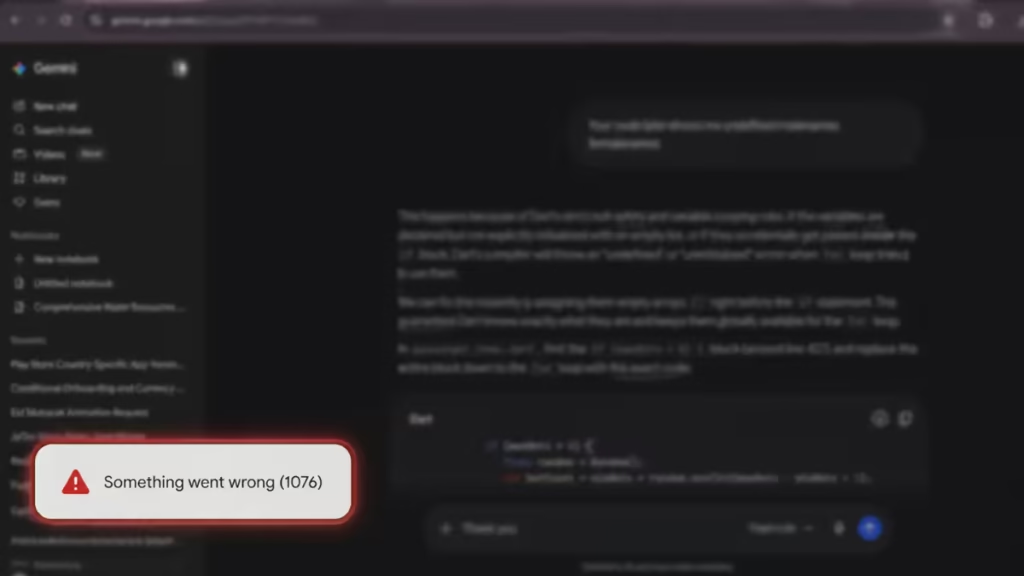
Gemini error 1076 appears as “Something went wrong (1076)” inside a chat window, and it locks you out of sending further prompts. The error often strikes mid-session, sometimes on a specific thread while every other chat works perfectly fine.
If you also see Gemini Error 13 when you open the same thread in the mobile app, you are hitting the same underlying problem from two directions. Both point to a broken session state or a backend processing block tied to that specific chat.
What Causes Gemini Error 1076
Error 1076 does not have a single cause. Four distinct triggers produce the same error message:
- Context or token limit exhaustion – A very long chat, especially one heavy with code, large pastes, or multi-turn analysis, can push the thread past the backend processing limit. Google’s servers refuse to process further input on that specific link.
- Corrupted session state – The backend loses sync with your browser session for a particular thread. Refreshing the page or clearing cookies does not fix this because the corruption sits on Google’s server side, not your local cache.
- Backend rate limiting – Rapid-fire complex queries, fast switching between Pro and Flash models, or heavy use across multiple AI tools in a short window can trigger Google’s rate limiting protocol. The system blocks processing without warning you explicitly about throttling.
- Brand Account identity conflict – If your Google account has a linked YouTube channel or Brand Account, Gemini can get confused partway through a long thread. Brand accounts often lack full permissions for heavy API processing, and the session degrades silently until it throws error 1076.
If you have already tried clearing cookies, switching browsers, and switching models without success, the problem is not your local setup. It lives in the backend state of that specific chat thread.
Fix 1: Force a Backend Session Reset via the Gems Page
This is the fix that community users report as most reliably unsticking a 1076-locked account. You do not need to create anything.
- Navigate directly to gemini.google.com/gems/create in your browser.
- Wait for the Gems creation page to load fully.
- Close the tab and return to your original chat.
- Try submitting a prompt again.
Loading the Gems infrastructure forces a fresh backend handshake between your account and Google’s servers. This bypasses the stuck session loop that the main chat interface cannot reset on its own. Several users report that this alone unlocked threads that had been blocked for hours.
Fix 2: Use the Mobile Sync Trick
If your chat is frozen on desktop, opening the same thread on mobile and sending a message through the app can force a server-side resync that restores the desktop session.
- Open the Gemini app on your phone.
- Navigate to the same chat thread that shows error 1076 on your computer.
- Send a short message, even a single word, through the mobile app.
- Return to your browser and refresh the page.
- Try sending your prompt again.
The mobile app connects through a different session pathway. Sending through it re-establishes the backend connection for that thread and can clear the block on the desktop side.
Fix 3: Switch the Gemini Model Version
Toggling between model tiers inside the stuck chat forces the system to re-evaluate the context window, which often resolves the processing block.
- Open the chat that is showing error 1076.
- Find the model selector dropdown at the top of the chat window.
- Switch from Gemini Advanced or Pro to Gemini Flash or Flash Lite, or reverse the direction if you are already on Flash.
- Submit your prompt.
Changing the model makes the backend assign a fresh processing request to the thread instead of retrying the failed one. This fix works well when the error appears after rapid model switching triggered a rate limit.
Note: If switching models itself throws an error, proceed to Fix 4 first, then return here.
Fix 4: Sign Out Completely (Not Just Refresh)
A page refresh preserves the broken session tokens. A full sign-out clears them and resets the background rate limits tied to your account.
- Click your profile picture in the top-right corner of Gemini.
- Select Sign out.
- Close and reopen your browser.
- Sign back into your Google account.
- Open the chat thread and try again.
Users consistently report that a full logout resolves error 1076 when the issue stems from a rate limit block rather than a corrupted thread. If the same chat starts throwing errors again after a few prompts, the thread has likely hit a hard token limit and needs the Bridge Chat fix below.
Fix 5: Check for Brand Account Identity Conflicts
This fix applies if you have a YouTube channel or any secondary Brand Account linked to your primary Google account.
- Click your profile picture in the top-right corner of Gemini.
- Look at which account identity is currently active.
- If you see a Brand Account or YouTube channel identity instead of your primary email, switch back to your primary account.
- Reload Gemini and open the affected chat.
Gemini processes long threads through your primary account’s API permissions. When the session drifts to a Brand Account identity mid-conversation, it loses the necessary access, and error 1076 appears. Switching back to the primary identity restores those permissions.
Fix 6: Recover Your Data with NotebookLM
If a critical thread is locked and you cannot retrieve your work through the chat interface, NotebookLM provides a backdoor to extract the content.
- Go to notebooklm.google.com and create a new Notebook.
- Select Add Source and choose to import from a URL or paste your chat content.
- If the chat link is accessible but the interface is locked, try adding the chat URL as a source.
- Once imported, ask the notebook to summarize the conversation, extract code snippets, or pull out specific sections you need.
This does not fix the error on the original thread, but it recovers your work so you can continue in a new chat without losing context. A community user confirmed this approach worked when every other fix failed on a thread that had been locked for over 24 hours.
Fix 7: Start a Bridge Chat When the Thread Is Permanently Locked
When a chat thread hits a hard token limit, the backend will not process any further input on that link regardless of what fixes you apply. The thread is permanently locked for new prompts, but your previous content remains readable.
- Open the locked thread and scroll through the history.
- Copy the most important context: key decisions, code, rules, summaries, or progress notes.
- Open a new chat and paste a condensed summary as your first message.
- Continue your work from the new thread.
If you cannot even open a new chat because the global session is blocked, navigate to gemini.google.com/gems/create first (Fix 1) to clear the account-level block, then start the new thread.
Fix 8: Check Gemini Server Status
If error 1076 appears across multiple chats or for multiple users on the same account, a server-side outage may be responsible. This is separate from a thread-specific session problem.
Check these sources before spending time on local fixes:
- Downdetector – Search for “Google” or “Gemini” to see real-time user outage reports.
- Google Workspace Status Dashboard – Confirm whether Google has acknowledged a service disruption.
- X/Twitter – Search for “Gemini down” or “Gemini 1076” to see if the issue is widespread.
Error 1076 during a confirmed outage period will not respond to any local fix. The only action is to wait for Google to restore service. You may also encounter related errors like Gemini Error 1099 during the same outage window.
Fix 9: Workspace Users – Consult Your IT Administrator
If you access Gemini through a company or school Google Workspace account and none of the above fixes work, your organization’s IT policies may be blocking AI processing features.
- Confirm whether the error appears only on your work account and not on a personal Google account.
- If the issue is exclusive to your work email, contact your IT administrator.
- Ask them to check Workspace Admin Console settings for Gemini feature availability, data region policies, and generative AI access controls.
Google Workspace admin settings can restrict certain types of data processing or limit Gemini to specific user groups. Individual users cannot override these settings. The fix requires your IT team to adjust the Workspace configuration.
How to Avoid Gemini Error 1076
Once you restore access, apply these habits to reduce the likelihood of hitting error 1076 again:
- Keep threads at a manageable length: Periodically summarize long conversations and start a new thread rather than extending a single chat indefinitely.
- Avoid rapid model switching: Toggling between Pro and Flash repeatedly in a short window can trigger rate limiting.
- Break large prompts into smaller chunks: Instead of pasting thousands of lines at once, feed data incrementally across multiple prompts.
- Refresh your browser session before starting a major new task on a long-running thread.
- Disable aggressive browser extensions such as ad-blockers or script blockers that can interfere with Google’s session scripts. Test in incognito mode to confirm if an extension is causing interference.
- Monitor your usage limits: Heavy use across Gemini Pro and other AI tools can bring you close to Google’s Gemini usage limits, which can trigger backend throttling.

