Claude usage limits catch most users off guard. You are mid-conversation, getting solid results, and then Claude stops you cold. The good news is that most people burn through their limits faster than necessary because of a few bad habits that are easy to fix. This guide covers the specific changes you can make right now to get significantly more output from the same plan.

Claude Usage Limits Cheat Sheet: All 15 Tips
| Tip | What to Change | Impact |
|---|---|---|
| Pick the right model | Switch to Haiku or Sonnet for simple tasks, save Opus for complex ones | High |
| Lower the effort level | Set Effort to Low (default) unless depth is genuinely needed | High |
| Turn off Thinking mode | Disable the Thinking toggle for routine tasks | High |
| Batch your requests | Combine multiple related questions into one message | High |
| Use Projects for repeated content | Upload documents to a Project so they get cached | High |
| Disable unused tools | Turn off web search, Research, and MCP connectors when not needed | Medium |
| Start new chats per topic | Avoid chaining unrelated tasks in one long session | Medium |
| Write specific, complete messages | Eliminate clarification rounds with detailed first messages | Medium |
| Monitor usage settings | Check Settings > Usage before starting heavy sessions | Low |
| Keep project instructions short | Cut system prompts to essentials only, every word costs tokens | Medium |
| Remove unused project files | Delete files from projects you no longer reference | Medium |
| Never re-upload the same file | Add recurring files to a Project instead of attaching them each session | High |
| Use Haiku for quick edits | Route grammar fixes, rewrites, and short lookups to Haiku only | Medium |
| Do not ask Claude to repeat itself | Copy output you need instead of asking Claude to restate it | Low |
| Avoid regenerating long outputs | Edit the response manually rather than regenerating the whole thing | Medium |
Claude Usage Limits: What Actually Drains Them
Before fixing anything, understand what you are actually paying for. Claude has two separate limits, and confusing them leads to the wrong fix.
- Usage limits control how many messages you can send across all Claude surfaces (claude.ai, Claude Code, Claude Desktop) over a time period. These reset on a schedule.
- Length limits control how much Claude can hold in a single conversation. Claude’s context window sits at 200,000 tokens on most paid plans and 500,000 tokens on some Enterprise models.
Several factors burn through your usage limit faster than a simple message count suggests: long messages, large file attachments, the model you pick, the effort level you set, extended thinking mode, and active tools like web search or Research connectors. Every one of these is adjustable.
Pick the Right Model for the Task
This is the single highest-impact change most users skip. Claude currently offers three main models with very different usage costs.
- Haiku 4.5 handles quick answers, simple lookups, short rewrites, and basic questions. It is the fastest and lightest on your limits.
- Sonnet 4.6 covers the majority of everyday tasks efficiently. It is the default for good reason.
- Opus 4.8 is built for the most ambitious, complex work. It is also the most expensive on your usage budget.
If you are asking Claude to summarize a paragraph, fix a single function, or answer a factual question, running that through Opus wastes a significant portion of your limit versus running the same task through Haiku or Sonnet. Reserve Opus for tasks that genuinely require deep reasoning, complex multi-step analysis, or ambiguous problems with no clear structure.
You can switch models mid-conversation from the model selector at the bottom of the chat window.
Lower the Effort Level When You Do Not Need Max Power
Claude now lets you control effort level directly from the chat interface. The options are Low, Medium, High, and Max. The tooltip inside the menu says it clearly: higher effort means more thorough responses, but it takes longer and uses your limits faster.
Low is set as the default for a reason. For most everyday requests, Low effort produces perfectly usable output. Use Medium or High only when you need Claude to go deeper into a complex topic, explore multiple angles, or produce longer structured content. Save Max for genuinely demanding tasks.

Leaving effort on High or Max by habit while sending routine messages is one of the fastest ways to exhaust your limit without realizing it.
Turn Off Thinking Mode Unless You Need It
The Thinking toggle (visible in the effort/model menu) enables extended reasoning for complex tasks. It is powerful but burns through your limits noticeably faster than standard responses.
Turn Thinking on only when you actually need Claude to work through a genuinely hard problem, like debugging a logic error, structuring a multi-variable decision, or analyzing something with many competing factors. For standard writing, summarizing, reformatting, or answering straightforward questions, keep Thinking off.
Batch Your Requests Into One Message
Sending three separate messages to accomplish one task costs three times as much of your limit as a single well-structured message. This is one of the most common and easily fixed habits.
Instead of:
- Message 1: “Explain X”
- Message 2: “Now give me examples”
- Message 3: “Write a summary”
Send one message:
- “Explain X, provide three examples, and write a two-sentence summary at the end.”
The output is the same. The cost to your limit drops dramatically. Plan what you need before you start typing, and front-load all relevant context in the first message rather than feeding it piecemeal.
Use Projects to Cache Your Content
Projects on Claude use retrieval-augmented generation (RAG), which loads only relevant content into the active context rather than dumping everything at once. This makes your usage go significantly further when you work with large reference materials repeatedly.
When you upload a document to a project, Claude caches it. Every time you reference that content in future messages, only the new or uncached portions count against your limits. If you are referencing the same research materials, brand guidelines, code files, or documentation repeatedly, keeping them in a project instead of re-uploading each session saves a meaningful amount of your allocation.
Keep your project instructions short and focused. Long system prompts in projects consume context space on every single message you send inside that project.
Disable Tools You Are Not Using
Web search, Research mode, and MCP connectors are token-intensive. Every time Claude runs a web search or connects to an external tool, it adds tool call overhead to your context and usage cost on top of the actual response.
If you do not need real-time information for a task, turn off web search and Research from the “Search and tools” settings before starting that conversation. Similarly, disable any MCP connectors that are not relevant to what you are doing right now. Enabling everything by default is a quiet but consistent drain on your limits.
Start a New Conversation for Unrelated Tasks
Every message in an ongoing conversation carries the weight of the entire conversation history. As a chat grows longer, each new message costs more because Claude processes the full context each time.
Automatic context management now summarizes older messages when your conversation approaches the context window limit, but this itself consumes more of your usage limit. The cleanest fix is to start a new conversation whenever you switch topics or tasks. Do not chain unrelated requests into one long session just for convenience.
Keep Your Messages Specific and Complete
Vague messages generate clarification rounds. Each clarification costs you another message and another slice of your limit. A message like “help me with my code” will prompt Claude to ask what language, what the error is, and what you have already tried. You just turned one task into three or four exchanges.
Write your message to eliminate the need for follow-up. Include the programming language, paste the relevant code block, describe the specific error, and state what output you want. The same principle applies to writing, research, and analysis tasks. One complete message does the work of four partial ones.
Monitor Your Usage Before You Hit the Wall
If you are on a Pro, Max, Team, or seat-based Enterprise plan, Claude shows you live progress toward both your session limit and weekly limits in Settings > Usage. The session limit covers a five-hour rolling window. The weekly limit resets on a schedule shown in the same panel.
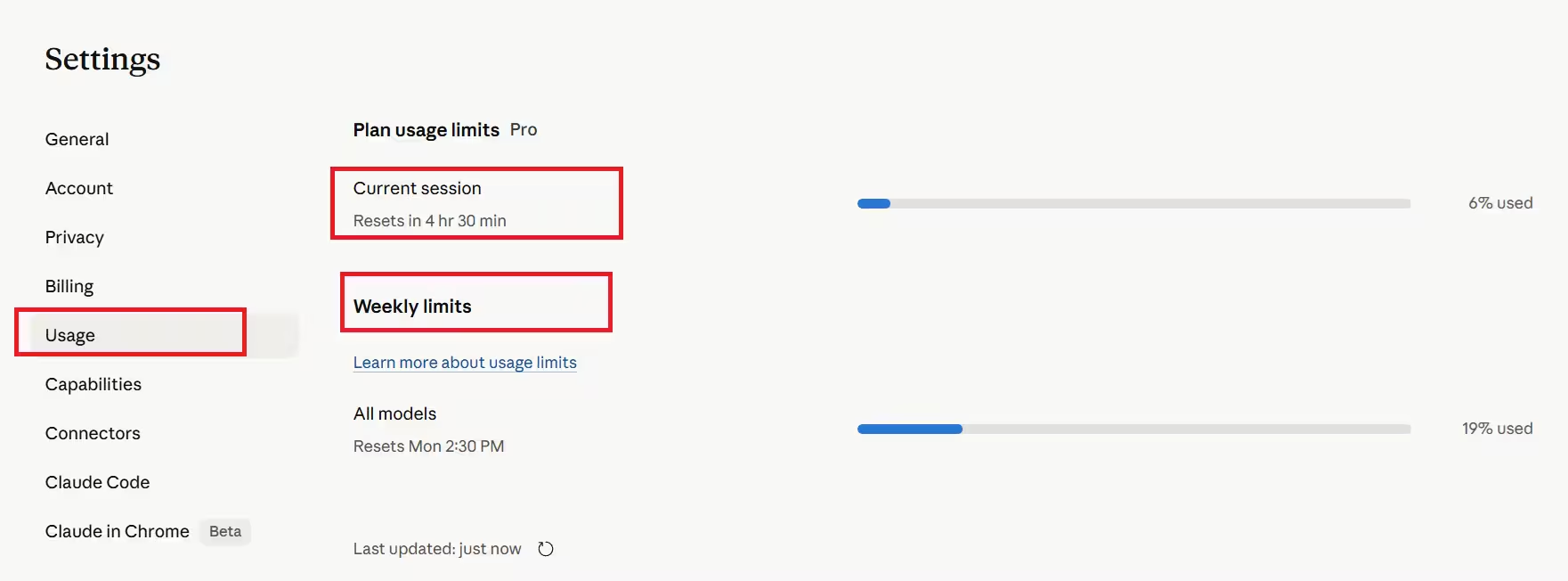
Check this panel before starting a heavy session. If you are close to your session limit, either space out your tasks or shift heavier work to after the reset rather than burning through the remainder and then waiting anyway.
Usage credits are also available for paid plans if you regularly exhaust your limits. You can add them from the same Usage settings page.
FAQs
Does using Claude Code count toward the same limit as claude.ai?
Yes. Your usage across claude.ai, Claude Code, and Claude Desktop all pulls from the same pool. Switching surfaces does not reset or separate your limit.
Does switching to a lighter model mid-conversation help?
Yes. You can switch from Opus to Sonnet or Haiku at any point during a conversation. The remaining messages in that session will use the lighter model’s cost rate.
Does effort level affect response quality significantly at Low?
For most tasks, Low effort produces responses that are practically identical to Medium. The difference becomes noticeable mainly on complex analytical or creative tasks where more depth is genuinely required.
What happens when I hit the context window limit in a single chat?
If you have code execution enabled, Claude automatically summarizes earlier parts of the conversation to free up context space. This lets the chat continue, but the summarization itself counts against your usage limit. Starting a new conversation is the cleaner option for very long sessions.
Can I increase the 200K context window on a paid plan?
No. The context window size is fixed per plan. Enterprise plans get up to 500K tokens on select models. The practical workaround is using projects with RAG mode, which loads content selectively rather than all at once.

