A full phone, a 4K clip you need to edit, a PDF you must print in five minutes. Sooner or later every Android owner needs a fast way to get files onto a computer. You do not need a cable for most of these jobs, and the right wireless tool depends on three things: how big the files are, how close the two devices sit, and whether you want to install anything.
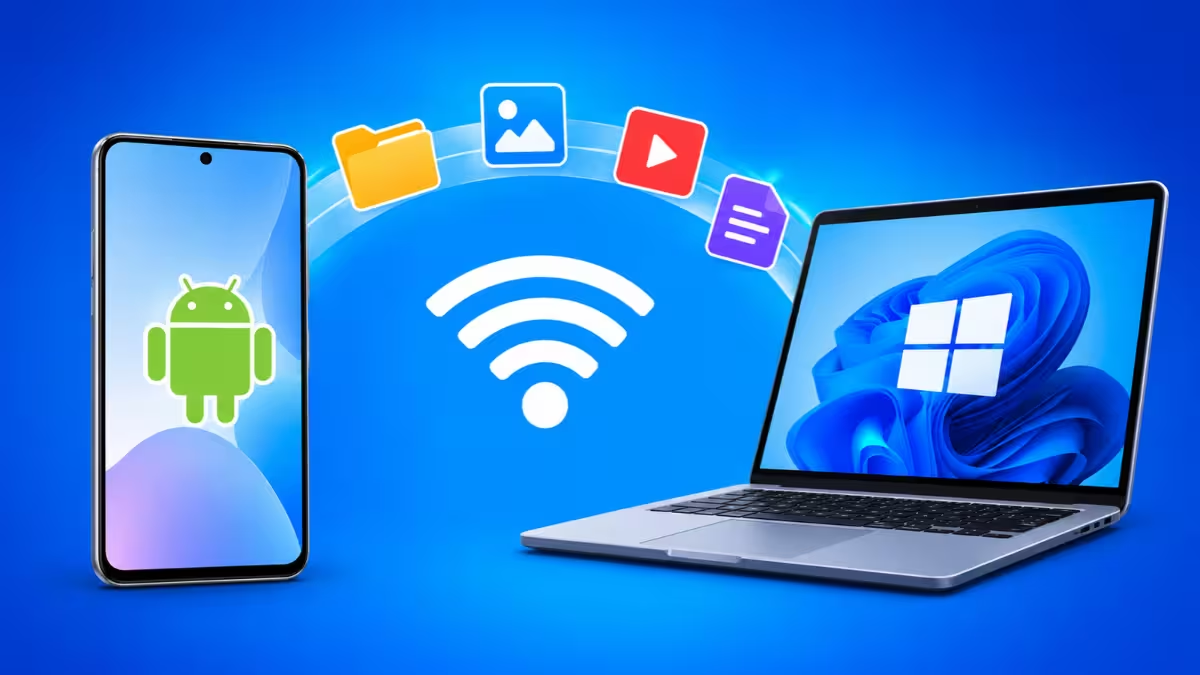
This guide walks through six methods that work today, explains where each one shines, and tells you when to skip it.
Which Android to PC Transfer Method Is Best? Quick Comparison
You can move files from Android to a PC over Wi-Fi, Bluetooth, the cloud, or a cable, and the table below points each situation to the method that fits.
| Situation | Best method |
|---|---|
| Phone and PC sit in the same room, you want speed | Quick Share |
| You need recent photos and screenshots on your desktop | Phone Link |
| Big folders over home Wi-Fi, no account wanted | LocalSend |
| You want files on both devices from anywhere | Cloud storage |
| One small file, nothing installed | Bluetooth |
| Huge video library, maximum reliability | USB cable |
Method 1: Transfer Files from Android to PC with Quick Share
Google's Quick Share works like AirDrop for Android. It sends files over a direct Wi-Fi link that Bluetooth sets up first, so large videos arrive in seconds instead of minutes. Your files never pass through a server, and you do not need an internet connection.
- Install the Quick Share app for Windows and open it.
- Sign in with your Google account if the app asks, then set your visibility so nearby devices can find the PC.
- Turn on Bluetooth and Wi-Fi on both devices.
- On your phone, select a file, tap Share, and choose Quick Share.
- Pick your PC from the list, then click Accept on the computer.
Received files land in your Downloads folder by default. Keep the phone within a few feet of the PC for the first transfer. Distance weakens the connection quickly.
Skip it if: your PC lacks Bluetooth or runs an older Windows build the app does not support.
Method 2: Send Photos and Files to Windows 10/11 with Phone Link
Microsoft built Phone Link into Windows 10 and 11, and it pairs well with the Link to Windows app on Android. It suits quick grabs, such as a screenshot or the last ten photos you took, because recent media appears right inside the PC app.
- Search for Phone Link in the Windows Start menu and open it.
- On your phone, open the Link to Windows setup page and install the app.
- Sign in with the same Microsoft account on both devices.
- On the PC, choose Pair with QR code, then scan the code with your phone.
- Open the Photos tab in Phone Link and drag any image onto your desktop.
You can also send a file from the phone. Select it, tap Share, and choose Link to Windows. The file arrives in a Phone Link subfolder inside Downloads.
Skip it if: you need to move big videos, odd document formats, or whole folders. Phone Link focuses on recent media and can lag for a few minutes before new photos appear.
Method 3: Transfer Files from Android to PC or Mac with LocalSend
LocalSend is a free, open source app that runs on Android, Windows, macOS, and Linux. It needs no account and no internet. Both devices only have to share the same Wi-Fi network. It handles big batches well, which makes it the tool to use when you want to clear out a phone.
- Install LocalSend on your phone and your PC.
- Connect both devices to the same Wi-Fi network.
- Open the app on both. Each device gets a random nickname, so do not worry about odd names.
- On your phone, open the Send tab and pick your files or a folder.
- Tap your PC in the Nearby devices list, then accept the transfer on the computer.
Mac users benefit most here, because Android File Transfer no longer works reliably on newer Macs. After the files reach your Mac, you can transfer files from a PC to a Mac on the same network too.
Skip it if: your router isolates connected devices from each other. Many guest networks do this. Switch to your main network and try again.
Method 4: Transfer Files from Android to PC with Google Drive or OneDrive
Google Drive, OneDrive, and Dropbox solve a different problem. They do not need both devices nearby, and they keep a copy of every file online. Upload from the phone now, then download on any computer later.
- Open the Drive, OneDrive, or Dropbox app on your Android phone.
- Tap the + button and choose Upload.
- Select your files and wait for the upload to finish.
- On your PC, sign in to the same account in a browser or the desktop app.
- Select the files and click Download.
The tradeoff is time. Every file travels up and then back down, so a large video takes twice as long as a direct transfer. Free plans also cap your space. Google Drive gives 15 GB across your Google account, OneDrive gives 5 GB, and Dropbox gives 2 GB. Install the desktop app for your service and the files show up in File Explorer without any manual download.
Skip it if: your upload speed is slow or your free storage is nearly full.
Method 5: Send Files from Android to PC via Bluetooth (No Wi-Fi Needed)
Bluetooth needs no extra software, no account, and no Wi-Fi. That makes it a handy fallback for one document or a contact card when you sit next to the PC.
- Turn on Bluetooth on both devices.
- On Windows, open Settings, go to Bluetooth & devices, and select Add device. Pick your phone and confirm the matching code.
- In the same Bluetooth settings page, choose Send or receive files via Bluetooth, then click Receive files.
- On your phone, select a file, tap Share, choose Bluetooth, and tap your PC.
- Click Finish on the PC when the transfer ends.
Speed is the weak point. Bluetooth handles a few photos fine, but a video can take many minutes and the link drops if you walk away.
Skip it if: your file is larger than a couple hundred megabytes.
Method 6: Transfer Files from Android to PC with a USB Cable
A cable is not wireless, but it deserves a spot on this list because it never fails when the network does. It gives the fastest local speed and works with no internet at all.
- Plug your phone into the PC with a cable that carries data.
- Unlock the phone and tap the Charging this device via USB notification.
- Under Use USB for, select File transfer.
- Open File Explorer, click This PC, and double-click your phone.
- Open the DCIM folder for photos or Download for documents, then copy the files to your PC.
If Windows does not see your phone, check these fixes in order:
- Swap the cable. Many cheap cables charge only and carry no data wires.
- Try another USB port, preferably one directly on the PC, and refresh outdated drivers with driver update tools.
- Confirm the phone says File transfer and not Charging only.
- Turn off airplane mode and unlock the screen.
Android to PC File Transfer Not Working? Quick Fixes
Most failed transfers come from the same few causes.
- Devices cannot find each other. Confirm both sit on the same Wi-Fi network, and turn off any VPN on either device.
- Transfer stalls halfway. Disable battery saver on the phone, keep the screen on, and move closer to the router.
- Files look compressed. Chat apps often shrink photos and videos. Use Quick Share, LocalSend, or a cable when quality matters.
- PC never asks to accept. Open the receiving app first, then start the send from the phone.
Frequently Asked Questions
What is the fastest way to transfer files from Android to PC?
A USB cable gives the best local speed. Among wireless options, Quick Share and LocalSend come close, because both use a direct Wi-Fi connection between your devices.
Can I transfer files without installing any app?
Yes. Bluetooth and a USB cable both work with built-in Android and Windows features. Cloud storage also works through a browser, so you only need an account.
Do wireless transfers need an internet connection?
Quick Share, LocalSend, and Bluetooth work without internet. Cloud storage and Phone Link need an active connection.
Why does my PC not recognize my Android phone over USB?
The usual causes are a charge-only cable, a phone left in charging mode, or a faulty port. Switch the cable first, then set the phone to File transfer.
Is it safe to send private files wirelessly?
Direct tools like Quick Share and LocalSend keep your files on your own network. Avoid public Wi-Fi for sensitive documents, and use a trusted cloud account with two-step verification if you upload online.
How do I send files from my phone to a Mac?
Install LocalSend on both devices and put them on the same Wi-Fi network. It works on newer Macs where older Android file tools do not.