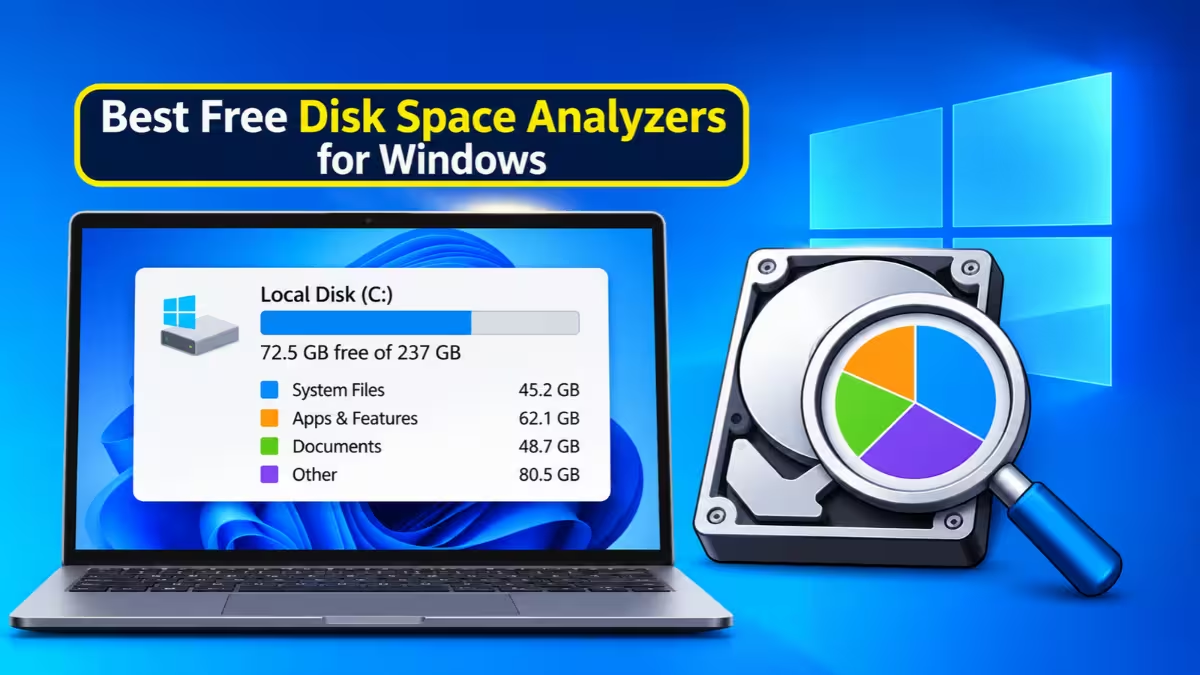
A "low disk space" warning rarely tells you what caused it. You open File Explorer, see a nearly red C: drive, and start guessing. A disk space analyzer ends the guessing. It scans a drive or folder, adds up every file, and shows you which folders hold the most data, usually as a colored map or a sorted list.
Keep in mind that an analyzer differs from a cleaner. A cleaner deletes cache and temp files on its own, though PowerShell commands can do similar jobs without an extra app. An analyzer only reports what sits on your drive, and you decide what goes. That makes it safer, because nothing disappears without your approval.
We picked five free tools that cover every kind of user, from people who want an answer in seconds to admins who need reports and filters.
What Is a Disk Space Analyzer and Why Use One?
A disk space analyzer is a small program that scans a drive and maps out where your storage went. Instead of opening folders one by one, you see every folder and file ranked by size, so a forgotten 30 GB video or an old installer stands out right away. You save time, avoid deleting the wrong things, and fix a full drive in minutes.
Best Free Disk Space Analyzers for Windows at a Glance
| Tool | Best For | View Style | Portable | Delete From App |
|---|---|---|---|---|
| WizTree | Raw speed | Treemap + file list | Yes | Yes |
| WinDirStat | Detailed breakdown by file type | Treemap + directory list | Via PortableApps | Yes |
| TreeSize Free | Clean, modern interface | Tree list + optional treemap | Yes | Yes |
| SpaceSniffer | Visual drill-down | Live block map | Yes | Yes |
| Disk Savvy | Reports and multi-location scans | Lists + pie charts | No | Yes |
1. WizTree: Fastest Free Disk Space Analyzer for Windows
WizTree earns the top spot for one reason: it finishes almost before you blink. Most analyzers walk through every folder one by one. WizTree reads the NTFS Master File Table directly, so it pulls the size of every file from a single index. A full 1 TB SSD often takes under ten seconds, and even a large, mostly full hard drive finishes in a similar window.
You pick a drive at the top, press Scan, and the results load in two views. The treemap paints each file as a colored block, and the file view lists individual files so you can sort by size or search by name. The file view also helps you spot duplicate files.
What we like:
- Fastest scan of any free analyzer on NTFS drives
- Adds a right-click entry in File Explorer so you can scan one folder instead of the whole drive
- Exports results to CSV
- Comes as an installer or a portable build you can keep on a USB stick
Limitations: The MFT speed trick works only on NTFS. On FAT32 or exFAT drives, such as many SD cards and older flash drives, WizTree falls back to a normal and slower scan.
Get it: WizTree official site
2. WinDirStat: Best for Seeing Which File Types Use the Most Space
WinDirStat has served Windows users since 2003, and it still delivers one of the most informative layouts in this category. It is free and open source.
After a scan, the window splits into three panels. The top panel sorts folders from largest to smallest. The bottom panel draws a color-coded treemap. The right panel lists file extensions and shows how much space each type uses, and it doubles as the color legend for the map. Click an extension like .mp4 and WinDirStat highlights every video file in the treemap at once. That single feature makes it easy to see whether videos, installers or game files eat most of your space.
What we like:
- File-type breakdown that other free tools lack
- Scans all drives, one drive or a single folder
- Lets you build custom cleanup commands, such as deleting a certain extension inside a folder
- Right-click any folder to delete it or open it in Explorer
Limitations: It scans slower than WizTree on large drives, and the interface looks dated. You also cannot drill into the treemap itself. To focus on one folder graphically, you have to run a new scan on it. The official download has no portable build, though PortableApps.com hosts one.
Get it: WinDirStat official site
3. TreeSize Free: Cleanest Interface for Everyday Use
TreeSize Free comes from JAM Software, a German developer, and it feels the most polished of the group. Its ribbon toolbar matches the look of modern Windows, so it never feels like a leftover from the XP era.
The main window shows a tree of folders with their sizes and share of the drive. If you want a picture, open View and choose Show Treemap. TreeSize also adds itself to the File Explorer context menu, so you can right-click any folder and scan just that folder.
What we like:
- Clean, beginner-friendly interface
- Explorer integration for one-click folder scans
- Delete or open files straight from the results
- Works on internal and external drives, with a portable version available
- Lightweight on system resources
Limitations: It skips the file-extension panel that WinDirStat offers, and its free filters feel basic. Duplicate search, deeper reports and owner-based filtering sit in the paid Personal and Professional editions. For a home PC, the free version covers everything you need.
Get it: TreeSize Free download page
4. SpaceSniffer: Best Visual Map for Drilling Into Folders
SpaceSniffer drops the folder list completely and gives you only a map. Each rectangle stands for a folder or file, and its size matches the space it uses. The map builds in real time as the scan runs, so you can start exploring before it finishes.
Its real strength is navigation. Double-click any block to zoom into that folder, then keep going deeper until you find the file you want. Right-click any block and you get the same menu as File Explorer, so you can delete, copy or open items without leaving the app.
What we like:
- Best graphical drill-down of any free analyzer
- Filter results by file type, size or date
- Save a snapshot and reopen it later without a fresh scan
- Fully portable and light enough for older PCs
Limitations: The block layout takes a few minutes to get used to, and it can look busy on drives packed with thousands of small files. Some protected folders will not scan unless you run it as administrator. The developer has also stopped updating it, although it still runs fine on Windows 10 and 11.
Get it: SpaceSniffer official site
5. Disk Savvy: Best for Scanning Multiple Drives and Exporting Reports
Disk Savvy from Flexense suits people who want more than a quick glance. It scans internal drives, external drives, network shares and NAS boxes, and it can check several locations in one go.
Results appear as sortable lists with pie charts, and you can group files by extension, size or category. A built-in Top 100 view lists the largest files and folders, and you can export the results to a report file for later review. It also hooks into File Explorer and lets you delete files from inside the program.
What we like:
- Scans multiple drives and network locations at once
- Strong categorization and filtering
- Exports reports for record keeping
- Runs on Windows 11 and goes back as far as Windows XP and Windows Server
Limitations: The free edition caps each scan at 500,000 files, which a large drive can exceed. Command-line automation, scheduled scans and advanced reports require the Pro or Enterprise edition. The busy interface can also feel like overkill if you only want a quick answer.
Get it: Disk Savvy downloads page
How to Choose the Right Disk Space Analyzer
- You want an answer right now: WizTree. It scans faster than anything else on NTFS drives.
- You want to know which file types use the most space: WinDirStat and its extension panel.
- You want a tidy, modern app: TreeSize Free.
- You think in pictures: SpaceSniffer and its zoomable map.
- You manage several drives or need reports: Disk Savvy.
Many users pair two tools. Run WizTree for a fast overview, then open SpaceSniffer when you want to dig through one messy folder visually.
Does Windows 11 Have a Built-In Disk Space Analyzer?
Windows 10 and 11 include a basic storage view under Settings > System > Storage. It groups usage into categories like apps, system files, temporary files and media, and it suggests items you can remove. Storage Sense on the same page can clear temp files and empty the Recycle Bin on a schedule.
It works fine for a quick check, but it cannot show you the single 40 GB folder buried three levels deep. For that, you need one of the analyzers above. Microsoft explains the built-in options in its guide to freeing up drive space in Windows.
How to Use a Disk Space Analyzer to Free Up Space (Step by Step)
- Download your chosen tool and run it. Right-click and choose Run as administrator so it can read protected folders.
- Pick the drive you want to check, usually C:, and start the scan.
- Sort the results by size and open the biggest folders first.
- Right-click a large item and open its location in File Explorer to confirm what it is.
- Delete files you no longer need, or uninstall the program that owns the folder. Then rescan to confirm the space came back. If C: still runs low, you can merge C and D drive to give it more room.
Common Files That Eat Disk Space on Windows 10 and 11
Once a scan finishes, the same suspects tend to show up at the top:
- hiberfil.sys: The hibernation file can take several gigabytes. Turn off hibernation if you never use it.
- Windows.old: Windows creates this folder after a major upgrade. You can remove it through Disk Cleanup once the new version runs well.
- Temp folders: Check C:\Windows\Temp and %LocalAppData%\Temp, or follow our guide to delete temp files.
- Downloads folder: Old installers and ZIP files pile up here quietly.
- Games: A single modern title can claim 80 to 150 GB.
- Old phone or iTunes backups: These often sit forgotten on the C: drive.
- Screen recordings: Apps like OBS save footage locally, and it grows fast.
Before you delete anything inside AppData, find out which program owns the folder. Odd names often belong to software you installed, and uninstalling that software properly beats deleting its folder by hand.
Frequently Asked Questions
Is a disk space analyzer the same as a disk cleaner?
No. A cleaner removes temp and cache files automatically. An analyzer only scans and reports, so you decide what to delete.
Which free disk space analyzer is the fastest?
WizTree. It reads the NTFS Master File Table directly, so it often scans a full SSD in a few seconds.
Can I delete files directly from these tools?
Yes. All five tools on this list let you delete or open files from their results. For anything important, open the location in Explorer first and confirm what the file does.
Is it safe to delete the largest files an analyzer shows?
Not always. Leave pagefile.sys, hiberfil.sys and anything inside C:\Windows\System32 alone unless you know exactly what you are doing. Stick to your user folders, Downloads and files from apps you recognize. If you doubt a file, back up Windows 11 before you delete it. If you remove something by mistake, data recovery software may still bring it back.
Do these analyzers work on external drives and USB sticks?
Yes. Every tool here scans any drive Windows can see, including external HDDs, SSDs, USB drives and SD cards. WizTree runs slower on FAT32 and exFAT drives because its speed trick only works on NTFS.
Does Windows 11 have a built-in disk space analyzer?
It has a basic one under Settings > System > Storage. It shows usage by category but lacks the folder-level detail of a dedicated analyzer.
My drive filled up again soon after cleanup. Why?
An app is likely writing large files in the background. Check browser cache, game update folders and recording software. Run your analyzer again a few days after cleanup and compare which folder grew.
Related Guides
- How to Fix Disk Active Time 100% in Windows 10 and Windows 11
- Best Disk Management Tools for Windows 11 (Free and Paid)
- How to Use Disk Management in Windows 11: Create, Delete, Format Partitions
- Windows 11 Settings That Slow Down Your PC (and How to Fix Them)
- One of Your Disks Is at Risk SMART Event on Windows 11: How to Fix It