Two-factor authentication (2FA) adds an extra layer of security to your accounts beyond just a password. Even if a hacker steals your password, they cannot access your account without passing a second verification step. This guide explains what 2FA is, how it works, its benefits and drawbacks, and how to enable it on your Microsoft account.
What Is Two-Factor Authentication (2FA)?
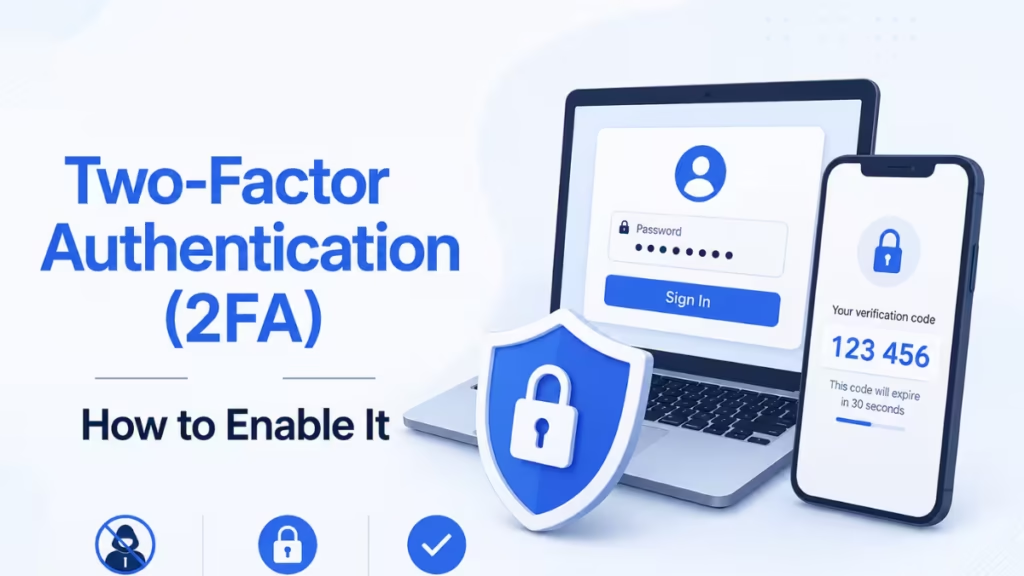
Two-factor authentication is a security method that requires two separate forms of identity verification before granting access to an account or service. Instead of relying on a password alone, 2FA asks you to confirm your identity using a second factor, such as a code sent to your phone or generated by an authenticator app.
The two factors typically combine something you know (your password) and something you have (your phone or a hardware token). This combination makes unauthorized access significantly harder for attackers.
2FA vs MFA: What Is the Difference?
2FA is a subset of multi-factor authentication (MFA). Here is how they differ:
- 2FA requires exactly two authentication factors: your password plus one additional verification method.
- MFA requires two or more factors and can include combinations of passwords, biometrics, hardware tokens, geolocation checks, device recognition, and behavior analysis.
Highly secure environments such as government agencies or financial institutions often use full MFA with biometric authentication and device verification layered together. For most everyday accounts, 2FA provides a strong and practical level of protection.
How Two-Factor Authentication Works
When you enable 2FA on an account, the sign-in process changes:
- You enter your username and password as usual.
- The service sends a one-time security code to your registered phone number, email address, or authenticator app.
- You enter that code on the sign-in page.
- The service grants you access only after both steps pass.
On trusted devices you use regularly, some services skip the second step unless they detect unusual activity, such as a sign-in from a new location or device.
Common Types of 2FA Methods
| Method | How It Works | Security Level |
|---|---|---|
| SMS Text Code | A code is sent to your phone via text | Basic |
| Email Code | A code is sent to your registered email | Basic |
| Authenticator App | An app generates a time-based code | Strong |
| Push Notification | You approve a login request in an app | Strong |
| Hardware Token | A physical device generates codes | Very Strong |
| Biometrics | Fingerprint or face scan confirms identity | Very Strong |
Note: Security experts and the National Institute of Standards and Technology (NIST) discourage SMS-based 2FA because it remains vulnerable to SIM-swapping attacks and malware. Microsoft itself is phasing out SMS as an authentication method for personal accounts. Use an authenticator app whenever possible.
Is 2FA Secure?
2FA is far more secure than a password alone. Most cyberattacks originate from remote locations, and 2FA stops the majority of those attacks because the attacker cannot pass the second verification step without physical access to your device.
That said, 2FA is not completely foolproof. A few known weaknesses include:
- SMS vulnerabilities: SIM-swap attacks and malware can intercept text messages.
- Hardware token risks: If a token manufacturer suffers a breach (as RSA did with its SecurID tokens in 2011), compromised devices can expose accounts.
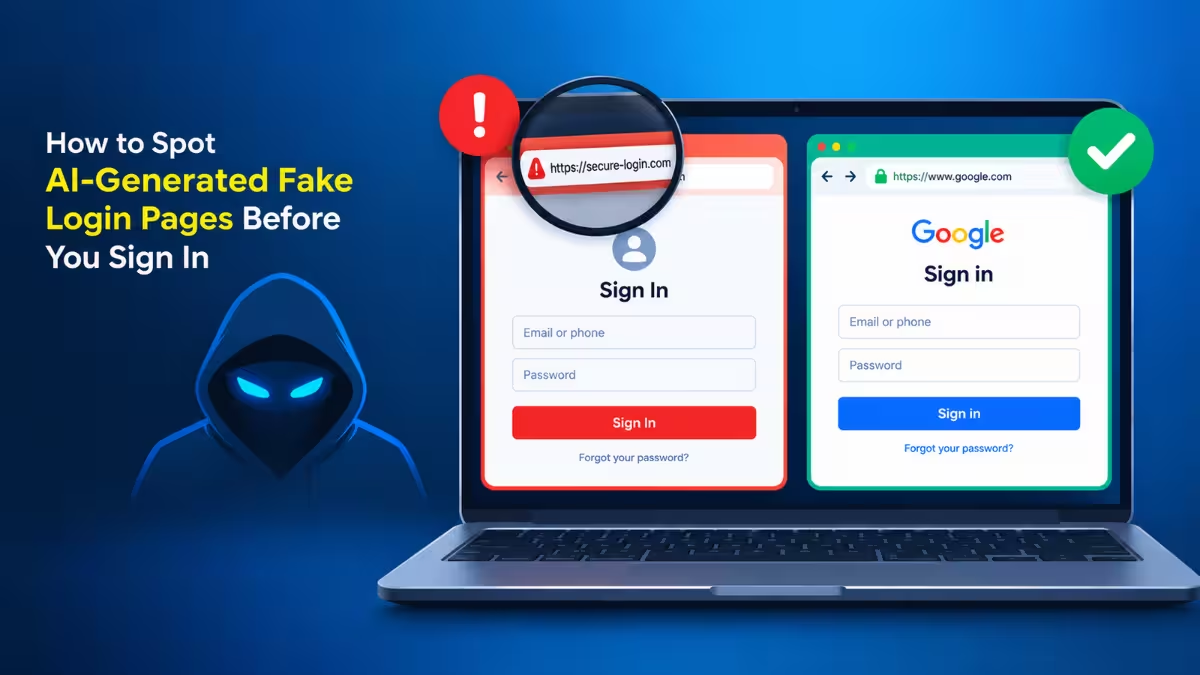
- Phishing attacks: Sophisticated phishing pages can trick users into entering both their password and their 2FA code on a fake site.
Despite these limitations, enabling 2FA dramatically reduces your risk compared to password-only protection.
Key Benefits of Two-Factor Authentication
1. Reduces the Attack Surface
Passwords are frequently reused, guessed, or leaked in data breaches. Adding a second factor means a stolen password alone gives an attacker nothing useful.
2. Strengthens Zero-Trust Security
Zero-trust security treats every user and device as potentially compromised and requires continuous verification. 2FA fits directly into this model by demanding proof of identity at every login.
3. Protects Remote Workers and Personal Devices
Remote work and bring-your-own-device (BYOD) policies create more entry points for attackers. 2FA secures those entry points regardless of where or how users connect.
4. Helps Meet Compliance Requirements
Industries such as healthcare (HIPAA), finance, and government require strong access controls. Implementing 2FA helps organizations stay compliant with data protection regulations.
5. Uses Technology You Already Have
Most smartphones support authenticator apps, biometric scans, and push notifications. 2FA leverages these existing tools without requiring expensive new hardware.
Downsides of Two-Factor Authentication
2FA is not without trade-offs:
- Longer login times: Each sign-in requires an extra step, which adds a few seconds to the process.
- Dependency on third-party services: SMS codes rely on your carrier, and authenticator apps rely on your phone. If either goes down, you may temporarily lose access.
- Account recovery risk: If you lose access to your second factor and have not set up backup methods, recovering your account can take up to 30 days or more.
How to Enable Two-Step Verification on Your Microsoft Account
Microsoft calls its 2FA system "two-step verification."
What You Need Before You Start
Before enabling two-step verification, make sure you have at least two of the following ready:
- Two email addresses: Your primary email and a backup in case you lose access to the first
- A phone number: To receive verification codes when needed
- An authenticator app: Such as Microsoft Authenticator, which generates codes directly on your device
Microsoft recommends two different email addresses so you always have a fallback contact method. Setting these up in advance prevents you from getting locked out during the process..
Follow these steps to turn it on:
- Open your browser and go to account.microsoft.com/security.
- Sign in with your Microsoft account credentials.
- Select Manage how I sign in.
- Under Additional security, find Two-step verification and select Turn on.
- Follow the on-screen instructions to set up your verification method.
- If prompted, scan the QR code with the Microsoft Authenticator app to link your device.
Microsoft recommends adding at least three pieces of security info to your account (such as two email addresses and a phone number) so you can recover access if you lose one contact method.
What to Do If You Forget Your Password with 2FA Enabled
If you forget your password while 2FA is active, you can still reset it as long as Microsoft has two ways to contact you. Instead of receiving one verification code, you will receive two, one from each registered contact method. Follow the password reset steps at account.microsoft.com to complete the process.
App Passwords for Older Apps and Devices
Some older apps and devices, such as legacy mail clients or Xbox 360, do not support standard 2FA security codes. If you see an "incorrect password" error on one of these after enabling 2FA, you need to create an app password specifically for that app.
App passwords are available only when two-step verification is active. You can generate them from the Additional security options page in your Microsoft account settings.
Best Practices for Using Two-Factor Authentication
Follow these practices to get the most out of 2FA:
- Use an authenticator app instead of SMS codes whenever the service supports it.
- Register multiple backup methods so you can recover your account if you lose access to one.
- Enable 2FA on every critical account, including email, banking, social media, and cloud storage.
- Never share your 2FA codes with anyone, including support agents.
- Review your security info regularly and remove any outdated phone numbers or email addresses.
Should You Go Passwordless?
Microsoft now supports fully passwordless sign-in for personal accounts. Instead of using a password at all, you verify your identity through the Microsoft Authenticator app, a biometric scan, or a hardware security key. Going passwordless removes the weakest link in account security: the password itself. You can explore this option under the security settings at account.microsoft.com/security.
Two-factor authentication is one of the most effective steps you can take to protect your accounts. A stolen password alone cannot give an attacker access when 2FA is active. Enable it on every account that supports it, use an authenticator app over SMS, and keep at least two or three backup contact methods registered at all times.