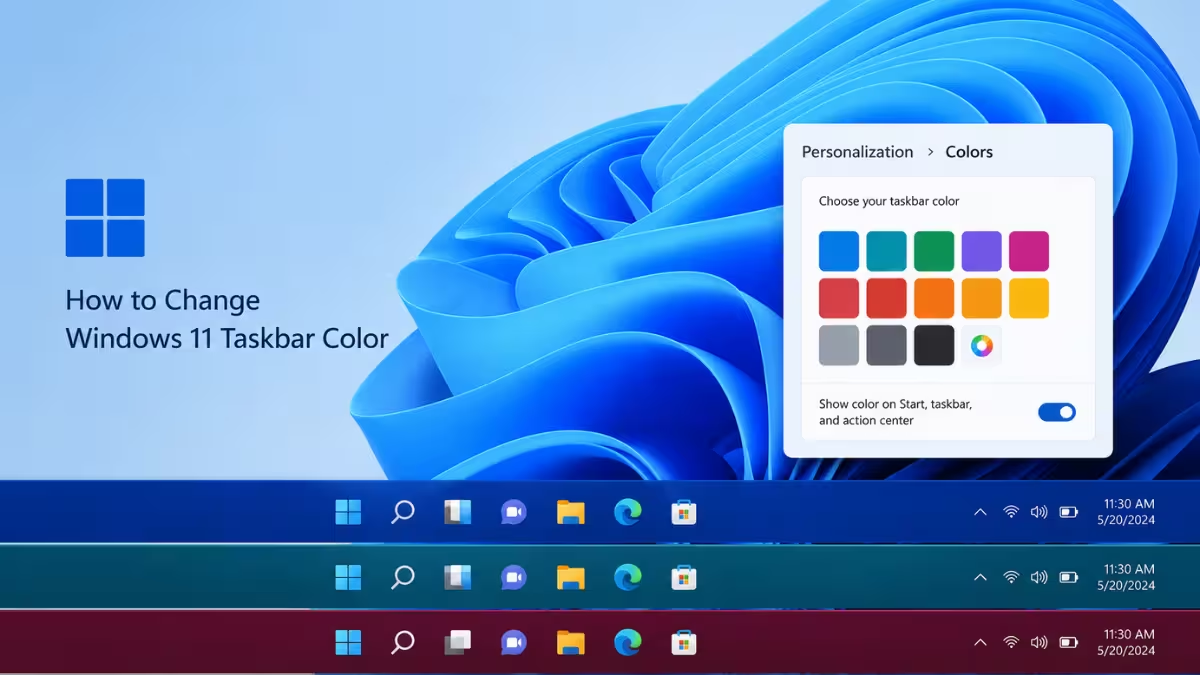
Windows 11 lets you personalize the taskbar color instead of sticking with the default black or white look. You can switch to dark mode, apply an accent color, or let Windows pick a color automatically from your desktop background.
Requirements Before You Start
Changing the taskbar color needs one of two color modes active. Keep these points in mind before making changes.
- Taskbar color options only appear in Dark mode or Custom mode
- Light mode does not allow taskbar color personalization
- Accent color changes apply instantly without a restart
How to Switch to Dark or Custom Mode First
Windows applies taskbar color options only when your color mode is set correctly, so this step comes first.
- Open the Settings app on your Windows device
- Go to Personalization > Colors
- Under Choose your mode, select Dark or Custom
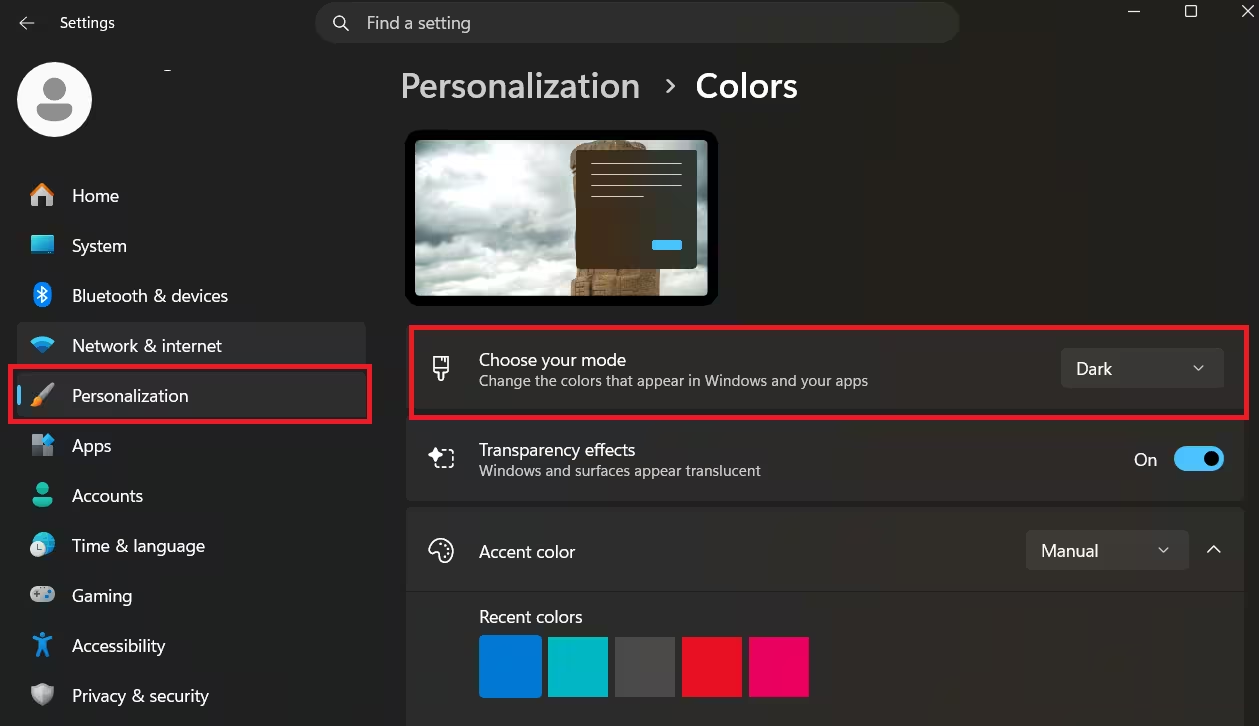
The dark mode setting changes the Start menu, taskbar, and action center to a darker look designed for low-light environments. The custom mode gives you a mix of light and dark elements, so you can keep dark taskbar styling while running light mode elsewhere.
Apply Accent Color to the Taskbar
Once dark or custom mode is active, you can add an accent color that highlights the taskbar and other interface elements.
- Stay in Settings > Personalization > Colors
- Under Accent color, choose Automatic or Manual
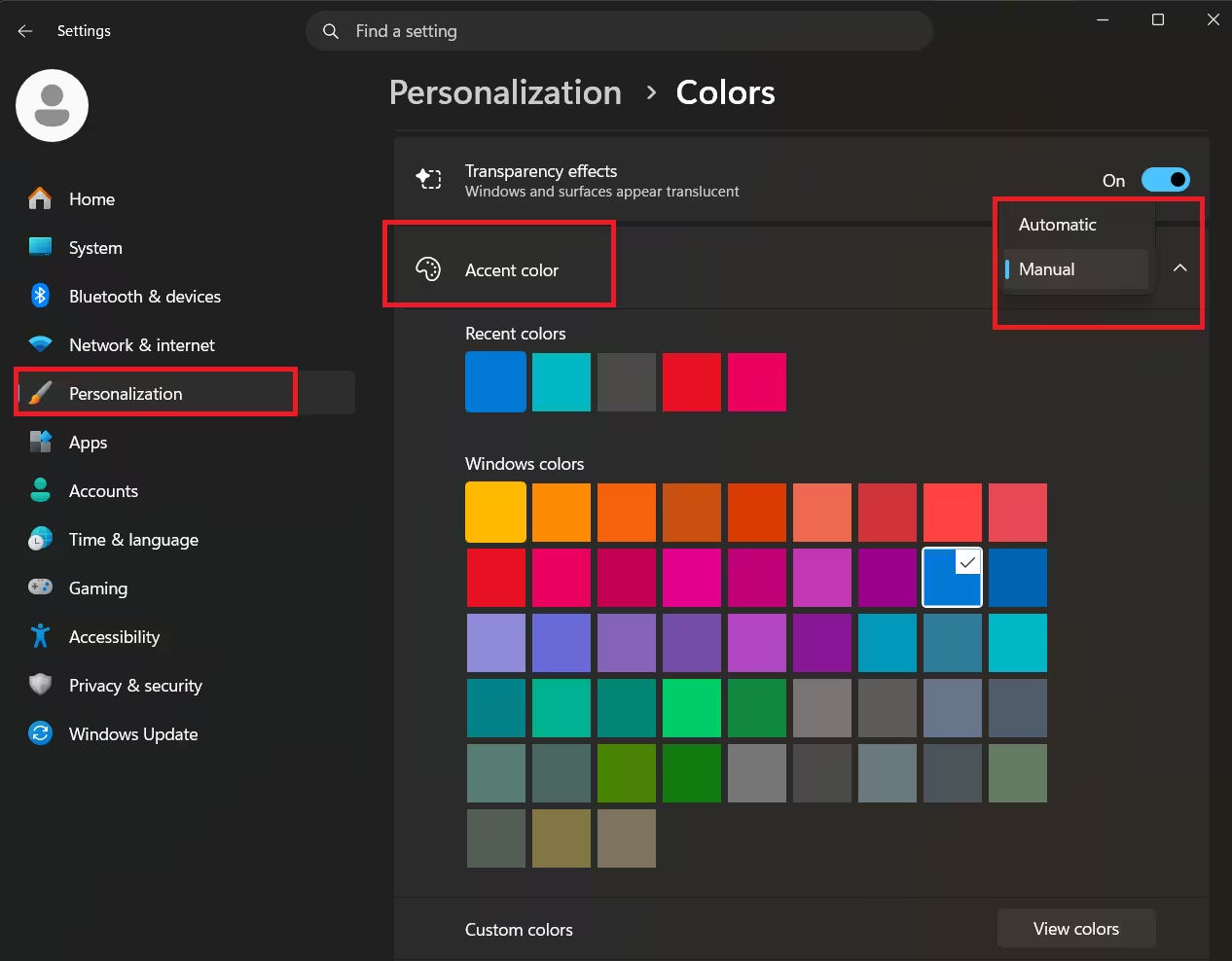
- For Automatic, Windows picks a color based on your current desktop background
- For Manual, select a color under Recent colors or Windows colors, or click View colors for more options
Turn On Accent Color for the Taskbar
Selecting an accent color does not apply it to the taskbar by itself. You need to enable a separate toggle.
- In the same Colors settings page, scroll to Show accent color on Start and taskbar
- Toggle this option On
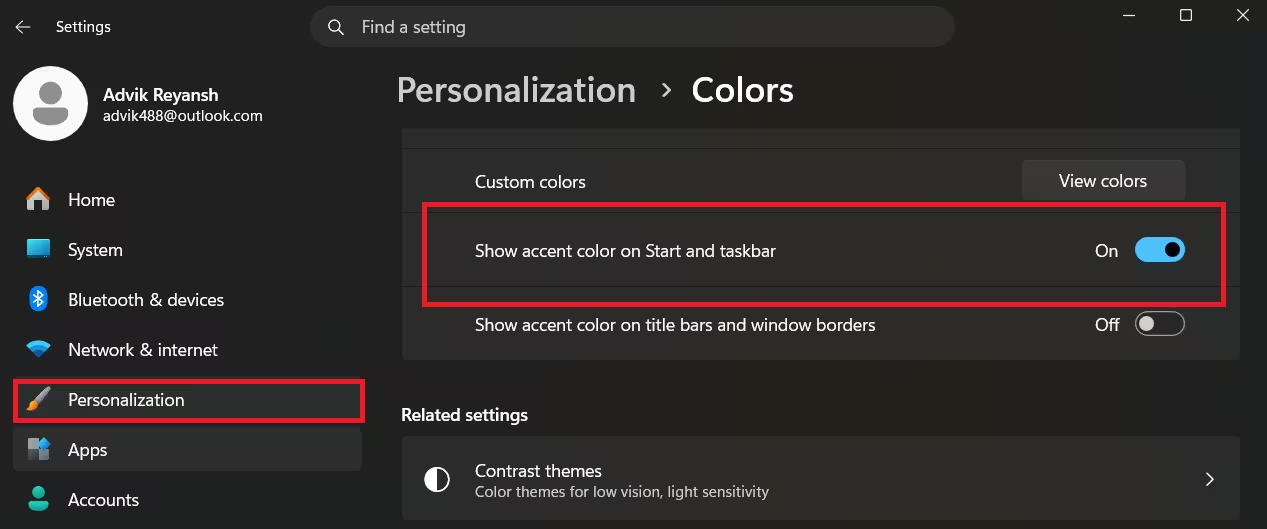
This setting only works when your color mode is set to Dark or Custom. The accent color you picked now appears across the Start menu, taskbar, and action center.
Enable Accent Color on Title Bars and Window Borders
For a more consistent look across your desktop, you can extend the accent color beyond the taskbar.
- In Personalization > Colors, find Show accent color on title bars and window borders
- Toggle this option On
This applies your accent color to the top bar and borders of every open window, matching the taskbar styling.
Add Transparency for a Blended Look
Transparency effects change how the taskbar color blends with your desktop, giving it a layered appearance.
- In Personalization > Colors, locate Transparency effects
- Toggle this option On or Off based on your preference
When enabled, this adds an acrylic blur effect to the taskbar and other surfaces, which softens solid accent colors.
Frequently Asked Questions
Why can’t I change my taskbar color in Windows 11?
Taskbar color options stay hidden if your color mode is set to Light. Switch to Dark or Custom mode in Personalization > Colors to unlock accent color settings for the taskbar.
Does changing the accent color affect anything besides the taskbar?
Yes. The same accent color applies to the Start menu and action center automatically. You can also extend it to title bars and window borders through a separate toggle.
Can I use a custom color instead of Windows presets?
Yes. Select Manual under Accent color, then click View colors to access a detailed color picker beyond the default swatches.
Will the taskbar color change automatically when I change my wallpaper?
Only if you have Automatic selected under Accent color. Windows then updates the taskbar color to match your new background each time you change it.
Related Guides
- How to Move Windows 11 Taskbar to Top or Side (5 Working Methods)
- Microsoft Is Working on Bringing Back a Movable and Resizable Taskbar in Windows 11
- Windows 11 KB5074157 Update Brings Start Menu, Taskbar, and Bluetooth Fixes
- Windows 11 Insider Build 27950 Fixes Screen Flickering, Taskbar, and Audio Issues

