Microsoft announced the Surface Laptop Ultra at Computex 2026, and its official default wallpaper is already available to download. You do not need the laptop itself to use it. The community extracted the wallpaper from early system builds, and both the dark and light versions are now available in full 4K resolution for anyone to grab and set on Windows 11.
This guide shows you where to download the Surface Laptop Ultra wallpaper and how to set it as your desktop background.
What the Surface Laptop Ultra Wallpaper Looks Like
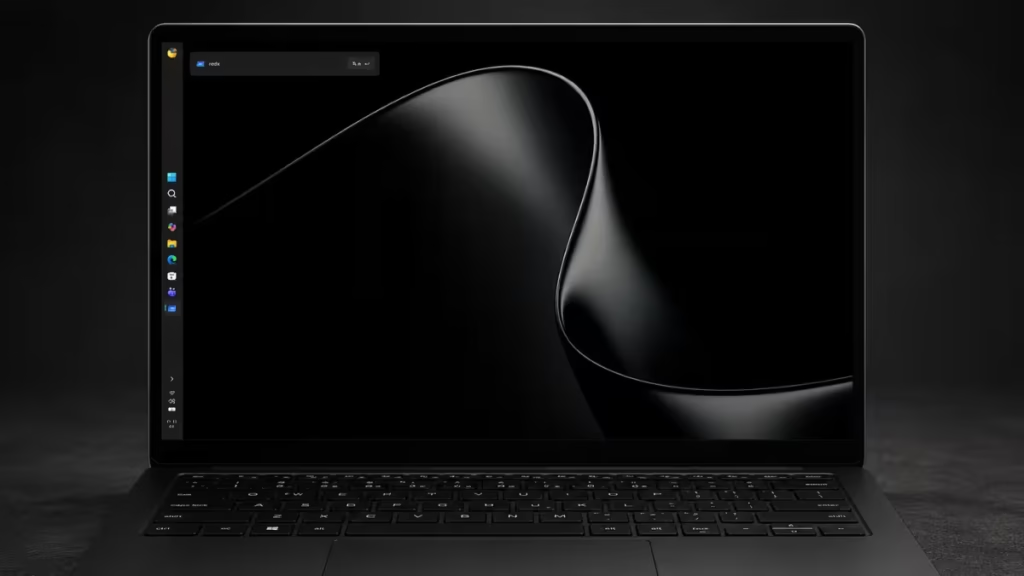
Microsoft designed this wallpaper specifically to show off the Surface Laptop Ultra's 15-inch mini-LED PixelSense Ultra display, which hits a peak brightness of 2,000 nits and uses local dimming to produce near-perfect blacks.
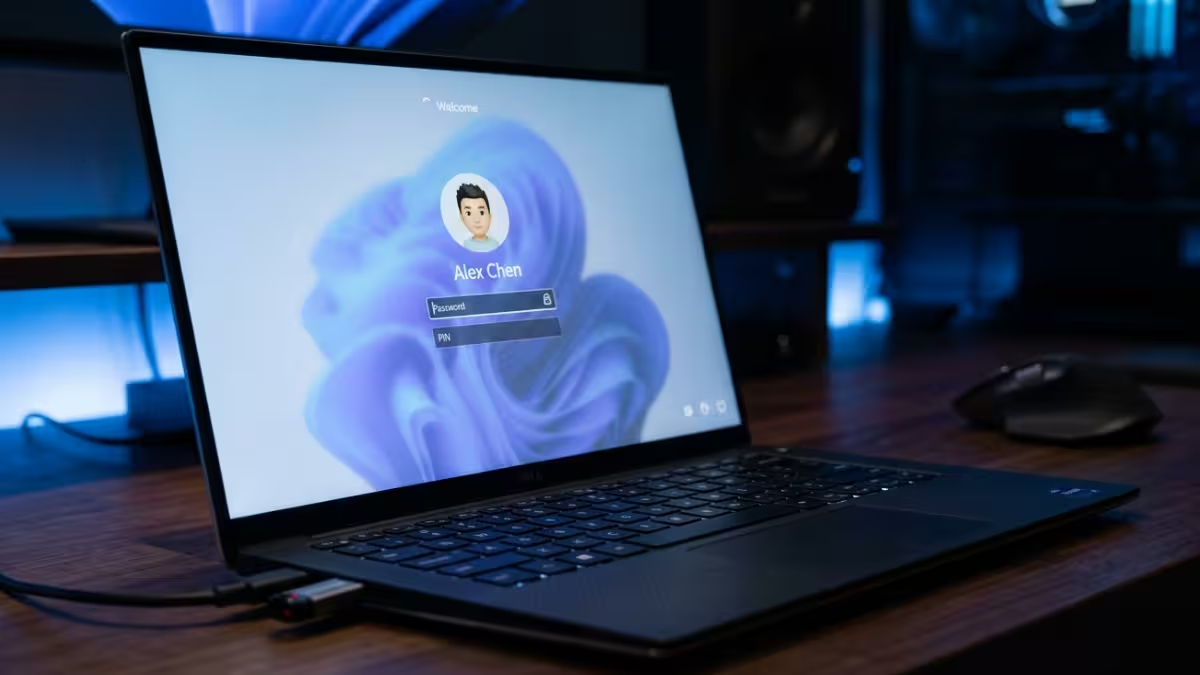
The design follows Microsoft's Fluent Design language. It features an abstract sculptural ribbon that twists with metallic reflections against a contrasting background. Microsoft offers two versions:
- Dark version: The ribbon sits against a pitch-black background. This version highlights the local dimming capabilities of mini-LED and OLED panels, producing deep blacks alongside crisp bright highlights.
- Light version: The same ribbon design sits over a clean white backdrop, giving a minimalist and professional look.
Both wallpapers render at 4K resolution (3840x2400 pixels), which makes them a sharp fit for high-resolution monitors, laptops, and ultrawide displays.
How to Download the Surface Laptop Ultra Wallpaper
The wallpaper was extracted from early Surface Laptop Ultra system builds by the X user @nextgenos2026, who shared the original files directly. You can find the high-resolution wallpapers through that post and save them to your computer.
To save either version:
- Open the wallpaper image in your browser at full resolution.
- Right-click the image and select Save image as.
- Choose a folder on your PC, such as
Pictures > Wallpapers, and save the file.
How to Set the Wallpaper on Windows 11
Once you save the file, follow these steps to apply it as your desktop background:
- Press Windows + I to open Settings.
- Go to Personalization and click Background.
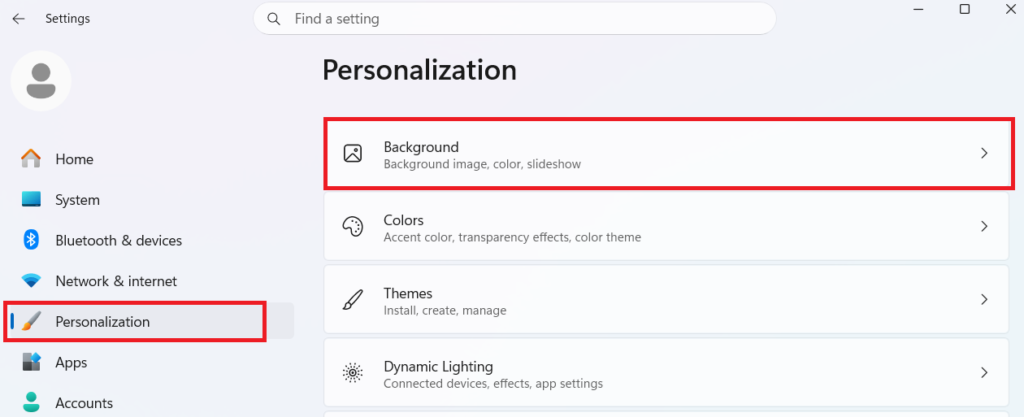
- Under Personalize your background, select Picture from the dropdown.
- Click Browse photos.
- Navigate to the folder where you saved the wallpaper and select the file.
- Windows 11 applies it to your desktop immediately.
If you have multiple monitors, right-click the wallpaper in the background picker and choose Set for all monitors or assign it to a specific display.
Tip: If you use a high-brightness monitor, the dark version works best with HDR enabled. Go to Settings > System > Display and toggle on Use HDR if your monitor supports it.
Surface Laptop Ultra
The Surface Laptop Ultra runs on the NVIDIA RTX Spark processor, which is an ARM-based chip co-developed with MediaTek. The laptop packs up to 20 CPU cores, 6,144 GPU cores, and support for up to 128 GB of unified memory. It delivers up to 1 petaflop of AI compute, which means it can run large AI models locally without a cloud connection.
Microsoft has not announced final pricing yet. The laptop is expected to launch later in 2026.