If the Jagex Launcher is not opening, stuck in a login loop, or crashing after you sign in on Windows 10 or Windows 11, you’re not alone. Many RuneScape and Old School RuneScape players face this issue even when their account works perfectly on mobile or Steam.
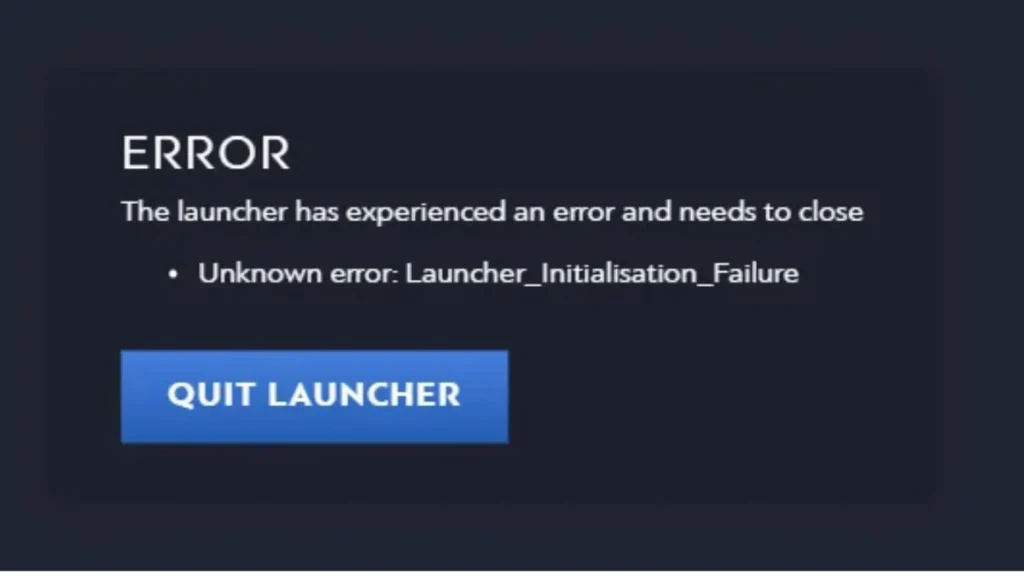
Common Jagex Launcher Errors on Windows
Players usually experience one or more of the following issues:
- Jagex Launcher does not open or closes instantly
- Stuck in a login loop after successful authentication
- Launcher crashes after entering credentials
- Installation fails during setup
- Launcher freezes while applying updates
- Works on Steam or mobile but not on Windows PC
These problems mainly affect Windows 10 and Windows 11 users.
Why the Jagex Launcher Is Not Working
Several factors can trigger Jagex Launcher errors on Windows:
- Mandatory Jagex Account requirement
- Corrupted launcher cache or local files
- Windows firewall, antivirus, or VPN interference
- Background launcher processes conflicting with updates
- Network proxy or DNS configuration issues
- Permission mismatch between launcher and game client
- Temporary Jagex server outages
Quick Fix Checklist (Try First)
Before moving to advanced solutions, try these quick checks:
- Restart your PC
- Close all Jagex Launcher processes from Task Manager
- Disable VPNs and proxies temporarily
- Run the launcher as a normal user (not admin)
- Check if Jagex servers are experiencing downtime
If the issue persists, continue with the fixes below.
Fix Jagex Launcher Not Opening on Windows
When the launcher briefly appears and closes instantly, corrupted local files are usually the reason.
Steps to fix:
- Press Windows + R, type
%localappdata%, and press Enter
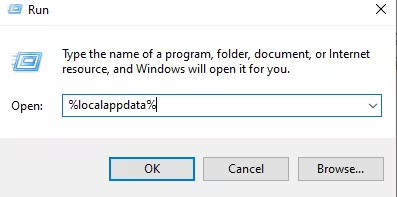
- Open the JagexLauncher folder
- Delete all files inside this folder
- Restart your PC
- Download the latest Jagex Launcher from the official website
- Install and launch it again
This resets broken launcher data without affecting your account.
Fix Jagex Launcher Login Loop on Windows
A login loop happens when authentication succeeds but the launcher crashes immediately afterward.
Try these solutions:
- Ensure you are logged in using a Jagex Account (legacy logins no longer work)
- Disable antivirus and firewall temporarily
- Make sure only one instance of the launcher is running
- Log out of all Jagex sessions and sign in again
- Avoid running the launcher as administrator if the game client is not
Consistency in permissions between the launcher and game client is critical.
Fix Jagex Launcher Crashing After Login
If the launcher crashes after entering credentials, system conflicts are often involved.
Recommended fixes:
- End all Jagex processes via Task Manager
- Disable VPN, proxy, and packet-filtering software
- Update Windows fully (including optional updates)
- Update graphics drivers
- Restart your router to refresh the network connection
Many crashes occur due to blocked background connections.
Fix Jagex Launcher Installation Errors on Windows
Some users receive errors while reinstalling or updating the launcher.
Solutions:
- Install DirectX End-User Runtime
- Temporarily disable antivirus software
- Ensure Windows Defender is not blocking the installer
- Install the launcher using your standard user account
- Avoid custom install directories
If installation fails repeatedly, clear cache folders before retrying.
Jagex Launcher Stuck on “Please Wait While an Update Is Applied”
This error usually occurs when multiple launcher instances conflict.
How to fix:
- Close the launcher completely
- Open System Tray and exit any hidden Jagex processes
- Open Task Manager and end all Jagex-related tasks
- Relaunch the launcher and wait for the update to finish
Do not open the launcher multiple times during updates.
Jagex Launcher Works on Steam but Not on PC
If RuneScape launches correctly via Steam or mobile but not through the launcher, the issue is local to Windows.
What to do:
- Use Steam as a temporary workaround
- Clear Jagex Launcher cache folders
- Reinstall the launcher completely
- Check firewall rules for blocked launcher connections
This confirms the issue is not account-related.
Network and System Settings to Check
For Windows users:
- Ensure your system clock and timezone are correct
- Disable proxy settings in network configuration
- Reset DNS using
ipconfig /flushdns - Avoid third-party network optimizers
For macOS users (if applicable):
- Disable Auto Proxy Discovery in network settings
Network misconfiguration is a frequent hidden cause.
FAQs Jagex Launcher Error
Why is the Jagex Launcher not opening on Windows?
This usually happens due to corrupted cache files, blocked background connections, or antivirus interference.
How do I fix the Jagex Launcher login loop?
Clear launcher cache, ensure you’re using a Jagex Account, and disable VPN or firewall temporarily.
Does Jagex Launcher require a Jagex Account?
Yes. Legacy login methods are no longer supported.
Why does Jagex Launcher work on Steam but not on PC?
This indicates a local Windows issue, not an account problem.
Is the Jagex Launcher down right now?
Occasionally. Check Jagex’s official support pages or social channels for outage updates.
Can antivirus software block Jagex Launcher?
Yes. Some security tools falsely flag the launcher and block its connections.
Most Jagex Launcher errors on Windows 10 and 11 are caused by corrupted cache files, permission conflicts, or security software interference. Following the steps above resolves the issue in most cases.
If none of the fixes work, the problem may be server-side. Keep an eye on Jagex’s official status updates and forums for confirmation.

