UltraViewer is a free remote desktop tool that lets you control another PC or let someone else control yours over the internet. It is faster to set up than TeamViewer and requires no account registration. Windows 11 runs it without any compatibility issues.
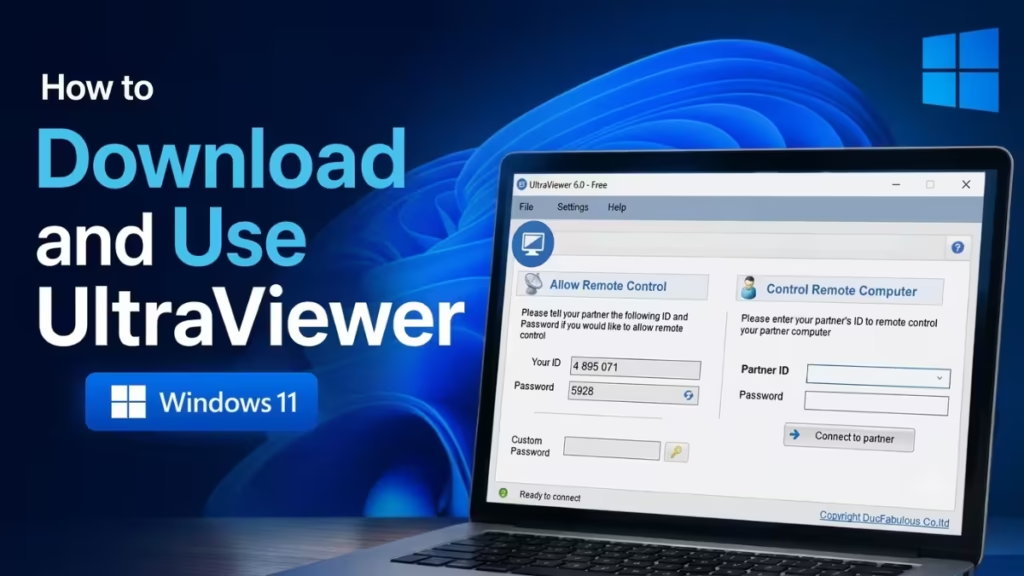
This guide covers how to download UltraViewer, install it, and use it in both directions, whether you are giving help or receiving it.
What Is UltraViewer?
UltraViewer is a remote access application for Windows. It connects two computers in real time so one user can see and control the other’s screen. It is widely used for remote IT support, helping family members with PC problems, and accessing your own machine from another location.
It is free for personal use. Business users need a paid license.
How to Download UltraViewer on Windows 11
- Open your browser and go to ultraviewer.net
- Click the Download button on the homepage
- Save the
.exeinstaller file to your PC - Double-click the installer and follow the on-screen steps
- UltraViewer installs in under a minute and opens automatically
No account or sign-in is required. The app is ready to use as soon as it opens.
How to Use UltraViewer on Windows 11
Allow Someone to Control Your PC
Use this when you need remote support from another person.
- Open UltraViewer on your PC
- You will see your Your ID and Password on the main screen
- Share both with the person who will help you (via call, chat, or message)
- They enter your ID and password on their end
- Once they connect, they can see and control your screen
You can see everything they do in real time. You can end the session at any moment by closing UltraViewer.
Control Someone Else’s PC
Use this when you are providing support to another person.
- Ask the other person to open UltraViewer and share their ID and Password
- Open UltraViewer on your PC
- Type their ID in the Partner ID field
- Click Connect
- Enter their password when prompted
- Their screen will appear on your monitor and you can control it
What You Can Do During a Session
Once connected, UltraViewer gives you a toolbar at the top of the screen with the following options:
- Chat — send text messages to the other user during the session
- File Transfer — send or receive files between the two PCs
- Screenshot — capture the remote screen
- Disconnect — end the session immediately
Both users can end the session at any time from either side.
Important Things to Know
- The password changes after every session by default, which prevents unauthorized reconnects
- No port forwarding is needed. UltraViewer works through firewalls and NAT connections automatically
- The remote user can always see what you are doing. There is no hidden or background access
- Windows 11 is fully supported. No compatibility mode or extra settings are required
- Free for personal use only. Commercial use requires a paid plan from ultraviewer.net
Codes Not Working? Session Won’t Connect?
If the connection fails, check these first:
- Make sure both PCs have an active internet connection
- Confirm the ID and password were shared correctly with no typos
- Check that Windows Firewall is not blocking UltraViewer (add it as an exception if needed)
- Try restarting UltraViewer on both sides and use the newly generated password

