Taking a screenshot on Mac is simple once you know the keyboard shortcuts. macOS lets you capture the full screen, a selected area, or a specific window without installing any extra software. This guide explains every screenshot method on Mac with clear steps.
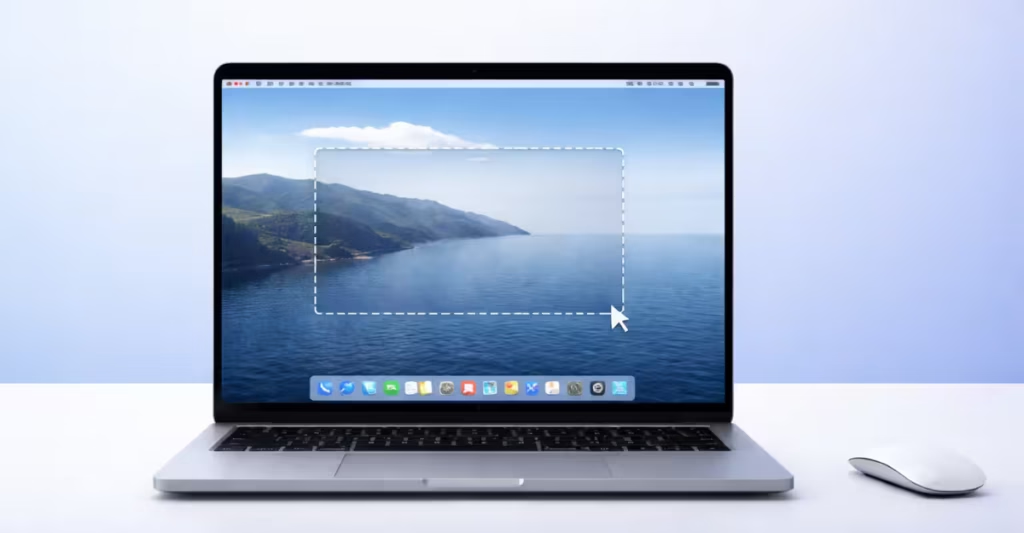
How to Screenshot Entire Screen on Mac
Use this method when you want to capture everything on your display.
Steps
- Press Shift + Command (⌘) + 3
- Release the keys
- macOS saves the screenshot automatically
You will see a small thumbnail in the corner. Click it to edit, or wait for the file to save.
By default, Mac saves screenshots on the Desktop.
How to Screenshot Selected Area on Mac
Use this option when you only need part of the screen.
Steps
- Press Shift + Command (⌘) + 4
- The cursor changes to a crosshair
- Drag to select the area
- Release the mouse to capture
Press Esc if you want to cancel.
This method helps when you need to capture text, images, or small sections.
How to Screenshot a Window on Mac
Use this method to capture one app window without background.
Steps
- Press Shift + Command (⌘) + 4
- Press Space bar
- Cursor changes to a camera icon
- Click the window you want to capture
Mac saves the screenshot instantly.
This works for browsers, Finder, settings, and apps.
How to Use Screenshot Toolbar on Mac
macOS includes a built-in screenshot tool.
Steps
- Press Shift + Command (⌘) + 5
- Screenshot toolbar appears
- Choose one option:
- Capture entire screen
- Capture selected window
- Capture selected portion
- Record screen
You can also change save location, timer, and format.
This method gives the most control.
Where Screenshots Are Saved on Mac
Mac saves screenshots here by default:
- Desktop
- File name format:
- Screen Shot date time.png
You can change the save location from the screenshot toolbar.
How to Copy Screenshot to Clipboard Instead of Desktop
Hold the Control key while taking screenshot.
Example:
Control + Shift + Command + 3
Mac copies the screenshot instead of saving it.
You can paste it in:
- Word
- Notes
- Photoshop
- Browser
- Chat apps
How to Change Screenshot Save Location on Mac
- Press Shift + Command + 5
- Click Options
- Choose location
- Select Desktop, Documents, or custom folder
Mac will save future screenshots there.
Mac makes screenshots fast and flexible. You can capture the full screen, a window, or a selected area using simple shortcuts. The screenshot toolbar gives the best control, so most users prefer Shift + Command + 5 for daily use.
Once you learn these shortcuts, taking screenshots on macOS becomes effortless.

