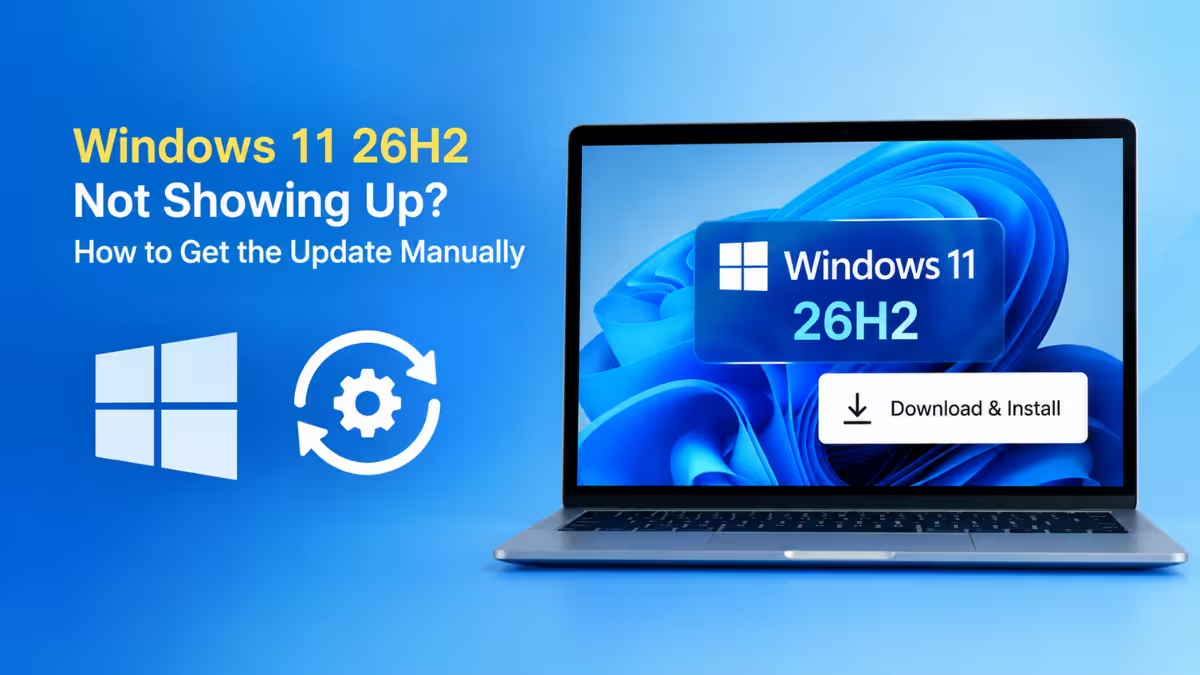
Microsoft now pushes Windows 11 26H2 to eligible PCs automatically, but the rollout moves in waves. If your PC still says "You're up to date," you don't have to sit and wait. You can check compatibility in a couple of minutes and then install 26H2 yourself with one of Microsoft's official tools.
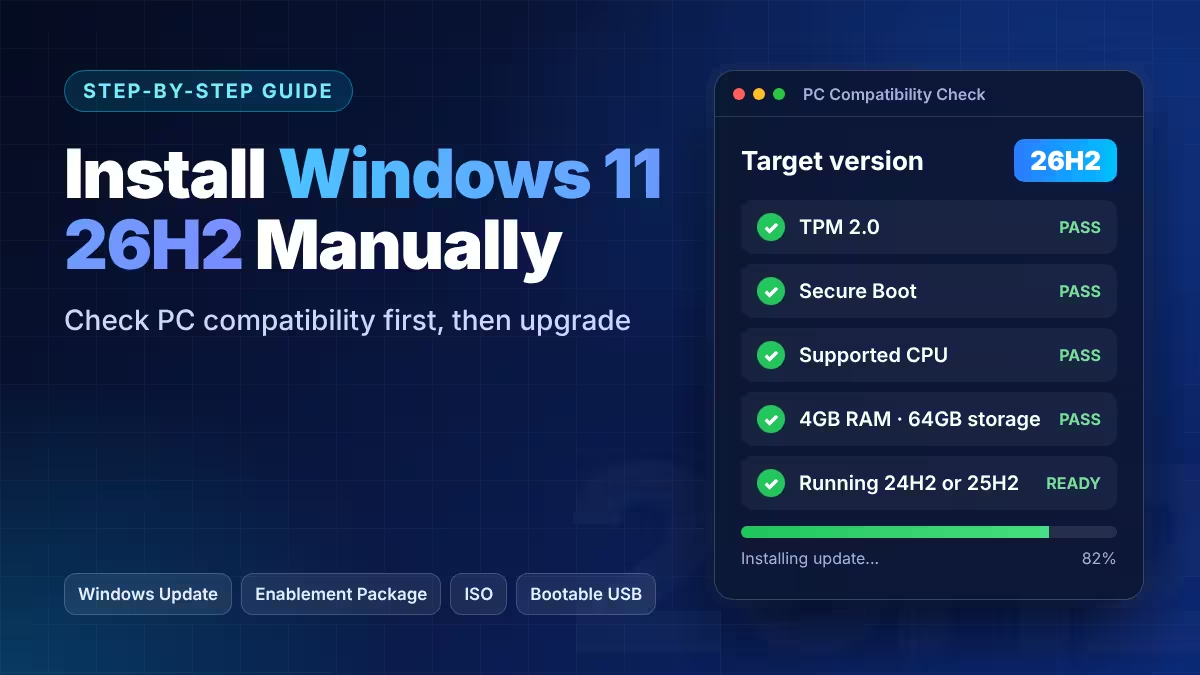
This guide walks you through both parts: first confirm your PC can run 26H2, then pick the manual install method that fits your current setup.
What Is New in Windows 11 26H2 and Why Update
Version 26H2 sits on the same core as 24H2 and 25H2. Your monthly cumulative updates already copied most of the new code onto your PC and left it switched off. The 26H2 upgrade flips those features on and bumps the version number.
The biggest practical gain is support time. Home and Pro editions get 24 months of security updates on 26H2, and Enterprise and Education editions get 36 months. This matters a lot if your PC still runs 24H2, because 24H2 Home and Pro editions reached end of support and no longer receive monthly security fixes.
Features you may notice after the switch include:
- A taskbar you can move to the top, left, right or bottom of the screen
- A resizable Start menu with Small, Large and Automatic sizes, plus category and grid views
- An option to turn off Bing web results and Store results in Start search
- Administrator Protection, which grants admin rights only when an app needs them
- Faster Start, Search, Settings and File Explorer on PCs with 8GB of RAM
Microsoft still controls some of these features through gradual rollout, so a few may appear days or weeks after the version changes.
How to Check If Your PC Is Compatible With Windows 11 26H2
Microsoft kept the same hardware requirements for 26H2. If your PC runs Windows 11 24H2 or 25H2 on supported hardware today, it qualifies. Run these checks before you start anyway, because they also decide which install method you should use.
Step 1: Find Your Current Windows Version
- Press
Win + Ito open Settings. - Go to System > About.
- Under Windows specifications, read the Version line.
- Under Device specifications, read the System type line to see whether you have an x64 or Arm processor.
If Version shows 24H2 or 25H2, you can use the fast enablement package. If it shows 23H2 or Windows 10, you need a full upgrade through the Installation Assistant or an ISO.
Step 2: Run the PC Health Check App
Microsoft's PC Health Check app gives you a clear yes or no.
- Download and install PC Health Check.
- Open it and click Check now.
- Read the result. "This PC meets Windows 11 requirements" means you can continue.
If the app flags a problem, it names the part that fails, such as TPM 2.0, Secure Boot or the processor. You can often fix TPM and Secure Boot by turning them on in your UEFI/BIOS settings. Our compatibility checker guide covers more tools.
Step 3: Read the Compatibility Flags in the Registry (Optional)
Windows also stores its own upgrade verdict in the registry. Advanced users can read it directly.
- Press
Win + R, typeregeditand pressEnter. - Go to
HKLM\SOFTWARE\Microsoft\Windows NT\CurrentVersion\AppCompatFlags\TargetVersionUpgradeExperienceIndicators. - Open the subkey for the latest target version.
- Look at UpEx and UpExU. Green means ready. Red means Windows found a blocker.
- Check RedReason for the cause. "None" means nothing blocks the upgrade.
Only read these values. Don't edit them.
Step 4: Check for a Safeguard Hold
Microsoft blocks the update on PCs with a known driver or app conflict. Open Settings > Windows Update and look for a message that says the update isn't ready for your device. If you see a Learn more link, click it. Also compare your hardware and apps with the Windows 11 release health page.
If a hold applies to your PC, wait for Microsoft to lift it. Forcing the update past a hold can bring back the exact problem Microsoft tried to avoid.
Windows 11 26H2 Minimum System Requirements
These are the core specs your PC needs. For the full breakdown, read our system requirements guide.
- 1 GHz or faster 64-bit processor with 2 or more cores, on Microsoft's supported CPU list
- 4GB RAM and 64GB storage
- TPM 2.0 and UEFI with Secure Boot
- DirectX 12 compatible graphics with a WDDM 2.0 driver
- At least 9GB of free space if you use the Installation Assistant
Things to Do Before Installing Windows 11 26H2
Spend five minutes on prep. It saves hours if something goes wrong.
- Back up your personal files to an external drive or cloud storage.
- Save your BitLocker recovery key somewhere outside the PC.
- Install every pending update in Windows Update, then restart.
- Unplug printers, card readers and spare drives you don't need.
- Keep a laptop on its charger for the whole install.
Method 1: Install Windows 11 26H2 Using Windows Update
Try this first. It costs you nothing and takes only a few minutes on 24H2 or 25H2.
- Open Settings > Windows Update.
- Turn on Get the latest updates as soon as they're available.
- Click Check for updates.
- When Windows 11, version 26H2 shows up, click Download & install.
- Restart when Windows asks.
The download is tiny, and one restart finishes the job. If the offer doesn't appear, move to Method 2.
Method 2: Install Windows 11 26H2 Using the KB5121794 Enablement Package
This is the fastest manual route for PCs on 24H2 or 25H2. It keeps your apps, files and settings, and it doesn't reinstall Windows.
Your PC needs the KB5124010 cumulative update or a later one before the package installs. Method 1's steps pull that in for you.
- Download the KB5121794 package for your processor from Microsoft's update servers. Pick the x64 file for Intel and AMD PCs, or the ARM64 file for Arm PCs.
- Double-click the downloaded
.msufile. - Click Yes when the Windows Update Standalone Installer asks to install it.
- Wait for the install to finish.
- Click Restart now.
After the reboot, your PC reports version 26H2. This method doesn't work on Windows 10 or Windows 11 23H2.
Method 3: Install Windows 11 26H2 Using the Installation Assistant
The Installation Assistant upgrades the PC you're using right now. It downloads a full copy of Windows, so it takes longer and needs at least 9GB of free space. It runs only on x64 PCs.
- Open Microsoft's Download Windows 11 page.
- Under Windows 11 Installation Assistant, click Download Now.
- Right-click
Windows11InstallationAssistant.exeand choose Run as administrator. - Let the tool check your hardware.
- Click Accept and install.
- Keep working while it downloads and installs. Save your files, because the tool restarts the PC on its own about 30 minutes after it finishes.
If the tool says your device already runs the latest version, 26H2 isn't ready for your PC yet.
Clean Install vs Upgrade: Which Is Better for Windows 11 26H2?
An upgrade keeps your personal files, most settings and usually your apps. You can run it from Windows Update, the Installation Assistant or a mounted ISO. If your PC works fine and you only want 26H2, an upgrade is the safest choice.
A clean install starts Windows from scratch. It removes your apps, personal files and manufacturer add-ons, so it makes sense when you replace a messy old install, fix a broken Windows or set up another PC. It also needs more care with partitions and backups.
Running Setup from inside Windows is an upgrade. Booting from a USB drive is usually a clean install. If you want a clean start without a USB, mount the ISO and choose Keep nothing on the Choose what to keep screen.
Method 4: Install Windows 11 26H2 Using the ISO File
The ISO gives you the most control. You can upgrade in place and keep everything, or wipe the PC and start fresh. It also repairs a Windows install that keeps failing updates.
- On the Download Windows 11 page, go to Download Windows 11 Disk Image (ISO). Arm PC owners need the separate Arm64 ISO page.
- Select the edition, choose your language and download the ISO file.
- Right-click the ISO file and select Mount.
- Open the new virtual drive in File Explorer and run
setup.exe. - At the updates prompt, click Change how Setup downloads updates and select Not right now for a quicker run.
- Accept the license terms.
- On the Ready to install screen, click Change what to keep and confirm Keep personal files and apps.
- Click Install.
Windows restarts several times. A full upgrade can take an hour or more on older hardware, so let it run without interruption.
Method 5: Clean Install Windows 11 26H2 Using a Bootable USB
Choose this route when you want a fresh start, need to install on another PC or the current install won't boot. A clean install erases the target drive, so back up first. You can also follow our guide to create a bootable Windows 11 26H2 USB with Rufus, Ventoy or CMD.
Create the USB With the Media Creation Tool
- On the Download Windows 11 page, click Download Now under Create Windows 11 Installation Media.
- Run
MediaCreationTool.exeas administrator and accept the terms. - Keep the recommended language and edition, or choose your own.
- Select USB flash drive, plug in a blank drive of 8GB or more and pick it from the list.
- Wait for the tool to download Windows and build the drive.
The Media Creation Tool builds x64 media only. For an Arm PC, download the Arm64 ISO and write it with a USB tool.
Or Create the USB With Rufus
Rufus turns any Windows ISO into a bootable drive and adds setup options Microsoft's tool skips, such as a local account and no automatic BitLocker.
- Download the 26H2 ISO and the latest Rufus.
- Insert a USB drive of 8GB or more. Rufus erases it.
- In Rufus, select the drive under Device, click SELECT and choose the ISO.
- Keep GPT as the partition scheme and UEFI as the target system.
- Click START, tick any options you want in the Windows User Experience box and click OK.
Install Windows 11 26H2 From the USB
- Restart the PC and open the boot menu (often
F12,F11,F9orEsc, depending on the brand). - Pick the USB drive.
- Choose your language and keyboard, then select Install Windows 11.
- Click I don't have a product key if the PC already ran Windows 11. It activates on its own once it connects to the internet.
- Pick the edition your license covers and accept the terms.
- Delete the old partitions on the target drive, select the unallocated space and click Next.
- Finish the setup screens for region, keyboard, network, account and privacy.
Can You Install Windows 11 26H2 on Unsupported Hardware?
Rufus can strip the TPM 2.0, Secure Boot and 4GB RAM checks from the installer, and many older PCs run 26H2 fine after that. Microsoft doesn't support this setup, though, and it doesn't promise security updates for these machines.
Some PCs can't run 26H2 at all. Windows 11 24H2 and later need a CPU with the POPCNT and SSE4.2 instructions, so very old processors won't even boot the installer. No bypass fixes that. If your machine falls in this group, keep it on a supported OS rather than forcing the install. Low-spec PCs sometimes use a trimmed image instead, so read how to build a Tiny11 ISO for 26H2 first.
How to Verify That Windows 11 26H2 Is Installed
- Press
Win + R. - Type
winverand pressEnter. - The About Windows box should show Version 26H2.
You can also check Settings > System > About. After that, run Windows Update once more to grab the latest cumulative update and drivers, and confirm activation in Settings > System > Activation.
How to Uninstall Windows 11 26H2 and Roll Back
If you used the KB5121794 package, remove it:
- Open Settings > Windows Update > Update history.
- Click Uninstall updates under Related settings.
- Find Feature enablement for Windows 26H2 KB5121794 and click Uninstall.
- Restart the PC.
If you used the Installation Assistant or an ISO, open Settings > System > Recovery and click Go back. Windows keeps this option for a limited time and needs the Windows.old folder, so don't delete that folder until you're happy with 26H2.
Windows 11 26H2 Not Showing in Windows Update? How to Fix It
A missing offer doesn't mean Windows Update is broken. Work through these checks in order. Our guide on 26H2 not showing up covers the manual options too.
- Confirm your version. Go to Settings > System > About. Only 24H2 and 25H2 get the enablement package through Windows Update. On 23H2 or Windows 10, use the Installation Assistant or the ISO.
- Turn on early updates. In Settings > Windows Update, switch on Get the latest updates as soon as they're available and click Check for updates.
- Look for a safeguard hold. Click the Learn more link if Windows Update shows one, and compare your hardware with the known issues page. Wait for Microsoft to lift the hold.
- Check for work or school management. A message that says "Some settings are managed by your organization" means your IT team controls the timing. Ask them before you force anything.
- Run the troubleshooter. Go to Settings > System > Troubleshoot > Other troubleshooters and run Windows Update, then restart.
- Update your drivers. Open Settings > Windows Update > Advanced options > Optional updates and install the driver updates listed there.
- Free up disk space. Open Settings > System > Storage > Temporary files and clear what you don't need. Leave the Windows.old folder alone.
- Use the Installation Assistant. If you use an x64 PC with no safeguard hold, follow Method 3.
If the PC runs on 24H2, don't wait long. 24H2 Home and Pro no longer get security updates, and Microsoft has started installing 26H2 automatically on eligible personal PCs.
Frequently Asked Questions
Is Windows 11 26H2 a free upgrade?
Yes. Any PC with a valid Windows 11 license gets 26H2 at no cost through Windows Update or Microsoft's download tools.
Will installing 26H2 delete my files?
No. Windows Update, the enablement package, the Installation Assistant and an ISO upgrade with "Keep personal files and apps" all keep your data. Only a clean install from USB wipes the drive. Back up before any of these anyway.
How long does the 26H2 install take?
On 24H2 or 25H2, the enablement package finishes in a few minutes with one restart. A full upgrade through the Installation Assistant or ISO can take 30 to 90 minutes, depending on your hardware.
Does Windows 11 26H2 install automatically?
Yes, in phases. Since November 18, Microsoft delivers 26H2 automatically to eligible personal PCs and unmanaged business PCs on 24H2 and 25H2. PCs under a safeguard hold or IT management wait longer.
Does Windows 11 26H2 work on Arm PCs?
Yes, on Arm PCs running 24H2 or 25H2. Use Windows Update, the ARM64 enablement package or the Arm64 ISO. The Installation Assistant and Media Creation Tool don't support Arm. Newer Arm laptops that shipped with version 26H1 can't move to 26H2 because 26H1 uses a different core.
Can I install 26H2 without a Microsoft account?
It depends on the installation media. Microsoft keeps removing the old local account workarounds. Rufus offers a local account option when it builds the USB, which remains the most reliable route.
Related Guides
- Windows 11 26H2 Is Out: How to Get the 2026 Update on 25H2 and 24H2
- How to Create Bootable Windows 11 26H2 USB Install Media (Rufus, Ventoy, CMD)
- Windows 11 26H2 Compatibility Checker: Is Your PC Ready?
- Windows 11 24H2 End of Support: What It Means and How to Upgrade
- Best Way to Back Up Windows 11: 5 Methods to Back Up and Migrate Your PC