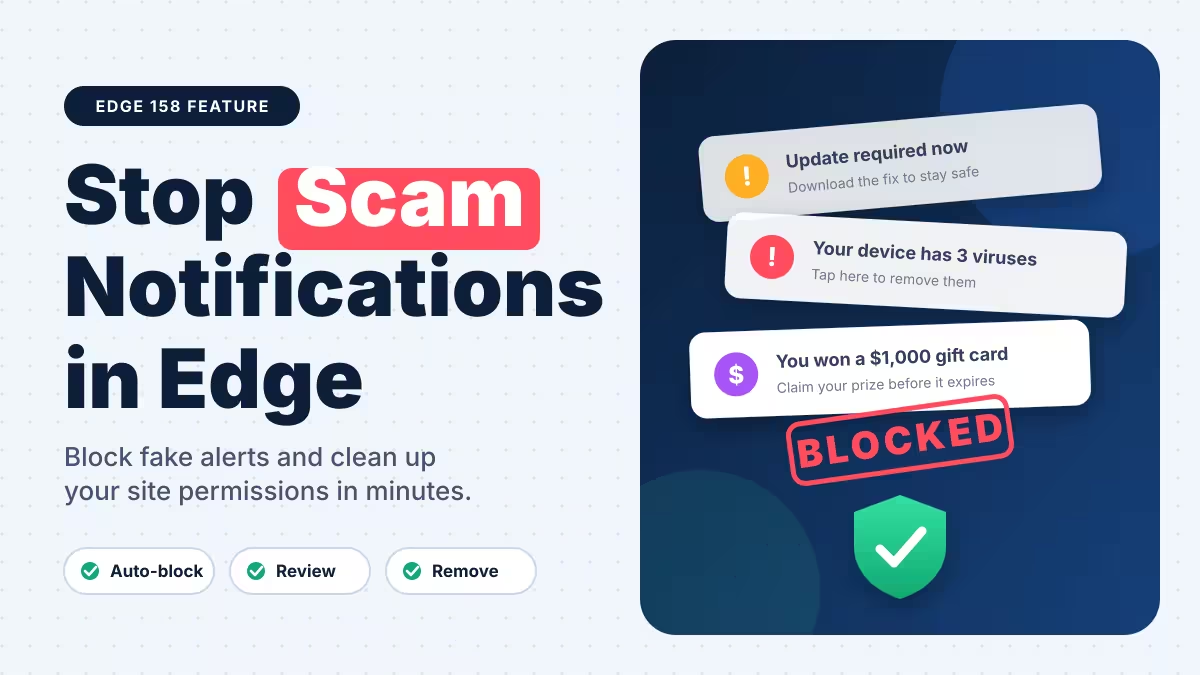
Fake virus alerts and "you won a prize" pop-ups rarely come from your PC. They usually come from a website you once allowed to send notifications. Microsoft Edge now fights back on its own. Since Edge 158, the browser cuts off any site whose notifications send you to a known scam, phishing, or malware page.
This guide explains how the protection works, how to check which sites Edge has silenced, and how to clean up your notification list by hand.
Why Scam Notifications Appear in Microsoft Edge
Many sites ask, "Allow notifications?" the moment you land on them. One careless click gives that site a direct line to your desktop. Scammers abuse this permission to push alerts that look like system warnings, fake security scans, or giveaway offers.
These alerts keep coming even after you close the tab. Each click takes you to a page that tries to steal your password, card details, or push a fake antivirus download.
How Edge Automatically Blocks Scam Website Notifications
Edge now pairs its notification system with Microsoft Defender SmartScreen, the reputation filter that already checks the pages you visit.
Here is what happens:
- A site sends you a notification.
- You click it, and the link points to a page.
- SmartScreen checks that page. If it flags the page as a scam, phishing, or malware site, Edge blocks it.
- Edge then unsubscribes you from that site's notifications automatically.
- Edge shows a message telling you it took this action.
You don't need to switch anything on. The feature runs in the background on any updated copy of Edge.
Keep one limit in mind. Edge only acts after SmartScreen recognizes a bad page. A brand-new scam domain may slip through until Microsoft adds it to its list, so your own caution still matters.
How to Check Blocked Notification Sites in Edge
You can review every site's notification status in one place.
- Open Edge.
- Paste
edge://settings/privacy/sitePermissions/allPermissions/notificationsinto the address bar and press Enter. - Look under the Block section for sites Edge or you have stopped.
If you believe Edge blocked a trusted site by mistake, you can allow it again from this same page. Think carefully before you do. Edge blocked that site because SmartScreen tied its alerts to a dangerous page.
How to Turn Off or Remove Website Notifications in Edge
Don't wait for Edge to catch a bad site. Clean your list yourself every few weeks.
- Go to Settings > Privacy, search, and services > Site permissions > All permissions > Notifications.
- Check the Allow list.
- Click the three-dot menu next to any site you don't recognize and choose Remove or Block.
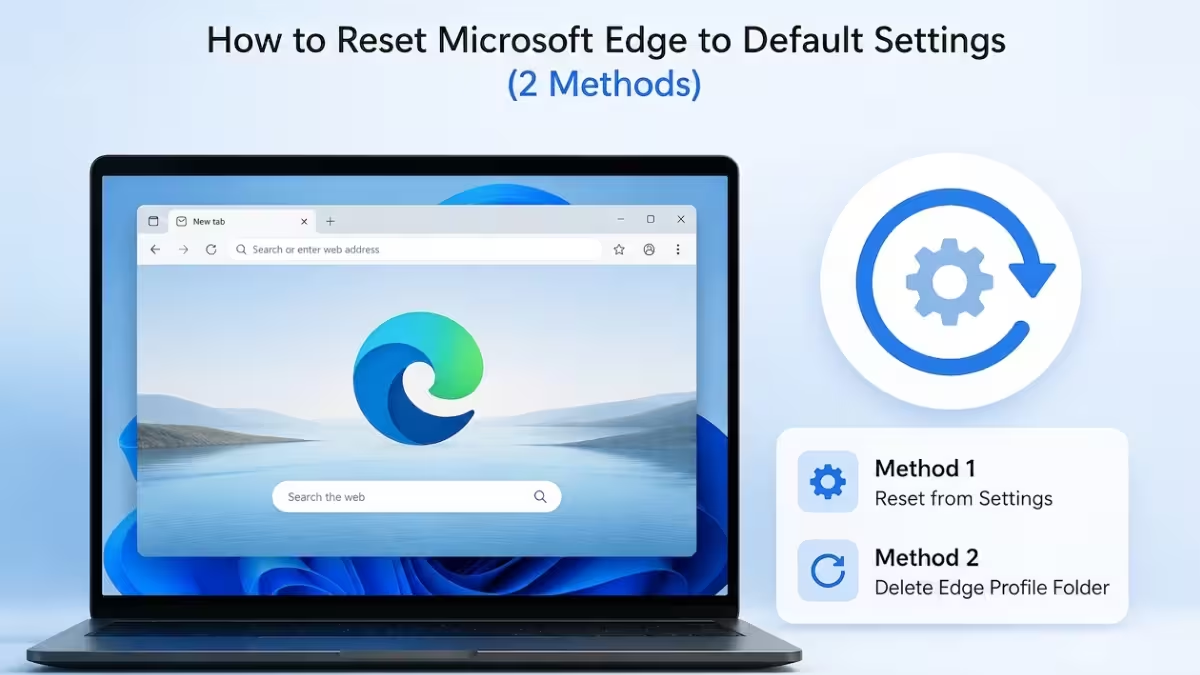
To stop the permission prompts entirely, turn off Ask before sending on the same page. Sites will then lose the ability to ask you at all. If Edge still behaves oddly afterward, you can reset Edge to its default settings.
How to Import Chrome and Google Account Data Into Edge Anytime
Edge 158 also fixes an old annoyance for people moving from Chrome. Earlier, Edge offered a Google import only during first setup. If you skipped it, you had no easy way back.
Now you can import Chrome passwords and other data from Settings whenever you like:
- Open Settings > Profiles > Import browser data.
- Choose Google Chrome or your Google account as the source.
- Pick what to bring over: passwords, bookmarks, browsing history, and autofill entries.
- Click Import.
Microsoft merged the Chrome and Google account import options into a single entry point. For now, the Google account import is listed for Windows only, so Mac and Linux users may not see it.
How to Update Edge to Get Scam Notification Protection
Edge updates itself, but you can force a check.
- Click the three-dot menu in the top-right corner.
- Go to Settings > About Microsoft Edge.
- Let Edge download the update, then click Restart.
If you don't use Edge yet, download Microsoft Edge from the official Microsoft site, or update Edge with Microsoft's own help pages if the steps above fail.
How to Avoid Fake Browser Alerts and Scam Pop-Ups
- Click Block whenever an unfamiliar site asks to send notifications.
- Never call a phone number shown in a pop-up warning.
- Never download "security tools" a notification offers.
- Keep SmartScreen turned on under Settings > Privacy, search, and services > Security.
- Use a unique password for every account so one leak doesn't expose the rest.
- Remove extensions you don't trust, since malicious browser extensions can also push scams and ads.
- Turn on Global Privacy Control to limit how sites track you.
Frequently Asked Questions
Does Edge block scam notifications automatically?
Yes. From version 158 onward, Edge unsubscribes you from any site whose notification leads to a page SmartScreen flags as a scam, phishing, or malware site.
Do I need to enable this feature?
No. It works by default as long as SmartScreen stays on and your browser is up to date.
Can I unblock a site Edge blocked?
Yes. Open the notifications page under site permissions and allow the site again. Only do this if you fully trust it.
Will Edge catch every scam site?
No. Edge relies on SmartScreen's list, so very new scam pages may not get flagged right away.
Can I import Google passwords into Edge on a Mac?
Microsoft currently lists the Google account import option for Windows devices, so Mac users may not get it yet.
Related Guides
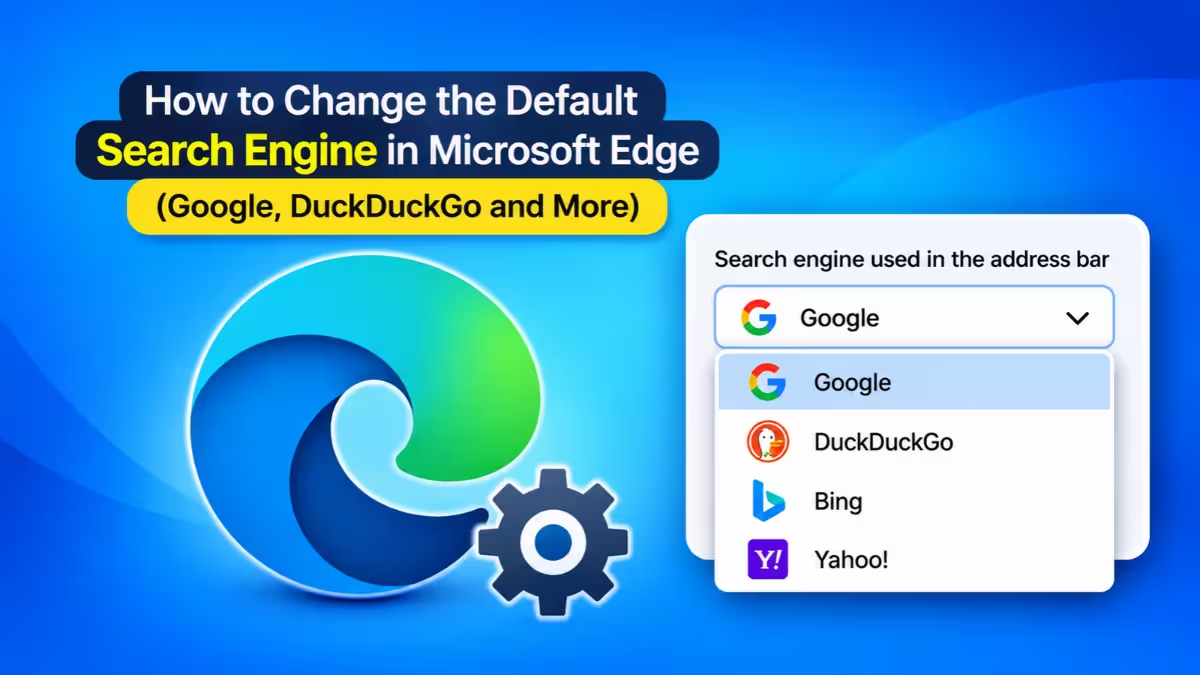
- How to Change Default Search Engine in Edge to Google, DuckDuckGo and More
- How to Restore Last Session in Microsoft Edge (Windows 10 & 11)
- Multiple Same Passkeys Showing Up in Chrome or Edge? Here's the Fix
- Microsoft Teams Browser Prompt Now Forces Users to Choose Edge or Default Browser
- How to Fix "Hmm Can't Reach This Page Error" in Edge and Chrome (Full Guide)