Proton Drive encrypts your files end to end, so nobody except you and the people you share with can open them. Proton itself cannot read them either. If you want that level of privacy for your documents, you can bring your whole Google Drive across without starting from scratch.
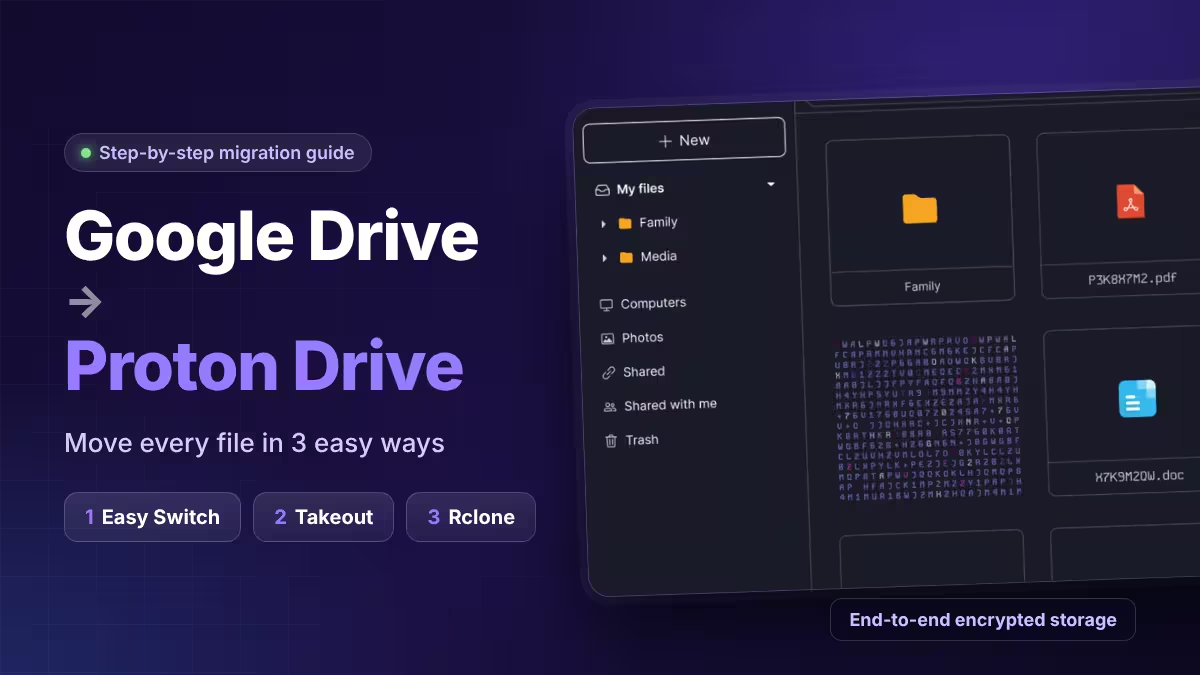
You have three practical ways to do it. Easy Switch handles everything inside your browser. Google Takeout lets you download a copy and upload it yourself. Rclone (or its GUI, RcloneView) suits people with large drives who want verified, resumable transfers. This guide covers all three so you can pick the one that fits your setup.
Why Move from Google Drive to Proton Drive
Google encrypts your files while they travel and while they sit on its servers, but Google still holds the keys. That means the company technically can open your files. Proton Drive works differently. Your device encrypts each file before it leaves, so Proton stores data it cannot read.
Proton also publishes its code for public review, and independent security experts audit the service. A nonprofit foundation owns the majority of the company. The free plan shows no ads, and Proton says it does not profile your activity or train AI on your files.
If those points matter to you, the migration takes less effort than most people expect. Moving your phone data too? See how to back up your Android phone to PC without Google.
Best Ways to Migrate Google Drive to Proton Drive
| Method | Best for | Downloads to your PC? | Effort |
|---|---|---|---|
| Easy Switch | Most users | No | Very low |
| Google Takeout + manual upload | Users without Easy Switch yet | Yes | Medium |
| Rclone / RcloneView | Large drives, power users, teams | No | Medium |
Start with Easy Switch if your account shows it. Fall back to Takeout if it doesn't. Choose rclone when you need checksum verification or a sync that runs during a gradual move.
Transfer Google Drive Files to Proton Drive with Easy Switch
Easy Switch pulls files straight from Google's servers into your encrypted Proton storage. You never download a ZIP or babysit an upload.
Proton is still rolling the feature out in stages. If you can't find it, check back in a few days.
Steps:
- Open the Proton Drive web app and sign in.
- Click Settings, then See all settings.
- Open Import via Easy Switch and choose Google.
- Hit Continue.
- Sign in to your Google account and grant Proton permission to read your Drive.
- Let the import run. You can keep working in Proton Drive while it copies files in the background.
To track progress, return to the same Easy Switch page in settings. Proton emails your Proton address once the job finishes.
Where your files end up: Look under My files, then open the Drive-import folder. Proton keeps your original Google folder layout, so you won't need to rebuild your structure.
A few things to know:
- Proton uses the Google permission only for the import. It loses that access as soon as the job ends.
- Google gets no access to your Proton account at any point.
- If some files fail, Proton sends you a report listing them. It holds those file names only long enough to build that report.
Download Google Drive Data with Takeout and Upload It to Proton Drive
Pick this route if Easy Switch hasn't reached your account, or if you simply want a local backup along the way. If that copy sits on a Windows PC, a solid Windows 11 backup routine protects it too.
Step 1: Create a Takeout export
- Visit Google Takeout and sign in to the right Google account.
- Under Create a new export, click Deselect all.
- Scroll down and tick Drive only.
- Go to the bottom of the page and click Next step.
- Choose delivery by download link, set it to export once, and pick your file type and archive size.
- Click Create export.
Google needs time to package everything. Small drives finish in minutes, while big ones can take a day or two. Google emails a download link to your Gmail when the archive is ready.
Step 2: Download and unzip
- Open the email titled "Your Google data is ready to download."
- Click Manage Google Takeout request.
- Download every part of the export.
- Extract all the ZIP files on your computer.
Large drives often split into several archives, and each one carries its own partial folder tree. Merge those folders on your computer before you upload. Reorganizing locally runs much faster than moving files around inside Proton Drive later.
Step 3: Upload to Proton Drive
You can upload through the desktop app or the browser.
Desktop app (Windows and macOS)
The Proton Drive desktop app creates a synced folder on your computer. Anything you drop into it uploads to your encrypted storage automatically.
- Windows: Open File Explorer, go to Proton Drive, then My files, and drag your unzipped folders in.
- macOS: Open Finder and drag your files into the Proton Drive folder in the sidebar.
Watch the sync status in the app to confirm everything finished. The desktop app retries failed uploads on its own, which makes it the safer choice for thousands of files or multi-gigabyte folders.
Web app
- Sign in at drive.proton.me.
- Create a folder such as "Google Drive Backup" to keep things tidy.
- Drag your files into the browser window, or click the Upload button and select files or folders.
The web app needs no installation, so it works well on a shared or office computer. Keep the tab open until the progress bar completes.
Migrate Google Drive to Proton Drive with Rclone or RcloneView
Rclone copies files directly between cloud services and checks each one after transfer. Proton Drive support requires rclone v1.69 or newer. RcloneView wraps rclone in a visual interface, so you can skip the command line.
Set it up:
- Install RcloneView (or plain rclone if you like the terminal).
- Add a new remote for Google Drive. A browser window opens for Google sign-in, and the app handles the OAuth token.
- Add a second remote for Proton Drive with your Proton email, password, and 2FA code if you use one.
- Browse both drives side by side to confirm the connection works.
Run the transfer:
- Use Folder Compare to see which files exist on each side before you copy anything.
- Create a Copy job with Google Drive as the source and your target Proton Drive folder as the destination.
- Turn on checksum in the advanced settings. Proton's encrypted storage can report slightly different file sizes, so hash checks catch real mismatches more reliably than size checks.
- Start the job and watch the live speed and file count.
If your connection drops, run the same job again. Rclone skips files that already match and copies only what's missing.
Moving gradually? If teammates still save files to Google Drive during the switch, schedule a nightly sync job so Proton Drive stays current. RcloneView offers scheduling on its paid PLUS plan, and its job history gives you a clear log of every run.
What Won't Move Over: Sharing Settings, Google Docs Formats, Connected Apps
No migration method carries everything over. Plan for these gaps:
- Sharing permissions: Proton can't copy who had access to what in Google. Recreate shared links and invites manually for important folders.
- Google Docs, Sheets, and Slides: These native files convert to Office or other standard formats during export. Open a few after the move to check formatting. If you need a new editor for them, compare Google Sheets vs Excel or browse these free Microsoft Office alternatives.
- Connected apps: Any tool or service that saved to Google Drive needs a new connection to Proton Drive, or a different workflow. That includes shared files such as Gemini chats shared via Google Drive.
Verify Your Files Before Deleting Google Drive
Don't wipe your Google Drive the moment the import finishes. Run through this quick checklist first:
- Compare the total file count and storage size on both sides.
- Open a sample of documents, photos, and PDFs to confirm they load.
- Review any failure report Proton emailed you and re-upload those files manually.
- Delete temporary Takeout ZIPs and extracted folders from your PC once you're satisfied.
After that, you can clear out Google Drive with confidence. If you also use Google Photos, migrate that library to Proton Drive next using the same Takeout approach, or weigh other Google Photos alternatives first.
Frequently Asked Questions
Is Proton Drive a good alternative to Google Drive?
It suits you if privacy is your priority and you mainly store and share files. Compare the features you rely on, such as real-time document editing, before you commit to the switch.
Is Proton Drive GDPR compliant?
Proton is a Swiss company, and a company's location alone does not prove compliance or tell you where it hosts your data. Read Proton's current privacy policy and data processing terms before you move business or client files. This is general information, not legal advice.
Does Easy Switch download files to my computer?
No. Easy Switch copies files server to server, from Google into Proton Drive. Your computer's storage and bandwidth stay untouched.
Why can't I see Easy Switch in my Proton Drive settings?
Proton is enabling the Drive import feature for accounts in phases. If it hasn't appeared yet, use Google Takeout or rclone for now, or wait until it shows up.
Will my folder structure stay the same?
Yes. Easy Switch rebuilds your Google folder tree inside the Drive-import folder. Takeout and rclone also keep your folders, though split Takeout archives may need merging first.
Can Proton read my Google account after the import?
No. Proton's access to your Google account ends when the import completes. You can also remove the permission yourself from your Google account's security settings. While you are there, review your Gmail security settings too.
How long does a migration take?
It depends on how much data you have. A few gigabytes usually finish within an hour, while drives with hundreds of gigabytes can take a day or more, especially with Takeout's packaging time.
Do shared folders and permissions move over?
No. You need to reshare folders and files from Proton Drive and invite collaborators again.