Modern PS5 games regularly exceed 50GB, and some titles push past 100GB with updates and DLC. When your storage fills up, you need to uninstall games on PS5 to make room for new releases or clear out titles you have already finished. The process is quick once you know where to look, but it is not obvious to every user because Sony does not surface the Delete option on a clearly labeled button. This guide covers every method: home screen deletion, library deletion, storage settings, game data cleanup, ghost icon removal, and media gallery management.
Why You Might Want to Uninstall Games on PS5
There are several practical reasons to delete games from your console:
- Limited storage: High-definition graphics, audio, and DLC packs drive modern game sizes into the dozens of gigabytes. A filled SSD forces you to rotate your library constantly.
- Finished titles: After completing a game, keeping it installed serves little purpose unless you plan a second run.
- Cleaner navigation: A leaner library speeds up home screen browsing and reduces clutter across your game tiles.
- Preparing for new releases: Upcoming titles from your wishlist often need a cleared slot before you can download them.
Unlike uninstalling PC games, which sometimes leave residual registry entries and installation folders behind (as with titles like Escape from Tarkov or Neverness to Everness), the PS5 handles its file structure more cleanly. That said, save data and media captures do not delete automatically when you remove a game.
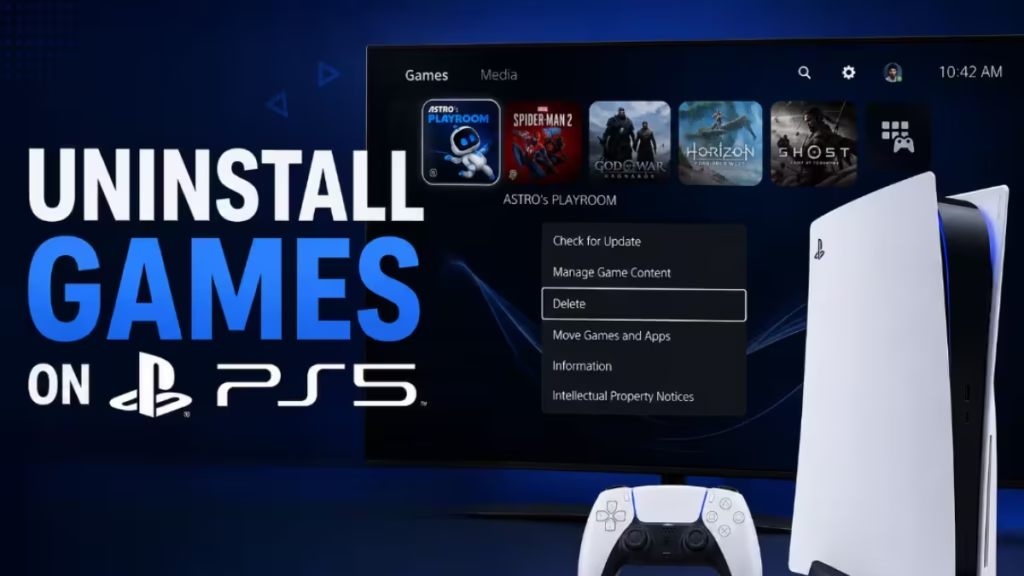
How to Uninstall Games on PS5 from the Home Screen
This is the fastest method when you need to remove a single game.
- Turn on your PS5 and wait for the home screen to load.
- Use the D-pad or left analog stick to highlight the game you want to delete.
- Press the Options button on your DualSense controller. This is the button with three horizontal lines, located to the right of the touchpad.
- A menu appears on the right side of the screen. Scroll down and select Delete.
- Confirm the deletion when the prompt appears.
The game files uninstall immediately. Save data and screenshots remain on the console until you delete them separately.
Note: If the game is currently running or suspended in rest mode, close it before you attempt to delete it.
How to Uninstall Games on PS5 from the Game Library
If the game does not appear on your home screen tiles, use the library method.
- From the home screen, scroll all the way to the right and select Game Library.
- Open the Your Collection tab.
- Find and highlight the game you want to remove.
- Press the Options button on your controller.
- Select Delete.
- Confirm by selecting Yes or OK.
This method works for both PS4 and PS5 titles installed on your console.
How to Uninstall Games on PS5 via Storage Settings
The Storage menu gives you a complete overview of everything installed and lets you delete multiple titles in one session.
- From the home screen, go to Settings (the gear icon in the top right corner).
- Select Storage.
- Choose Games and Apps.
- Browse the list of installed titles. Each entry shows its file size.
- Select the game you want to remove, then choose Delete.
- Confirm when prompted.
This method is the most efficient when you want to clear several games at once, because you can compare file sizes before deciding what to remove.
How to Delete Game Data, Save Files, and Add-ons
Deleting the main game does not automatically remove its save files, DLC, or add-on data. To manage these separately:
- Go to Settings from the home screen.
- Select Storage.
- Choose Saved Data to locate save files, or navigate to Games and Apps and select the specific game for a breakdown of its associated data.
- Under the game, select the data type you want to remove: save files, add-ons, or update packages.
- Confirm the deletion.
If you subscribe to PlayStation Plus, back up your save files to the cloud before deleting them. This lets you restore your progress if you reinstall the game later.
How to Clear Media Gallery Storage
Screenshots and video captures consume significant storage over time. The PS5 organizes your media by game and displays the file size for each entry.
- Go to Settings from the home screen.
- Select Storage.
- Choose the Media Gallery section.
- The system categorizes screenshots and recordings by game, sorted in descending order by size.
- Select the entries you want to remove and delete them.
Review this section regularly. A single session of heavy video capture can fill several gigabytes without any obvious indication in the main storage counter.
How to Remove Ghost Icons After You Uninstall Games on PS5
After you uninstall a game, its tile sometimes remains on the home screen. This ghost icon has no active game data behind it but continues to appear until the system clears it. There are four methods to fix this.
Method 1: Restore Licenses
This forces your PS5 to sync with Sony’s servers and verify exactly what should appear on your screen.
- Go to Settings.
- Select Users and Accounts.
- Select Other.
- Select Restore Licenses.
- Select the affected game and click Restore.
Your screen may flicker briefly during the process. Once the sync completes, the ghost icon usually disappears.
Method 2: The Re-Download Trick
Starting a fresh download re-links the ghost icon to an actual file, which makes the Delete option available again.
- Navigate to the ghost icon and begin downloading the game.
- Once the download starts, back out of the download screen.
- Highlight the game.
- Press the Options button.
- Select Delete to remove it permanently.
Wait until the download reaches roughly 25% if the Delete option does not appear right away. If the game has been refunded or removed from your account, this method will not work. Pressing the icon will redirect you to the PlayStation Store product page instead. This is a common situation for players who received PS5 refunds for removed titles.
Method 3: Hide from Game Library
If you want to remove the icon from your active view without resolving the underlying database issue, use the Hide option.
- Scroll to the far right of your home screen and open Game Library.
- Go to the Your Collection tab.
- Find the ghost game and press the Options button.
- Select Hide.
This removes the icon from your visible library without deleting the history entry. It is a quick cosmetic fix when the other methods are not cooperating.
Method 4: Rebuild Database in Safe Mode
If Methods 1 through 3 do not clear the ghost icon, the PS5’s internal database may be corrupted. Rebuilding it forces the console to scan the entire SSD and remove icons that have no matching game files.
- Fully power off your PS5. No white or blue lights should be visible on the console.
- Press and hold the power button for 6 to 8 seconds until you hear a second beep.
- The console boots into Safe Mode.
- Connect your DualSense controller to the PS5 using a USB cable.
- Press the PS button on your controller.
- Select Clear Cache and Rebuild Database.
- Select Rebuild Database.
- Press OK.
The PS5 will scan the SSD and restart automatically. Wait for the login screen before using the console. Despite the on-screen note warning that the process may take several hours, most rebuilds complete in a few minutes.
A Note on Physical Disc Ghosts
If you deleted a disc-based game but left the disc in the drive, the icon stays on screen showing “Ready to Copy.” The fix is simple: eject the disc, and the icon disappears immediately.
Managing PS5 Storage After Uninstalling
Deleting games is the fastest way to reclaim space, but a few additional strategies help keep your storage healthy long term.
- Expand with an M.2 SSD: The PS5 supports M.2 NVMe SSDs for internal expansion. Check Sony’s official hardware specifications for compatible drive models and speed ratings before purchasing.
- Use external USB storage: The PS5 accepts external USB drives for storing PS4 games. You can also move PS5 games to a compatible external SSD, though you cannot play PS5 titles directly from external storage. Transfer them back to the internal SSD when you want to play.
- Manage DLC and add-ons separately: Large expansion packs sometimes exceed the size of the base game. Delete them through the Storage settings when you no longer need them.
- Review your library on a schedule: Set a monthly reminder to check your installed titles. Games you have not touched in three months are strong candidates for deletion.
- Consider your streaming apps: Streaming and media apps like Crunchyroll also accumulate cache data over time. Check their app storage usage under Games and Apps and clear cache when needed.
Does Deleting a Game on PS5 Remove Your License
Deleting a game from your PS5 does not affect your ownership of that title.
- Digital games: Removing a digital game from your console keeps your license intact. Reinstall it at any time from your library or the PlayStation Store, as long as your account remains active and you have an internet connection.
- Physical discs: Deleting the installed game data does not affect your physical copy. Insert the disc again and the PS5 reinstalls it.
- DLC and add-ons: Certain DLC requires the base game to be installed. If you remove the main title, associated add-ons may become inaccessible until you reinstall the base game.
Troubleshooting PS5 Game Uninstall Issues
Game will not delete: Close the game completely and confirm it is not running in the background. Restart your PS5 and try again.
Storage space not updating after deletion: The available storage display sometimes lags after a deletion. Restart your console and recheck the Storage menu.
Corrupted game data: If a game shows as corrupted, remove both the game and all associated data through the Storage settings, then reinstall from your library.
Accidentally deleted a game: Reinstall it from your Game Library or the PlayStation Store. Your save data remains on the console unless you deleted it separately.
Errors after reinstalling: Some PS5 errors appear after a fresh installation or during the first launch. For download and update failures, the PS5 Error CE-117773-6 guide covers the most common causes. For online games that fail to connect after reinstall, the Arc Raiders online connection error on PS5 guide walks through DNS, NAT, and network fixes.
Frequently Asked Questions
Does uninstalling a game on PS5 delete save data?
No. Deleting a game only removes the game files. Save data stays in a separate location under Storage and persists until you manually delete it.
Can I re-download a game after uninstalling it on PS5?
Yes. As long as your PlayStation account retains the license, you can reinstall any digital title from your Game Library or the PlayStation Store at any time.
How do I delete a game on PS5 without losing save data?
Use any of the three standard deletion methods: home screen Options menu, Game Library, or Storage settings. None of them touch your save data automatically. If you want to remove save data as well, do that separately through Settings > Storage > Saved Data.
Why is a deleted game still showing on my PS5 home screen?
This is a ghost icon. The database did not update correctly. Use the Restore Licenses method first, then try the re-download trick or hide it from your library. If those fail, rebuild the database through Safe Mode.
Can I uninstall PS4 games on PS5?
Yes. PS4 titles installed on your PS5 appear in the Game Library alongside PS5 games. Use the same deletion methods: highlight the game, press Options, and select Delete.
Related Gaming Guides
- How to Enable PSSR 2 on PS5 Pro (Enhance Image Quality)
- How to Activate Crunchyroll on Any Device (TV, PS5, Xbox, Fire Stick & More)
Game Error Fixes

