Microsoft Scout ships with a handful of built-in skills for common tasks, but you are not limited to those. You can write your own custom skills using a simple SKILL.md file, and Scout picks them up automatically in future conversations. This guide covers what skills actually are, what Scout includes out of the box, and exactly how to build your own.
Microsoft Scout Skills Explained
A skill is a saved set of instructions Scout can load into a conversation to handle a specific, repeatable task. Instead of retyping the same detailed prompt every time you want a weekly report or a formatted summary, you write the instructions once, save them as a skill, and Scout applies them whenever the task comes up again.
Bundled Skills That Ship With Microsoft Scout
Scout includes a few skills out of the box for common tasks:
| Skill | What It Does |
|---|---|
| Word, Excel, PowerPoint | Create and edit Microsoft Office documents |
| Loop | Edit Microsoft Loop documents through browser automation |
| Web Artifacts Builder | Build interactive HTML dashboards and visualizations |
These bundled skills are always available and get updated automatically with app releases. If you don’t need a particular one, you can toggle it off individually from Settings.
How to Create a Custom Skill
Building your own skill takes four steps.
- Go to your skills directory at
~/.copilot/skills/. - Create a subfolder named after your skill, for example
weekly-report/. - Inside that subfolder, create a file named
SKILL.md. - Add a YAML frontmatter block with a description, followed by the actual skill instructions.
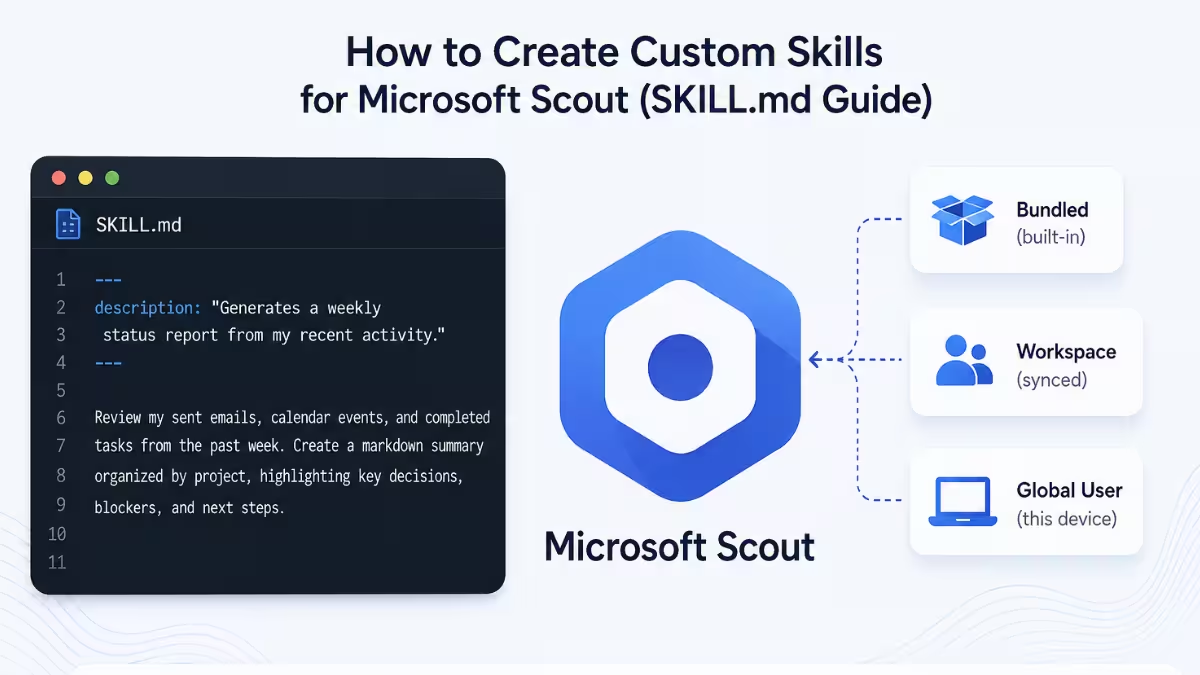
Here’s what that file looks like in practice:
---
description: "Generates a weekly status report from my recent activity."
---

Review my sent emails, calendar events, and completed tasks from the past
week. Create a markdown summary organized by project, highlighting key
decisions, blockers, and next steps.
Save the file, and Scout discovers it automatically the next time you start a conversation. You don’t need to restart the app or manually load it. Getting the file saved correctly is only half the job though, how you actually word the frontmatter and the instructions is what determines whether the skill works well.
How to Write Effective Microsoft Scout SKILL.md Instructions
The description in the frontmatter matters more than it looks. Scout uses it to decide when a skill is relevant to what you’re asking, so keep it specific about what the skill actually produces rather than vague. The instructions below the frontmatter can be as detailed as the task needs, since this is the same kind of instruction you’d type manually into a prompt, just saved for reuse. If a task involves multiple steps or specific formatting requirements, write those out clearly the same way you would if you were asking Scout directly in chat.
Microsoft Scout SKILL.md Examples
Here are a few practical skills you can build right away, beyond the weekly report example above.
Meeting prep skill. Save this as ~/.copilot/skills/meeting-prep/SKILL.md:
---
description: "Prepares a briefing before my next scheduled meeting."
---

Look at my next calendar event. Pull up any related emails or Teams
messages from the attendees in the past two weeks. Summarize the context,
flag any open action items tied to this meeting, and list the attendees
with their role if it's available.
Expense summary skill. Save this as ~/.copilot/skills/expense-summary/SKILL.md:
---
description: "Summarizes my expense-related emails for the month."
---

Search my inbox for receipts and expense confirmations from the past 30
days. Create a table listing the vendor, amount, and date for each one,
grouped by category, with a total at the bottom.
Code review checklist skill. Save this as ~/.copilot/skills/pr-checklist/SKILL.md:
---
description: "Reviews a pull request against our team's standard checklist."
---

Review the current git diff for missing tests, unhandled errors, hardcoded
values, and inconsistent naming. Flag anything that doesn't follow the
existing code style in the surrounding files, and list each issue with the
file and line number.
Each of these follows the same pattern as the weekly report skill: a short, specific description in the frontmatter, followed by clear instructions written the same way you’d type them directly into a chat message. Once you’ve got a skill worth keeping, where you save it decides how widely it follows you.
Skill Tiers Explained
Where you save a skill determines where it’s available:
| Tier | Location | Behavior |
|---|---|---|
| Bundled | Shipped with the app | Always available, updated with app releases |
| Workspace | ~/.copilot/m-skills/ | Synced across devices via cloud sync |
| Global user | ~/.copilot/skills/ | Available on this machine in all conversations |
If you want a skill to follow you across every device you use Scout on, save it to the Workspace tier instead of Global user, since only Workspace skills sync through the cloud. A skill saved only to Global user stays local to that one machine.
How to View Active Skills in Microsoft Scout
Any skill Scout loads into a conversation, whether bundled or custom, shows up in that conversation’s context so you can see what’s actively influencing its responses. Bundled skills are always available by default, while custom skills only show up once Scout discovers them in your skills directories. A few questions come up often once people start working with skills day to day.
Frequently Asked Questions
Do I need to restart Microsoft Scout after creating a new skill?
No. Once you save the SKILL.md file in the correct directory, Scout discovers it automatically the next time you start a conversation. There is no separate reload step.
What happens if my skill’s description is too vague?
Scout may not recognize when the skill is actually relevant to what you’re asking, since it relies on the description to match your request to the right skill. A specific, clearly worded description gets picked up more reliably than a generic one.
Can I turn off a bundled skill I don’t use?
Yes. From Settings, you can toggle individual bundled skills on or off if you don’t need them, without affecting any custom skills you’ve created.
Can a custom skill do anything a bundled skill can’t?
Custom skills are instructions Scout follows, similar to a saved prompt, rather than new built-in capabilities. They work well for repeatable tasks like reports or summaries, but they don’t add new tools beyond what Scout can already access, like file access, shell commands, or browser control.
What’s the difference between the Workspace and Global user skill tiers?
Workspace skills sync across your devices through the cloud, while Global user skills stay available only on the machine where you saved them. Choose Workspace if you want the same skill available everywhere you use Scout.
Related Guides
- How to Install Microsoft Scout Agent on Windows and macOS
- How Microsoft Scout Delegates Tasks to Sub-Agents (Explore, Research, and More)
- How to Control a Browser with Microsoft Scout (Playwright Automation Guide)
- How Microsoft Scout Handles Teams Messages and OneDrive Files
- How Microsoft Scout Manages Your Email and Calendar in Microsoft 365
- Microsoft Scout Admin Access: The Two Gates You Need to Enable First
- How to Deploy Microsoft Scout via Intune: Complete Admin Guide
- How to Run Git and Shell Commands Using Microsoft Scout
- How to Configure Microsoft Scout Heartbeats and Automations
- How Microsoft Scout for Developers Automates Git and Shell Tasks
- How to Automate Microsoft 365 Using WorkIQ With Microsoft Scout

