HP’s April 2026 BIOS update is locking users out of their own machines. If your HP EliteBook, ProBook, or ZBook boots straight to a BitLocker recovery screen and cycles back into the same screen even after you enter the correct recovery key, a faulty firmware update delivered through Windows Update caused this.
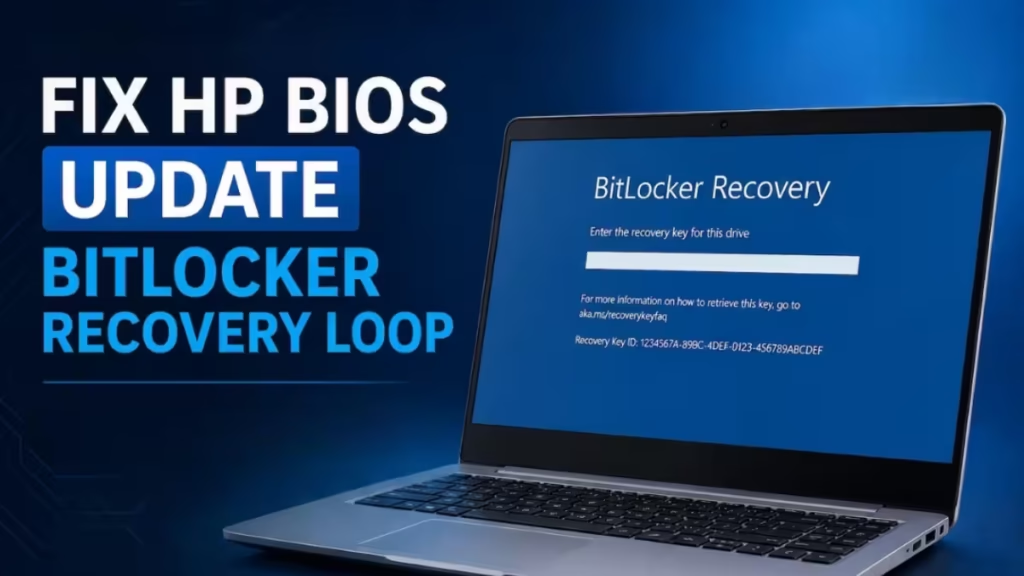
HP officially confirmed the issue and published a support advisory covering all HP Commercial Notebooks, Commercial Desktops, and Workstation Computers running Windows 11 23H2, 24H2, and 25H2. This guide explains what went wrong, which BIOS versions are broken, and every documented fix available right now.
What Causes the HP BIOS Update BitLocker Recovery Loop
The April 2026 BIOS update carries a Secure Boot certificate migration tied to Microsoft’s 2023 cryptographic key rollout. During installation, the firmware attempts to modify Secure Boot variables inside the motherboard, specifically the Key Exchange Key and the signature database.
For certain hardware configurations, this modification introduces a firmware incompatibility during the Power-On Self-Test sequence. The result is a boot freeze that leaves the system stuck at the HP logo with no way forward.
On machines that pass the initial hardware check, the situation becomes a different kind of problem. The modified firmware changes the boot measurements stored in the Trusted Platform Module chip’s Platform Configuration Registers. BitLocker sealed its encryption key against a specific set of measurements. When those measurements no longer match, the TPM refuses to release its cryptographic key and forces Windows 11 to demand a BitLocker recovery key on every reboot.
The loop persists because the Secure Boot 2023 certificate update never fully completes. The firmware state and the sealed baseline never reconcile, so the system views itself as altered on every reboot until the update finishes or BitLocker is suspended. This failure pattern resembles what occurs when TPM is enabled in BIOS but not showing in Windows 11, where the trust chain breaks at the firmware level and Windows cannot verify hardware integrity.
BIOS updates that shift hardware identifiers can also trigger a Windows Activation Error 0xC004F211 after a BIOS update, when the activation server can no longer match the hardware signature on file.
Which HP Models and BIOS Versions Are Affected
HP’s support advisory confirms the issue spans all HP Commercial Notebooks, all HP Commercial Desktops, and all HP Workstation Computers. The affected operating systems are Windows 11 23H2, 24H2, and 25H2.
The specific broken BIOS versions documented in HP’s community forums are:
| Device | Broken BIOS Versions |
|---|---|
| HP ZBook Ultra G1a | 01.04.03 and 01.04.05 |
| HP EliteBook X G1a | 01.03.11 and 01.05.00 |
HP flagged the update as critical and pushed it automatically through Windows Update, which meant users had no opportunity to review or delay the install before it applied. Users began reporting complete boot freezes on ZBook Ultra G1a units as early as April 9, 2026, describing machines stuck at the HP logo with a spinning circle and no recovery path without a wired Ethernet connection.
This is not HP’s first firmware-related incident. In 2024, a BIOS update left some ProBook units permanently bricked, leaving customers facing costly hardware repair bills. The current wave involves a much broader range of commercial hardware.
How to Check If the Certificate Update Has Failed
Before applying any fix, verify that the broken Secure Boot certificate handoff is the actual cause. Open PowerShell as Administrator and run:
Get-ItemProperty -Path "HKLM:\SYSTEM\CurrentControlSet\Control\SecureBoot\Servicing" -Name "UEFICA2023Status"If UEFICA2023Status shows In Progress and stays there over time, the certificate migration is stuck.
Then run a second command to check the error value:
Get-ItemProperty -Path "HKLM:\SYSTEM\CurrentControlSet\Control\SecureBoot\Servicing" -Name "UEFICA2023Error"If UEFICA2023Error returns any value higher than 0, the update process has failed. This confirms the BitLocker recovery loop ties directly to the broken Secure Boot certificate chain, not to a separate encryption or password problem.
Fix 1: Use the F10 BIOS Workaround (HP Official Fix)
HP’s recommendation is to manually enable the Secure Boot 2023 certificate settings inside the BIOS This tells the firmware to accept the certificate handoff from Windows 11 and breaks the recovery loop.
- Power on your HP laptop.
- Tap the F10 key repeatedly (about once per second) immediately after the screen lights up, before the HP logo appears.
- The device boots to the BIOS home page.
- Open the Security tab.
- Select Secure Boot Configuration from the menu.
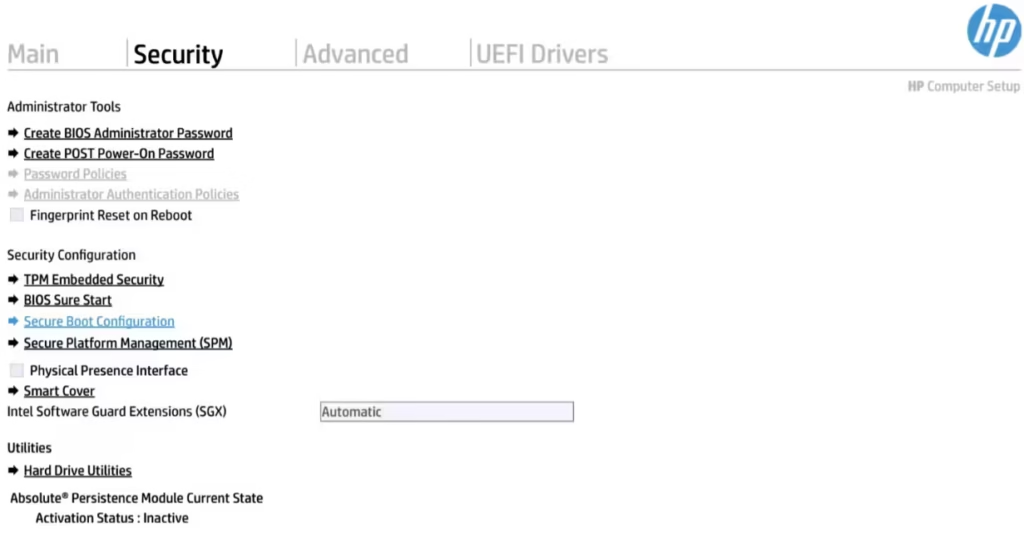
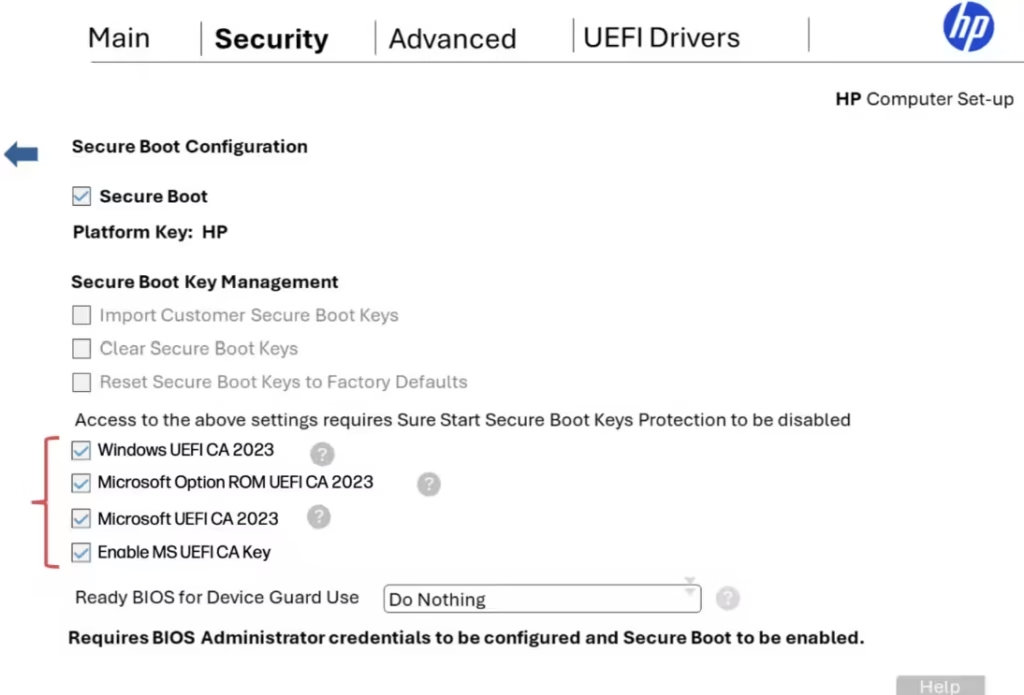
- On the Secure Boot Configuration page, enable all four certificate settings:
- Windows UEFI CA 2023
- Microsoft Option ROM UEFI CA 2023
- Microsoft UEFI CA 2023
- Enable MS UEFI CA Key
- Navigate back to the Main menu
- Select Save Changes and Exit.
- Allow the system to reboot. Your PC should now boot normally into Windows 11.
After Windows loads, the OS flushes the staged certificate files directly to the motherboard NVRAM. The machine may restart several times during this process. That behavior is expected as Windows 11 finalizes the Secure Boot 2023 updates.
Once restarts complete, run the PowerShell UEFICA2023Status command again and confirm the value now reads Updated.
Security recommendation: Once the update succeeds and
UEFICA2023StatusreadsUpdated, HP recommends returning to the BIOS and disabling the Microsoft Option ROM UEFI CA 2023, Microsoft UEFI CA 2023, and Enable MS UEFI CA Key settings, if you do not use third-party bootloaders, option ROMs, or EFI applications. Disabling these after the update completes gives you the tightest possible Secure Boot configuration.
Fix 2: Downgrade to a Known Working BIOS Version
If Fix 1 fails because the system freezes at the HP logo before you can reach the BIOS, a BIOS downgrade is your next option.
Users on HP’s community forums and The Register have reported partial success using HP’s network BIOS downgrade functionality. The critical requirement is an HP USB-C to Ethernet dongle. A standard USB-A Ethernet adapter will not work with this feature.
If you have access to the HP USB-C dongle:
- Connect the dongle to an active Ethernet cable plugged into your router or switch.
- Power on the laptop and tap F10 to enter the BIOS.
- Navigate to the firmware update or BIOS update section.
- Select the network update option and choose a downgrade target.
- For the ZBook Ultra G1a, version 01.03.02 is the confirmed stable fallback.
- Allow the process to complete and reboot.
Keep in mind that downgrading removes the latest security patches from the firmware. Treat this as a temporary measure until HP releases a fully tested replacement BIOS. For broader context on HP firmware recovery methods, the full guide on how to recover a corrupted BIOS on HP laptops covers additional failure scenarios and recovery paths.
Fix 3: Suspend BitLocker Before Making Changes (Enterprise Environments)
If you manage a fleet of HP EliteBooks, ProBooks, or ZBook workstations through tools like Microsoft Intune or SCCM, you must suspend BitLocker encryption across all affected devices before pushing any BIOS configuration changes remotely.
Pushing firmware settings with BitLocker active in a managed environment will force every affected machine back into the recovery loop. Suspend encryption first, then deploy the Secure Boot certificate fix through your management console, and re-enable encryption only after the UEFICA2023Status registry value confirms Updated on all targeted endpoints.
HP explicitly notes in its support advisory: “For customers remotely changing these settings through manageability tools, please ensure BitLocker is suspended before making these BIOS settings changes.”
How to Prevent This: Block Automatic BIOS Updates Through Windows Update
If your HP device has not yet received the broken update, blocking automatic firmware installs through Windows Update is the most reliable preventative step.
- Open Settings and navigate to Windows Update.
- Select Advanced options.
- Under Additional updates, turn off the toggle for Receive updates for other Microsoft products.
- Check Optional updates and decline any HP BIOS or firmware entries listed there.
This does not affect Windows security patches. It only stops firmware packages from installing automatically, which is the delivery channel HP used for the April 2026 BIOS. Disabling this setting removes the automatic risk while you wait for HP to release a verified replacement.
HP’s Official Response to the BIOS Update Boot Issue
HP confirmed the issue publicly in a support advisory published on May 11, 2026, and updated on May 12, 2026. HP told The Register it is “aware of purported BIOS issues and is looking into the matter,” and directed affected users to contact HP Support directly.
The broken BIOS release lands at a difficult moment. Microsoft launched its Driver Quality Initiative at WinHEC 2026, pushing hardware makers to deliver more thoroughly validated firmware and driver code. The pressure to comply with the Secure Boot 2023 certificate deadline before June 2026 appears to have contributed to insufficient validation before the April update shipped.
HP also recently joined the Linux Vendor Firmware Service as a premier sponsor alongside Lenovo and Dell, signaling a commitment to more open and accountable firmware distribution going forward.
Until HP releases a clean replacement firmware, cross-reference your device BIOS versions against the affected list, keep automatic firmware updates disabled, and use the F10 BIOS workaround if you are already inside the loop.

