Microsoft released KB5101650 as the July Patch Tuesday update for Windows 11 25H2 and 24H2. The update installs automatically through Windows Update and moves 25H2 devices to build 26200.8875 and 24H2 devices to build 26100.8875. Windows 11 23H2 receives a separate update, KB5099414, which brings that version to build 22631.7376.
This release focuses on Bluetooth reliability, storage cleanup, and a new recovery tool called Point-in-time restore. Below is a breakdown of what the update installs, how to download it manually, and the full list of fixes it delivers.
How to Install Windows 11 KB5101650
KB5101650 is a mandatory security update, so it installs on its own even if you never check for updates manually. To install it right away instead of waiting:
- Open Settings and go to Windows Update.
- Click Check for updates.
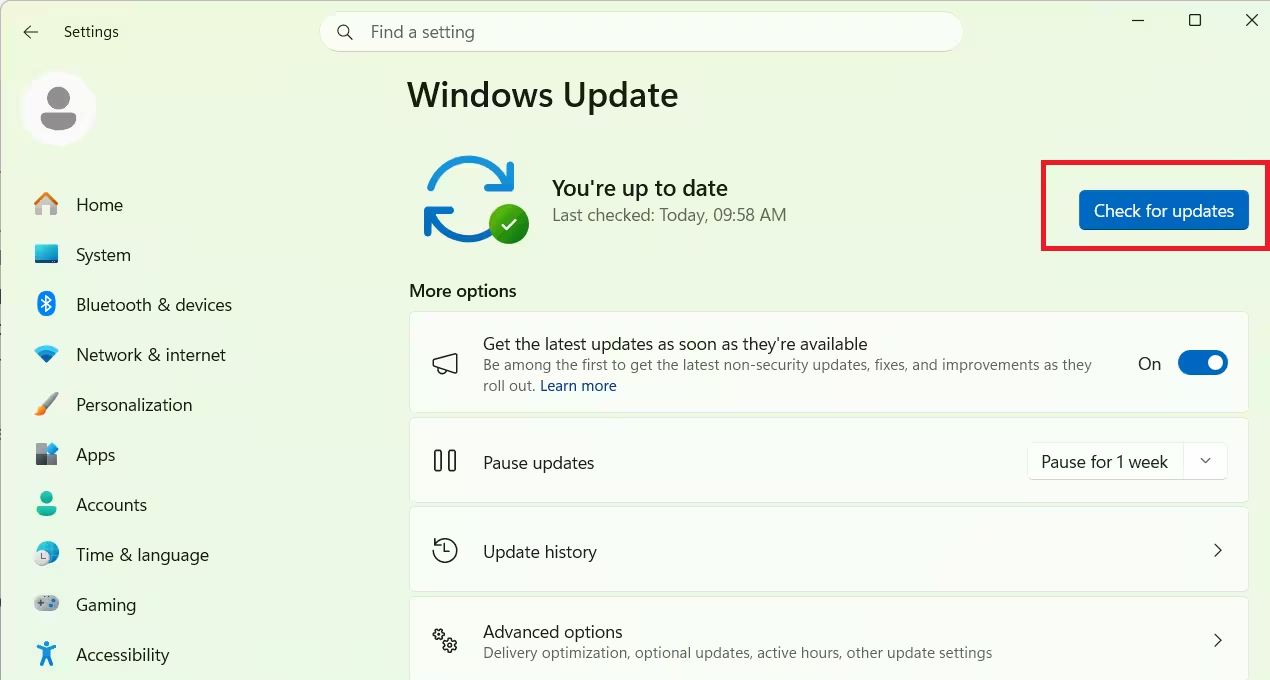
- Let Windows download and install KB5101650, then restart when prompted.
Admins managing multiple devices can instead grab the offline installer from the Update Catalog, though the file there runs over 5GB due to how Windows packages AI components into the installer. Home users installing on a single PC should stick to Windows Update since the offline .msu file offers no real advantage for that case.
If you are still running Windows 11 23H2, your update is KB5099414 instead, and that version has already reached end of support, so it will not receive new features going forward.
Point-in-time Restore Gets a Broader Rollout in Windows 11
The most significant addition in KB5101650 is Point-in-time restore, a recovery feature built on Volume Shadow Copy Service (VSS). It captures a snapshot of your installation, apps, settings, and local files without needing a separate backup drive.
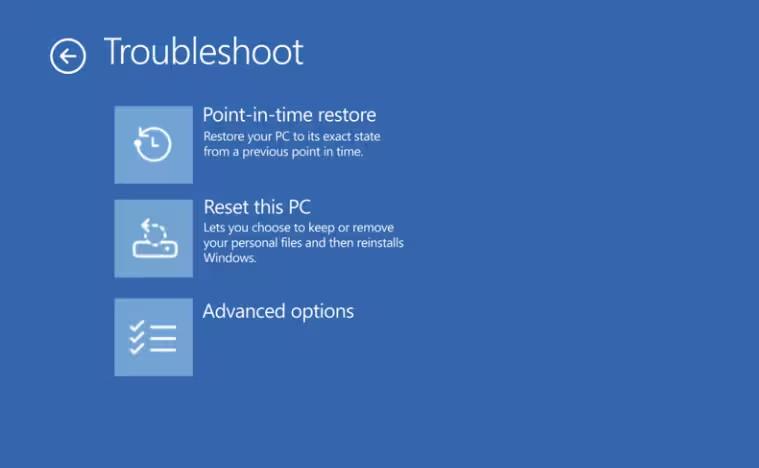
Home edition PCs get a new automatic snapshot every 24 hours with no user setup required. On Enterprise, admins get direct control over both how often snapshots run and how long they’re kept, so the schedule can be tuned to fit company policy rather than relying on Microsoft’s default cadence. Snapshots have a 72 hour shelf life before Windows clears them out on its own, and the tool refuses to run in the first place once free space drops under 20GB. There’s also a hard ceiling of 50GB on how much disk space the feature is allowed to claim overall.
You Can Now Pause Windows Updates for Up to 35 Days
Home edition users have historically been limited to pausing updates for up to seven days at a time, unlike Pro and Enterprise devices that get Group Policy deferral controls. KB5101650 changes that by letting any edition pick a specific resume date up to 35 days out instead of counting down in weekly blocks. Nothing stops you from switching the resume date back and forth before it hits, so in practice you can keep pushing an update out indefinitely as long as you remember to reset the countdown each time.
Bluetooth Pairing and Reliability Issues Finally Get Fixed
Bluetooth connectivity issues, including devices vanishing from Quick Settings or AirPods taking too long to pair, get addressed directly in this update. Microsoft’s changelog lists the following fixes:
- Mute state set from a hardware button or a touch control on your headset now persists across sessions, thanks to the Hands-Free Profile (HFP).
- Microphone audio starts streaming with less delay once you’re actively using it.
- Managing paired accessories from the Bluetooth & devices page no longer triggers freezes or crashes.
- Reconnecting a paired device takes less time once your PC wakes from sleep or hibernation.
- Phone Link routes incoming calls more consistently.
File Explorer Launches Faster and Fixes Renaming Bugs
File Explorer picks up a handful of speed and reliability improvements in this build. Hovering over items in the Home tab now surfaces “Open file location” and “Ask Copilot” options directly, and the app itself launches somewhat faster due to Home tab resource optimization rather than preloading.
The update also fixes a bug where the OneDrive shortcut stopped working when File Explorer ran with administrator rights, and resolves an issue where the address bar closed unexpectedly after selecting an item. Renaming case-sensitive files now works and Windows respects the exact casing you choose.
Screen Tint Gives You More Control Over Accessibility Settings
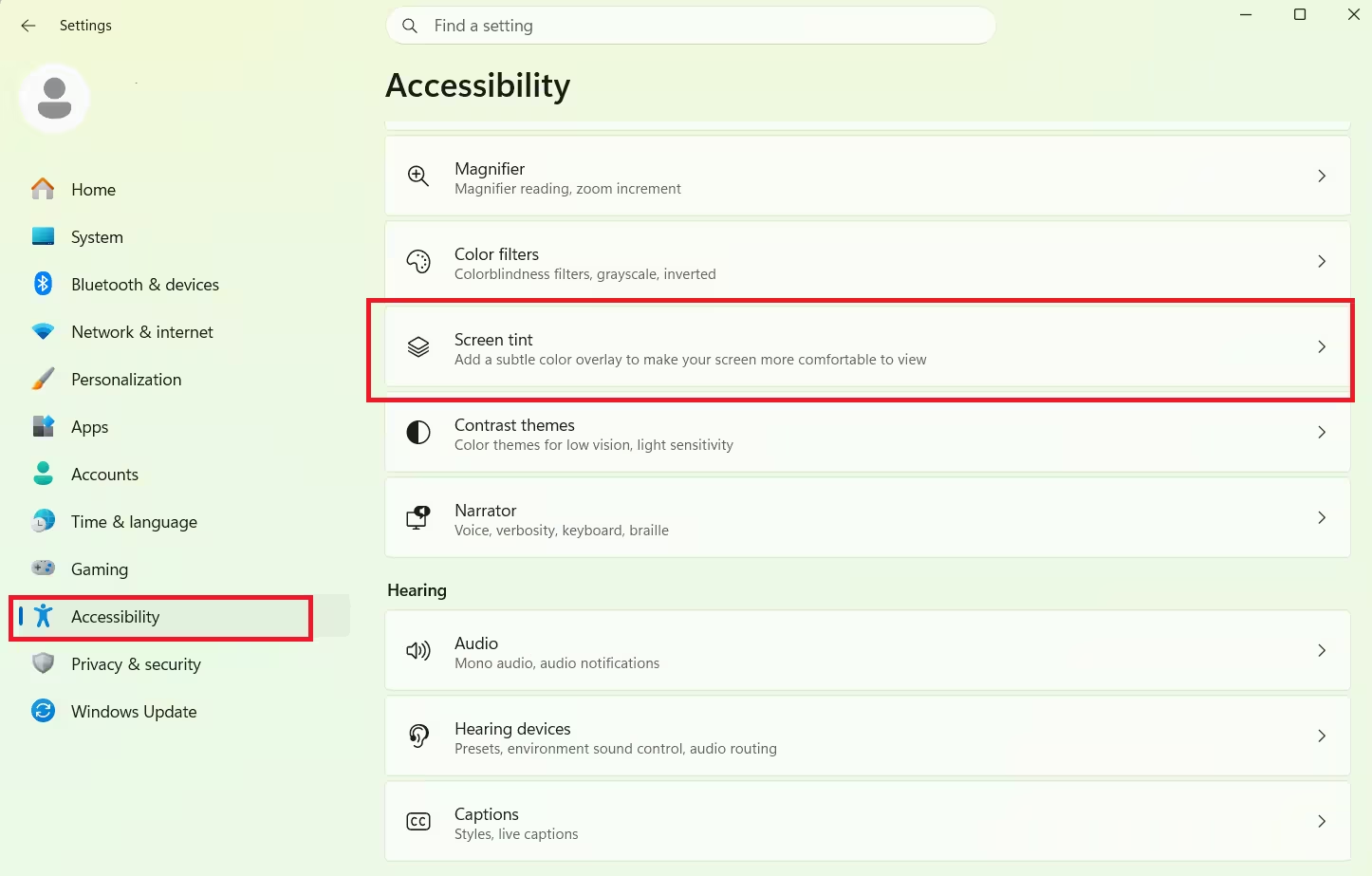
KB5101650 introduces Screen Tint, an advanced alternative to Night Light aimed at users managing headaches or light sensitivity. Unlike Night Light’s single fixed tint, Screen Tint lets you choose from multiple colors and adjust intensity under Settings > Accessibility. Magnifier also gets more precise zoom controls in this release, and voice access and voice typing add French, German, and Spanish support on Copilot+ PCs.
Printers, Touchpad Controls, and Other Fixes in KB5101650
- New printer installs default to Internet Printing Protocol (IPP) through Windows Ready Print, part of Microsoft’s phase-out of third-party print drivers.
- You can now resize the touchpad’s right-click zone under Settings > Bluetooth & devices > Touchpad, choosing between default, small, medium, or large.
- Background Intelligent Transfer Service (BITS) no longer extends shutdown time, and explorer.exe stability improves across the taskbar, sign-in, and Start menu.
- The emoji panel switches its GIF source from Tenor to GIPHY.
- The Recycle Bin no longer shows an internal filename instead of the actual filename during permanent deletion.
- Taskbar notification badges now update correctly across apps.
- Graphics Kernel improvements let PCs with more than 32GB of RAM run larger AI models locally.
- Secure Boot certificate rollout continues expanding to more eligible devices.
Windows 11 KB5101650 Update Sizes
| Build Number | OS Version | Architecture | Size |
|---|---|---|---|
| 26200.8875 | Windows 11 25H2 | x64-based | 5.4 GB |
| 26200.8875 | Windows 11 25H2 | arm64-based | 5.4 GB |
| 26100.8875 | Windows 11 24H2 | x64-based | 4.8 GB |
| 26100.8875 | Windows 11 24H2 | arm64-based | 4.8 GB |
Frequently Asked Questions
Is KB5101650 a mandatory update?
Yes. KB5101650 is a security update, so Windows installs it automatically through Windows Update regardless of whether you check for updates manually.
What build number does KB5101650 bring?
It brings Windows 11 25H2 to build 26200.8875 and Windows 11 24H2 to build 26100.8875. Windows 11 23H2 receives a separate update, KB5099414, taking it to build 22631.7376.
How do I download KB5101650 manually?
Go to Settings > Windows Update and click Check for updates. If you manage multiple devices or Windows Update is failing, download the offline installer from the [Microsoft Update Catalog](https://www.catalog.update.microsoft.com/Search.aspx?q=KB5101650) instead.
Does KB5101650 fix the Windows 11 storage bug?
Yes. The update patches the issue tied to the CapabilityAccessManager.db-wal file that was allowing System Reserved storage to balloon into the hundreds of gigabytes on affected PCs.
What is Point-in-time restore in Windows 11?
Point-in-time restore is a recovery feature that automatically creates system snapshots using Volume Shadow Copy Service (VSS), letting you roll back your installation, apps, settings, and local files without a separate backup drive.
Related Guides
- How to Enable Point-in-time Restore on Windows 11
- Windows 11 Cloud Rebuild: New Recovery Tool Fixes Unbootable PCs
- How to Enable Screen Tint if It’s Missing on Windows 11
- How to Create a Full Backup of Windows 11 PC on an External USB Drive
- How to Fix File Explorer Freezes When Mounting ISO in Windows 11
- Windows 11 File Explorer Crashes When Clicking ZIP File: How to Fix It

