If a Microsoft Teams meeting recording that was there yesterday has suddenly disappeared, it almost certainly has not been permanently deleted. Microsoft confirmed that a missing Teams recording is one of the most frustrating support issues the company handles, and the cause is almost always the same: the recording expired and moved to the recycle bin.
This article explains exactly why it happens, where to find the recording, and how to recover it before the recycle bin window closes.
Why Your Teams Meeting Recording Goes Missing
Teams does not store recordings inside the app. When a meeting ends, Teams saves the recording to either OneDrive or SharePoint depending on the meeting type:
- Regular meetings save to the meeting organizer’s OneDrive.
- Channel meetings save to the channel’s SharePoint site.
Both OneDrive and SharePoint monitor an expiration setting that administrators control through the Teams admin center. When a recording reaches its expiration date, OneDrive or SharePoint automatically moves it to the recycle bin. The recording does not delete immediately. It sits in the recycle bin and remains fully recoverable for a period of time.
The problem is that when attendees open the meeting recap after the recording expires, Teams displays this message:
You don’t have access. You might not have access to the recording. If it exists, request access from the owner.
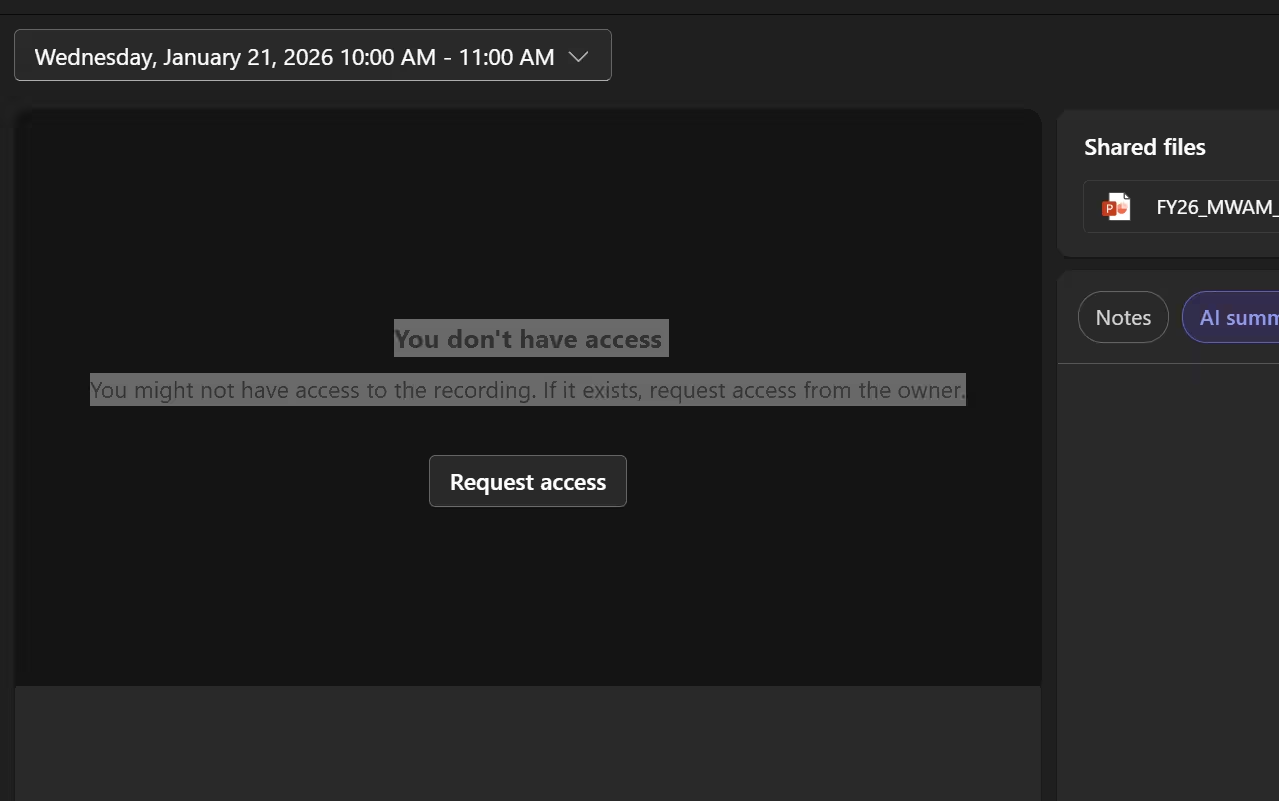
That message makes the situation look like a permissions problem, not an expiration event. Most users and even many support staff assume the recording is gone. It is not.
How Long Before a Recording Is Permanently Deleted
Recovery is time-sensitive. Once the recycle bin purges a recording, it cannot be recovered.
The retention window depends on the account type:
| Account Type | Recycle Bin Retention |
|---|---|
| Personal Microsoft account | 30 days after moving to recycle bin |
| Work or school account | 93 days after moving to recycle bin |
For most enterprise Teams users the 93-day window gives a reasonable recovery period, but do not wait. Check the recycle bin as soon as a recording appears to be missing.
How to Recover a Missing Teams Meeting Recording
Step 1: Identify the Meeting Type
Before checking any recycle bin, confirm whether the meeting was a regular meeting or a channel meeting. This determines exactly where to look.
- Regular meeting → the organizer’s OneDrive recycle bin
- Channel meeting → the team’s SharePoint recycle bin
Step 2: Recover from OneDrive (Regular Meetings)
- Open OneDrive and sign in with the meeting organizer’s work or school account.
- In the left sidebar, click Recycle bin.
- Search for the recording file by name or sort by date deleted.
- Select the recording and click Restore.
The recording returns to its original location in OneDrive and the meeting recap link becomes active again.
Note: If the organizer uses a personal Microsoft account, items in the recycle bin delete automatically after 30 days. Check sooner rather than later.
Step 3: Recover from SharePoint (Channel Meetings)
- Open the SharePoint site for the team where the channel meeting took place.
- Click the Settings gear icon and select Site contents.
- Click Recycle bin in the left sidebar.
- Locate the recording file and click Restore.
If the file does not appear in the first-stage recycle bin, check the second-stage recycle bin. In SharePoint, items move from the first-stage bin to the second-stage bin before permanent deletion. Site collection administrators can access the second-stage bin.
How to Prevent Recordings from Expiring
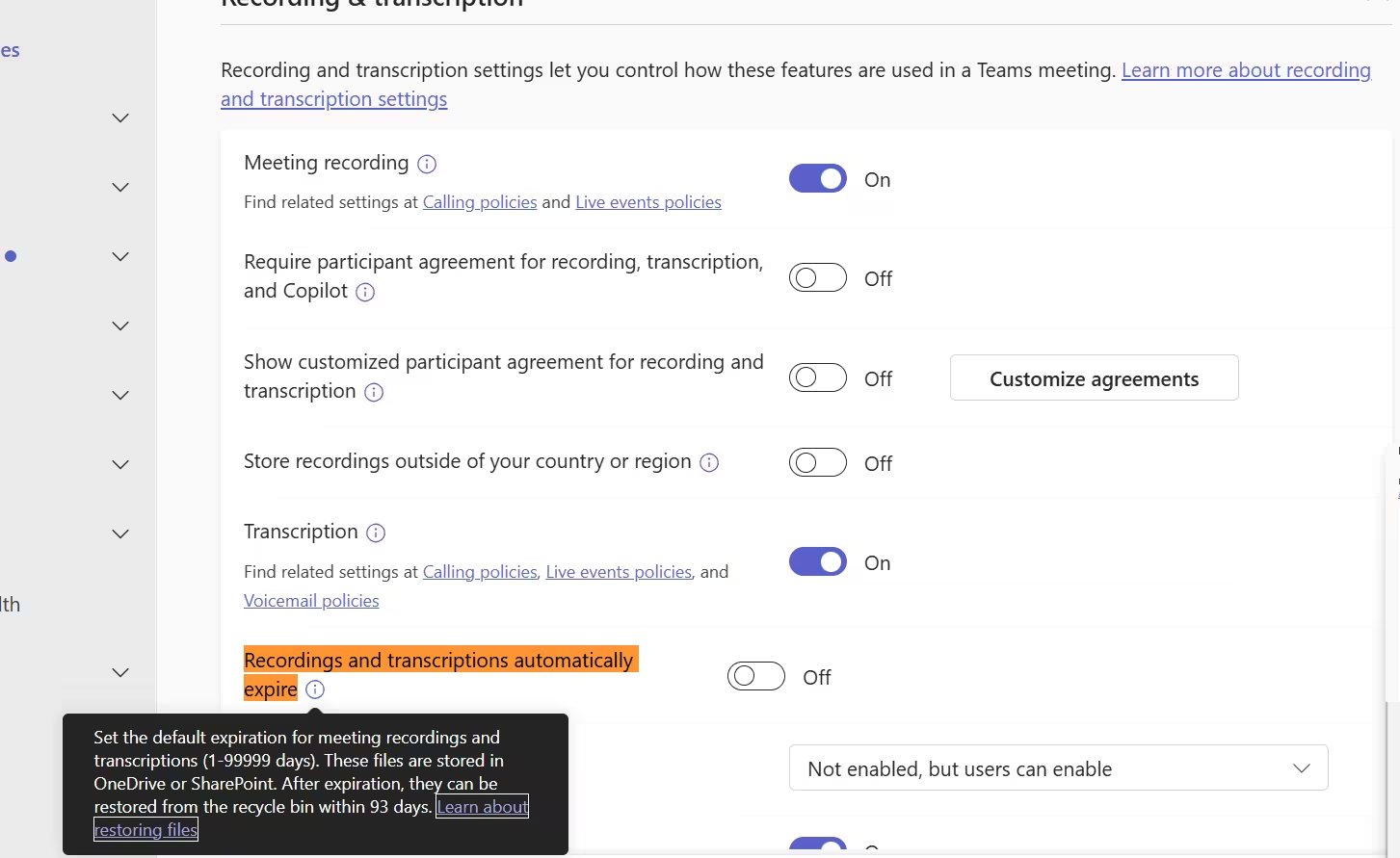
Administrators can control the expiration behavior through the Teams admin center. The setting is called Recordings and transcripts automatically expire and you can toggle it on or off inside the meeting policy.
To check or change the setting:
- Sign in to the Microsoft Teams admin center.
- Go to Meetings > Meeting policies.
- Select the policy applied to your users (or the Global policy).
- Scroll to the Recording and transcription section.
- Find Recordings automatically expire and toggle it off to prevent expiration entirely, or adjust the expiration duration to a longer value.
- Click Save.
Turning off automatic expiration means recordings stay in OneDrive or SharePoint indefinitely until a user or admin manually deletes them. Consider your organization’s storage and compliance requirements before disabling expiration.
Managing Teams Recording Policies via PowerShell
Administrators who manage Teams policies through PowerShell can control recording permissions directly with the following commands.
Allow all users in your organization to record meetings:
Set-CsTeamsMeetingPolicy -Identity Global -AllowCloudRecording $trueAllow only specific users to record:
Set-CsTeamsMeetingPolicy -Identity "Your Policy Name" -AllowCloudRecording $true
Grant-CsTeamsMeetingPolicy -Identity "[email protected]" -PolicyName "Your Policy Name"
Allow only specific groups to record:
Set-CsTeamsMeetingPolicy -Identity "Your Policy Name" -AllowCloudRecording $true
Grant-CsTeamsMeetingPolicy -Group "Group ID" -PolicyName "Your Policy Name"
Allow users to record webinars:
Set-CsTeamsEventsPolicy -Identity <policy name> -RecordingForWebinar EnabledPrevent users from recording webinars:
Set-CsTeamsEventsPolicy -Identity <policy name> -RecordingForWebinar DisabledPrevent download of channel meeting recordings:
Set-CsTeamsMeetingPolicy -Identity Global -ChannelRecordingDownload BlockFrequently Asked Questions
Why does Teams say “You don’t have access” when a recording expires?
Teams may show an access error when a recording has expired and moved to the OneDrive or SharePoint recycle bin. Check the recycle bin before assuming it is a permission issue.
Can a regular user recover an expired Teams recording?
Yes. For regular meetings, the organizer can restore it from OneDrive. For channel meetings, a team member with edit permission can restore it from SharePoint. Second-stage recycle bin access usually requires an admin.
How do I know if automatic expiration is enabled?
Ask your Teams admin to check Teams admin center > Meetings > Meeting policies > Recording and transcription. The policy shows whether recordings expire automatically.
Does disabling automatic expiration affect compliance?
Yes. Recordings may stay in OneDrive or SharePoint longer and use more storage. Microsoft Purview retention or compliance policies can still override Teams expiration settings.
What if the recording is no longer in the recycle bin?
If the recycle bin retention period has passed, normal recovery may not be possible. Ask your Microsoft 365 admin to check eDiscovery, backups, or retention options.

