Microsoft is ending SMS authentication for all personal Microsoft accounts. The company confirmed in an official advisory that SMS-based verification is now a leading source of fraud, and passkeys, verified email, and the Microsoft Authenticator app will replace it as the default sign-in and recovery methods.
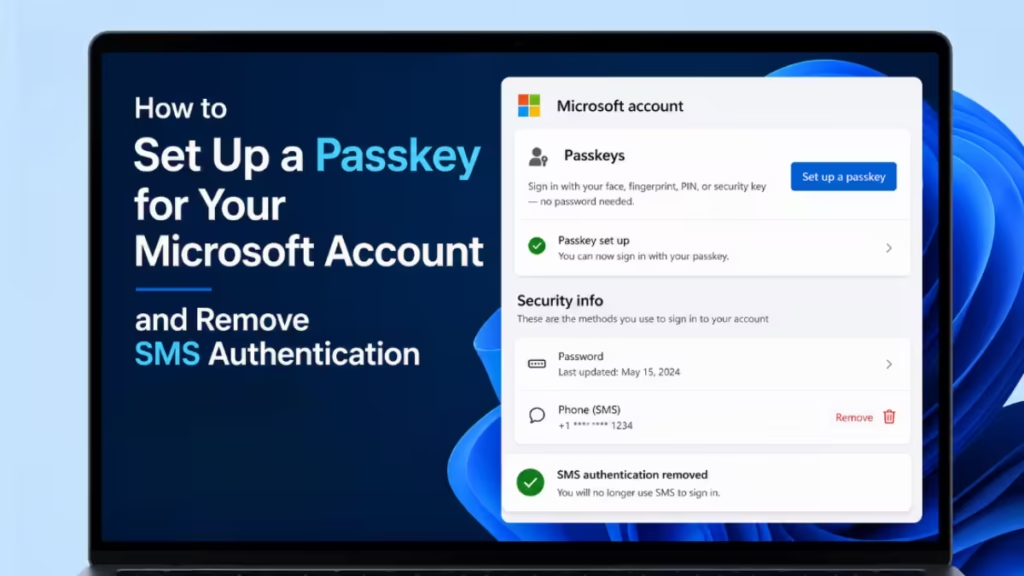
If you currently use SMS codes to sign in or recover your Microsoft account, you need to set up a passkey before Microsoft removes the option. This guide covers every step, including where to save your passkey, how to remove your phone number, and what to do if biometrics are not available on your device.
Why Microsoft Is Removing SMS Authentication
Microsoft issued a support document stating it will stop sending SMS codes for personal account authentication and account recovery. The company has not announced a specific end date, but the transition is already active, with passkey prompts appearing during Windows 11 sign-in.
The core reason comes down to the failure of SMS as a security method. Text messages travel across cellular networks in plain text and are never encrypted, making them easy to intercept. More critically, SIM-swap attacks have made SMS-based two-factor authentication a known vulnerability.
In a SIM-swap attack, a hacker contacts your mobile carrier, impersonates you, and convinces the carrier to transfer your phone number to a device the attacker controls. Once that transfer goes through, the attacker receives every SMS code sent to your number and can take over any account that uses SMS for verification. Microsoft now treats SMS as one of the most targeted attack vectors for account takeover.
How Passkeys Work for Microsoft Account Sign-In
A passkey works fundamentally differently from a password or SMS code. Instead of sending a code to your phone, a passkey uses a cryptographic key pair. Your device holds the private key, and the service holds the public key. When you sign in, your device proves it holds the correct private key using biometric data such as a fingerprint, a facial scan, or a device PIN. The private key never leaves your device during this process.
This design makes passkeys phishing-resistant. An attacker cannot steal your credentials through a fake login page because the passkey only works on the exact site it was created for. It also means that losing your phone does not lock you out of your account, as long as you have a verified email and a passkey saved to a synced credential manager.
How to Set Up a Passkey for Your Microsoft Account
Before you start, use the device where you want to create the passkey. You can add passkeys on additional devices later by repeating these steps.
- Open a browser and go to account.live.com/proofs/manage.
- Sign in to your personal Microsoft account when prompted.
- Select Add a new way to sign in or verify.
- Choose Face, Fingerprint, PIN, or Security Key.
- Follow the on-screen instructions for your device.
- When prompted to choose a save location, pick the option that fits your setup (see the section below for details on each choice).
- Complete the save process by providing the required unlock gesture: a fingerprint, facial scan, or PIN.
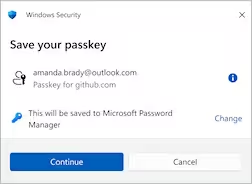
Once saved, Microsoft recognizes the passkey as your primary authentication method for that device or credential manager.
You can also trigger passkey creation from the Windows 11 sign-in screen. Microsoft now shows a Sign in faster with your face, fingerprint, or PIN prompt during sign-in. Selecting Next on that prompt launches the same setup flow described above.
Where to Save Your Microsoft Account Passkey
Microsoft gives you several storage options when creating a passkey. Each option has different implications for recovery and cross-device access.
Microsoft Password Manager: Syncs your passkey across every device signed in to your Microsoft account. This is the recommended option for most Windows users because the passkey remains accessible even if you switch devices or buy a new computer.
Apple iCloud Keychain: Syncs the passkey across your Apple devices automatically. Choose this option if you use an iPhone or Mac as your primary device.
Google Password Manager: Syncs the passkey across Android devices and Chrome. This works well if you primarily use Android phones or Chromebooks.
Phone or tablet via QR code: Saves the passkey directly to your mobile device. This option requires you to scan a QR code using your phone’s camera. You can also scan the code using the Microsoft Authenticator app. Note that Bluetooth pairing may be required to complete this process.
Physical security key: Saves the passkey to a hardware token such as a YubiKey. This option provides the highest security because the key never connects to the internet. It is the best choice for accounts with elevated risk.
Windows Hello: Saves the passkey locally to your Windows PC using the device’s Trusted Platform Module chip. This option may not appear if you have already saved a passkey to a synced credential manager. Windows Hello passkeys are device-bound, meaning they do not sync to other machines.
How to Remove SMS as a Sign-In Method
Once you have set up at least one passkey and added a verified email address, you can remove your phone number from your account. Microsoft will prompt you to do this automatically, but you can also remove it manually at any time.
- Go to account.microsoft.com/security and sign in.
- Select Advanced security options.
- Under Ways to prove who you are, find the phone number linked to SMS verification.
- Select Remove next to that number.
- Confirm the removal when prompted.
Before removing SMS, verify that your passkey saves correctly and that a verified email address appears under your sign-in options. Without at least one of these in place, removing SMS can lock you out of your account. If you already face login problems, see How to Fix Microsoft Account Locked Out of Outlook and Recover Your Emails before making changes.
What to Do If You Cannot Use a Passkey
Passkeys require a device with biometric hardware or a PIN. If you sign in on a virtual machine, a shared computer, or an older device without those features, you may hit limitations.
Microsoft recommends the Microsoft Authenticator app as a fallback for these situations. The Authenticator app generates time-based codes and supports push-notification approvals, giving you a secure path into your account even without biometric hardware.
A verified secondary email address also works as an authentication method when neither passkeys nor biometrics are available.
If you cannot get into your Microsoft account or Azure account after the SMS change takes effect, check the Microsoft sign-in helper tool at go.microsoft.com and switch to Authenticator or email verification as your recovery path.
Account Recovery Without SMS
With SMS removed, you have two reliable recovery paths: a verified email address and your saved passkeys.
Microsoft recommends adding a secondary email as a verified recovery method. This email remains useful even if you change phone numbers or lose your device. Your synced passkeys in iCloud Keychain, Google Password Manager, or Microsoft Password Manager also stay accessible from other devices signed in to those services.
If you have a BitLocker recovery key stored in your Microsoft account, confirm that your account remains accessible through your new passkey or verified email before you remove SMS. Losing access after removing SMS could prevent you from retrieving that key when you need it most.
Watch out for unsolicited calls or messages that claim to help you set up passkeys or verify your Microsoft account. Microsoft does not call users to assist with this transition. Any such contact is almost certainly a tech support scam.
Frequently Asked Questions
When will Microsoft stop sending SMS codes?
Microsoft has not announced a specific end date. The phaseout is already underway, with passkey prompts appearing during Windows 11 sign-in. Microsoft guides users through setup before removing SMS access, so you will see prompts before the option disappears.
Does this change affect work or school Microsoft accounts?
No. This change applies only to personal Microsoft accounts. Work and school accounts follow authentication policies set by your organization’s IT administrator.
What happens if I lose the device that holds my passkey?
A passkey synced to a credential manager such as Microsoft Password Manager, iCloud Keychain, or Google Password Manager remains accessible from other devices signed in to the same account. A device-bound passkey saved with Windows Hello is tied to that specific machine. In that case, your verified email address or Microsoft Authenticator app serves as the recovery option.
Can I use a passkey on multiple devices?
Yes. Save your passkey to a synced credential manager such as Microsoft Password Manager, iCloud Keychain, or Google Password Manager, and the passkey becomes available on every device signed in to that manager.
Is the Microsoft Authenticator app still supported after SMS is removed?
Yes. Microsoft Authenticator remains a fully supported sign-in method and is the recommended fallback for devices that lack biometric hardware or a PIN setup.

