Netflix is one of the most popular streaming platforms, but encountering an error code can quickly ruin your binge-watching plans. Whether it’s a network issue, payment problem, or device incompatibility, understanding these errors is key to fixing them fast.
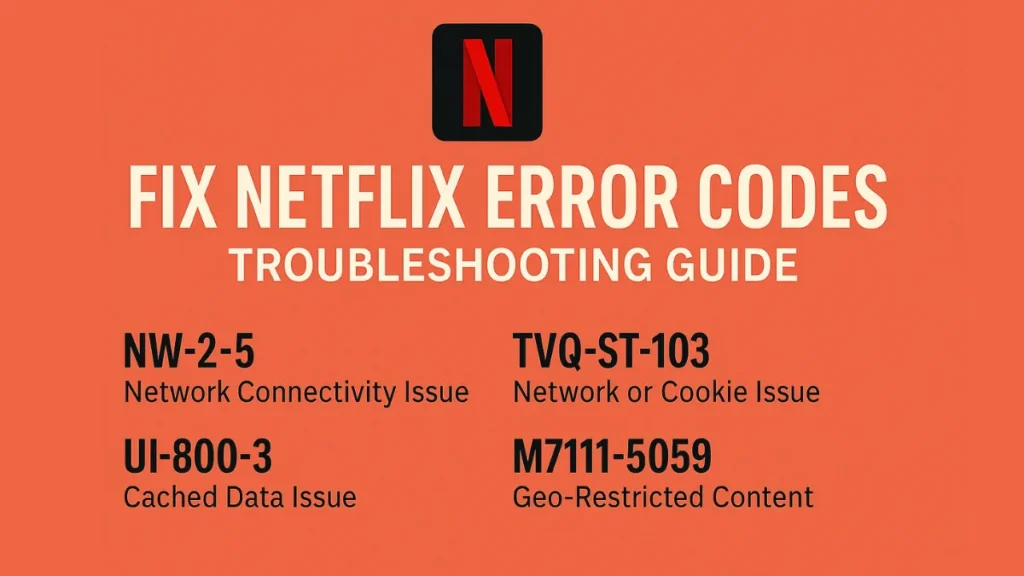
This guide covers the most common Netflix error codes, their causes, and step-by-step solutions to get you back to streaming in no time.
General Fixes for Most Netflix Errors
Before diving into specific error codes, try these universal troubleshooting steps:
Restart Your Device
- Power off your TV, streaming stick, or gaming console, wait 30 seconds, and turn it back on.
- For mobile devices, force-close the Netflix app and reopen it.
Check Your Internet Connection
- Run a speed test (Netflix requires 3 Mbps for SD, 5 Mbps for HD, 15+ Mbps for 4K).
- Restart your router/modem (unplug for 30 seconds).
- Switch from Wi-Fi to Ethernet (for better stability).
Update the Netflix App
- Go to your device’s app store (Google Play, Apple App Store, Smart TV app hub) and check for updates.
Clear Netflix Cache/Data (Mobile & Smart TVs)
- Android: Settings > Apps > Netflix > Storage > Clear Cache/Clear Data
- Smart TV: Visit netflix.com/clearcookies
Sign Out & Back Into Netflix
- Sometimes, refreshing your login session fixes glitches.
Check if Netflix is Down
- Visit Netflix Help Center or DownDetector.
Most Common Netflix Error Codes & How to Fix Them
1. NW-2-5 / NW-3-6 (Network Connection Errors)
Cause: Slow or unstable internet, VPN interference, DNS issues.
Fix:
- Restart router & device.
- Change DNS to Google DNS (8.8.8.8 / 8.8.4.4) or Cloudflare (1.1.1.1).
- Disable VPN/proxy.
- Move closer to the Wi-Fi router.
2. UI-800-3 (App Loading Failure)
Cause: Corrupted app data.
Fix:
- Force-stop Netflix (Settings > Apps > Netflix > Force Stop).
- Uninstall & reinstall Netflix.
- Restart device.
3. TVQ-ST-103 / TVQ-ST-113 (Playback Errors)
Cause: Network or cookie issues.
Fix:
- Clear Netflix cookies (netflix.com/clearcookies).
- Restart streaming device.
4. Error 40103 / 40102 (VPN or Outdated App)
Cause: VPN usage or old app version.
Fix:
- Turn off VPN.
- Update Netflix app.
5. Error E101 / NQM.407 (Payment Issue)
Cause: Expired card or failed payment.
Fix:
- Update payment method (Account > Billing).
- Contact your bank if card is blocked.
6. Error M7111-5059 (Download Failed)
Cause: Storage full or corrupted download.
Fix:
- Delete downloads & re-download.
- Free up device storage.
7. Error NSES-500 (Netflix Server Issue)
Cause: Netflix is down.
Fix:
- Wait 10-15 minutes.
- Check Downdetector.
8. Error S7111-5095 (Account Location Blocked)
Cause: Using Netflix in an unsupported region.
Fix:
- Disable VPN.
- Contact Netflix Support.
9. Error 100 / 101 (Playback Interruption)
Cause: Weak internet.
Fix:
- Lower video quality (Account > Playback Settings > Data Usage).
- Use a wired connection.
10. Error TVQ-PB-101 (Device Incompatibility)
Cause: Old device no longer supported.
Fix:
- Update device firmware.
- Use a different device (Fire Stick, Roku, etc.).
Advanced Troubleshooting
VPN & Proxy Issues
- If you see “You seem to be using a VPN” (Error E121), disable your VPN.
- Some VPNs work with Netflix—try NordVPN or ExpressVPN (Netflix-optimized servers).
Smart TV & Gaming Console Fixes
- Samsung/LG TVs: Update firmware (Settings > Support > Software Update).
- PlayStation/Xbox: Reinstall Netflix app.
Mobile Device Fixes (Android/iOS)
- Clear app cache (Android).
- Reinstall Netflix (iOS).
Final Thoughts
Most Netflix errors can be fixed with a simple restart, network check, or app reinstall. If the problem persists, visit Netflix Help Center or contact support.
Need help with a specific error? Drop a comment below!

