Chrome has a habit of grabbing more memory than any other app on your PC. Open a dozen tabs, add a few extensions, and your system starts to crawl. Most people react by closing tabs, but that throws away the very thing that makes Chrome useful: the pages you need within reach.
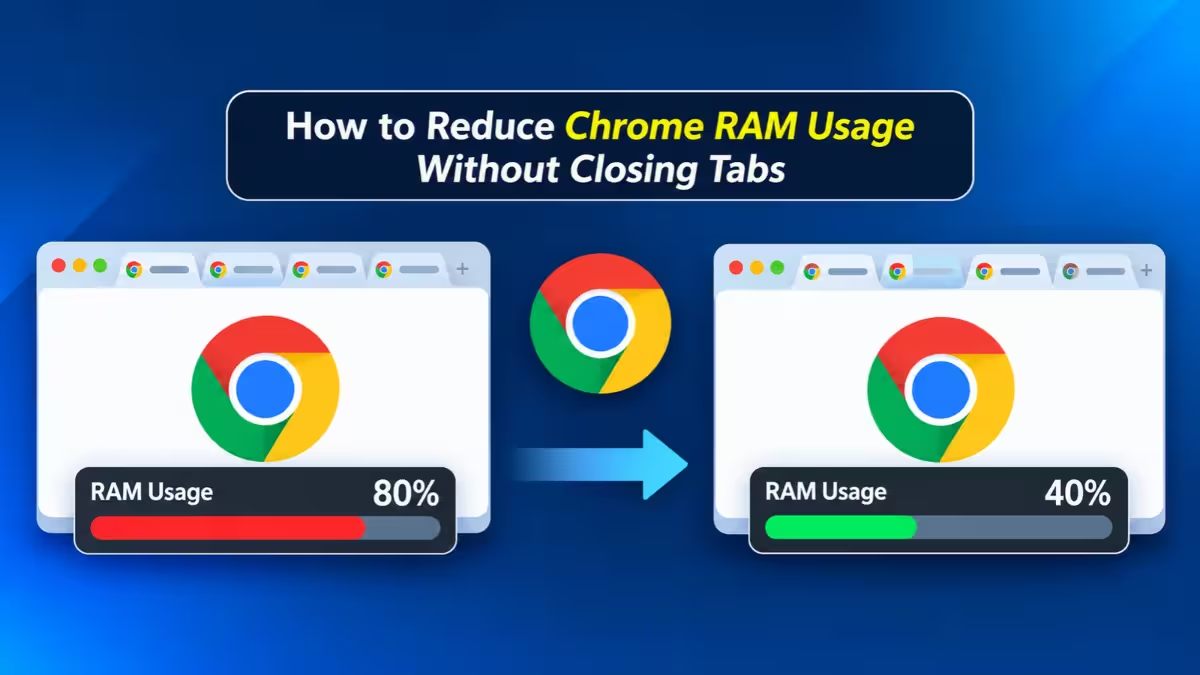
You can fix Chrome high memory usage and keep your tabs. The trick is to attack the hidden memory users first, then adjust a few settings. This guide walks through the fixes that deliver real savings, the ones that barely matter, and how to measure the difference yourself.
Why Chrome Uses So Much RAM (And Why It Is Not a Bug)
Chrome gives each tab, extension, and background service its own process. If one page crashes or misbehaves, the rest of the browser keeps running. That design also adds a security layer, because sites stay isolated from each other.
The price is memory. A simple article page may need under 100MB, while a web app like Gmail, Google Sheets, Slack, or Notion can hold several hundred megabytes by itself. Add extensions and ads on top, and the total climbs fast.
High usage is not always a fault. Chrome uses spare RAM to stay quick and gives it back when other apps need it. You only have a problem when your PC lags, swaps to disk, or crashes tabs.
How to Check Chrome RAM Usage With Task Manager
Do not guess. Chrome includes its own Task Manager, and it tells you far more than Windows Task Manager does.
- Press
Shift + Escon Windows, Linux, or ChromeOS. On a Mac, open the Window menu and pick Task Manager. - Click the Memory footprint column to sort from highest to lowest.
- Look at the top five rows.
You will often see two surprises. A handful of heavy web apps use most of the memory, and one or two extensions sit near the top of the list. Note the worst offenders before you change anything, so you can compare numbers afterward.
For a clean test, restart Chrome, open the same set of sites each time, and check the total after each change. That way you know which fix did the work.
Turn On Chrome Memory Saver to Sleep Idle Tabs Without Closing Them
Memory Saver is Chrome's built-in way to free RAM from idle tabs. It unloads tabs you have not touched for a while. The tab stays in your tab strip with its title and icon, and Chrome reloads the page when you click it.
To switch it on:
- Open Settings and select Performance.
- Toggle Memory Saver on.
- Choose a level: Moderate, Balanced, or Maximum.
Moderate unloads tabs less often. Balanced works well for most people. Maximum frees memory sooner, which suits you if you keep 50 or more tabs open, but you will see more page reloads.
Two things to know before you rely on it:
- Protect the sites you need live. Add email, chat apps, dashboards, and music players to the Always keep these sites active list. Chrome already skips pinned tabs, tabs playing audio or video, and pages with half-filled forms, but the list covers everything else.
- It only helps idle tabs. If you cycle through ten tabs all day, those ten keep their full memory cost. Memory Saver pays off most for people who leave lots of tabs sitting in the background.
If you want to see which tabs Chrome would sleep, open chrome://discards. The page lists every tab, shows whether it qualifies for discarding, and lets you put one to sleep by hand to see what happens.
Remove Heavy Chrome Extensions to Free the Most RAM
Extensions deliver the biggest savings for most people. Every extension runs background code, and many inject scripts into each page you open. An extension you installed for a single task two years ago can still use hundreds of megabytes today.
In one real-world test with more than 20 popular sites open, a PDF extension alone held about 500MB, more than LinkedIn, WhatsApp, or Gmail. Cleaning up the extension list cut Chrome's total usage by roughly 9 percent and dropped the process count from 77 to 70.
Here is a simple cleanup routine:
- Type
chrome://extensionsin the address bar. - Remove every extension you have not used in the last 30 days, including any suspicious or malicious extensions.
- Disable extensions you need only now and then, and switch them on when the job comes up.
- Keep the ones you use every session, such as your password manager.
- For extensions that only matter on certain sites, open Details and change Site access to On click or On specific sites.
After the cleanup, open Task Manager again and check whether the extension rows shrank.
Use a Lightweight Ad Blocker to Cut Chrome Memory Usage
Ads are not free for your RAM. Every ad frame loads scripts, images, and sometimes video, and each one takes memory just like a real page. On one news site, a single Google ad frame used about 216MB.
A light ad blocker like uBlock Origin Lite stops most of that work before it starts. In the same test, adding it cut Chrome's usage from 7,766MB to 7,237MB, a drop of about 7 percent. The process count fell from 77 to 54, which shows how many background frames ads create.
This is the one case where installing an extension helps your memory instead of hurting it. Pick a blocker built on Chrome's lightweight extension model, and avoid stacking several blockers at once. If you also want tracker protection, look at the best privacy extensions that still work in Chrome.
Turn Off Chrome AI Features You Do Not Use
Recent Chrome builds include AI features such as scam detection and AI search tools. If you never touch them, turn them off.
- Open
chrome://settings/ai. - Toggle off the AI features you do not use, including the on-device option.
The savings were around 325MB in the same test. Keep in mind that the large model file Chrome downloads for these tools takes up disk space, not RAM, so switching the features off helps memory but does not shrink that file.
Put the three big fixes together, and the numbers add up. Pruning extensions, adding a light ad blocker, and disabling AI features took Chrome from 7,766MB to 5,882MB, a cut of about 1.9GB or 24 percent. The process count dropped from 77 to 46. Nobody had to close a tab.
Disable Chrome Background Apps After You Close the Browser
Chrome can keep running small background processes after you close the last window. Apps like Google Workspace use this to send notifications. If you ever closed Chrome and still saw Chrome entries in Task Manager, this setting is the reason.
- Open
chrome://settings/system. - Turn off Continue running background apps when Google Chrome is closed.
This setting does not shrink Chrome while you browse, but it makes sure that quitting Chrome really frees its memory. You lose nothing unless you depend on notifications from closed browser windows.
Change Chrome Preload Pages and Startup Settings
Two more settings can trim memory on weaker machines.
Preload pages. Chrome loads pages it expects you to visit next so they open quickly. Open chrome://settings/performance, find Preload pages, and switch from Extended to Standard preloading, or turn it off. On a PC with 8GB of RAM or less, this can help. On a 16GB or 32GB machine, the effect is usually too small to notice, and preloading gives you faster page loads, so you may prefer to leave it on.
Startup tabs. If you close Chrome with dozens of tabs and it restores them all on launch, you get a sudden memory spike every morning. Open chrome://settings/onStartup and choose Open the New Tab page or a specific set of pages instead. Bookmark folders and tab groups let you reopen a project in one click when you need it.
Does Hardware Acceleration or Clearing Cache Reduce Chrome RAM?
Plenty of guides repeat the same tips, and some of them barely move the needle:
- Clearing cache and cookies. Chrome stores cached files on your drive, not in RAM. Clearing them frees disk space and can even raise resource use for a while, because pages must download their assets again.
- Turning off hardware acceleration. This setting shifts work between your CPU and GPU. It rarely cuts RAM in a meaningful way, and it can make scrolling and video feel worse. Switch it off only if you see flickering, blank windows, or crashes, or if you run Chrome inside a virtual machine or on a PC with very little graphics memory.
- Restarting once in a while. A restart helps if Chrome has run for days, since long sessions can bloat memory. It is a quick reset, not a lasting fix.
Advanced Ways to Lower Chrome Memory Usage (Profiles, Process Limit)
If you still need more headroom, try these with care.
- Use one profile at a time. Each active Chrome profile runs its own set of processes. Running work and personal profiles side by side can add noticeably to your total.
- Cap renderer processes. You can add the
--renderer-process-limit=4flag to your Chrome shortcut to force tabs to share processes. This can halve the process count, but a crash in one tab may take others down with it, and site isolation weakens. Skip it for banking or other sensitive browsing. - Park tabs you rarely open. Tab manager extensions and saved tab groups can store a whole project and let you restore it in one click. That counts as closing tabs, so use it only for stacks you truly do not need right now.
How Much RAM Should Chrome Use?
No single number counts as normal, because usage depends on your tabs, your extensions, and what those pages do. These rough ranges help you judge your own setup:
- Light browsing (5 to 10 tabs of news and email): about 1GB to 2GB.
- Office work and research (10 to 20 tabs): about 2GB to 4GB.
- Heavy use (20 to 40 tabs with video and web apps): about 4GB to 8GB.
- Power use (30 or more tabs with design tools, spreadsheets, and many extensions): about 6GB to 12GB.
If Chrome sits in a higher range than your habits suggest, something in Task Manager needs attention. If your numbers match your range, you do not need to fix anything unless your PC actually slows down.
Should You Add RAM or Switch to Edge, Firefox or Brave?
Software tweaks have limits. If Chrome regularly uses 6GB or more on an 8GB machine, your PC will swap to disk and feel slow no matter what you change. Moving to 16GB solves that problem better than any setting, if your laptop or desktop supports an upgrade. With 32GB, Chrome's appetite stops mattering for almost everyone.
If you have trimmed extensions, added an ad blocker, disabled AI features, and Chrome still hogs memory, try another browser. Firefox uses its own engine and often runs lighter with the same tabs. Microsoft Edge shares Chrome's engine but includes sleeping tabs and tends to behave well on Windows, and you can import your Chrome passwords in a few clicks. Brave blocks ads by default, which lowers the load on each page.
Frequently Asked Questions
Does Memory Saver close my tabs?
No. Memory Saver unloads the page behind an idle tab, but the tab stays in your tab strip. When you click it, Chrome reloads the page. You can lose unsaved form data in a discarded tab, so add important web apps to the always-active list.
What is the fastest way to find out what is using Chrome's memory?
Press Shift + Esc to open Chrome's Task Manager, then sort by Memory footprint. It shows each tab, extension, and background process, so you can see exactly what to fix.
Why does Chrome show so many processes?
Chrome runs separate processes for tabs, extensions, the GPU, networking, and other services. This keeps one failure from crashing the entire browser. A long process list is normal, and it only needs action when a specific item uses unusually high memory.
Do extensions really use that much memory?
Yes, and some use more than full websites. Extensions that inject code into every page or run constant background scripts cost the most. Removing unused ones is usually the single biggest improvement you can make.
Does an ad blocker lower Chrome's RAM usage?
It can. Ads load scripts, frames, and media that take memory like any other content. A lightweight blocker removes that load, and tests show a drop of several hundred megabytes on a typical set of tabs.
Will clearing my cache free up RAM?
Not much. Chrome keeps cache files on your drive, so clearing them mostly frees storage. It can slow your next visits while pages rebuild their cached files.
Related Guides
- How to Fix Chrome High Memory Usage on Windows, Mac, and Linux
- 5 Best Chrome Extensions for Tab and Memory Management
- 7 Best Privacy Extensions for Chrome in 2026 That Still Work Under Manifest V3
- GhostPoster Browser Extensions Hit 840,000 Installs Across Chrome, Firefox, and Edge
- How to Import Chrome Passwords to Microsoft Edge and Enable Autofill