When you click the power button in the Start menu and Windows 11 shows "there are currently no power options available," you lose the ability to shut down, restart, or sleep from the normal menu. The Win + X shortcut drops to Sign Out only, and the shutdown option disappears from the Start menu entirely. The only thing still working is a hard power button press or the command line.
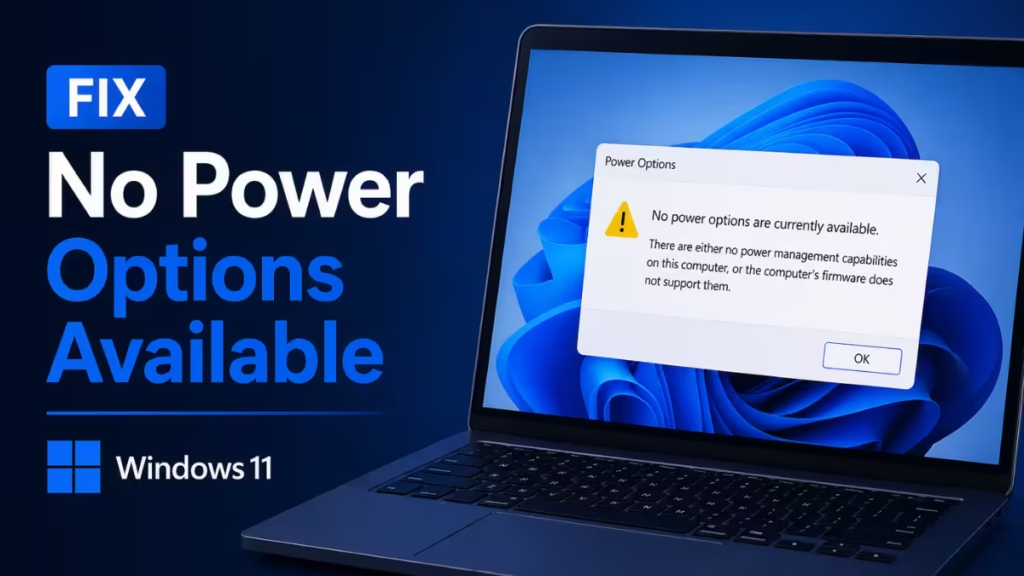
This happens because a registry value or a Group Policy setting is actively blocking the power controls — not because of a hardware fault. The fix is straightforward once you identify which layer is applying the restriction.
This guide covers every fix in order, starting with the fastest.
What Causes "No Power Options Available" on Windows 11
The most common cause is a registry value called NoClose set to 1 under the Windows Explorer policies key. When this value is active, Windows hides the shutdown option from the Start menu and all standard menus.
Group Policy settings in gpedit.msc, MDM policies pushed through Microsoft Intune or a similar device management system, and Local Security Policy settings can all trigger the same result. Corrupted system files can also prevent the power controls from loading correctly.
Fix 1: Delete the NoClose Registry Value
This resolves the problem in most cases, including on custom-built PCs.
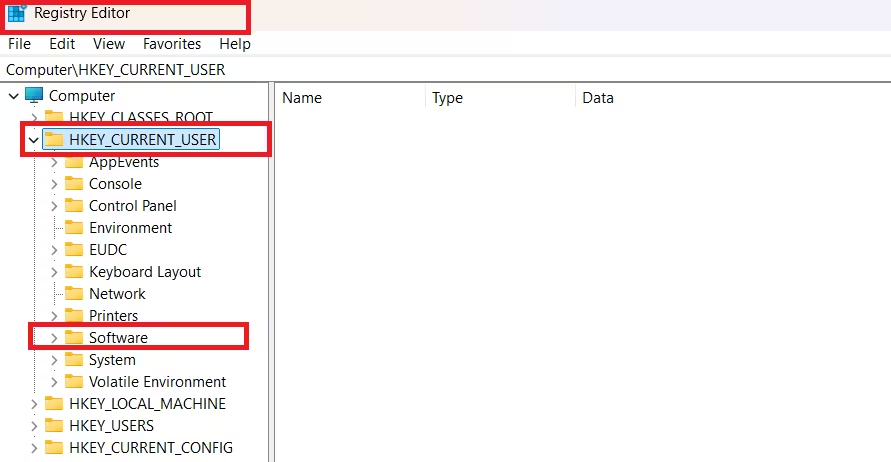
- Press Windows + R, type
regedit, and press Enter. - Accept the UAC prompt.
- Navigate to:
HKEY_CURRENT_USER\Software\Microsoft\Windows\CurrentVersion\Policies\Explorer- In the right pane, look for a value named NoClose.
- If it exists and shows a data value of
1, double-click it and change the value data to0, then click OK. - Alternatively, right-click NoClose and select Delete.
- Restart your PC.
After the restart, click the Start menu power button to confirm the shutdown and restart options reappear.
Back up the registry first: In Registry Editor, click File > Export, choose a save location, and click Save before making any changes.
Also check the machine-wide version of the same key:
HKEY_LOCAL_MACHINE\Software\Microsoft\Windows\CurrentVersion\Policies\ExplorerIf NoClose exists there with a value of 1, set it to 0 or delete it, then restart.
Fix 2: Reset Group Policy via gpedit.msc
Windows 11 Home users: gpedit.msc is not available on Home edition. Skip to Fix 3.
A Group Policy setting that hides power options overrides the registry value. Reset it directly.
- Press Windows + R, type
gpedit.msc, and press Enter. - Navigate to:
User Configuration > Administrative Templates > Start Menu and Taskbar- Find Remove and prevent access to the Shut Down, Restart, Sleep, and Hibernate commands.
- Double-click the policy and set it to Not Configured.
- Click Apply, then OK.
- Open Command Prompt as administrator and run:
gpupdate /force- Restart your PC and test the power button.
Fix 3: Check the MDM HidePowerOptions Policy
If your PC is enrolled in Microsoft Intune or another MDM system, a policy called HidePowerOptions may be locking the power controls at the machine level. This policy overrides any manual gpedit.msc fix you apply.
- Open Registry Editor (Windows + R > regedit).
- Navigate to:
HKEY_LOCAL_MACHINE\SOFTWARE\Policies\Microsoft\Windows\System- Look for a value named HidePowerOptions.
- If it exists and is set to
1, change it to0. - Restart your PC.
If your device is managed by a company or school IT team, contact your administrator to remove or update the policy. Changing the registry value manually may revert after the next policy sync.
Fix 4: Run SFC and DISM to Repair System Files
Corrupted system files can break the Start menu power controls even when no policy conflict exists. Use the built-in repair tools to rule this out.
Open Command Prompt as administrator and run:
sfc /scannowWait for the scan to finish. If it reports corrupted files, run DISM next:
DISM /Online /Cleanup-Image /RestoreHealthRestart your PC after both commands complete, then test the power button.
Fix 5: Check Local Security Policy
Windows 11 Home users: secpol.msc is not available on Home edition. Skip this fix.
- Press Windows + R, type
secpol.msc, and press Enter. - Navigate to:
Local Policies > Security Options- Find Shutdown: Allow system to be shut down without having to log on.
- Set it to Enabled.
- Click Apply, then restart.
Temporary Workaround: Shutdown from the Command Line
While you work through the fixes above, use this command to shut down your PC without touching the Start menu:
shutdown /s /t 0To restart instead:
shutdown /r /t 0You can also right-click the desktop, select New > Shortcut, and paste shutdown /s /t 0 as the target to create a one-click shutdown shortcut.
Which Fix Works for Most Users
Start with Fix 1. The NoClose registry value causes this problem in the majority of cases. If Fix 1 changes nothing, move to Fix 2 to reset the Group Policy setting. Try Fix 3 if your PC is or ever was enrolled in a corporate or school device management system. Run Fix 4 last if no policy-based fix helps.
The command line workaround (shutdown /s /t 0) works immediately and keeps your PC running normally while you troubleshoot. Hard power button presses also remain unaffected by this error, so your hardware is fine.
FAQs
Why does Windows 11 say "there are currently no power options available"?
A registry value called NoClose set to 1 is the most common cause. Group Policy settings, MDM policies from a work or school device enrollment, or corrupted system files can also block the power options from appearing.
Can I still shut down my PC when power options are not available?
Yes. Open Command Prompt as administrator and run shutdown /s /t 0 to shut down immediately. Use shutdown /r /t 0 to restart. Your hard power button also works normally.
Will resetting Group Policy in gpedit.msc fix the missing power options?
It fixes the problem if a Group Policy setting caused it. After setting the policy to Not Configured and running gpupdate /force, the power button returns. If your device is managed by a company or school, the policy may reapply after the next sync.
Does this error affect sleep and hibernate options too?
Yes. The same NoClose registry value and Group Policy setting that hides the shutdown option also removes sleep, hibernate, and restart from the Start menu power button.
Why did the power options disappear after a Windows 11 update?
Some Windows updates push or refresh Group Policy and MDM settings, which can re-enable a NoClose or HidePowerOptions restriction that was previously inactive. Running the registry fix or gpedit.msc reset after the update restores the power options.