When employees sign in to SharePoint or OneDrive from personal laptops or devices not enrolled in your organization, your corporate data is exposed. Microsoft 365 gives IT administrators direct controls to block or limit that access using Microsoft Entra Conditional Access policies, all managed from the SharePoint admin center.
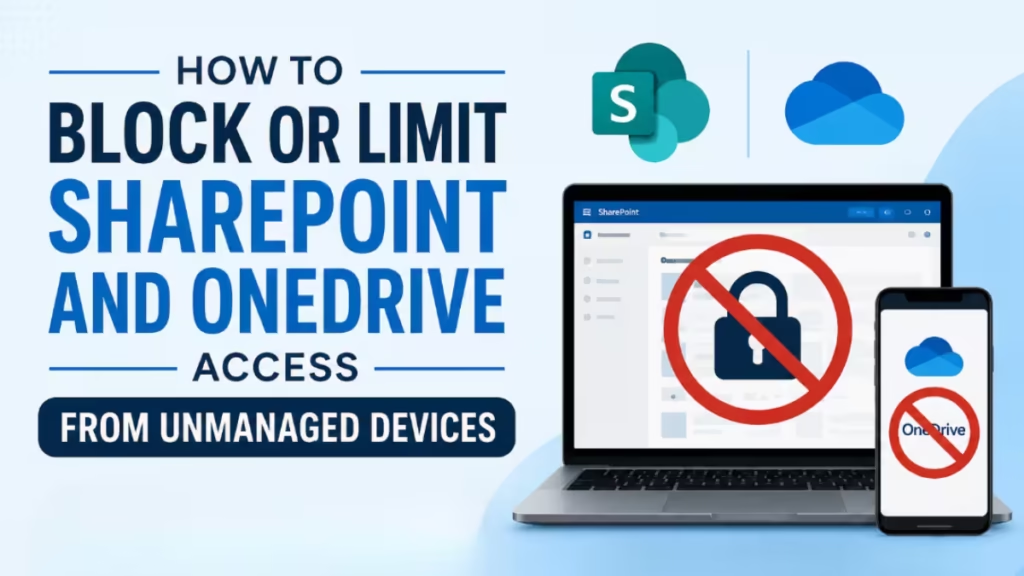
This guide covers every method: blocking access entirely, limiting to browser-only, applying restrictions to specific sites, using PowerShell, and handling advanced configurations.
What Are Unmanaged Devices?
An unmanaged device is any device that is not hybrid Azure AD joined and not compliant with Intune policies. Personal laptops, home PCs, and employee-owned phones all fall into this category unless your organization has enrolled them.
Managed devices sit under your organization's administrative control. Unmanaged devices do not, and that distinction is what Microsoft Entra uses to enforce conditional access.
Requirements Before You Start
You need at least SharePoint Administrator permissions in Microsoft 365 to configure these settings. You also need an Enterprise Mobility + Security (EMS) subscription, because these controls rely on Microsoft Entra Conditional Access, which requires EMS licensing.
Without EMS, the Unmanaged devices pane in the SharePoint admin center will not let you enforce the policy.
Option 1: Block All Access from Unmanaged Devices (Admin Center)
This method blocks every user in your organization from accessing SharePoint or OneDrive from an unmanaged device. Affected users see this error:
Access Denied. Due to organization policy, you can't access this resource from this untrusted device.
Steps:
- Go to the SharePoint admin center and sign in with your admin account.
- In the left menu, expand Policies and select Access control.
- Click Unmanaged devices.
- Select Block access.
- Click Save.
Important notes:
- The policy can take up to 24 hours to take effect.
- Users already signed in from unmanaged devices will not be affected until their next sign-in.
- This action disables any previous conditional access policies created from this page and creates a new one. Custom changes from previous policies will not carry over.
Option 2: Limit to Browser-Only Access (Web-Only Mode)
Instead of a full block, you can allow users on unmanaged devices to access content through a browser only. They can view and edit files in the browser, but they cannot download, print, or sync files. Microsoft Office desktop apps and other third-party apps will also lose access.
Steps:
- Go to the SharePoint admin center and navigate to Policies > Access control.
- Click Unmanaged devices.
- Select Allow limited, web-only access.
- Click Save.
A notice appears at the top of SharePoint sites for affected users explaining the limitation.
Notes:
- If you later revert to Allow full access, changes can take up to 24 hours.
- File previews for Office documents work in SharePoint under this mode, but previews do not work in Microsoft Viva Engage.
- If you edit a site from an unmanaged device under this mode, image web parts will not display images uploaded to the site assets library.
Option 3: Block Legacy Authentication Apps
After setting either block or limit policies, you should also block apps that do not use modern authentication. Older versions of Office (before Office 2013) and some third-party apps cannot enforce device-based restrictions, so they allow users to bypass conditional access entirely.
Steps:
- Go to Policies > Access control in the SharePoint admin center.
- Click Apps that don't use modern authentication.
- Select Block access.
- Click Save.
Apply this step alongside both block and web-only limit configurations.
Option 4: Limit Access Using PowerShell (Tenant-Wide)
Use this method if you prefer scripting or need to automate the configuration.
Step 1: Install SharePoint Online Management Shell
Download and install the latest version from Microsoft. If you have an older version installed, uninstall it first through Add or Remove Programs.
Step 2: Connect to SharePoint
Connect-SPOService -Url https://<your-tenant>-admin.sharepoint.comStep 3: Apply the limited access policy
Set-SPOTenant -ConditionalAccessPolicy AllowLimitedAccessBy default, this lets users view and edit files in the browser. Use advanced parameters to tighten the behavior further (see the Advanced Configurations section below).
Option 5: Block or Limit Access to a Specific Site or OneDrive
If you want to restrict access at the site level instead of tenant-wide, use PowerShell. Note that the site-level setting must be at least as restrictive as the organization-level setting.
Block access to a single site:
Set-SPOSite -Identity https://<tenant>.sharepoint.com/sites/<site-name> -ConditionalAccessPolicy BlockAccessLimit access to a single site:
Set-SPOSite -Identity https://<tenant>.sharepoint.com/sites/<site-name> -ConditionalAccessPolicy AllowLimitedAccessLimit access for all personal OneDrive accounts at once:
Get-SPOSite -IncludePersonalSite $true -Limit all -Filter "Url -like '-my.sharepoint.com/personal/'" | Set-SPOSite -ConditionalAccessPolicy AllowLimitedAccessThis command retrieves every OneDrive account and applies the limited access policy across all of them in one pass.
Before applying site-level restrictions, you also need to manually create a conditional access policy in the Microsoft Entra admin center using app-enforced restrictions. Alternatively, you can use a sensitivity label that sets Access from unmanaged devices for the target site.
Advanced Configurations for Limited Access
When you use AllowLimitedAccess, you can combine it with the following parameters to control behavior more precisely:
Prevent editing in the browser:
Set-SPOTenant -ConditionalAccessPolicy AllowLimitedAccess -AllowEditing $falseMake the site fully read-only for unmanaged users:
Set-SPOTenant -ConditionalAccessPolicy AllowLimitedAccess -ReadOnlyForUnmanagedDevices $trueAllow only Office file previews (highest security):
Set-SPOTenant -ConditionalAccessPolicy AllowLimitedAccess -LimitedAccessFileType OfficeOnlineFilesOnlyThis increases security but reduces productivity since non-Office files cannot be previewed at all.
Allow Office and web-previewable files (default behavior):
Set-SPOTenant -ConditionalAccessPolicy AllowLimitedAccess -LimitedAccessFileType WebPreviewableFilesThis is the default. It works well for Office files, but PDF and image files may require a download to render in the browser, which can trigger unexpected "Access Denied" errors for users. Plan accordingly.
Allow all file types including downloads of non-previewable files:
Set-SPOTenant -ConditionalAccessPolicy AllowLimitedAccess -LimitedAccessFileType OtherFilesThis is the least secure option. Use it only if users on unmanaged devices need access to files like .zip or .exe.
Exempting External Guests from the Policy
If you share files with specific external people who receive a verification code by email, the unmanaged device policy affects them too. To exempt those external users, run:
Set-SPOTenant -ApplyAppEnforcedRestrictionsToAdHocRecipients $falseNote that "Anyone" links (links that do not require sign-in) are not affected by conditional access policies. Users with an "Anyone" link can still download files. For every site where you enable these policies, disable "Anyone" links separately.
How This Affects Microsoft Teams
This is one of the most common issues admins run into. Teams depends on both SharePoint and OneDrive for file storage. When you apply unmanaged device restrictions to SharePoint, Teams is affected too.
If you set Allow limited, web-only access on SharePoint, managed devices retain full access to Teams. Users on unmanaged devices can still use Teams chat and calls, but they lose access to the Files tab in Teams channels, because that tab pulls files directly from SharePoint.
There is no way to restrict SharePoint file access on unmanaged devices while keeping full Teams file access on those same devices. The two are connected by design.
How to Expand Controls Beyond SharePoint
The settings in the SharePoint admin center apply only to SharePoint and OneDrive. If you want to enforce unmanaged device restrictions across all Microsoft 365 services, create a Microsoft Entra Conditional Access policy directly in the Microsoft Entra admin center and select Office 365 as the cloud app under Cloud apps or actions.
Using a tenant-wide Office 365 policy provides better security and a more consistent user experience than applying SharePoint-specific rules alone.
FAQs
How do I restrict SharePoint access for specific users only?
You cannot apply SharePoint access restrictions directly to individual user accounts through the SharePoint admin center. However, you can create custom Microsoft Entra Conditional Access policies that target specific users or security groups and apply different rules for each group.
What is the difference between a managed and unmanaged device on SharePoint?
A managed device is one that your organization controls through Intune or hybrid Azure AD join. It restricts what users can install or change on the device. An unmanaged device, such as a personal laptop or home PC, has no organizational controls in place, which makes it a risk for data access and leakage.
Does blocking unmanaged devices affect all geographic regions in my tenant?
Yes. Microsoft Entra ID does not offer per-region Multi-Geo capabilities for these policies. When you apply a block or limit setting, it applies across all geographic locations within your Microsoft 365 tenant.
Do app-only apps like search crawlers get blocked?
No. Apps running in "app-only" mode in the service, such as antivirus software and search crawlers, are exempt from these conditional access policies.
Related Guides
- Microsoft Teams Efficiency Mode: What It Does and How to Turn It Off
- How to Configure Windows 11 Pro for Hybrid Work Teams (Remote Desktop, Dynamic Lock, Group Policy)
- Microsoft Teams Keeps Asking for Location Permission on Mac: How to Fix It
- Microsoft Teams Meeting Recording Missing? Here Is Why and How to Get It Back