The gaming GPU in your desktop can do much more than push frames. With the right app and a downloaded model file, it can run a private chatbot, a coding helper or a document assistant that never sends a single word to an outside server. Setting this up once took compiler flags and Python environments. Today, apps like Ollama and LM Studio work like a one-click app store for AI: you browse a catalog, click download, and start typing.

This guide explains what your hardware can handle, which tools to install, how to pick a model that fits, and how to fix the common problems that stop beginners in the first hour.
Can a Gaming GPU Run AI Models Locally?
Yes, and a mid-range gaming card is often the best value hardware for the job.
Language models are huge collections of numbers, and generating each word means reading through those numbers again and again. Graphics cards have thousands of small cores and very fast memory, which suits this workload far better than a regular processor. A card built for 1440p gaming can produce text faster than you can read it.
The spec that matters most is not clock speed or core count. It is VRAM, the memory on the card. If the model fits inside VRAM, responses feel instant. If it spills into system RAM, speed drops sharply.
What Does It Mean to Run AI Locally?
Local AI runs the model on your own machine instead of a company's data center.
When you use a cloud chatbot, your prompt travels over the internet, a remote server processes it, and the reply comes back. With local AI, you download an open-weight model file once, and your own CPU or GPU does all the work from then on.
That setup gives you a few clear benefits:
- Privacy: prompts, notes and documents stay on your drive.
- No usage bill: you pay nothing per message, only for electricity.
- Offline access: the model keeps working with Wi-Fi turned off.
- No rate limits: you can send as many requests as your hardware handles.
The tradeoff is quality at the very top end. The largest frontier cloud models still beat anything a home PC can run on difficult reasoning tasks. For everyday writing, summaries and routine code, a good local model holds its own.
How Much RAM and VRAM Do You Need to Run AI Locally?
Memory decides which models you can load, and memory bandwidth decides how fast they answer.
Here is a practical way to match your machine to a model size:
| Your hardware | Model size that runs well | Good for |
|---|---|---|
| 8 GB RAM, no dedicated GPU | 1B to 3B | Short answers, summaries, quick rewrites |
| 16 GB RAM, CPU only | 7B to 8B (slow) | Learning and light tasks |
| GPU with 8 GB VRAM | 7B to 8B | Daily chat, writing, simple coding |
| GPU with 12 to 16 GB VRAM | 12B to 14B | Stronger coding and document work |
| GPU with 24 GB VRAM | 27B to 32B | The sweet spot for serious local use |
| GPU with 32 GB VRAM | 27B to 35B at higher quality, or a tight 70B | Power users |
| Mac or mini PC with 64 to 128 GB unified memory | 70B and large mixture-of-experts models | Big models at moderate speed |
A simple formula helps you estimate any model. Multiply the parameter count in billions by the bits per weight, divide by 8, and you get gigabytes. A 14B model at 4-bit needs about 7 GB for the weights, plus 1 to 3 GB for the conversation history the model keeps in memory.
NVIDIA, AMD and Apple Silicon
Your platform affects how smooth the setup feels.
NVIDIA cards give the easiest experience because almost every AI tool supports CUDA first. AMD cards work well on Linux through ROCm, and on Windows you get the best results using the Vulkan backend that LM Studio includes. Apple Silicon Macs share one pool of memory between the CPU and GPU, so a Mac with 64 GB of memory can load models that no consumer graphics card can hold.
Why 8 GB Cards Feel Cramped
An 8 GB card loads small models, but it leaves little room for anything else.
After the model weights, the card still needs space to store your conversation. Long chats or large pasted documents quickly push an 8 GB card past its limit. If you plan to buy a card for AI, treat 12 GB as the practical floor and 16 GB or more as a comfortable start.
Can You Run AI Locally Without a GPU?
Yes. A modern CPU with enough system RAM runs small models without any graphics card.
Models from 1B to 8B parameters work on CPU alone, and a 3B model gives usable speed on most recent laptops. Larger models still load, but they produce a word every second or two. Memory bandwidth limits CPU speed more than the number of cores does.
To get the most from a CPU-only setup:
- Pick a 3B model at Q4_K_M.
- Keep the context short, around 4K tokens.
- Close browsers and other heavy apps before you load the model.
- Install the model on an SSD so it loads quickly.
Can You Run AI Locally on 8GB or 16GB RAM?
Both work, but they give you very different model choices.
With 8 GB of RAM, the operating system and your open apps take a large share, so stick to 1B to 3B models such as Llama 3.2 3B or Gemma 3 1B. They handle summaries, rewrites and simple questions. Complex reasoning and long documents will strain this setup.
With 16 GB of RAM, 7B and 8B models run comfortably at Q4_K_M, and 14B models fit if you keep the context short. This tier handles most daily writing, research and light coding. LM Studio lists 16 GB of RAM as its recommended minimum on Windows.
What Is Quantization and Which Level Should You Pick?
Quantization shrinks a model so it fits on consumer hardware with only a small loss in quality.
Models are normally stored with 16 bits per number. Quantization drops that to 8, 5 or 4 bits. A 27B model that needs around 54 GB at full precision drops to roughly 16 GB at 4-bit, which fits a 24 GB gaming card with room to spare.
You will see labels like these on download pages:
- Q4_K_M: the default most people choose. It keeps most of the quality at about a quarter of the original size.
- Q5_K_M: slightly larger and slightly sharper. Pick it when you have spare memory.
- Q8_0: nearly identical to the original, but twice the size of Q4.
- Q3 and Q2: only for squeezing a model onto weak hardware. Quality drops quickly, especially on math and code.
One rule saves a lot of trial and error: a larger model at Q4 usually beats a smaller model at Q8. Load the biggest model that fits at Q4_K_M, then use leftover memory for a higher quant or a longer context.
What GGUF Files Are
Most local tools read models in the GGUF format.
A GGUF file packs the model weights, tokenizer and settings into one download. The open-source llama.cpp engine created the format, and Ollama, LM Studio and Jan all run on top of that engine. If a model has a GGUF version on Hugging Face, you can run it at home.
Best Tools to Run AI Locally: Ollama, LM Studio and Open WebUI
Most beginner tools share the same engine underneath, so your choice mainly comes down to how you like to work.
LM Studio
LM Studio is a desktop app with a built-in model browser and chat window.
It feels closest to an app store. You search for a model, the app warns you if a download is too big for your machine, and you click to install it. It also runs a local server that other apps can connect to.
Pros:
- No terminal needed
- Shows memory fit before you download
- Adjustable GPU offload and context settings
Cons:
- Less suited to scripting and automation
- Heavier than a command-line runner
Ollama
Ollama runs models from a single command and works quietly in the background.
Developers like it because it behaves like infrastructure. One command pulls a model, another runs it, and a built-in API lets your own code talk to it.
Pros:
- Simple commands on Windows, macOS and Linux
- OpenAI-compatible API on your own machine
- Large model library
Cons:
- Hides advanced settings by default
- Small default context window that new users often miss
Open WebUI
Open WebUI adds a browser-based chat interface on top of Ollama.
It turns a home PC or server into a private ChatGPT-style portal that everyone on your network can open in a browser. It supports user accounts and document uploads for chatting with your own files.
Pros:
- Familiar chat layout
- Multi-user support for families and small teams
- Document chat built in
Cons:
- Needs Ollama or another backend running first
- You must secure it yourself before exposing it beyond your home network
llama.cpp and vLLM
These two tools serve advanced users.
llama.cpp exposes every setting the friendly apps hide, which helps when you want to tune speed. vLLM targets servers that answer many users at once. A single person at a desk rarely needs either one at the start.
How to Run AI Locally With Ollama on Windows, Mac and Linux
Ollama gets you from zero to a working chatbot in a few minutes.
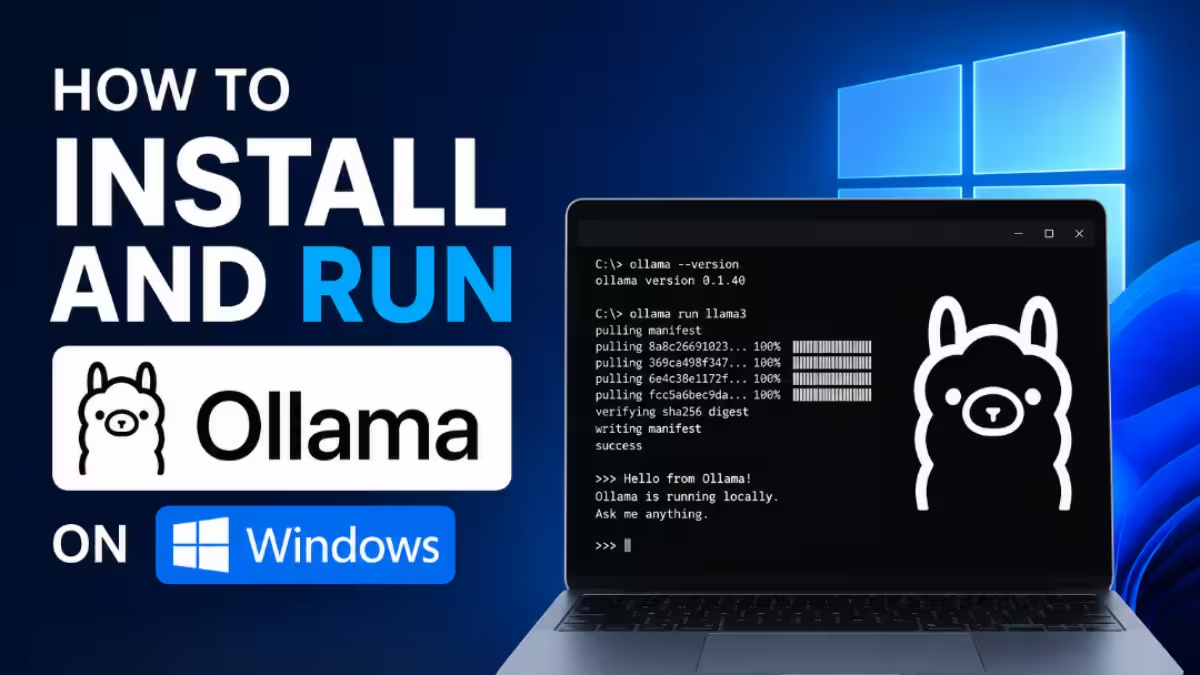
- Download the installer for your operating system from the Ollama website and run it.
- Open Terminal on macOS or Linux, or PowerShell on Windows.
- Confirm the install by checking the version.
- Pull a model that fits your hardware and start chatting.
On Linux, you can install with one command:
curl -fsSL https://ollama.com/install.sh | shCheck that Ollama works:
ollama --versionDownload and run a model. An 8B model suits an 8 GB card, while a 3B model suits laptops without a GPU:
ollama run qwen3:8bollama run llama3.2:3bType a question at the prompt and press Enter. Type /bye to leave the chat.
These commands help you manage your downloads:
ollama list
ollama ps
ollama rm llama3.2:3b
The first lists installed models, the second shows models loaded in memory, and the third deletes a model to free disk space.
How to Run AI Locally With LM Studio Without a Terminal
LM Studio suits anyone who prefers clicking over typing commands.
- Download LM Studio from its official website and install it.
- Open the Discover tab and search for a model such as Qwen, Gemma, Llama or Mistral.
- Pick an instruct or chat version, not a base model.
- Choose the Q4_K_M file and check that LM Studio marks it as a fit for your hardware.
- Click Download, then open the chat tab and select the model.
- Move the GPU offload slider to the maximum so every layer runs on your graphics card.
- Type a prompt and wait for the first reply, which takes longer while the model loads.
If your card cannot hold the whole model, lower the offload slider or switch to a smaller file.
Ollama vs LM Studio: Which Should You Pick?
Pick LM Studio for a visual app and Ollama for commands and automation.
| Factor | Ollama | LM Studio |
|---|---|---|
| Interface | Terminal first | Desktop app |
| Model discovery | Online library | Built-in browser with fit warnings |
| Local API | Port 11434 | Port 1234 |
| Best for | Scripts, coding tools, servers | Beginners and model testing |
| Offline use | Yes | Yes |
Both run on the same llama.cpp engine, so speed stays close on identical hardware. You can install both, but they store separate copies of each model, which doubles your disk use.
How to Use a Local Model as an OpenAI-Compatible API
A local model becomes far more useful once your other software can reach it.
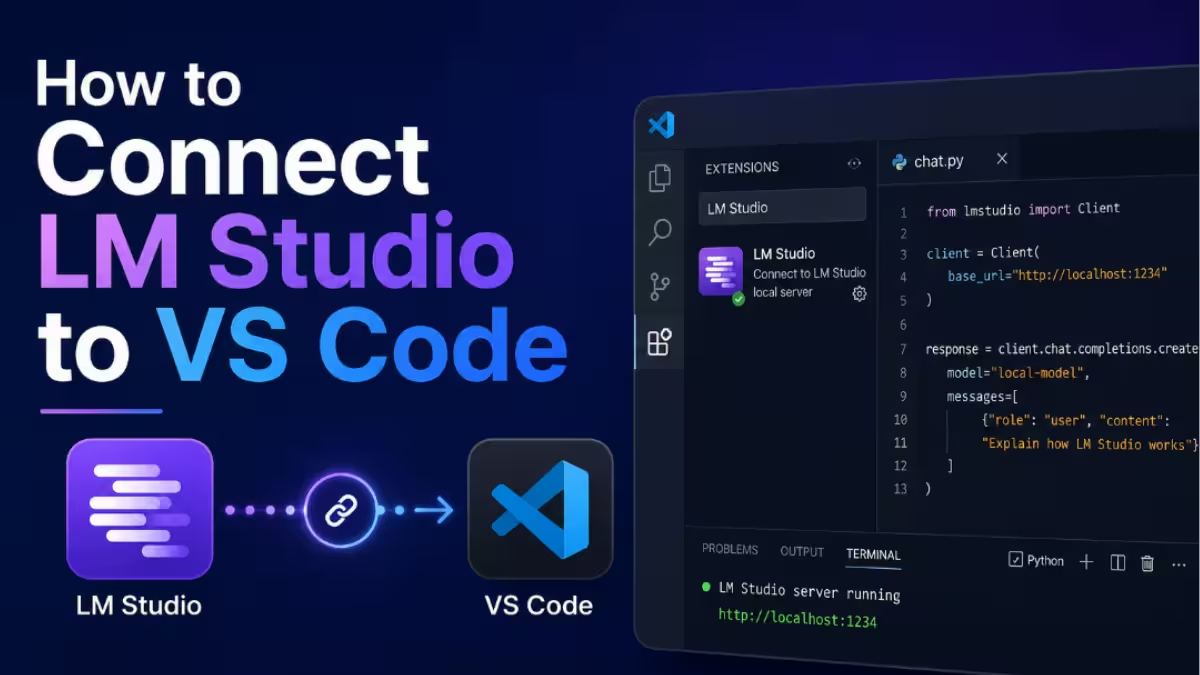
Both Ollama and LM Studio expose an API that copies the OpenAI format. Ollama listens on port 11434 and LM Studio on port 1234. Most apps that support OpenAI let you change the base URL, so you can point them at your own machine with a placeholder key.
Here is a short Python example using the official OpenAI library:
from openai import OpenAI

client = OpenAI(
    base_url="http://localhost:11434/v1",
    api_key="local",
)

reply = client.chat.completions.create(
    model="qwen3:8b",
    messages=[{"role": "user", "content": "Give me three blog title ideas about home servers."}],
)

print(reply.choices[0].message.content)
The same approach works for coding extensions like Continue in VS Code, note-taking plugins and automation tools. Your code and documents stay on your PC throughout.
Best Local AI Models to Download First
Start with a well-known 7B to 8B instruct model and move up only after you hit a clear limit.
- Qwen: a strong all-rounder with sizes for almost every machine, and many releases use the permissive Apache 2.0 license.
- Llama: reliable for general chat, though Meta uses its own license with extra conditions.
- Gemma: Google's family, with small sizes that run well on laptops.
- Mistral: compact models that follow instructions well.
- Phi: Microsoft's small models that run on modest hardware.
- DeepSeek distills: smaller reasoning models that work through problems step by step.
For coding, pick a code-specific model at Q5 or higher if your memory allows, since a single wrong token can break a program. Before you use any model for business work, read its license on the model card. "Open" on a launch page does not always mean free for commercial use.
Mixture-of-Experts Models
Some large models only activate a small slice of themselves for each word.
These mixture-of-experts models still need memory for the full file, but they generate text at the speed of the small active portion. That explains why machines with 64 to 128 GB of unified memory handle them well even with modest memory bandwidth.
How to Make Local AI Models Run Faster on Your GPU
A few settings close most of the gap between a slow setup and a fast one.
- Keep the whole model on the GPU. Partial offloading to system RAM slows everything down. Dropping one quant level to fit fully in VRAM usually beats splitting the model.
- Size your context to the task. Context uses memory whether you need it or not. Use around 8K tokens for casual chat and raise it for coding or long documents.
- Compress the conversation cache. In llama.cpp, the
-faflag with--cache-type-k q8_0 --cache-type-v q8_0roughly halves the memory your context uses with little quality loss. - Update your GPU drivers. Old drivers often cause the app to fall back to the CPU without telling you.
- Close heavy apps. Browsers with many tabs and games compete for the same memory.
- Store models on an SSD. Large model files load much faster from solid-state storage.
How to Fix Out of Memory, Slow Responses and Gibberish Output
Most local AI failures have quick fixes that cost nothing.
Out of Memory or Crash on Load
The model plus its context does not fit in your available memory.
Lower the context size first. In Ollama, run /set parameter num_ctx 4096 inside the chat. If it still fails, download the next smaller quant or a smaller model. A safe habit is to keep the model weights under about 80 percent of your VRAM so the context has room.
Responses Crawl Word by Word
The model has spilled out of VRAM into system RAM, or the app is not using your GPU at all.
Check that GPU offload is set to maximum and that your drivers are current. Then try a smaller model that fits entirely on the card.
Gibberish or Endless Repetition
You probably loaded a base model or the wrong chat template.
Download the instruct or chat version of the model and update your app so it reads the template stored inside the GGUF file. Avoid quants below Q3, which often produce broken output.
The Model Forgets Earlier Messages
Your conversation has grown past the context window, so the oldest messages drop off silently.
Raise the context setting in your app, keeping in mind that a longer context uses more memory.
Is Running AI Locally Private?
Local processing keeps your prompts on your device, but your setup decides how private it really is.
The model file itself sends nothing anywhere. Leaks come from what you add around it: web search tools, cloud sync folders, telemetry in an app, or a front end that quietly falls back to a cloud API. Check each of these before you trust a setup with sensitive data.
To keep your setup private:
- Download models only from official repositories and trusted quantizers.
- Turn off cloud integrations and web search plugins you do not need.
- Keep Open WebUI and other servers on your home network, not the public internet.
- Test your workflow once with the internet disconnected.
Local AI vs Cloud AI: Which Should You Use?
The smartest setups use both and route each task to the right place.
| Factor | Local AI | Cloud AI |
|---|---|---|
| Privacy | Data stays on your PC | Prompts go to the provider |
| Cost | Hardware once, then electricity | Monthly plan or per-token fees |
| Quality ceiling | Good to very good | Best available |
| Offline use | Works without internet | Needs a connection |
| Setup | Install an app and a model | Create an account |
Send private, repetitive and high-volume work to your local model. Keep a cloud model for the rare task that needs top-tier reasoning. Before you buy new hardware, run a small model on the computer you already own and note exactly where it falls short.
Frequently Asked Questions
How much VRAM do I need for a 70B model?
A 70B model at Q4 needs roughly 40 GB of memory. That rules out single consumer cards and points to dual GPUs, or a Mac or mini PC with 64 to 128 GB of unified memory.
Is running AI locally free?
The tools and most open models cost nothing to download. You still pay for your hardware and electricity, and some model licenses restrict commercial use.
Can I run ChatGPT on my own PC?
No. ChatGPT runs on closed models that OpenAI does not release. You can run open-weight models, including OpenAI's gpt-oss family, through Ollama or LM Studio.
Does local AI work without the internet?
Yes. After you download the app and the model, chat works fully offline. Web search plugins and cloud integrations still need a connection.