A local LLM is an open-weight language model that you download once and run on your own computer. Your prompts stay on your machine, you pay nothing per token, and the model keeps answering even when your internet drops. This guide covers the hardware you need, the tools worth installing, which models to pull first and how to wire everything into your own apps.

Why Run a Local LLM Instead of a Cloud Chatbot
Cloud chatbots work well, but they come with trade-offs that a local setup removes.
- Privacy: Source code, client contracts, medical notes and internal documents never reach a third-party server.
- No usage bills: After you buy the hardware, every query costs only electricity.
- No rate limits: Batch jobs, coding agents and automation scripts can hit the model as often as your GPU allows.
- Offline access: The model works on a flight, in a remote office or during a cloud outage.
- Full control: You choose the model, the system prompt, the context length and the quantization level.
The main trade-off is capability. A small model on a gaming GPU handles drafting, summarizing, coding help and document Q&A well, but the largest cloud models still lead on deep multi-step reasoning.
How Much VRAM Do You Need to Run a Local LLM
GPU memory (VRAM) limits local AI far more than raw GPU speed does.
The runtime loads the model's weights into memory before it generates a single word. When the whole model fits in VRAM, responses stream quickly. When it does not fit, the runtime pushes some layers into system RAM, and generation can slow down by 10 to 50 times.
A quick way to estimate memory needs for a 4-bit quantized model:
- Multiply the parameter count (in billions) by about 0.5 to 0.7 GB.
- Add 1 to 3 GB for the context window (the KV cache) and runtime overhead.
So an 8B model at 4-bit needs roughly 5 to 7 GB in practice, and a 70B model needs around 40 GB.
| Your GPU memory | Model size that runs comfortably (4-bit) | Typical cards |
|---|---|---|
| No GPU, 8 to 16 GB RAM | 1B to 4B | Any modern laptop or desktop CPU |
| 6 to 8 GB | 7B to 8B | RTX 3050, RTX 4060, RTX 5060 |
| 12 GB | 8B to 14B | RTX 3060 12GB, RTX 4070 |
| 16 GB | 14B to 20B, some 27B | RTX 4060 Ti 16GB, RTX 4080, RTX 5080 |
| 24 GB | 27B to 34B, 70B partially | RTX 3090, RTX 4090, RX 7900 XTX |
| 32 GB and up | 70B with tight context | RTX 5090, dual 24 GB cards |
Best Hardware for Running LLMs Locally (GPU, RAM, CPU)
Each part of the PC plays a different role, and the GPU matters most by a wide margin.
GPU
Buy for memory capacity first and speed second. A used RTX 3090 with 24 GB will run larger models than a newer 12 GB card, even though the newer card wins in games. NVIDIA remains the easiest choice because CUDA support comes first in almost every local AI tool. AMD cards such as the RX 7900 XTX work well through ROCm on Linux, but ROCm support on Windows stays limited, so Windows users should lean toward NVIDIA.
Apple Silicon Macs
M-series Macs share one pool of unified memory between the CPU and GPU. A MacBook with 16 GB can run 8B models smoothly, and a Mac Studio with 64 to 128 GB can hold 70B models that would otherwise need two desktop GPUs. Apple's MLX framework often squeezes out extra speed on these machines.
System RAM
Plan for at least 16 GB, and 32 GB if you want room for a browser and a chat interface alongside the model. Move to 64 GB or more only if you intend to offload large 70B models partly into RAM.
CPU
The CPU handles tokenization and any layers that spill out of VRAM. A modern 6 to 8 core chip covers single-GPU builds. You only need a workstation platform with more PCIe lanes if you plan to run two or more GPUs.
Storage
Model files range from 2 GB to over 40 GB each, and most people test several before settling on a favorite. Keep 100 to 200 GB free on an NVMe SSD, since NVMe drives load models into memory far faster than hard drives.
Power and Cooling
Inference keeps the GPU near full load for long stretches. Size your power supply with headroom (750 W for an RTX 3090 build, 850 to 1000 W for an RTX 4090, 1000 W or more for an RTX 5090) and make sure the case moves air well.
Ollama vs LM Studio vs llama.cpp: Which Tool to Use
You need a runtime that loads the model and serves it, and most of them use the same GGUF model files.
| Tool | Interface | Best for | Default local API |
|---|---|---|---|
| Ollama | Command line plus background service | Developers, scripting, automation | http://localhost:11434 |
| LM Studio | Desktop app | Beginners who want point-and-click | http://localhost:1234/v1 |
| llama.cpp | Command line server | Maximum control and newest model support | http://localhost:9931 (older builds use 8080) |
| GPT4All | Desktop app | Chatting with local documents | http://localhost:4891 |
| Jan | Desktop app | Offline-first chat | Built-in local server |
Ollama and LM Studio both run llama.cpp under the hood, so you can switch between them later without relearning anything. Ollama suits anyone comfortable with a terminal. LM Studio suits anyone who prefers to browse models, watch memory usage and adjust settings in a GUI.
Method 1: How to Run a Local LLM With Ollama
Ollama gets you from zero to a working model in a few minutes.
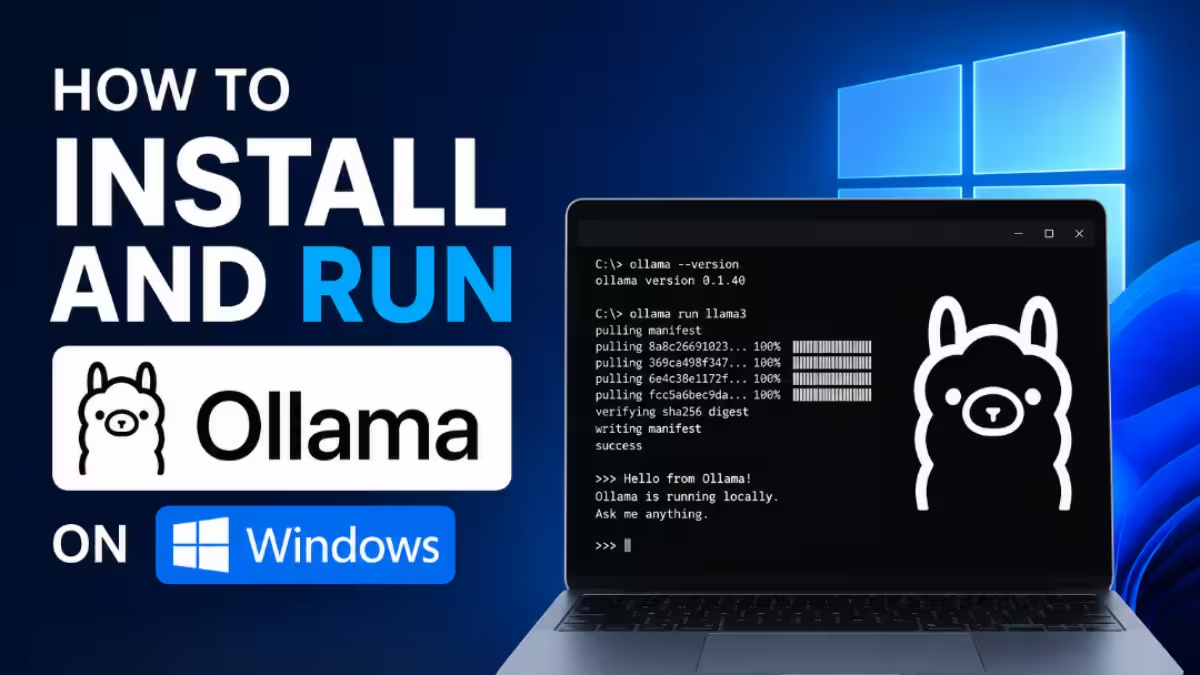
- Download the installer for Windows or macOS from the Ollama download page and run it. On Linux, run the official install script shown below.
- Open Terminal or PowerShell and confirm the install with
ollama --version. - Pull a model that matches your hardware, for example
ollama pull llama3.1:8bfor an 8 GB GPU orollama pull llama3.2:3bfor a CPU-only laptop. - Start a chat session with
ollama run llama3.1:8band type a prompt. - Type
/byeto exit the chat. The Ollama service keeps running in the background and serves the model to other apps.
Linux install command:
curl -fsSL https://ollama.com/install.sh | shUseful Ollama commands:
ollama list        # show downloaded models
ollama ps          # show loaded models and GPU/CPU split
ollama rm <model>  # delete a model to free disk space
ollama serve       # start the API server manually
Method 2: How to Run a Local LLM With LM Studio
LM Studio skips the terminal entirely.
- Download LM Studio from the official site and install it like any other desktop app.
- Open the Discover tab and search for a model such as Qwen, Llama or Gemma.
- Pick a quantization that LM Studio marks as fitting your hardware, then click Download.
- Load the model from the top bar and start chatting in the built-in chat window.
- Open the Developer tab and start the local server if you want other apps to use the model.
LM Studio shows how much memory each model will take before you download it, which makes it a good way to learn what your machine can handle.
Best Local LLM Models for Your Hardware
Start small, confirm everything works, then size up to the largest model your VRAM holds comfortably.
| Goal | Low-end hardware (8 GB) | Mid-range (12 to 16 GB) | High-end (24 GB and up) |
|---|---|---|---|
| General chat and writing | Llama 3.1 8B, Qwen3 8B | Gemma 3 12B, Phi-4 14B | Qwen 2.5 32B, Gemma 3 27B |
| Coding | Qwen 2.5 Coder 7B | Qwen 2.5 Coder 14B | Qwen 2.5 Coder 32B, Qwen3 Coder |
| Reasoning and math | DeepSeek R1 8B distill | DeepSeek R1 14B distill | DeepSeek R1 32B distill |
| Weak laptops | Phi-4 Mini, Gemma 3 4B | N/A | N/A |
| Multilingual text | Gemma 3 4B | Gemma 3 12B | Gemma 3 27B |
What Quantization Level Should You Use (Q4 vs Q8)
Quantization shrinks model weights to fewer bits so a large model fits on a consumer card. You see it in names like Q4_K_M or Q8_0.
- Q4_K_M: The default pick for most users. It cuts size by about 75% compared with full precision and keeps quality close to the original in everyday chat.
- Q5_K_M and Q6_K: Slightly larger files with output closer to full precision. Use them if you have spare VRAM.
- Q8_0: Near-original quality at roughly half the full-precision size. Recommended for very small models under 8B, where 4-bit loses more accuracy.
- Q2 and Q3: Only for squeezing a model onto hardware that is too small. Reasoning and code quality drop noticeably.
To pull a specific quantization in Ollama, add the tag to the model name, for example ollama pull llama3.1:8b-instruct-q5_K_M.
How to Add a ChatGPT-Like Interface to a Local LLM
Open WebUI gives your local model a browser chat window with history, file uploads and multiple user accounts.
- Install Docker Desktop or Docker Engine.
- Run the command below to start Open WebUI and point it at Ollama.
- Open
http://localhost:3000in your browser and create the admin account. - Select your downloaded model from the dropdown and start chatting.
docker run -d -p 3000:8080 --add-host=host.docker.internal:host-gateway -v open-webui:/app/backend/data --name open-webui --restart unless-stopped ghcr.io/open-webui/open-webui:mainHow to Use a Local LLM as an OpenAI-Compatible API
Ollama, LM Studio and llama.cpp all speak the OpenAI API format, so existing code needs only a new base URL.
The Python example below sends a prompt to Ollama using the official OpenAI library. The API key can hold any text because the local server ignores it.
from openai import OpenAI

client = OpenAI(base_url="http://localhost:11434/v1", api_key="local")

reply = client.chat.completions.create(
    model="llama3.1:8b",
    messages=[{"role": "user", "content": "Explain recursion in two sentences."}],
)

print(reply.choices[0].message.content)
Swap the base URL to http://localhost:1234/v1 for LM Studio. Coding tools such as Cline, Aider, Zed and Continue-style VS Code extensions, plus agent apps like OpenCode, accept the same local URL as a model provider. Give coding and agent tools a context window of at least 32K tokens, since they feed whole files and tool output into the model.
How to Check Local LLM Speed and GPU Usage
Tokens per second tells you whether your setup feels usable.
- Run the model with
ollama run llama3.1:8b --verboseand send a prompt. - Read the eval rate line at the end of the response. It shows tokens per second.
- Open a second terminal and run
nvidia-smiwhile the model generates. GPU utilization should jump high and memory use should match the model size. - Run
ollama psto see the split between GPU and CPU. A result of 100% GPU means the model fits entirely in VRAM.
As a rough guide, 15 tokens per second reads at a comfortable pace, 30 or more feels instant, and anything under 5 means layers are spilling into system RAM. To confirm nothing leaves your machine, turn off Wi-Fi and send another prompt. A truly local model keeps answering.
Local LLM Not Working? Common Problems and Fixes
Most first-run issues trace back to memory, drivers or port conflicts.
- Very slow replies: The model does not fit in VRAM. Switch to a smaller model or a lower quantization, or reduce the context length.
- Out of memory error: Close games, browsers with hardware acceleration and other AI apps, then load a smaller quantization.
- GPU not detected: Update your NVIDIA driver and check that
nvidia-smiworks. Inside Docker, install the NVIDIA Container Toolkit. - Model not found: Check the exact name and tag on the Ollama model library and pull it again.
- Port already in use: Another runtime is holding the port. Close LM Studio before starting Ollama on the same port, or change one of the ports.
- First reply takes long: The runtime is loading the model into memory. Later replies stay fast until you switch models.
- Garbled or repeating output: Use an "instruct" or "chat" version of the model rather than a base model, and lower the temperature.
How to Secure Your Local LLM Server
A local model only stays private if you keep its API off the open network.
Ollama listens on port 11434 without any password. Leave it bound to 127.0.0.1 if only your own PC uses it. If you want access from other devices, put a reverse proxy with authentication in front of it, limit the firewall rule to your home subnet and never forward the port through your router.
Frequently Asked Questions
Can I run a local LLM without a graphics card?
Yes. Models in the 1B to 4B range run on a modern CPU with 8 to 16 GB of RAM at a few tokens per second. They handle summaries, short answers and autocomplete, but larger models become too slow for comfortable chat without a GPU.
How much VRAM do I need for an 8B model?
About 6 to 8 GB at Q4_K_M quantization. An 8 GB card runs it well with a moderate context window, and a 12 GB card leaves extra room for longer conversations.
Is Ollama or LM Studio better for beginners?
LM Studio suits beginners who prefer clicking through menus and seeing memory estimates before downloading. Ollama suits users who like the terminal or want to script and automate. Both use the same model files and both offer an OpenAI-compatible server.
Can a local LLM match ChatGPT or Claude?
For everyday writing, summarizing, coding help and document questions, a good 8B to 32B model comes close. The largest cloud models still lead on complex reasoning, very long documents and multimodal tasks, so many people use local models for private or high-volume work and cloud models for the hardest problems.
Does running an LLM locally cost anything?
The runtimes and open-weight models are free. Your only ongoing cost is electricity, which runs to a few dollars a month for a few hours of daily use on a single gaming GPU.
Can I run a local LLM on a laptop?
Yes. Apple Silicon MacBooks run 8B models smoothly thanks to unified memory, and Windows laptops with an 8 GB RTX GPU handle 7B to 8B models well. Thin laptops without a dedicated GPU can still run small 3B to 4B models on the CPU.
Related Guides
- Top 8 Open Source AI Libraries for Building Retrieval Augmented Generation (RAG) Systems, Agents, and AI Search Applications
- Build a Generative AI Chatbot with OpenAI and Streamlit
- How to Secure Dev Pipeline After the LiteLLM 1.107.0 and Brotli HTTP2Shell Attacks
- LLM Penetration Testing Guide for GenAI and RAG Applications in Business
- How to Use SkillOpt to Enable LLM Agents to Learn New Skills Without Fine-Tuning