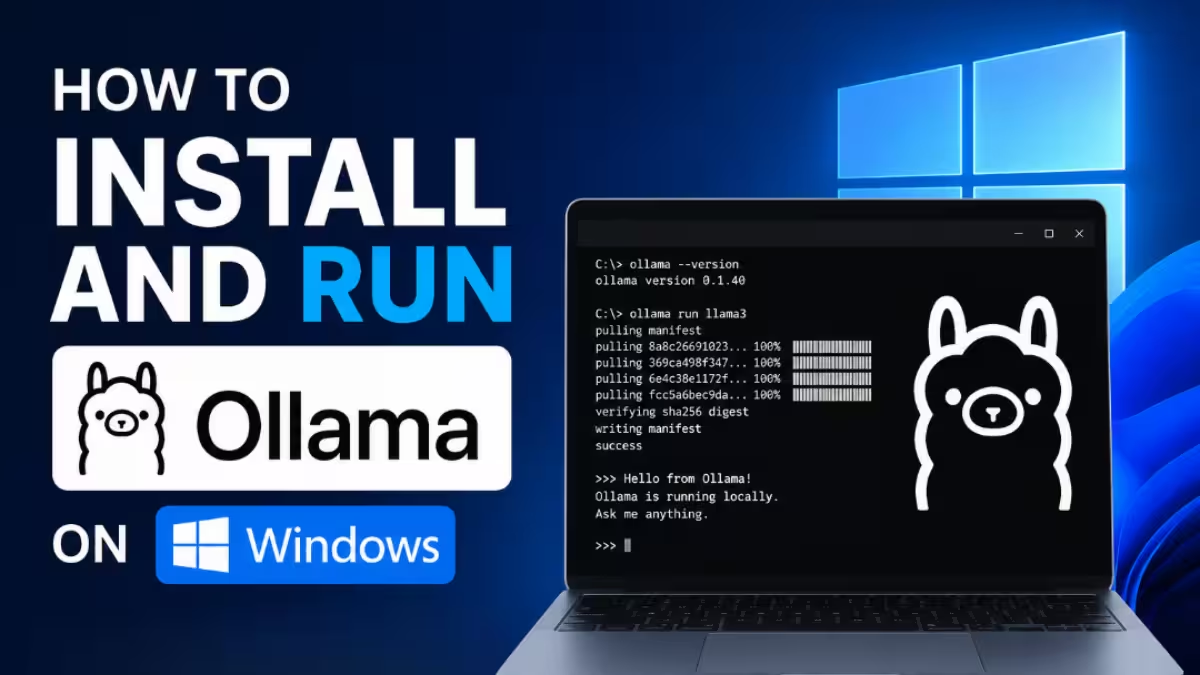
Ollama lets you download and run large language models like Llama 3, Mistral, and Gemma directly on your own computer. You get full privacy because your prompts never leave your machine, you pay nothing per token, and the models keep working offline once you download them. This guide walks you through the exact installation steps for each operating system, then shows you how to verify the setup and run your first model.
System Requirements Before You Install
Check your hardware before you start so you avoid slow performance later.
- RAM: 8 GB minimum, 16 GB recommended for a smooth experience.
- Disk space: The Ollama app uses around 300 MB. Each model needs more. A 7B model takes about 4 GB, a 34B model around 19 GB, and a 70B model close to 39 GB.
- Storage type: Use an SSD. Models load far faster from solid state storage.
- GPU (optional): Ollama runs on CPU alone, but a GPU speeds things up. NVIDIA cards use CUDA, AMD cards use ROCm, and Apple Silicon uses Metal. Ollama bundles the CUDA components it needs, so you do not install the CUDA toolkit separately.
- Internet: You only need a connection for the initial app and model download.
Apple Silicon Macs handle models especially well because the CPU and GPU share the same memory pool. A 32 GB M-series Mac can load models that would otherwise need a dedicated graphics card.
How to Install Ollama on Windows
Windows 10 and Windows 11 both support Ollama with a standard installer.
- Open your browser and go to the official download page at ollama.com/download.
- Click the Windows button to download the .exe installer file.
- Double click the downloaded file to launch the installer.
- Click through the prompts the same way you would for any other Windows app. The installer adds Ollama to your PATH automatically.
- Wait for the installer to finish. Ollama then runs in the background and places an icon in your system tray.
If the installer fails to launch, right click the file and choose Run as administrator. Some antivirus tools flag new installers, so pause your antivirus briefly during the install if it blocks the process.
How to Install Ollama on macOS
You have two clean options on macOS 11 or later.
Option 1: Direct download
- Visit ollama.com/download in your browser.
- Click the macOS button to download the .zip file.
- Open the downloaded file and drag the Ollama app into your Applications folder.
- Launch Ollama from Applications. Approve any permission prompt macOS shows on first run.
Option 2: Homebrew
If you already use Homebrew, run this single command in Terminal:
brew install ollamaHomebrew downloads and installs Ollama and adds the ollama command to your shell. Apple Silicon Macs (M1 through M4) accelerate models through Metal right away. Intel Macs run Ollama too, though they process tokens more slowly.
How to Install Ollama on Linux
Linux users install Ollama with the official one line script. Open a terminal and run:
curl -fsSL https://ollama.com/install.sh | shThe script downloads the Ollama binary, adds the ollama command to your PATH, and creates a systemd service called ollama. That service starts automatically and relaunches after a reboot. The installer needs root access to set up the systemd service, so it prompts you for your password.
Ubuntu 20.04 and later work well. If you prefer a containerised setup, pull the official Docker image instead of running the script.
Verify Your Installation
Confirm Ollama installed correctly before you pull a model. Open a terminal or PowerShell window and run:
ollama --versionThe command prints the installed version number. If you see the version, your installation works.
Run Your First Model
Pull and run a model with one command. This example downloads and starts Llama 3:
ollama run llama3The first run downloads the model, which takes a few minutes depending on your connection. After the download finishes, Ollama drops you into an interactive chat prompt. Type a question and press Enter to get a response. Type /bye to exit the chat.
You can also pass a prompt directly:
ollama run llama3 "Explain quantum computing in simple terms"Useful Ollama Commands
These commands cover daily use once you have Ollama running.
ollama list                # Show every model you installed
ollama pull mistral        # Download a model without running it
ollama run llama3          # Start an interactive chat
ollama rm llama3           # Remove a model to free disk space
ollama stop                # Stop the running model
Remove models you no longer use with ollama rm. Large models take significant disk space, and clearing them keeps your drive healthy.
Fix Common Installation Problems
- The installer will not run on Windows: Right click the .exe file and choose Run as administrator. Pause your antivirus during the install if it interrupts the process.
- The
ollamacommand is not found: Close and reopen your terminal so it picks up the updated PATH. On Linux, confirm the install script finished without errors and rerun it if needed. - Models load slowly: Move Ollama and your models onto an SSD, add more RAM, or use a supported GPU. CPU only setups run smaller models at roughly 7 to 12 tokens per second, which suits experimentation more than daily work.
- The service does not start on Linux: Check the systemd service status with
systemctl status ollamaand restart it withsudo systemctl restart ollama.
Final Setup Tips
Start with a smaller model like a 7B or 8B parameter version so you confirm everything works before you move to heavier models. Keep an eye on disk space as you add models, and remove the ones you stop using. Once your installation runs cleanly, you have a private, offline AI environment ready for text generation, coding help, and question answering, all without subscriptions or per token fees.
Read more:
- How to Install Claude Code CLI on Windows, macOS, and Linux
- How to Install and Set Up VirtualBox on Windows 11
- Microsoft Coreutils for Windows 11: Install Native Linux Commands With WinGet
- How to Uninstall AI Model in Windows 11 Settings (Remove Phi Silica)
- How to Clean Install Windows 11 from USB (Step-by-Step Guide)