If Windows 11 suddenly blocks the Snipping Tool with error 0x803F8001, the problem usually comes from a broken Microsoft Store license or corrupted system service. The app may stop working even if it worked earlier the same day. Restarting the PC or reinstalling the app often does not fix this issue.
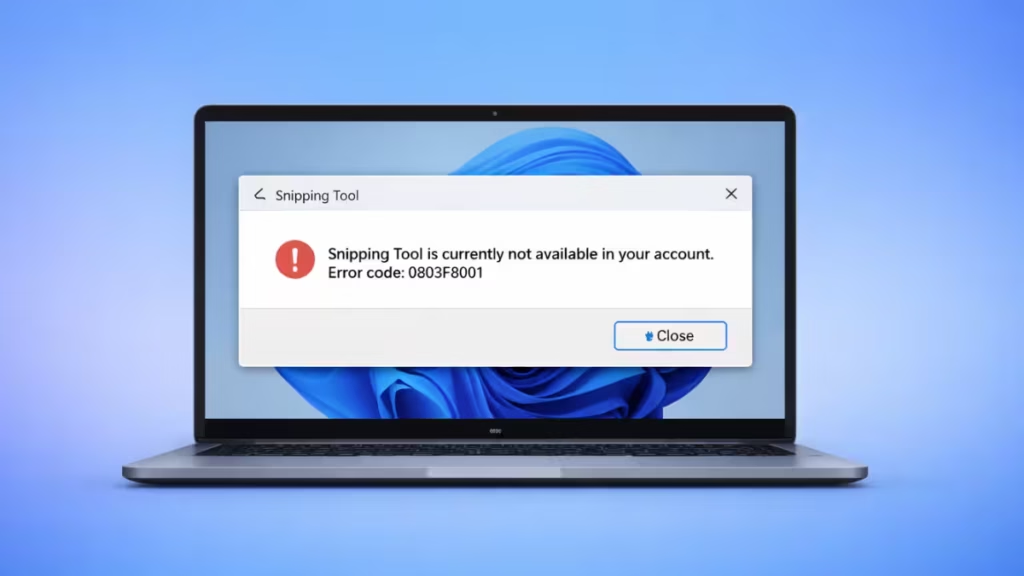
What Causes Snipping Tool Error 0x803F8001?
Windows shows this error when Microsoft Store cannot validate the app license on your account. Several system components can trigger this failure:
- Microsoft Store licensing services stop responding.
- Windows corrupts Store registration files during updates.
- System files become damaged.
- Incorrect date or region settings block Store authentication.
- User profile licensing cache becomes corrupted.
Fixing the system services usually restores the app quickly.
Fix 1 — Restart Microsoft Store Licensing Services
This fix restores broken licensing validation that blocks Store apps.
Steps
- Press Win + R.
- Type:
services.msc- Press Enter.
Locate and restart these services:
- Client License Service (ClipSVC)
- Microsoft Store Install Service
- Windows License Manager Service
For each service:
- Right-click the service.
- Click Restart.
- If the service is stopped, click Start.
Restart your computer and open Snipping Tool.
Fix 2 — Re-register Microsoft Store and Reinstall Snipping Tool
This fix rebuilds Store registration files that often break after silent updates.
Steps
- Right-click Start.
- Select Terminal (Admin) or Windows PowerShell (Admin).
Paste this command and press Enter:
Get-AppxPackage -allusers Microsoft.WindowsStore | Foreach {Add-AppxPackage -DisableDevelopmentMode -Register "$($_.InstallLocation)\AppxManifest.xml"}After the command completes, reinstall Snipping Tool:
winget install Microsoft.SnippingTool --forceRestart the PC and launch Snipping Tool.
Fix 3 — Repair Windows System Files
Corrupted system files can block Store apps from validating licenses.
Steps
Open Terminal (Admin) and run these commands one by one:
DISM /Online /Cleanup-Image /RestoreHealthWait until the process completes.
Then run:
sfc /scannowRestart your computer after the scan finishes and test Snipping Tool again.
Fix 4 — Verify Date, Time, and Region Settings
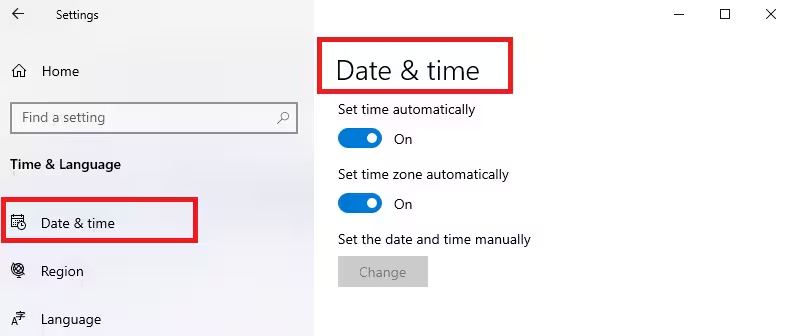
Incorrect system time or region breaks Microsoft Store authentication.
Steps
- Open Settings → Time & Language → Date & Time.
- Enable:
- Set time automatically
- Set time zone automatically
- Click Sync now.
Next, open:
Settings → Time & Language → Language & Region
Confirm that the Country or Region matches your actual location.
Restart the PC and test Snipping Tool.
Fix 5 — Use Keyboard Screenshot Shortcuts as a Temporary Workaround
If Snipping Tool stays blocked, you can still capture screenshots using built-in keyboard shortcuts. These shortcuts work even when Snipping Tool licensing fails.
Available Shortcuts
- Win + Shift + S
Opens the screen snip overlay directly (works on most systems). - PrtSc
Captures the entire screen to clipboard on many laptops. - Win + PrtSc
Saves a full screenshot automatically to the Pictures folder. - Win + Alt + PrtSc
Captures the active window using Xbox Game Bar.
No settings changes are required.
Fix 6 — Create a New User Account (If Nothing Else Works)
A corrupted user profile can permanently break Store licensing.
Steps
- Open Settings → Accounts → Other users.
- Click Add account.
- Create a new local or Microsoft account.
- Sign into the new account and test Snipping Tool.
If Snipping Tool works in the new account, your original profile contains corrupted licensing data.
Fix 7 — Perform an In-Place Windows Repair (Last Resort)
If the error persists across all accounts, repair Windows while keeping files and apps. This process rebuilds Store components safely.
Download the latest Windows 11 ISO from Microsoft and run the installer inside Windows. Select Keep personal files and apps when prompted.
FAQs
What does Snipping Tool error 0x803F8001 mean?
Snipping Tool error 0x803F8001 means Microsoft Store cannot validate the app license on your Windows 11 account, which blocks the app from opening.
Why did Snipping Tool suddenly stop working on Windows 11?
Snipping Tool can stop working when Store licensing services crash, system files become corrupted, or Windows updates break app registration silently.
Can I fix Snipping Tool error 0x803F8001 without reinstalling Windows?
Yes, restarting licensing services, re-registering Microsoft Store, and repairing system files usually fix Snipping Tool error 0x803F8001 without reinstalling Windows.
Does signing out of Microsoft Store fix error 0x803F8001?
Signing out alone rarely fixes error 0x803F8001 because the issue usually affects local licensing services and system registration.
Why does Snipping Tool say “not available in your account”?
Windows shows this message when Microsoft Store fails to verify the app license linked to your Windows profile.
Will creating a new user account fix Snipping Tool error 0x803F8001?
Yes, a new Windows user profile often fixes the error if the original profile contains corrupted Store licensing data.
Is error 0x803F8001 caused by Windows updates?
Yes, Windows updates sometimes disrupt Store components and licensing caches, which can trigger error 0x803F8001.
What is the fastest workaround if Snipping Tool is blocked?
You can enable the Print Screen shortcut or use Xbox Game Bar screenshots while fixing Snipping Tool error 0x803F8001.
Can incorrect date and time cause Snipping Tool licensing errors?
Yes, incorrect system time or region prevents Microsoft Store from authenticating app licenses properly.
Does this error affect other Microsoft Store apps?
Yes, error 0x803F8001 can block other Store apps if the licensing system remains corrupted.
By completing the steps above, you should restore Snipping Tool access and remove error 0x803F8001. Most systems recover after restarting licensing services or re-registering Microsoft Store. If the problem persists, creating a new user profile or repairing Windows permanently resolves the issue.

