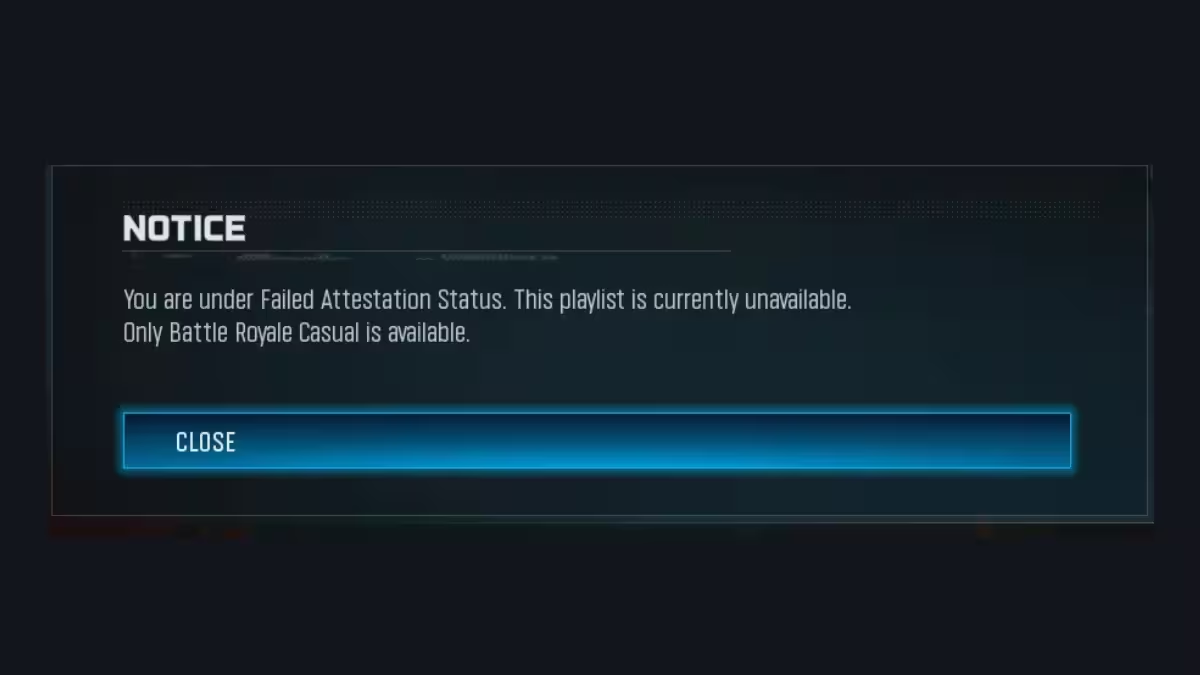
Call of Duty players across Warzone, Black Ops, and MW titles keep hitting the “You are under Failed Attestation Status” error at launch. The game blocks you from playing even when your PC meets every listed requirement. This guide walks through the working fixes, in order of success rate, based on confirmed player reports.
What Causes the Failed Attestation Status Error
Activision’s anti-cheat system checks your PC’s hardware security setup before it lets you into a match. The check looks at TPM 2.0, Secure Boot, and a background Windows service called COD.Broker.Service. If any of these fail the check, the game blocks access and shows the attestation error, even when Windows itself reports no problems.
Fix 1: Restart the COD.Broker.Service
This fix resolves the issue for most PC players, even those who already have TPM and Secure Boot enabled correctly.
- Open Task Manager and click the Services tab.
- Search for COD.Broker.Service.
- Right click it and select Open Services.
- Right click the service again and choose Properties.
- Set Startup type to Automatic.
- Restart your PC.
Many players report this service defaults to Disabled after a Windows update or game patch, which triggers the attestation failure even with correct BIOS settings.
Fix 2: Run the COD Secure Attestation Wizard
Activision provides a dedicated wizard that scans your system for compliance issues.
- Download the Attestation Wizard from the Activision support page linked on the failed attestation screen.
- Run the scan.
- Confirm you receive a pass result before launching the game again.
Note that some players pass this wizard scan but still see the error in game. If that happens, move to the next fixes rather than repeating the wizard.
Fix 3: Verify TPM 2.0 Is Enabled
- Go to Settings > Update & Security > Windows Security > Device security.
- Open Security Processor > Security Processor Details.
- Confirm the version reads 2.0 or higher.
If your motherboard shows TPM below version 2.0 or disabled, enter your BIOS and look for one of these labels, since manufacturers name the setting differently:
- Security Device
- Security Device Support
- TPM State
- AMD fTPM Switch
- AMD PSP fTPM
- Intel PTT
- Intel Platform Trust Technology
Fix 4: Enable Secure Boot
- Go to Settings > System > Recovery > Advanced Setup > Restart Now.
- Save any open work before the restart.
- Select Troubleshoot > Advanced Options > UEFI Firmware Settings > Restart.
- Inside the BIOS, switch the boot mode from Legacy or CSM to UEFI.
- If both options appear together, keep UEFI as the only active mode.
Fix 5: Clear and Reset TPM Keys
Some players fix the error by clearing stored TPM keys directly in BIOS rather than just enabling TPM.
- Enter BIOS and navigate to Security > Trusted Computing > Pending Operation.
- Select TPM Clear.
- Save changes and restart.
This step often succeeds where a simple TPM toggle fails, particularly on MSI boards. Skipping a clean Windows install after a hardware upgrade can also leave stale TPM keys that block attestation, so a clean install remains a valid fallback if every other fix fails.
Fix 6: Allow Certreq.exe Through Your Firewall
A small number of players trace the error to a blocked certificate request process rather than TPM or Secure Boot at all.
- Open Windows Firewall or your third party firewall tool.
- Search the blocked program list for Certreq.exe.
- Create a rule allowing this executable full network access.
- Restart the game.
This fixes cases where TPM and Secure Boot already show green checks but the in-game error persists, since the real block sits at the certificate enrollment step rather than the hardware check.
When the Attestation Error Is a Server-Side Issue
Even players keep every setting correct, BIOS updated, TPM active, Secure Boot on, and the wizard still passes the scan, yet the in-game block remains. Activision support has confirmed in multiple tickets that some of these cases sit with internal studio teams as a backend attestation issue rather than a local hardware or software problem. If you complete every fix above and the error persists, the most reliable path forward is to wait for an official anti-cheat or game update rather than repeating BIOS resets.
Related Guides
- How to Enable Secure Boot and TPM 2.0 for Highguard on Windows PCs
- How to Enable TPM 2.0 and Secure Boot for Black Ops 7
- How to Enable TPM 2.0 and Secure Boot for Gaming on Windows PCs
- How to Fix “Join Failed Because You Are on a Different Version” in Warzone
- How to Fix Warzone “Voice and Text Chat Disabled Due to Platform Restrictions” Error
- How to Fix Call of Duty DirectX Error (0x887A0005) in Modern Warfare III and Warzone
Most players resolve the Warzone failed attestation status error with the COD.Broker.Service restart alone. Work through the remaining fixes in order if the error continues after that step.

