I have three old Android phones sitting around my home right now. One runs as a permanent security camera near my front door. Another lives in my car as a dedicated GPS. The third powers my smart home dashboard on the kitchen wall.
None of them cost me anything extra. They were all headed for a drawer or a landfill before I found better jobs for them.
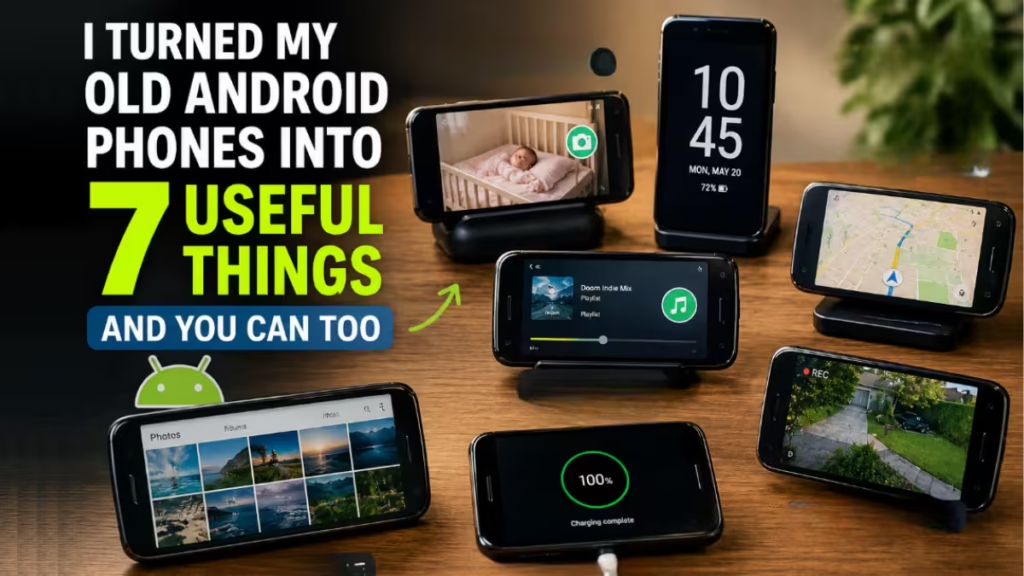
If you have an old Android collecting dust, this guide covers seven practical things you can do with it today, starting with the easiest setups and working up to the more useful ones.
1. Turn It Into a 24/7 Home Security Camera
A security camera is the single best job you can give an old Android phone. The camera, microphone, and screen are already built in. You just need one free app to bring it all together.
What you need:
- Old Android phone (Android 5.0 or later)
- Alfred Camera app (free on Play Store)
- A charging cable and a phone stand or wall mount
Steps:
- Install Alfred Camera on both the old phone and your main phone.
- Sign in with the same Google account on both devices.
- Open Alfred on the old phone and select Camera mode.
- Open Alfred on your main phone and select Viewer mode.
- Position the old phone facing your front door, driveway, or any entry point.
- Keep it plugged in to power.
You get live video, motion detection alerts, and two-way audio, all accessible from your main phone. Alfred stores clips in the cloud and sends push notifications the moment motion is detected.
Pro tip: A small adhesive phone mount from Amazon positions the camera at eye level without drilling into your wall.
2. Use It as a Dedicated Car GPS
Dedicated GPS units have mostly disappeared from stores, and old Android phones replace them perfectly. You can load offline maps so navigation works even without mobile data in the car.
What you need:
- Old Android phone
- Google Maps or Waze app
- A car phone mount (windshield clip or air vent holder)
- A car charger
Steps:
- Install Google Maps on the old phone.
- Open Maps, search for your state or city, tap the three-dot menu, and select Download offline map.
- Download maps for your usual driving area.
- Clip the phone onto your dashboard or vent mount.
- Plug it into the car charger so it stays powered during drives.
Your main phone stays free for calls and notifications. Your battery stays full. The GPS never interrupts you with alerts from other apps.
Pro tip: Go to Settings > Display > Screen timeout and set it to Never while the phone is plugged in, so the map stays visible throughout the drive.
3. Turn It Into a Wi-Fi Hotspot or Repeater
If your SIM card is still active, the old phone can share mobile data as a hotspot for your laptop or tablet. No SIM? It can still extend your home Wi-Fi signal into rooms with weak coverage.
Option A: Mobile hotspot (active SIM required)
- Go to Settings > Network > Hotspot and tethering.
- Enable Wi-Fi hotspot.
- Set a name and password.
- Connect your other devices to it like any other Wi-Fi network.
Option B: Wi-Fi repeater (no SIM needed)
- Install NetShare from the Play Store on the old phone.
- Connect the old phone to your main home Wi-Fi.
- Open NetShare and start the hotspot.
- Connect other devices to the old phone and they get internet through it.
This setup works well for extending coverage to a garage, backyard, or any room where your router signal drops off. The phone acts as a wireless bridge between your router and your devices.
4. Use It as a Portable Power Bank
Some Android phones support reverse charging, which lets you plug another device into the phone’s USB-C port and charge it using the phone’s own battery. It turns your old phone into a portable charger without buying anything extra.
Phones with reverse charging include: OnePlus 15, Samsung Galaxy S25 series, Xiaomi 14 series, and several other flagship and mid-range models from the last three years.
Steps to use wired reverse charging:
- Check your old phone’s spec sheet or Google “[your phone model] reverse charging” to confirm the feature.
- Get a USB-C to USB-C cable.
- Plug one end into the old phone and the other into the device you want to charge.
- The old phone’s battery powers the other device.
No reverse charging on your model? Use OTG instead:
- Buy a USB-C OTG cable (costs under $5).
- Plug the OTG end into the old phone.
- Plug your device’s charging cable into the OTG adapter.
- Enable OTG in Settings if prompted.
This works well for topping up earbuds, smartwatches, tablets, and other phones in a pinch.
Important: Only use phones with undamaged batteries for this. A cracked or swollen battery should never be used as a power source.
5. Turn It Into a Dedicated Gaming Phone
Gaming on your daily driver phone comes with constant interruptions. Calls, texts, and notifications break your focus at the worst possible moments. A dedicated gaming phone on the side fixes that completely.
Almost any Android from the last four years handles modern mobile games without trouble. Snapdragon 700 or 800 series chips and MediaTek Dimensity chips all handle titles like Call of Duty: Mobile, PUBG Mobile, and Genshin Impact well.
Steps:
- Factory reset the old phone so it runs clean with no background apps.
- Sign in with a separate Google account or your gaming account only.
- Install only the games you want to play. Nothing else.
- Turn off all notifications except game alerts.
- Enable Game Mode if your phone has one (Settings > Advanced > Game Mode or similar).
You play without interruptions. Your main phone stays available. The old phone stays charged and ready because you are not draining it with daily use.
Pro tip: Phones with physical shoulder triggers (like older ASUS ROG or RedMagic models) give a console-like feel for shooters and fighting games.
6. Set It Up as a Plex Media Server
If you have movies, TV shows, or music stored on your PC or an external drive, Plex turns your old Android phone into a personal streaming server. Every screen in your home can pull content from it over Wi-Fi.
What you need:
- Old Android phone with at least 2GB RAM
- Plex app (free on Play Store)
- USB OTG cable and a USB drive loaded with your media files (optional)
- A free Plex account at plex.tv
Steps:
- Install Plex: Stream Movies and TV on the old phone.
- Sign in with your Plex account.
- Tap Add Library and point it at the folder containing your media files.
- On your TV, tablet, or laptop, install the Plex app and sign in with the same account.
- Your media streams from the old phone to any screen in the house.
Keep the old phone plugged in and connected to Wi-Fi so it runs as a permanent server without interruption.
Pro tip: The free Plex tier handles basic streaming well. Plex Pass adds offline downloads and live TV support if you want to go further.
7. Build a Smart Home Dashboard
A wall-mounted Android phone makes a practical always-on smart home control panel. You can monitor cameras, control lights, check the weather, and manage smart devices, all from a screen that is always visible and always ready.
What you need:
- Old Android phone
- Fully Kiosk Browser app (free basic version on Play Store)
- A smart home app: Home Assistant, Google Home, or Amazon Alexa
- A wall mount or adhesive phone stand
Steps:
- Install Fully Kiosk Browser on the old phone.
- Open Fully Kiosk and set your smart home dashboard URL as the start page.
- Enable Motion Detection in Fully Kiosk settings so the screen wakes up when someone walks by and dims when no motion is detected.
- Mount the phone near your front door, kitchen counter, or hallway.
- Plug it in permanently.
The phone sits on the wall and controls your entire smart home setup. Motion detection keeps the screen off when the room is empty, which extends the display lifespan significantly.
Pro tip: Enable Screensaver / Daydream in Fully Kiosk to show a clock or weather widget when the dashboard sits idle.
All 7 Uses Compared: Difficulty, Cost, and Best Fit
| Use | Difficulty | Cost | Best For |
|---|---|---|---|
| Security camera | Easy | Free | Home security |
| Car GPS | Easy | Free | Daily commuters |
| Wi-Fi hotspot / repeater | Easy | Free | Weak home coverage |
| Power bank | Easy | Under $5 (cable) | Charging on the go |
| Dedicated gaming phone | Easy | Free | Mobile gamers |
| Plex media server | Medium | Free | Cord-cutters |
| Smart home dashboard | Medium | Free | Smart home users |
Start with the security camera or car GPS if you want the fastest setup with the most immediate payoff. The Plex server and smart home dashboard take a bit more configuration but deliver daily value once they are running.

