Windows 11 25H2 error 0xc1900101 is a driver rollback error. It fires when Windows Setup detects an incompatible or failing driver mid-upgrade and rolls the system back to the previous version. On ARM-based devices like the Samsung Galaxy Book S, this error appears more often than on standard x64 hardware because ARM64 driver signing and compatibility requirements differ from the x86-64 world.
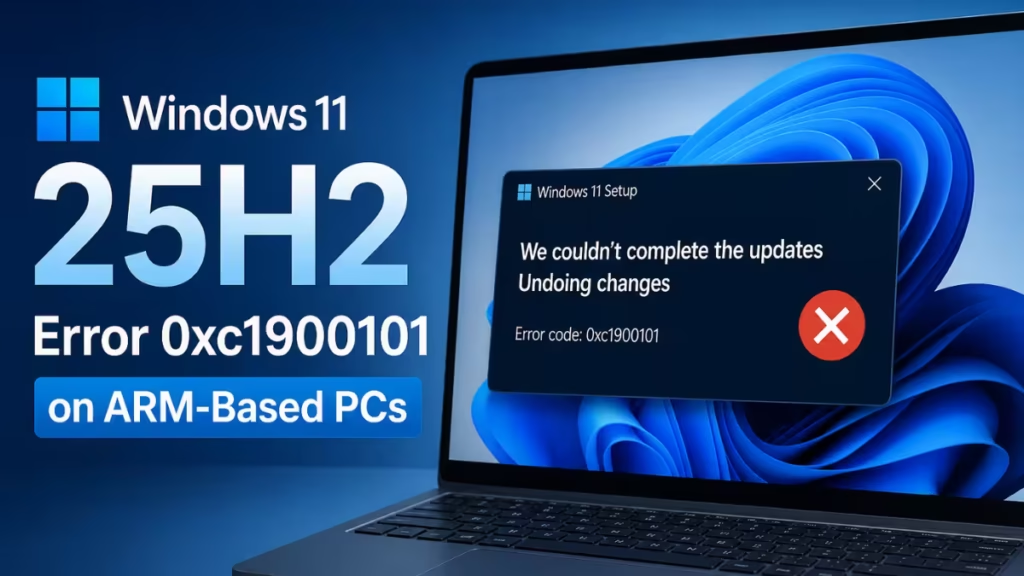
This guide walks through every proven fix, starting with the most common causes on ARM processors and ending with the direct ISO upgrade method that bypasses Windows Update entirely.
What Causes Windows 11 25H2 Error 0xc1900101
The 0xc1900101 family covers driver-related upgrade failures across multiple setup phases. The four most common subtypes are:
- 0xC1900101-0x20004: Driver failure during the SAFE_OS phase
- 0xC1900101-0x2000C: Driver failure very early in setup
- 0xC1900101-0x30018: Driver failure during the FIRST_BOOT phase
- 0xC1900101-0x4000D: Driver failure during the SECOND_BOOT phase
On ARM PCs, the usual triggers are:
- Outdated or missing ARM64-compatible device drivers
- Third-party antivirus or security tools with kernel-level drivers that lack ARM64 support
- Insufficient free disk space on the system partition
- Corrupted files in the Windows Update download cache
- Peripherals with USB, audio, or network drivers that have no ARM64 build
Fix 1: Update All Drivers Before You Upgrade
Outdated drivers cause the majority of 0xc1900101 failures on ARM devices. Updating every driver before you try the upgrade again removes the most likely blocker.
Update through Device Manager:
- Press Windows + X and select Device Manager.
- Expand each category, right-click each device, and choose Update driver.
- Select Search automatically for drivers.
- Restart your PC after each round of updates.
Check Samsung Update for Galaxy Book S:
- Open Samsung Update from the Start menu.
- Install every available driver and firmware package.
- Restart your PC.
Samsung releases ARM64-specific driver packages for Galaxy Book devices on a regular basis. Running Samsung Update before the upgrade is the fastest way to close ARM driver gaps that Windows Update cannot fill on its own.
Fix 2: Uninstall Incompatible or Unsigned Drivers
Some older drivers block Setup even when no active process uses them. Removing them clears the path before you attempt the upgrade again.
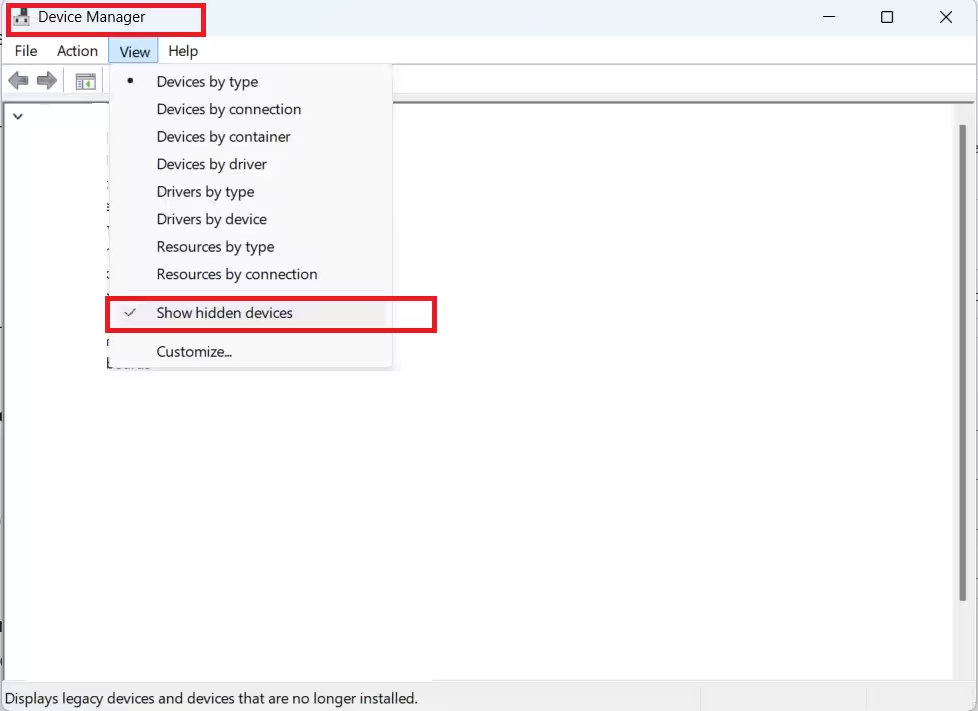
- Press Windows + X and open Device Manager.
- Click View in the menu bar and select Show hidden devices.
- Look for any device marked with a yellow warning icon.
- Right-click the flagged device and select Uninstall device.
- Check Delete the driver software for this device if the option appears.
- Restart your PC, then retry the upgrade.
Pay close attention to Network adapters, Sound, video and game controllers, and Universal Serial Bus controllers. These categories carry ARM-incompatible entries most often on Galaxy Book S devices.
If you see a missing or broken audio driver after cleanup, the steps in How to Fix Realtek Audio Driver Not Installing on Windows 11 apply directly.
Fix 3: Read the Setup Log to Identify the Failing Driver
When the error persists, Windows records exactly which driver caused the rollback. Reading that log saves you from guessing.
- After a failed upgrade, open File Explorer.
- Navigate to
C:\$WINDOWS.~BT\Sources\Panther. - Open setuperr.log with Notepad.
- Search for
0xC1900101ordriverto find the failing entry. - Note the driver filename, usually a
.sysfile. - Locate that driver in Device Manager and uninstall or update it.
Targeting the single named driver is almost always faster than running every fix in sequence.
Fix 4: Free Up Disk Space
Windows 11 25H2 needs at least 64 GB of total storage and roughly 20 GB or more of free space during setup. When the drive runs close to full, Setup can fail with error 0xc1900101 before it even reaches driver checks.
- Open Settings > System > Storage.
- Run Storage Sense to remove temporary files and old Windows installations.
- Empty the Recycle Bin.
- Move large files to an external drive or cloud storage if needed.
Aim for at least 25 GB free before you start the upgrade.
Fix 5: Clear the Windows Update Download Cache
A corrupted download in the Windows Update cache causes Setup to fail mid-process and roll back with error 0xc1900101. Clearing the cache forces a clean download on the next attempt.
- Press Windows + R, type
services.msc, and press Enter. - Find Windows Update, right-click it, and select Stop.
- Open File Explorer and go to
C:\Windows\SoftwareDistribution\Download. - Select all files in the folder and delete them.
- Return to Services, right-click Windows Update, and select Start.
- Open Settings > Windows Update and check for updates again.
Fix 6: Disable Third-Party Antivirus Temporarily
Security software with kernel-level drivers interferes with Windows Setup on ARM processors. During the upgrade, Setup runs in a limited environment where ARM64 kernel filters behave differently, and some antivirus drivers cannot load cleanly in that context.
Disable or uninstall your third-party antivirus before you start the upgrade. Reinstall or re-enable it after setup completes. Windows Defender provides adequate protection during that window.
Fix 7: Run SFC and DISM to Repair System Files
Corrupted system files prevent Setup from migrating drivers correctly during the upgrade. Running SFC and DISM before you retry cleans those issues up.
Run SFC:
- Open Command Prompt as administrator.
- Run:
sfc /scannow- Wait for the scan to finish. It can take 15 to 20 minutes.
Run DISM:
- In the same elevated Command Prompt, run:
DISM /Online /Cleanup-Image /RestoreHealth- Wait for the process to complete.
- Restart your PC, then retry the upgrade.
Fix 8: Reset Windows Update Components
Resetting the Windows Update stack clears all accumulated state and forces a completely fresh download on the next run.
- Open Command Prompt as administrator.
- Run the following commands one at a time:
net stop wuauserv
   net stop cryptSvc
   net stop bits
   net stop msiserver
   ren C:\Windows\SoftwareDistribution SoftwareDistribution.old
   ren C:\Windows\System32\catroot2 catroot2.old
   net start wuauserv
   net start cryptSvc
   net start bits
net start msiserver- Restart your PC.
- Open Settings > Windows Update and check for updates.
Fix 9: Upgrade Directly Using the ARM64 ISO
If Windows Update keeps rolling back with error 0xc1900101, bypassing it and using the official ARM ISO is often the most reliable path. The ISO lets you run setup directly without depending on the Windows Update delivery pipeline, which can sometimes deliver incomplete or mismatched packages to ARM devices.
Microsoft provides a dedicated Arm64 ISO for devices like the Galaxy Book S. For all three download methods and a full walkthrough, see Windows 11 25H2 ISO Download.
Steps to upgrade using the ISO:
- Download the Windows 11 ARM ISO from the official Microsoft download page.
- Right-click the ISO file and select Mount.
- Open the mounted drive in File Explorer.
- Double-click setup.exe to launch Windows 11 Setup.
- Choose Keep my files and apps to perform an in-place upgrade.
- Follow the wizard through to completion.
Mounting and running setup.exe directly performs an in-place upgrade identical to what Windows Update delivers, minus the delivery pipeline that may be responsible for the failure.
What to Do If the Error Still Appears
If Windows 11 25H2 error 0xc1900101 continues after all fixes above, a driver with no ARM64-compatible version available yet is the most likely remaining cause. Check the Samsung support page for your specific Galaxy Book S model for any known compatibility notices about Windows 11 25H2.
You can also follow the Windows 11 25H2 download and install guide for a full prerequisites checklist tailored to ARM devices.
If the upgrade keeps failing and you need to stay productive, remaining on your current Windows version while monitoring Samsung’s driver release page is the practical short-term option. Once ARM64 driver support catches up, the upgrade completes without further errors.
Frequently Asked Questions
What does error 0xc1900101 mean in Windows 11?
Windows Setup detected a driver that failed or is incompatible during the upgrade and rolled your system back to protect it. It is a driver rollback error, not a hardware fault.
Why does 0xc1900101 happen more on ARM-based PCs?
ARM64 driver availability lags behind x86-64. Some peripheral and security drivers have no ARM64-compatible build yet, which causes Setup to fail during driver migration.
Will the 0xc1900101 error delete my files?
No. Windows rolls back to your previous version and leaves all your files and installed apps intact.
Which driver is causing the 0xc1900101 error on my PC?
Open C:\$WINDOWS.~BT\Sources\Panther\setuperr.log in Notepad after a failed upgrade. Search for 0xC1900101 or driver to find the exact .sys file responsible.
Does using the ARM64 ISO fix the 0xc1900101 error?
In most cases, yes. The ARM64 ISO runs setup directly and bypasses the Windows Update delivery pipeline, which is often where the corrupted or incomplete package originates.

