Microsoft has released Windows 11 Insider Preview builds 28020.2380 (Beta) and 28120.2387 (Experimental) for version 26H1. These builds focus on Taskbar customization, a free upgrade path for K-12 devices, and a set of bug fixes.
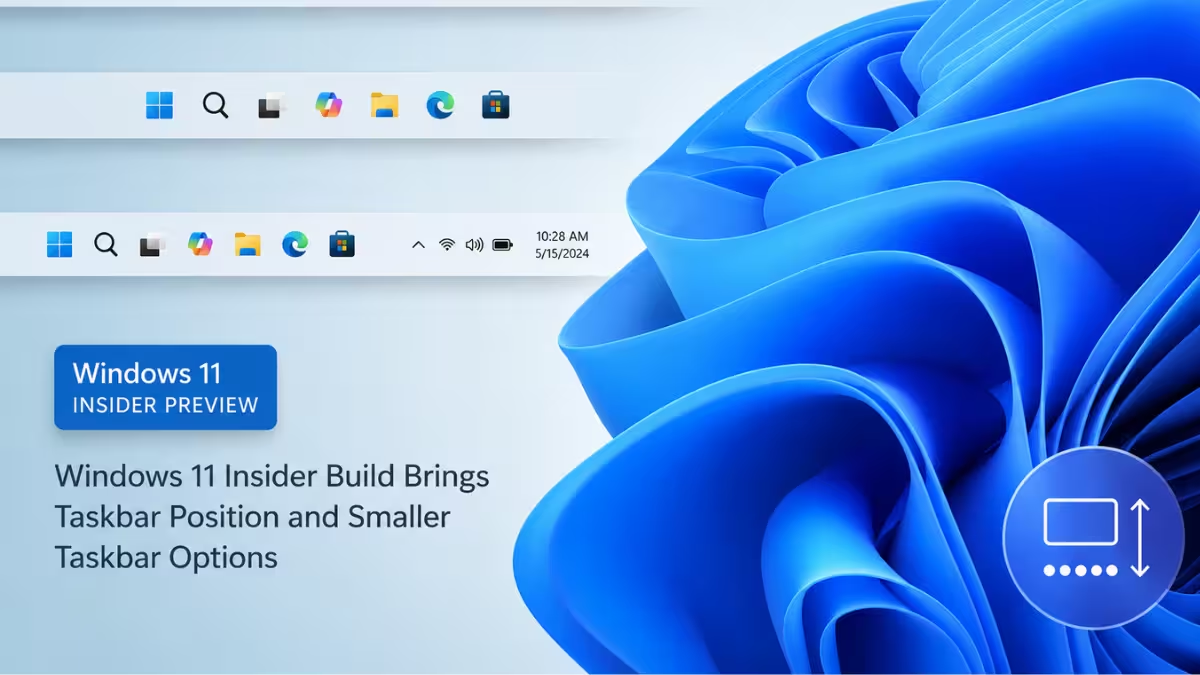
What Changed in Build 28120.2387
This build brings the most visible changes, especially around Taskbar customization in the Experimental channel.
Taskbar Position Setting
Windows 11 now lets you move the Taskbar away from the bottom of the screen.
You can place the Taskbar on the top, left, or right side of your display. Go to Settings > Personalization > Taskbar > Taskbar behaviors to pick your preferred side.
Most existing customization options still work no matter which position you choose. This includes smaller icons and combining taskbar icons.
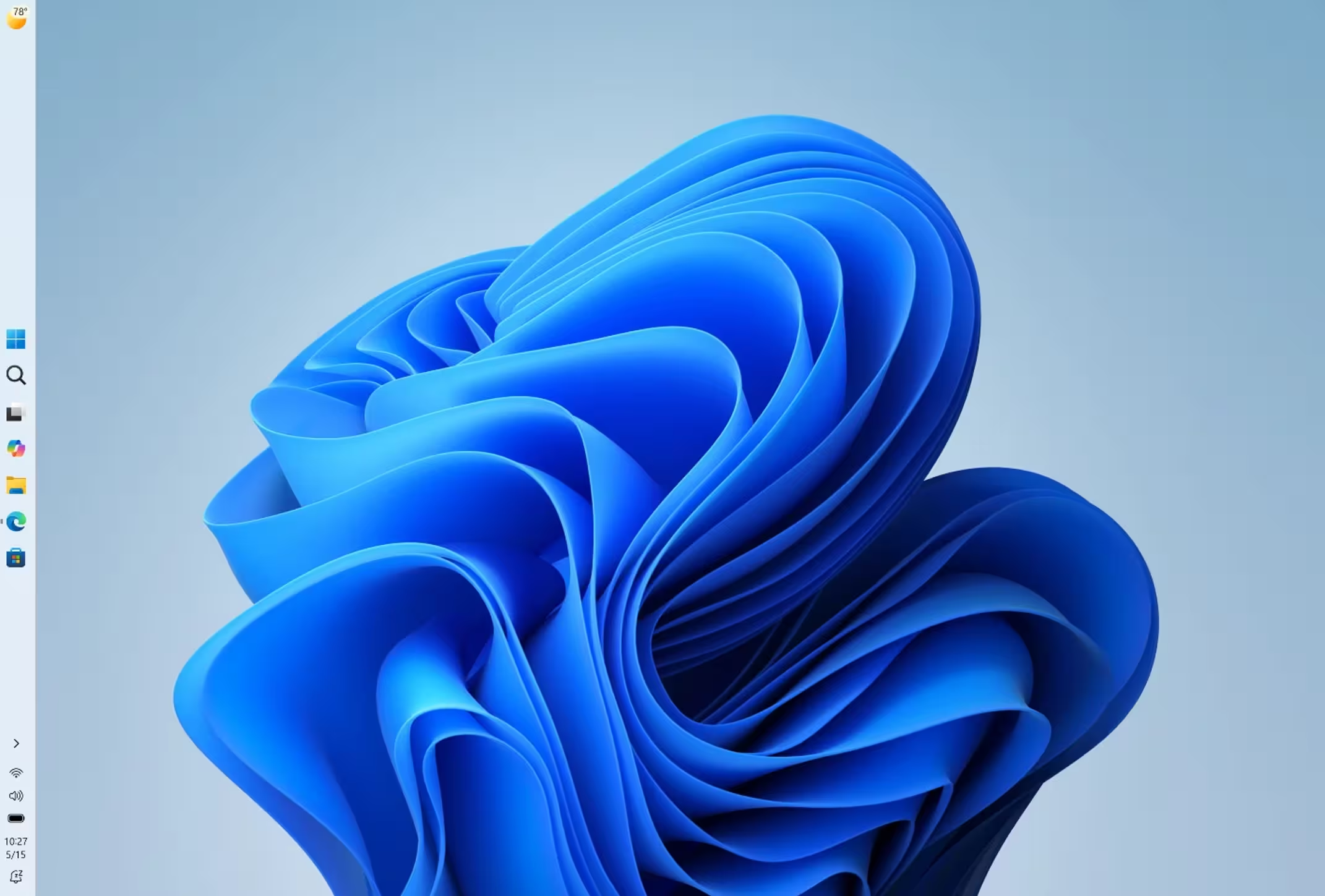
A few features are not fully ready yet in these new positions:
- Touch gestures
- The Search box
- Ask Copilot
- Auto-hidden Taskbar
- Touch-optimized Taskbar
Smaller Taskbar Option
A new compact Taskbar size is rolling out for users who want more screen space, particularly on smaller devices.
Turn it on from Settings > Personalization > Taskbar > Taskbar behaviors > Show smaller taskbar buttons. Set this to Always. Your icons and the overall Taskbar height will shrink. Start, Search, and the system tray stay aligned and properly sized.
Microsoft is also working on easier resizing controls for the Taskbar, though that work is still in progress and not part of this build.
Free Upgrade Path to Windows 11 Pro Education for Schools
Windows Insiders in schools can now upgrade eligible Windows 11 Home devices to Windows 11 Pro Education at no extra cost. This lets schools buy Home edition devices first, then move them to Pro Education and bring them under school management later.
To start the upgrade:
- Sign in to the device using a local account.
- Open Command Prompt as an administrator (right-click it and choose “Run as administrator”).
- Run the command
Clipupgrade.exe. - Sign in with your school organization account.
- Wait for the device to confirm you qualify for the upgrade.
- Let the device prepare the upgrade.
- Restart the device to complete the upgrade.
This upgrade only goes one way. Reverting to Windows 11 Home needs a clean OS reinstall, so confirm the move makes sense before starting it.
Other Fixes in This Build
Both the Beta and Experimental builds include a few additional fixes.
- File Explorer: Fixed an issue where the OneDrive shortcut stopped working when File Explorer ran in administrative mode.
- Outlook: Fixed an issue where Outlook stopped responding to the close button.
How to Get These Builds
Enroll your device in the Beta or Experimental channel through Settings > Windows Update > Windows Insider Program. Once enrolled, turn on Get the latest updates as soon as they’re available under Windows Update, then select Check for Updates to download the build.
Keep in mind that Experimental channel builds can be unstable. Microsoft also shares limited documentation for these builds. That’s because new features often reach a small group of Insiders first, then slowly roll out to everyone else in the channel.
You can check the full official release notes for build 28020.2380 (Beta) and build 28120.2387 (Experimental) on Microsoft’s Windows Insider release notes page.
Frequently Asked Questions
Can I move the Taskbar to the top or side of my screen in Windows 11?
Yes, in build 28120.2387 (Experimental channel), you can set the Taskbar to the top, left, or right side of your screen from Taskbar behaviors settings.
Is the smaller Taskbar available to everyone?
It’s currently rolling out in the Experimental channel for Insiders. You need to turn it on manually from Taskbar behaviors settings.
Can I revert a Windows 11 Pro Education upgrade back to Home?
No, the upgrade only goes one way. You need to do a clean reinstall of Windows to go back to Windows 11 Home.
Which channel should I join to try these features first?
Join the Experimental channel to get Taskbar position and the smaller Taskbar option early. The Beta channel only includes the school upgrade path and bug fixes in this build.

