Microsoft has released Windows 11 Insider Preview Build 26220.7653 (KB5074157) to devices enrolled in the Dev Channel, matching the build that previously shipped to the Beta Channel. The update focuses on Start menu reliability, taskbar behavior, Bluetooth reporting, system stability, and small UI improvements that improve daily usability.
Microsoft confirmed that this build targets Windows 11 version 25H2 and continues stabilizing core desktop experiences while preparing the Dev Channel for future builds.
Start Menu and Taskbar Stability Improvements
KB5074157 fixes several usability issues that affected navigation and interaction:
- The update prevents the auto-hidden taskbar from appearing too early and blocking interaction at the bottom of the screen.
- It fixes a bug where the Start menu, Notification Center, and Quick Settings failed to open with mouse clicks, even though keyboard shortcuts still worked.
- The system removes a memory leak in the Start menu that caused performance degradation over time.
- Arabic and Hebrew users no longer see the Start menu opening on the wrong side when taskbar icons remain uncentered.
- Touch users can now swipe inside pinned app folders without accidentally dismissing the Start menu.
These fixes directly improve responsiveness and reduce random UI failures during daily use.
Bluetooth, Settings, and Login Fixes
Microsoft addressed multiple device and configuration problems in this build:
- Bluetooth devices now correctly display battery levels for supported hardware.
- Settings no longer crash when users interact with audio devices.
- The keyboard character repeat delay setting now behaves correctly instead of running in reverse.
- The login screen no longer shows a blank password icon, improving visibility and accessibility.
These changes improve reliability across common hardware interactions.
Xbox Full-Screen Experience and System Reliability
The update fixes unexpected app and game behavior when using the Xbox Full-Screen Experience (FSE) on PC. Microsoft continues validating additional scenarios while keeping the related known issue active.
Additional system-level fixes include:
- Corrected clipped text in msinfo32 at high display scaling.
- Fixed MSIX installation failures from
.appinstallerfiles caused by invalid argument errors. - Resolved a Notepad issue where underscores failed to display at 125 percent scaling with certain fonts.
- Fixed a case where explorer.exe could hang during first login, which prevented the taskbar from loading.
Dark Mode Enhancements and WebP Wallpaper Support
Build 26220.7653 introduces small but visible UI improvements:
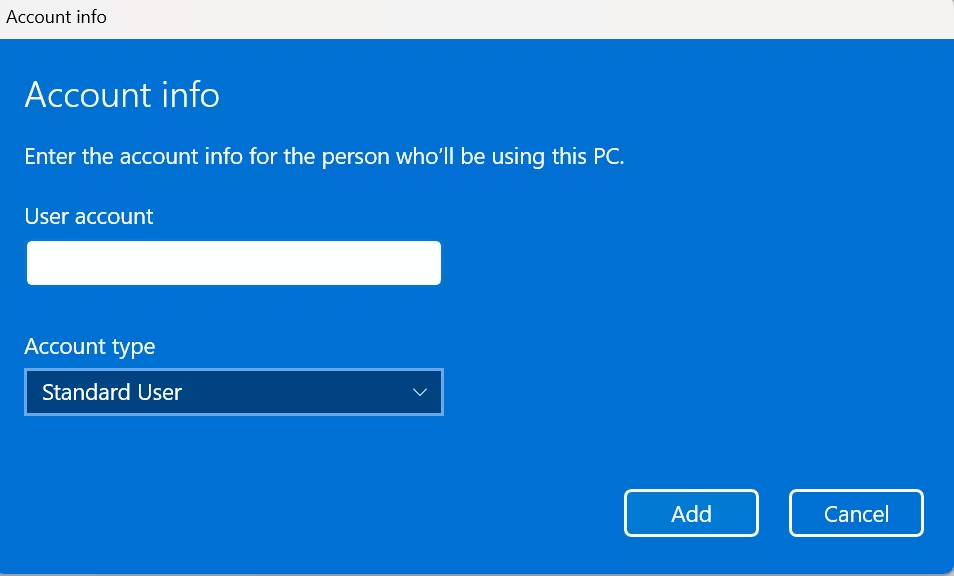
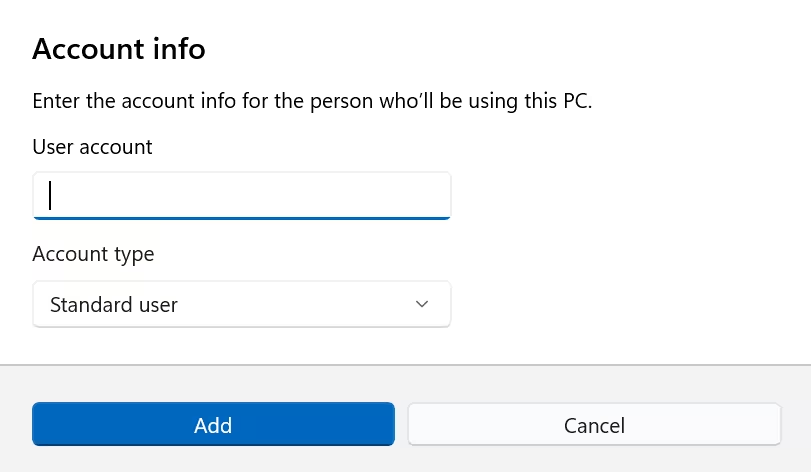
- Microsoft refreshed the Accounts → Other Users dialogs using the modern WinUI framework with full dark mode support. The update modernizes both the Add account and Change account type interfaces, although availability depends on whether a work or school account exists on the device.
- Users can now set .webp images as desktop wallpapers through Personalization settings.
- Click to Do loads Copilot prompt suggestions instantly, although Microsoft has not yet rolled out this improvement in the European Economic Area (EEA) or China.
These refinements improve visual consistency and responsiveness without changing workflows.
Important Dev Channel Advisory
Microsoft confirmed that Dev Channel users still have a limited window to switch to the Beta Channel. Once Microsoft advances the Dev Channel to higher build numbers, users will no longer be able to switch channels without performing a full Windows reinstallation.
Users who prefer a safer testing environment should consider switching channels while the option remains available.
Known Issues to Watch
Microsoft continues tracking several issues in this build:
- Some apps may behave unexpectedly in Xbox Full-Screen Experience, especially apps that rely on fixed window sizes or open additional windows.
- A system tray issue affects some Insiders, where apps fail to appear when they should.
- A display bug may cause secondary monitors to show black screens for a small number of users.
- Click to Do may fail to open Copilot prompts if the Microsoft 365 Copilot app is not running.
How to Download and Install KB5074157
If your device already participates in the Windows Insider Program, you can install this update directly:
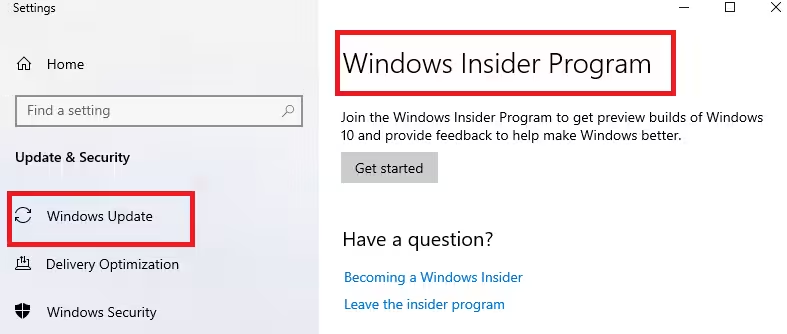
- Open Settings → Windows Update → Windows Insider Program.
- Enroll your device in the Dev Channel or Beta Channel.
- Return to Windows Update.
- Enable Get the latest updates as soon as they’re available (recommended for faster rollout).
- Click Check for updates and install KB5074157 (Build 26220.7653).
Insider Reminder
Microsoft reminded testers that features may roll out gradually, change over time, or never ship publicly as the company continues testing and collecting feedback. Localization improvements may also arrive later as features mature.
FAQs
What is the Windows 11 KB5074157 update?
The Windows 11 KB5074157 update is an Insider Preview build (26220.7653) that delivers stability fixes for the Start menu, taskbar autohide behavior, Bluetooth battery reporting, Settings crashes, and system reliability in the Dev and Beta Channels.
Which Windows version includes KB5074157?
KB5074157 targets Windows 11 version 25H2 and currently ships only to devices enrolled in the Windows Insider Program through the Dev and Beta Channels.
What issues does the Windows 11 KB5074157 update fix?
The Windows 11 KB5074157 update fixes Start menu click failures, taskbar autohide blocking issues, Bluetooth battery level visibility problems, keyboard setting bugs, login screen display issues, Xbox full-screen behavior, explorer.exe startup hangs, and MSIX installation errors.
Does KB5074157 improve Start menu performance?
Yes. KB5074157 removes a memory leak in the Start menu, improves mouse click reliability, corrects layout issues for Arabic and Hebrew users, and prevents accidental dismissal when using touch gestures.
Does the Windows 11 KB5074157 update fix Bluetooth battery display problems?
Yes. The Windows 11 KB5074157 update restores Bluetooth battery level reporting for supported devices that previously failed to show charge status in recent Insider builds.
Does KB5074157 include dark mode changes?
Yes. KB5074157 updates the Account Settings dialogs using the modern WinUI framework with full dark mode support, improving visual consistency in the Accounts section.
Can Windows 11 use WebP images as desktop wallpaper after KB5074157?
Yes. After installing KB5074157, Windows 11 supports setting .webp images as desktop backgrounds through the Personalization settings.
Is the KB5074157 update available for all Windows users?
No. KB5074157 is currently available only to Windows Insider users enrolled in the Dev or Beta Channels. Microsoft has not released this update to the stable public channel yet.
How do I install the Windows 11 KB5074157 update?
To install the Windows 11 KB5074157 update, open Settings → Windows Update → Windows Insider Program, enroll in the Dev or Beta Channel, enable “Get the latest updates as soon as they’re available,” then click Check for updates.
Can I switch from the Dev Channel after installing KB5074157?
Yes, but only for a limited time. Microsoft allows Dev Channel users to switch to the Beta Channel now. Once the Dev Channel moves to higher builds, switching will require a full Windows reinstallation.
Are there known issues in the Windows 11 KB5074157 update?
Yes. Some apps may behave unexpectedly in Xbox Full-Screen Experience, certain apps may not appear in the system tray for some users, secondary monitors may show black screens for a small number of systems, and Click to Do Copilot prompts may fail if the Microsoft 365 Copilot app is not running.
Does KB5074157 install automatically for all Insiders?
No. Some features roll out gradually and appear only if users enable “Get the latest updates as soon as they’re available” in Windows Update settings.

