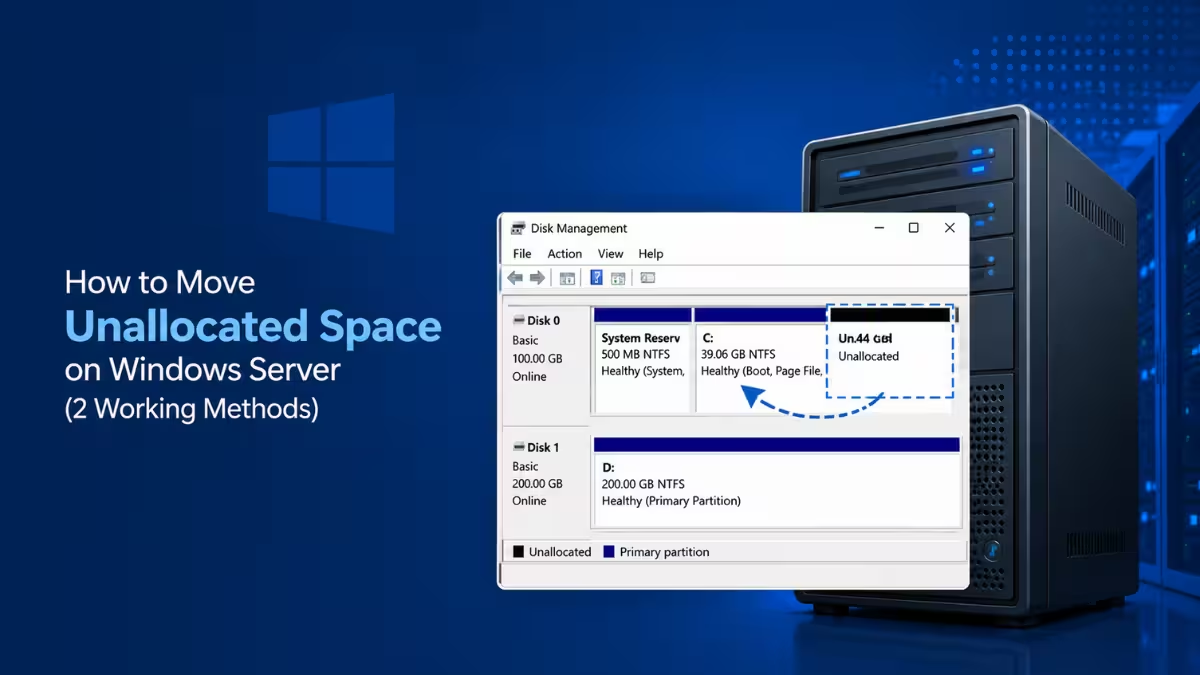
Unallocated space on a Windows Server disk often ends up in the wrong position, separated from the partition that needs it. Start by checking exactly where that space sits using diskpart, then use Disk Management if it’s already adjacent to your target partition, or a third-party tool if it isn’t.
Check Unallocated Space Position Using Diskpart
Before you pick a method, confirm exactly where your unallocated space sits relative to the target partition. Diskpart is the fastest way to see this.
Open Command Prompt as administrator and run:
diskpart
list disk
select disk 0
list partition
This shows the exact order and size of every partition on the disk, so you know immediately whether your unallocated space is adjacent to the target partition or sitting somewhere else. Diskpart cannot move the space itself, it only confirms the layout. Use that information to decide between Method 1 and Method 2 below.
Method 1: Move Unallocated Space to Extend a Partition Using Disk Management
Disk Management is the built-in GUI tool, and it works only when the unallocated space sits directly to the right of the partition you want to extend.
Press Win + X and select Disk Management. Look at the layout and confirm the unallocated space is adjacent to your target partition. If it is, right-click that partition and select Extend Volume, then follow the wizard to add the space.
If the unallocated space sits somewhere else on the disk, Disk Management cannot move it. You need Method 2 to actually relocate it.
Method 2: Move Unallocated Space Using Third-Party Partition Tools
When the unallocated space is not adjacent to your target partition, or your disk is on a completely different physical drive, a partition manager such as EaseUS Partition Master, MiniTool Partition Wizard, or AOMEI Partition Assistant is the only way to move it.
Move Unallocated Space That Is Not Adjacent to the Target Partition
If there is not enough unallocated space near the target partition, shrink a neighboring partition first. Right-click that partition, select Resize/Move, and drag its boundary inward to release space.
Then right-click the target partition, select Resize/Move again, and drag its boundary into the unallocated space. Click Execute Task, then Apply, to commit the change.
Move Unallocated Space Across Different Disks
If the unallocated space sits on a different disk than your target partition, convert the disk holding the target partition into a dynamic disk first. Standard basic disks cannot receive space transferred from another physical disk.
Select the partition next to the unallocated space, choose Resize/Move, and drag the boundary left or right to shift the space toward the desired position. Repeat on adjacent partitions until the unallocated space sits next to your target partition, then execute and apply.
Reallocate Space When the Disk Has No Unallocated Space Left
If the disk has no unallocated space anywhere, Windows grays out the New Simple Volume option in Disk Management. Use the Adjust Disk Layout feature instead. Right-click the disk, select Adjust Disk Layout, and drag partition handles to redistribute space among existing partitions. Click Execute Task and Apply to save the new layout.
Precautions to Take Before Moving Unallocated Space
Back up your data before resizing or moving any partition. A power loss or crash during the operation can corrupt the partition table. Avoid running these operations on a live production server during business hours, and schedule a maintenance window instead. For virtual machines, take a snapshot and consider resizing at the hypervisor or VHD/VMDK level before touching partitions inside the guest OS.
Frequently Asked Questions
Can Disk Management or diskpart move unallocated space directly?
No. Disk Management can only extend a partition into unallocated space that already sits adjacent to it. Diskpart cannot move space at all, it only shows you the partition layout so you can confirm the position.
Do I always need to convert to a dynamic disk?
No. Dynamic disk conversion is only necessary when moving unallocated space between two different physical disks. Moving space within the same disk does not require this step.
What happens if the resize operation gets interrupted?
An interruption during a partition resize or move can damage the partition table and cause data loss. Back up your data first and avoid running these operations without a stable power source.
Related Guides
- How to Fix an Azure VM Data Disk Missing After Resize
- How to Delete Windows Service Temp Files and Free Up Disk Space
- How to Fix File Explorer Freezes When Mounting ISO in Windows 11
Errors & Fixes

