Microsoft’s original Secure Boot certificates, issued back in 2011, are expiring in 2026. The first certificate, Microsoft Corporation KEK CA 2011, expired on June 24, 2026. Microsoft UEFI CA 2011 follows on June 27, and Microsoft Windows Production PCA 2011 expires on October 19, 2026.
Most modern Windows 11 PCs already received the replacement 2023 certificates through Windows Update automatically. But if you are on older hardware, a legacy BIOS setup, or running Windows 11 via a registry bypass on unsupported hardware, the situation is different. This article covers exactly what happens to your PC and what you should do.
What Is Secure Boot and How Do Certificates Work
Secure Boot is a firmware-level security feature built into UEFI. Before Windows even starts loading, Secure Boot checks the digital signature of every boot component against a set of trusted certificates stored in your device’s firmware. This blocks rootkits and bootkits from inserting themselves into the startup chain before the operating system takes over.
The certificate hierarchy works like this:
- Platform Key (PK): Owned by the hardware manufacturer. Sits at the top.
- Key Enrollment Key (KEK): Microsoft holds a KEK, and so do most OEMs. Any entity with a valid KEK can update the next two databases.
- Allowed Signature Database (DB): Lists trusted bootloaders and boot managers.
- Disallowed Signature Database (DBX): Lists revoked, compromised, or vulnerable bootloaders.
When Microsoft discovers a bootloader being exploited in the wild, it adds that bootloader to the DBX and distributes the revocation through Windows Update. The 2011 KEK certificate signs those DBX updates. Once the 2011 KEK expires, Microsoft loses the ability to sign new DBX revocations with the old key. Any PC that only has the 2011 certificate stops receiving future boot-level security revocations permanently.
The replacement 2023 certificates extend this protection for roughly another decade. Windows UEFI CA 2023 expires in June 2035, and the rest expire in 2038.
Does Your PC Stop Working After Secure Boot Certificate Expires
The most important thing to understand is that certificate expiry does not break your PC. Microsoft confirmed this explicitly: devices that reach the expiration date without the new certificates will still start and operate normally, and standard Windows updates will continue to install.
There is no forced reboot loop, no startup error, and no shutdown. Your PC will work exactly as it did before June 24. The impact is on your PC’s future security posture, not its immediate functionality.
What stops is the ability to receive future boot-level security updates. Specifically, a PC without the 2023 certificates can no longer receive:
- Updates to the Windows Boot Manager
- Updates to Secure Boot databases (DB and DBX)
- Revocations for newly discovered malicious bootloaders
- Firmware-level mitigations for newly discovered boot vulnerabilities
The security degradation is gradual, not sudden. The risk grows over time as more bootloader vulnerabilities get discovered and attackers better document the unpatched device population.
Which Windows PCs Will Not Get the Secure Boot 2023 Update
Modern PCs on Supported Hardware
If you own a relatively recent PC from Dell, HP, Lenovo, ASUS, Microsoft Surface, or another major OEM, and you are running Windows 11 with updates enabled, the 2023 certificates almost certainly arrived automatically via Windows Update. You do not need to do anything.
Older OEM PCs With No BIOS Update
The Secure Boot certificate update requires the device firmware to accept and store the new certificates. That compatibility work depends entirely on the PC manufacturer. Dell confirmed it is not providing BIOS updates for platforms with an End of Service Life before January 1, 2026. HP, Lenovo, and ASUS have similar cutoffs.
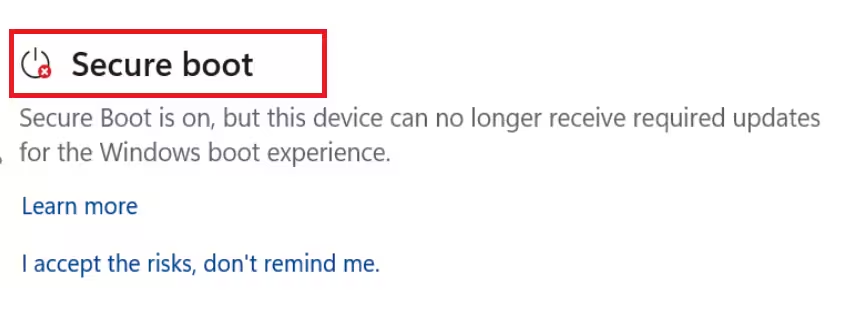
If your OEM stopped publishing BIOS updates for your model before the 2023 transition, there is no automatic path for your PC to receive the new certificates. A red status icon under Secure Boot in Windows Security, combined with no BIOS update available on the manufacturer’s support page, confirms this situation.
Legacy BIOS and CSM Mode PCs
Some older PCs from the early UEFI era, or machines running in Compatibility Support Module (CSM) mode, do not use UEFI Secure Boot at all. These devices boot the same way PCs did before Secure Boot existed.
For these machines, the certificate update is completely irrelevant. There are no Secure Boot certificates to update because Secure Boot was never active in the first place. Microsoft confirmed that the update process automatically skips devices running in Legacy BIOS mode rather than attempting an update that would break them.
Windows 11 Installed on Unsupported Hardware
If you installed Windows 11 on a 6th or 7th generation Intel PC, or an early Ryzen 1000 system, using the registry bypass that disables TPM 2.0 and CPU checks during installation, you have likely noticed that the Secure Boot section is missing from the Windows Security app, or you see a “Standard security hardware not supported” message.
The reason is that these PCs either lack TPM 2.0 or have Secure Boot disabled in a partial state because the bypass installation did not enforce those requirements. When the Windows Security app checks for Secure Boot status, it reads the firmware reporting. If Secure Boot is not properly enabled, the section is suppressed or shows an error.
The Secure Boot certificate update requires Secure Boot to be active in the firmware. On unsupported bypass installs where Secure Boot is disabled or misconfigured, the update process skips the device.
One clarification worth making: Secure Boot certificates do not require TPM 2.0 to function. The two are separate systems. TPM 2.0 handles BitLocker key storage and Windows Hello attestation. Secure Boot is a firmware-based boot chain verification mechanism. The problem on older bypass installs is usually that Secure Boot is disabled or misconfigured, not that TPM is absent.
What Happens to Your PC Security Without the Secure Boot 2023 Certificates
The most well-known real-world example of what happens without current DBX revocations is BlackLotus, a UEFI bootkit discovered in 2023 that exploited vulnerabilities in older Windows bootloaders (CVE-2022-21894 and CVE-2023-24932). It bypassed Secure Boot on fully updated Windows 11 systems because the old trusted bootloader signatures had not been revoked at the firmware level.
Without the ability to push new DBX revocations, a device that misses the 2023 certificate transition becomes permanently frozen in its ability to blacklist newly discovered malicious bootloaders. Every future bootkit that targets unrevoked bootloaders represents a potential threat that the PC cannot be patched against at the firmware level.
For most home users on older hardware, this is a theoretical rather than immediate risk. Bootkit attacks are complex and largely targeted at enterprises, governments, and high-value individuals. The risk is real and grows over time, but it is not a reason to panic for typical home use.
For businesses, however, this is not optional. Many cyber insurance policies and regulatory frameworks require endpoint devices to receive active security updates at every layer. The inability to receive DBX revocations is a significant compliance gap. Microsoft recommends that enterprise administrators with unresponsive older devices document them as exceptions with compensating controls or plan for hardware replacement.
How to Check Your Secure Boot Status
Windows Security App
Open Windows Security, click Device Security from the left menu, then scroll to the Secure Boot section. From the April 2026 Windows 11 update onward, this section shows one of three status indicators.
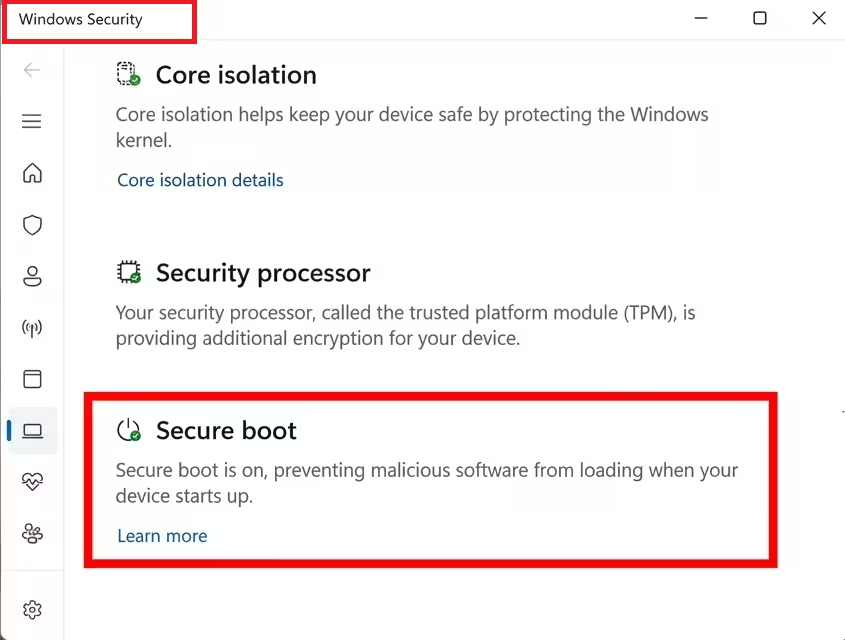
Green checkmark: All required 2023 certificates are applied. No action needed.
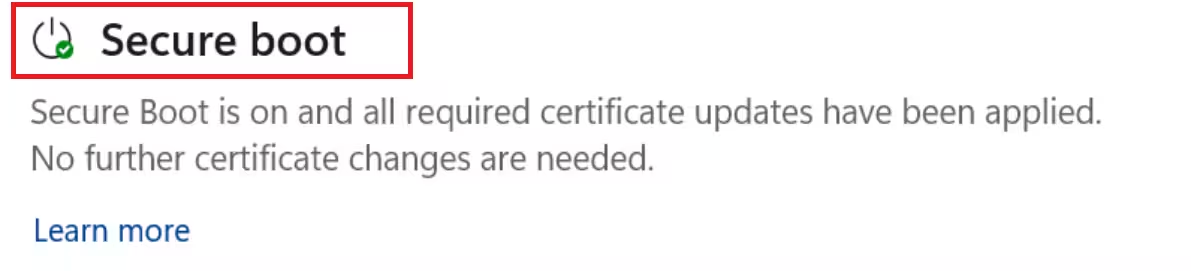
Yellow warning: The update is pending. Your device may need more compatibility data from Microsoft, or it may need a BIOS update from the PC manufacturer before the certificates can install. Microsoft continues expanding device coverage with each monthly update, so waiting for the next Windows Update cycle is usually enough.
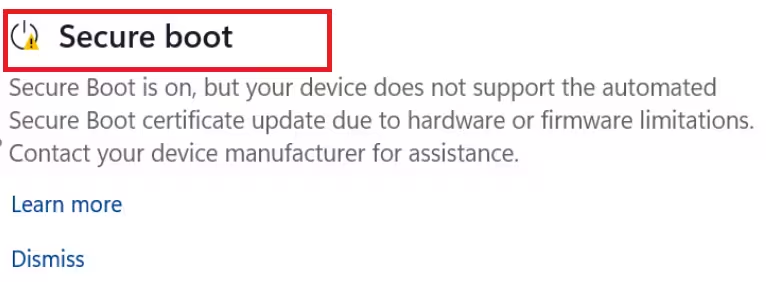
Red alert: A specific issue is blocking the update, typically a firmware incompatibility. Check your PC manufacturer’s support page for a BIOS update. For HP users specifically, a faulty BIOS update from earlier in 2026 caused BitLocker recovery loops. Check for a corrected BIOS version rather than assuming the most recent one is safe.
Secure Boot section missing entirely: Your PC likely has Secure Boot disabled in firmware, is running in Legacy BIOS mode, or was installed on unsupported hardware using the registry bypass.
System Information
Press Win + R, type msinfo32, and press Enter. Look for the Secure Boot State line under System Summary. It reports On, Off, or Unsupported.
PowerShell
Open a PowerShell window with administrator privileges and run:
([System.Text.Encoding]::ASCII.GetString((Get-SecureBootUEFI db).bytes) -match 'Windows UEFI CA 2023')If the output is True, the 2023 certificates are present. If the output is False, your PC has not received the update yet.
Secure Boot Certificate Not Updated: What to Do Next
If you are on a modern, supported PC and see a green checkmark: Nothing to do. The update arrived automatically.
- If you see a yellow warning: Wait for the next Windows Update cycle. Microsoft is still expanding the rollout. If the warning persists for several weeks, check your PC manufacturer’s support page for a BIOS update.
- If you see a red alert: Check for a BIOS update from your PC manufacturer. Dell, HP, Lenovo, and ASUS all published support pages specifically for the Secure Boot 2023 transition. Microsoft’s official resource at
aka.ms/GetSecureBootlinks to all of them and includes diagnostic scripts.
If you are on an older OEM PC with no BIOS update available: Your options are limited. You can continue using the device knowing it will not receive future boot-level security revocations. You can evaluate whether upgrading to newer hardware makes sense given your other needs. There is no software fix for a device where the OEM has ended BIOS support.
If you are running Windows 11 on unsupported hardware via registry bypass: The 2023 certificate update will not arrive on your machine. Your options are staying on the current unsupported configuration, enabling Secure Boot properly in UEFI if the firmware supports it, or upgrading to supported hardware.
If you are on Windows 10 enrolled in ESU: The Secure Boot certificate update is available for Windows 10 ESU users through normal Windows Update. The May 2026 update KB5087544 added Secure Boot certificate status reporting, so you can check your status in Windows Security.
If you are on Windows 10 not enrolled in ESU: The certificate update will not arrive through Windows Update. You would need to enroll in ESU (which requires a Microsoft account on Windows 10), upgrade hardware, or accept that the device stays on 2011 certificates.
Multiple Reboots After Updating Are Normal
Some users noticed their PCs restarting two or three times after recent Windows updates and assumed something went wrong. Microsoft confirmed this is expected behavior specific to the Secure Boot certificate process. Writing the new certificates to the firmware, applying the updated boot manager, and then booting Windows with the new certificate chain each requires a separate reboot. If your PC restarted more than once after the June 2026 update, it was working correctly.
The C:\Windows\SecureBoot Folder Is Not Malware
Around the time of the May 2026 update, many users noticed a new folder at C:\Windows\SecureBoot and suspected malware. Microsoft confirmed it is a legitimate system folder used to stage the cryptographic certificate files before writing them to the firmware. Do not delete it.
For IT Administrators
The June 24 expiration of the Microsoft Corporation KEK CA 2011 means Microsoft loses the ability to sign new Secure Boot revocation payloads (DBX updates) with the old key. All existing signed payloads and manual rollout methods continue working. The DB key does not expire until October 19, so Microsoft can still sign new boot managers until then.
For devices in the temporarily paused bucket, the path forward is a BIOS update from the OEM. Forcing the update through registry keys on a paused device without a firmware update is not recommended and may trigger boot failures or BitLocker recovery prompts.
Microsoft held two AMA sessions with engineers specifically for IT administrators, covering device confidence buckets, Intune monitoring, PXE boot scenarios, and virtual machine caveats. The central resource for enterprise fleet management is aka.ms/GetSecureBoot, which includes the complete set of scripts and diagnostic tools for auditing device Secure Boot state at scale.

