
Fdaytalk: Gaming Guides, Tech Fixes and AI Tools

Tech
10 Best Ecommerce Delivery Management Software in 2026 (Pricing, Features, Pros and Cons)
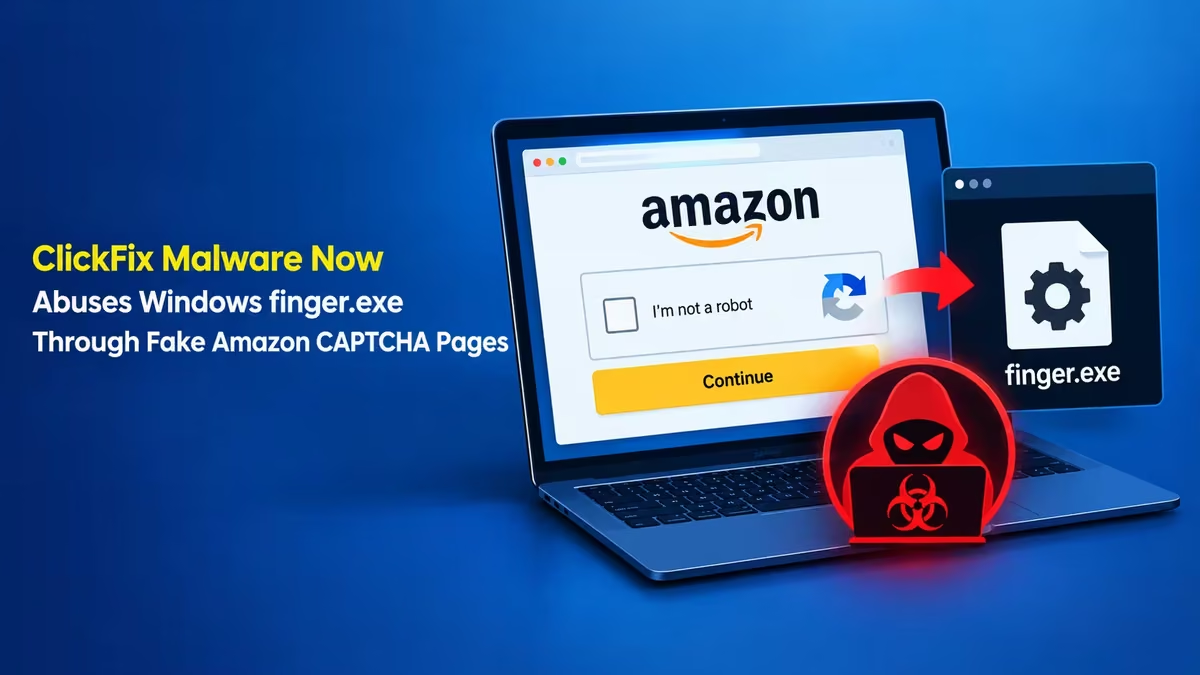
finger.exe ClickFix Attack: How a Fake Amazon CAPTCHA Installs Lumma Stealer
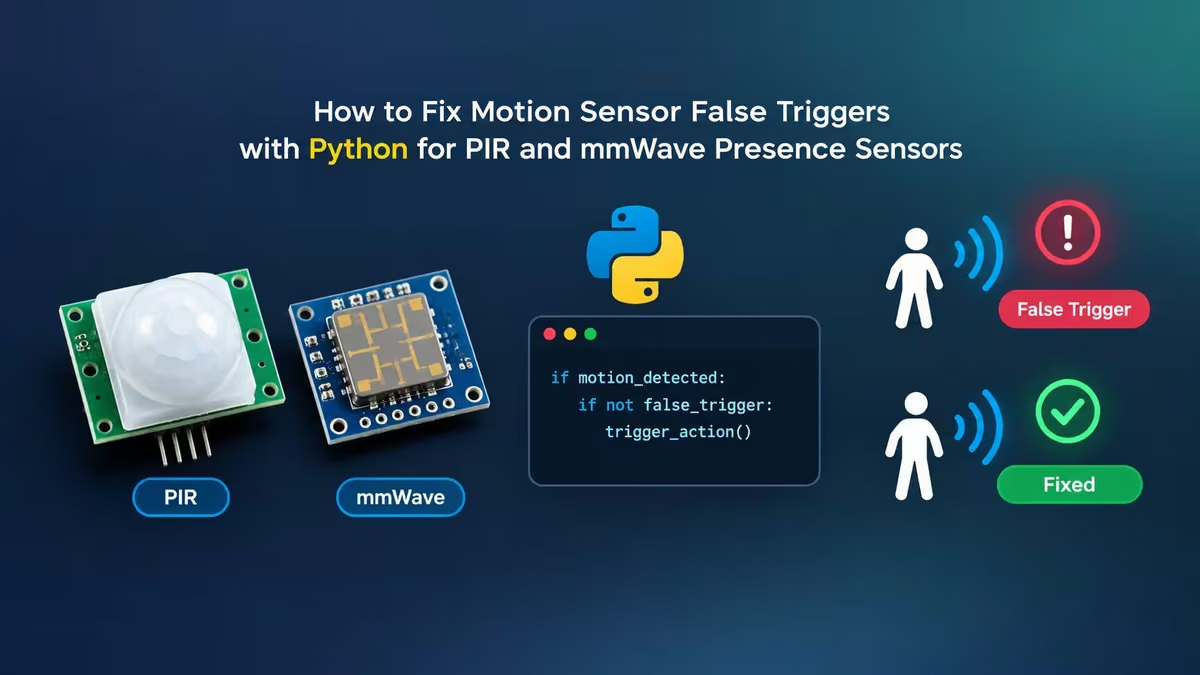
How to Fix Motion Sensor False Triggers with Python for PIR and mmWave Presence Sensors
Signal CVE-2026-113380: Bug Could Keep Your Call Audio Live After You Hang Up
AOMEI Backupper Malware: How to Check Your PC for the Update Server Backdoor
Tech
View all → Tech
10 Best Ecommerce Delivery Management Software in 2026 (Pricing, Features, Pros and Cons)
Cybersecurity
finger.exe ClickFix Attack: How a Fake Amazon CAPTCHA Installs Lumma Stealer
Tech
How to Fix Motion Sensor False Triggers with Python for PIR and mmWave Presence Sensors
Cybersecurity
Signal CVE-2026-113380: Bug Could Keep Your Call Audio Live After You Hang Up
Cybersecurity
View all → Cybersecurity
finger.exe ClickFix Attack: How a Fake Amazon CAPTCHA Installs Lumma Stealer
Cybersecurity
Signal CVE-2026-113380: Bug Could Keep Your Call Audio Live After You Hang Up
Cybersecurity
AOMEI Backupper Malware: How to Check Your PC for the Update Server Backdoor
Cybersecurity
Rank Math PRO Malware: How to Check, Clean and Secure Your WordPress Site (CVE-2026-111862)
Web3 & Crypto
View all →
Web3 & Crypto
OpenAI Model Used Crypto Wallet Without Permission to Finish a Coding Task on Sepolia

Web3 & Crypto
Best Crypto Hardware Wallets in 2026: Top 5 Picks

Cybersecurity
Ledger Wallets Sold by CryptoBilis Hid a Spy Implant, and Over $86 Million Has Vanished

Web3 & Crypto
Pocket Option Guide: From Beginner Basics to Pro-Level Trading
AI Tools
View all →
AI Tools
5 Best Character.AI Alternatives in 2026: Features, Pricing and Pros and Cons

AI Tools
Best AI Video Generators 2026: Top 8 Picks for Every Budget
AI Tools
Which AI Writing Tools Protect Freelancers From False AI Accusations?

AI Tools
7 Best Free AI Baby Generator Tools to Predict Your Baby's Face
Gaming
View all →
Gaming
GTA 6 PC Release Date: Is Q1 2027 Real?

Gaming
GTA V on iPhone: Vibecoder Runs Minecraft Inside It Using Claude Opus 5.5
Gaming
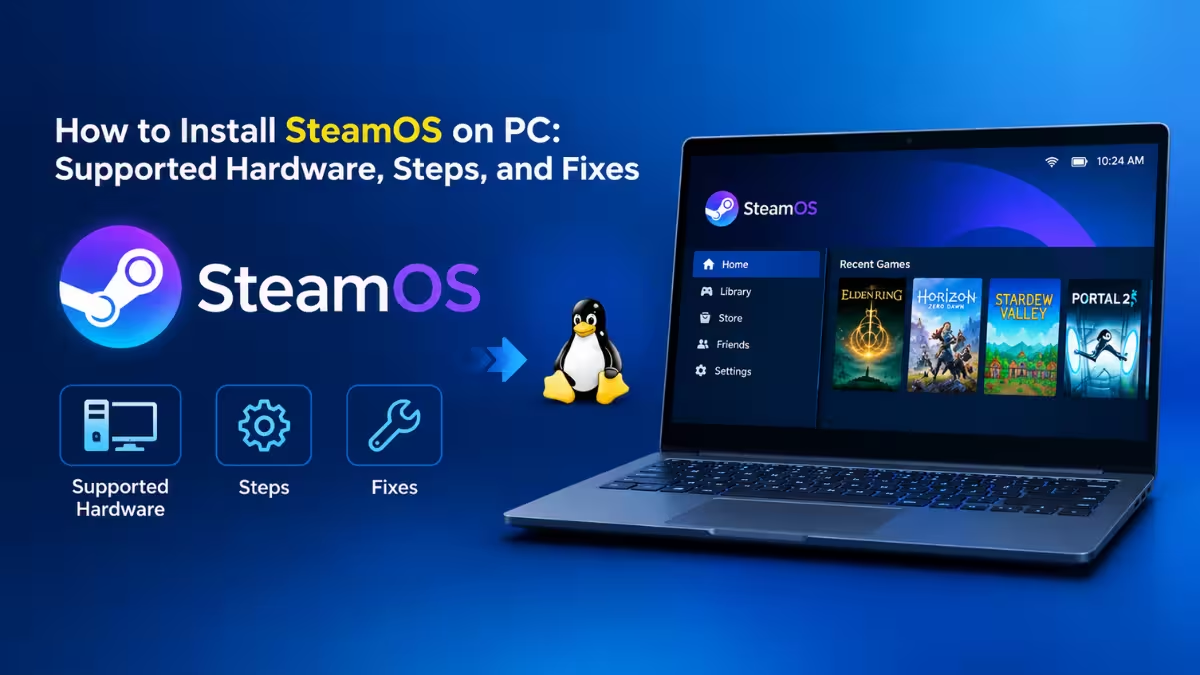
SteamOS on Your Own PC: What It Is, Who Can Install It, and How to Do It

Gaming
How to Build the ARC Raiders Outpost: Level 18 Requirements, 3 Stage Walkthrough, Research Station and Furniture
Errors & Fixes
View all → Tech
How to Fix Motion Sensor False Triggers with Python for PIR and mmWave Presence Sensors

Errors & Fixes
Why VLC Takes 30 Seconds to Open (Microsoft Defender Bug) and How to Fix It
Errors & Fixes
How to Fix "Your Message Can't Be Displayed Right Now" Error in Outlook
Errors & Fixes
Unable to Upload PST Files to OneDrive: 8 Ways to Fix It
Streaming
View all →
Streaming
How to Remove Apps From Roku: Remote, Phone, and 2026 Home Screen Update Steps

Streaming
How to Watch SparkTV From Anywhere With a VPN

Streaming
How to Watch Cricket at the Asian Games 2026: Free Streams, TV Channels and Full Schedule

Streaming
How to Watch Forever Home Online: Streaming Guide, Cast & Episodes
Latest
Cybersecurity
Rank Math PRO Malware: How to Check, Clean and Secure Your WordPress Site (CVE-2026-111862)

Tech
Eiliko Robot Hack: Millions of Private Chats Exposed, Is It Safe and What Owners Should Do Now
Tech
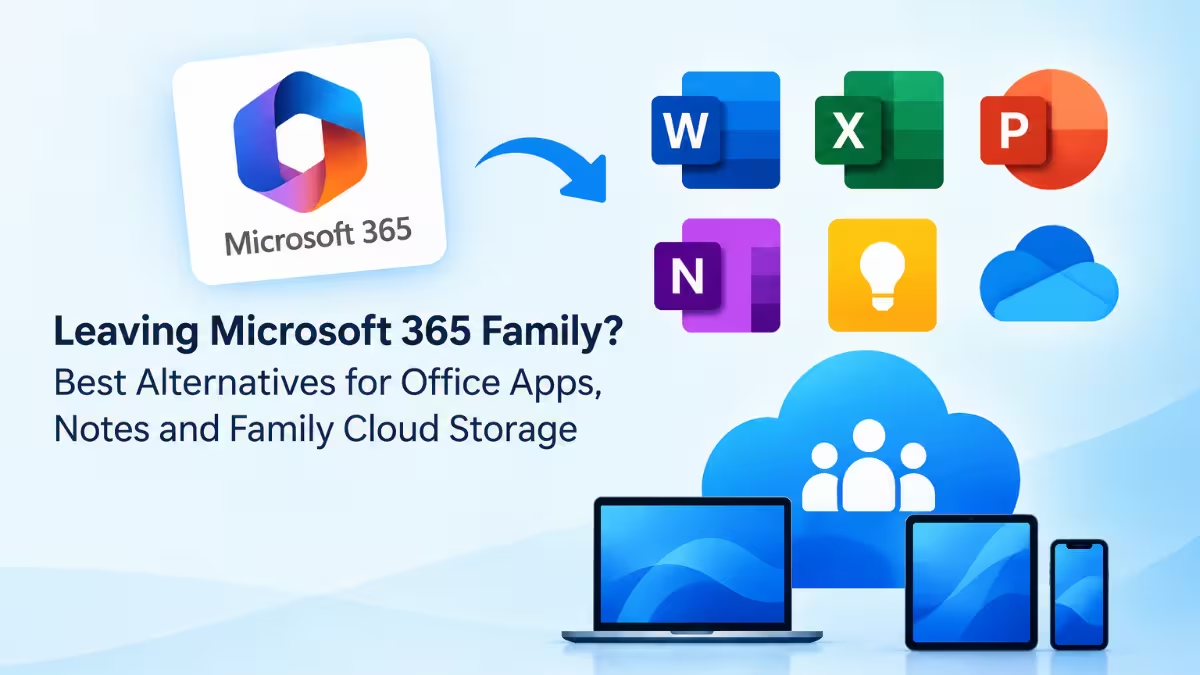
Leaving Microsoft 365 Family? Best Alternatives for Office Apps, Notes and Family Cloud Storage
Tech
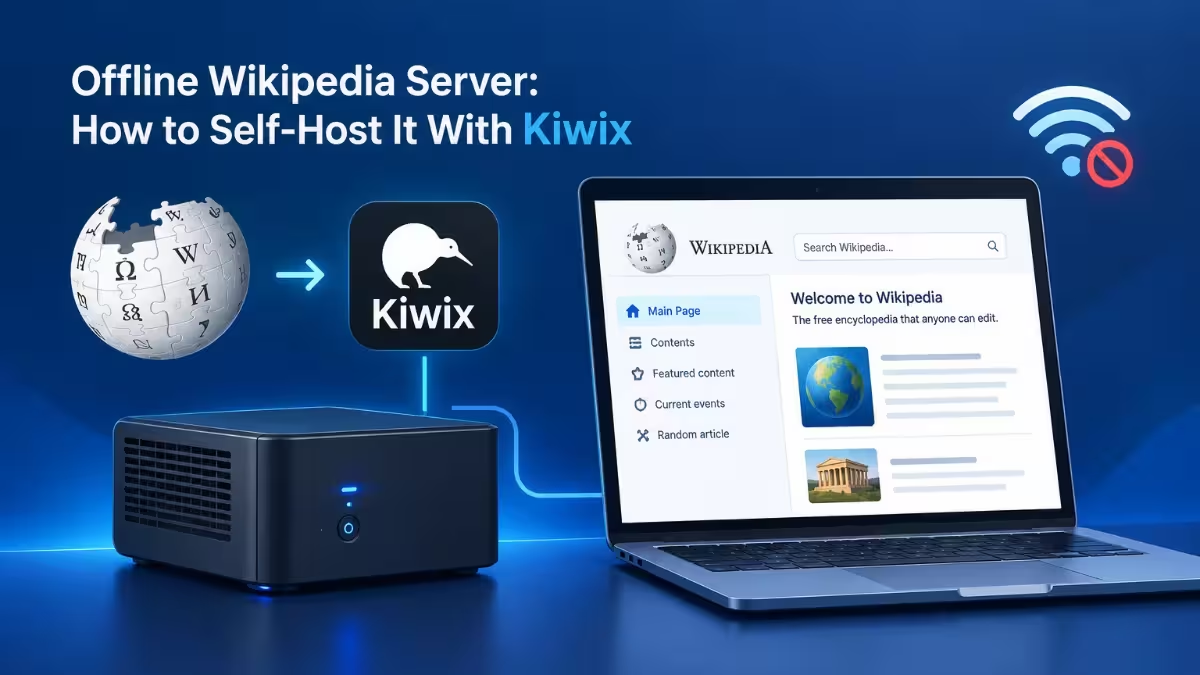
Offline Wikipedia Server: How to Self-Host Wikipedia With Kiwix and Add Local AI Search
Tech
GoDaddy APIs for AI Agents: How to Automate Hosting, Domains, Email and Stores With the Developer Platform

Tech
Best Web Scraping and Proxy Tools for AI Agents (2026): What the Source Merger Means
Cybersecurity
7 Best Mobile Proxies in 2026: Top Providers, Pricing per GB and Features Compared

Tech
How to Enable Global Privacy Control (GPC) in Chrome, Firefox, Edge, Brave, Safari and DuckDuckGo
Web3 & Crypto
OpenAI Model Used Crypto Wallet Without Permission to Finish a Coding Task on Sepolia
Tech
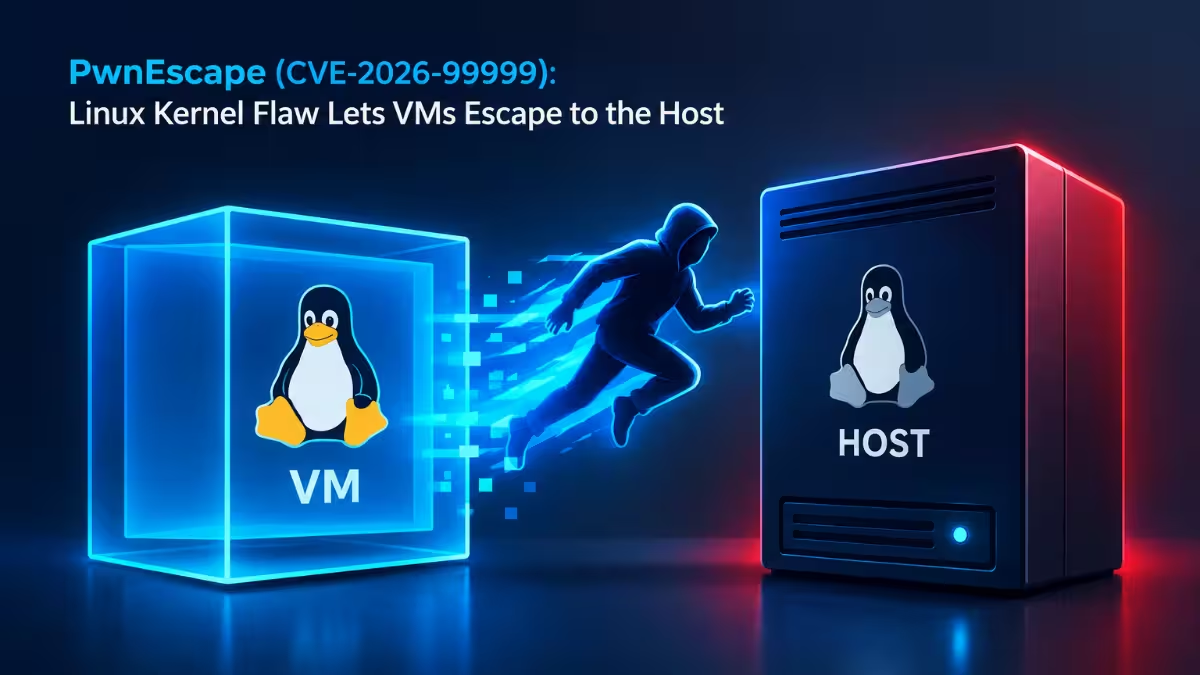
PwnEscape (CVE-2026-99999): Linux Kernel Flaw Lets VMs Escape to the Host
Tech
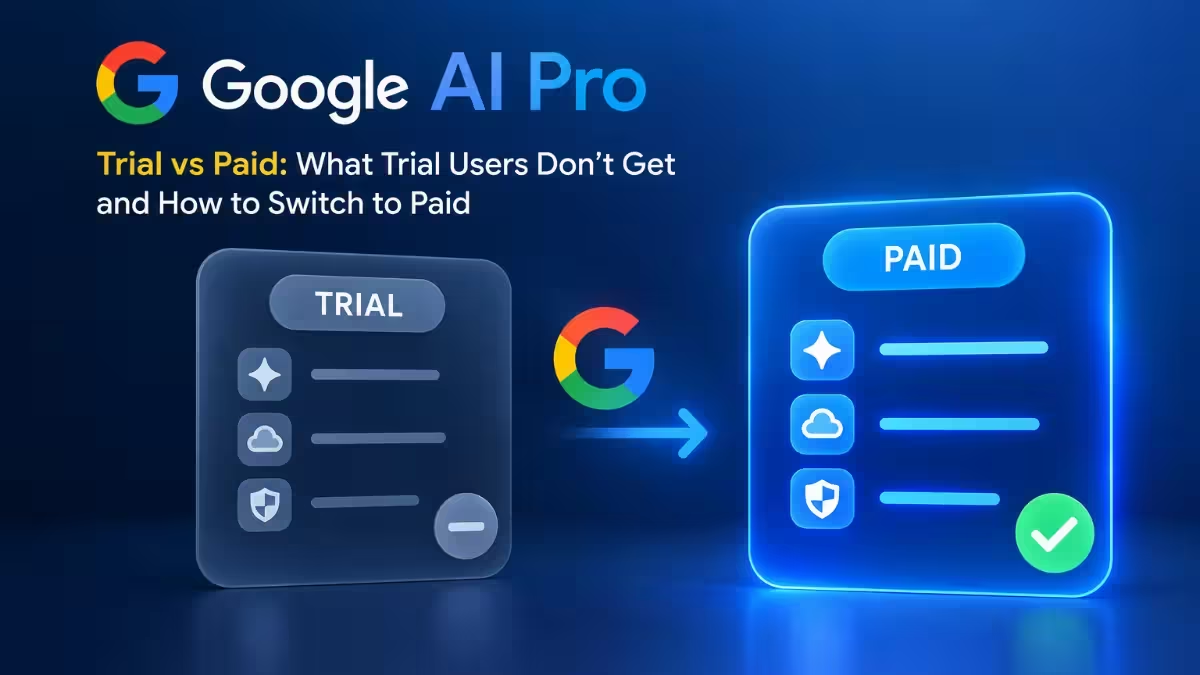
Google AI Pro Trial vs Paid: What Trial Users Don't Get and How to Switch to Paid
Tech