If Escape from Tarkov shows a black screen after finishing a raid, you’re not alone. Many players experience the game freezing or staying stuck on a black screen after extraction—sometimes followed by a backend error, sometimes forcing a restart, and in worst cases, causing loot or progress rollback.
What Causes the Black Screen After a Raid in Tarkov?
The black screen usually happens after raid completion, when Tarkov tries to:
- Save profile data
- Sync loot and quest progress
- Transition from raid instance to main menu
Common causes include:
- Windows graphics optimizations interfering with Tarkov
- Discord or overlay conflicts
- Corrupted local game data
- Fullscreen rendering issues
- GPU scheduling problems
- Backend server sync failures (especially during peak times)
This is why the game may look “frozen” even though it’s still running in the background.
Fix 1: Disable Windows Graphics Optimizations (Most Effective)
Windows 11 and recent Windows 10 updates add performance features that don’t always work well with Tarkov.
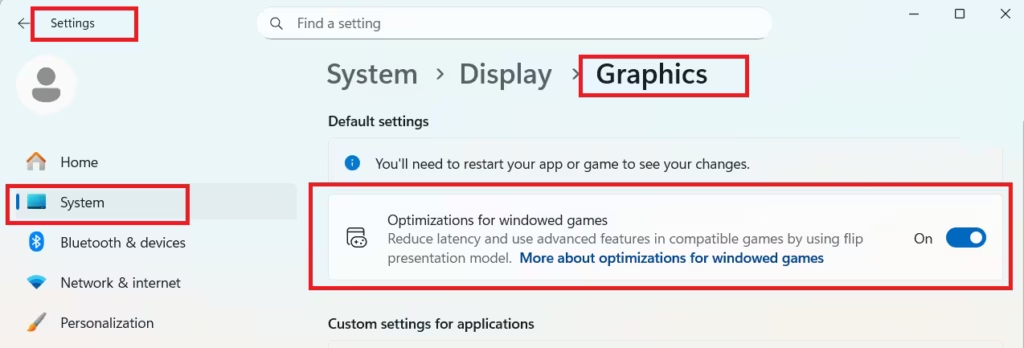
Steps:
- Open Settings
- Go to System → Display
- Scroll down and open Graphics
- Click Change default graphics settings
- Turn OFF:
- Optimization for windowed games
- Hardware-accelerated GPU scheduling
- Restart your PC
This alone fixes the issue for many players.
Fix 2: Disable Discord Overlay (Very Common Cause)
Discord’s in-game overlay frequently conflicts with Tarkov during raid exit.
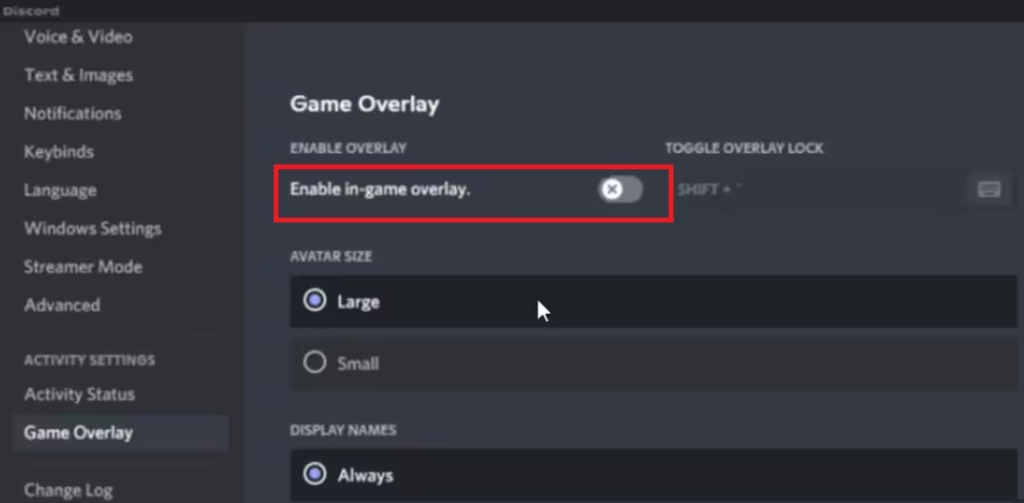
Steps:
- Open Discord
- Go to User Settings
- Open Game Overlay
- Turn Enable in-game overlay to OFF
- Fully close Discord before launching Tarkov
If you want to test quickly, just exit Discord completely and run the game.
Fix 3: Clear Tarkov Local AppData (Safe Reset)
Corrupted cache or config files often cause Tarkov to hang after raids.
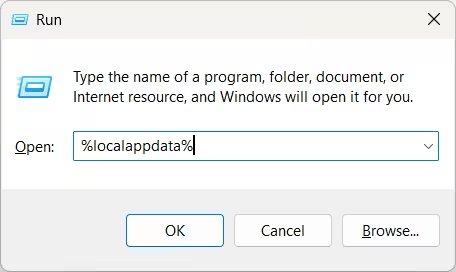
Steps:
- Press Win + R
- Type:
%localappdata% - Press Enter
- Go back to the main AppData folder
- Check and delete the BattleState Games folder from:
- Local
- LocalLow
- Roaming
- Restart your PC
- Launch Tarkov and re-apply your in-game settings
This resets local settings but does not delete your account or progress.
Fix 4: Switch to Borderless Window Mode
Fullscreen mode can cause Tarkov to fail during the post-raid transition.
Steps:
- Launch Tarkov
- Open Settings → Graphics
- Set Display Mode to Borderless
- Apply settings and restart the game
Borderless mode handles resolution and alt-tab behavior more reliably.
Fix 5: Set Tarkov to High Performance in Windows
Windows may throttle Tarkov during background transitions.
Steps:
- Go to Settings → System → Display → Graphics
- Click Browse
- Add:
EscapeFromTarkov.exe - Click Options
- Select High performance
- Save and restart
Fix 6: Disable Fullscreen Optimizations (Compatibility Mode)
Steps:
- Go to your Tarkov installation folder
- Right-click EscapeFromTarkov.exe
- Click Properties
- Open the Compatibility tab
- Check:
- Disable fullscreen optimizations
- Click Apply → OK
You can also test Run as administrator, but if Tarkov fails to launch, turn it back off.
Fix 7: Update GPU Drivers (Do Not Skip This)
Outdated or partially updated drivers can cause post-raid crashes.
Recommended:
After updating:
- Restart your PC
- Avoid using beta drivers if stability is a priority
Fix 8: Repair Windows System Files (Advanced but Safe)
If Tarkov errors happen across updates, your system files may be corrupted.
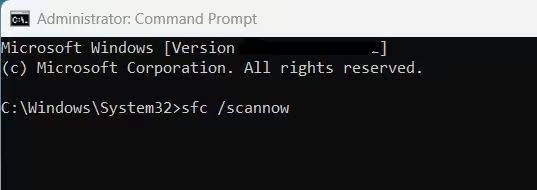
Steps:
- Open Command Prompt as Administrator
- Run:
sfc /scannow - Wait for the scan to complete
- Restart your PC
This does not affect personal files.
Important Note About Loot Loss and Rollbacks
If Tarkov throws errors like:
- “Profile data could not be saved”
- Backend error after black screen
The issue may be server-side, not local.
Unfortunately:
- Lost loot is usually not recoverable
- The best prevention is fixing crashes before they happen
If Nothing Works: What You Should Know
If the black screen happens:
- Only during peak hours
- On every raid regardless of settings
- Even in PvE or local sessions
Then it’s likely a backend server issue, and no local fix will fully prevent it until Battlestate resolves it.
FAQs
Why does Tarkov show a black screen after a raid?
The Tarkov black screen after raid usually happens when the game fails to sync profile data during extraction. Windows graphics optimizations, overlays, corrupted local files, or backend server issues are common causes.
Does the Tarkov black screen after raid cause loot loss?
Yes. If the black screen ends with a backend error, the raid may fail to save, causing loot, XP, or quest progress to roll back to the pre-raid state.
Is the Tarkov black screen after raid a server issue?
In many cases, yes. During peak hours or server instability, Tarkov may freeze on a black screen after extraction even if local settings are correct.
Can Discord cause Tarkov black screen after raid?
Yes. Discord’s in-game overlay is a known cause of Tarkov black screen after raid issues and should be disabled before launching the game.
Does switching to borderless mode fix Tarkov black screen?
Yes. Using borderless window mode helps prevent rendering issues during post-raid transitions and often stops the black screen from occurring.
Is there a permanent fix for Tarkov black screen after raid?
There is no single permanent fix. Combining system-level fixes with proper graphics settings significantly reduces how often the issue occurs.
Can the Tarkov black screen after raid happen in PvE mode?
Yes. The issue can occur in PvE or local sessions because Tarkov still relies on backend synchronization after raids.
Should I reinstall Tarkov to fix the black screen issue?
Reinstalling is usually unnecessary. Clearing local BattleState Games data and fixing Windows graphics settings is more effective.
If you frequently troubleshoot Tarkov and other PC issues, bookmark our own Fdaytalk Gaming page, where we regularly share updated fixes, error guides, and reliable solutions for major PC and game problems.

