Error Code 0xFFFFFFFE in Call of Duty (PC) causes the game to crash on startup or prevents it from launching at all. Many players started encountering this game crash following recent Call of Duty HQ updates and seasonal patches, where installation or update processes did not complete correctly.
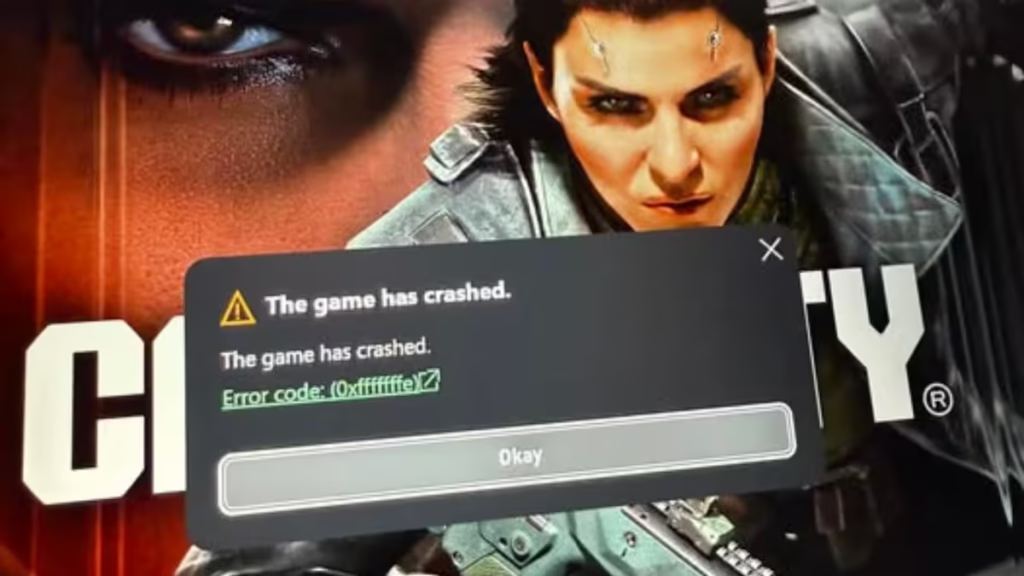
In most cases, the error is linked to corrupted launcher data, broken game files, or incomplete updates. This guide covers the most reliable fixes to stop the 0xFFFFFFFE game crash on PC, including steps for Steam, Battle.net, and PC Game Pass players.
What Causes the 0xFFFFFFFE Game Crash in Call of Duty
This error typically causes Call of Duty to crash because HQ cannot properly load the game environment. The issue often occurs after updates that modify launcher files or game assets.
At the file level, the crash usually involves randgrid.sys, a kernel-level service file that Call of Duty requires during startup. When this file is missing, corrupted, or installed to the wrong path, the bootstrapper fails and the game never launches. PC Game Pass players encounter this most often because the Xbox app sometimes points to a different drive than where the game actually installed.
Common causes include:
- Corrupted Call of Duty HQ launcher files
- Missing or broken randgrid.sys file
- Broken or missing game files after an update
- Incomplete patch installation
- Drive path mismatch (Xbox app pointing to wrong drive)
- Launcher conflicts with existing installation files
- Outdated or conflicting GPU drivers
Because the problem usually originates from the launcher or update process, repairing or verifying files often fixes it quickly.
Fix 1: Repair the Call of Duty HQ App
Repairing Call of Duty HQ is the most effective starting point because many cases originate from corrupted launcher files. PC Game Pass users should complete this step first, then continue to Fix 2.
Follow these steps to repair the app:
- Press Windows + I to open Settings.
- Click Apps.
- Open Installed Apps.
- Locate Call of Duty HQ in the list.
- Click the three-dot menu next to it.
- Select Advanced Options.
- Scroll down and click Repair.
Windows will rebuild the launcher files without deleting your game installation. After the repair completes, launch Call of Duty again and check whether the error disappears.
Fix 2: Repair via the Xbox App (PC Game Pass Players)
If you play Call of Duty through PC Game Pass, you need to run repairs in two places: Windows Settings (Fix 1 above) and the Xbox app. Doing only one of the two often leaves the error unresolved.
After completing Fix 1, follow these steps in the Xbox app:
- Open the Xbox app.
- Go to your Library.
- Find Call of Duty in your installed games list.
- Click the three-dot menu next to the game.
- Select Manage.
- Click Verify and Repair (or Files depending on your Xbox app version).
- Wait for the process to finish, then relaunch the game.
This two-step repair sequence (Windows Settings repair followed by Xbox app repair) is the most commonly confirmed fix for PC Game Pass players experiencing this error.
Fix 3: Check the Bootstrapper Log for a Drive Path Mismatch
If the repairs above did not resolve the error, the real cause may be a drive mismatch. The Xbox app sometimes records a different drive path than where your game actually installed. When the bootstrapper cannot find randgrid.sys at the expected path, the launch fails immediately.
Reading the bootstrapper log tells you exactly which path the game is searching, so you can fix the disconnect directly.
Step 1: Find and read the log
- Open File Explorer.
- Navigate to your Call of Duty install folder. The default path is:
XboxGames\Call of Duty\Content - Find the file named bootstrapper.log.
- Right-click it and open with Notepad.
- Look for a line that reads failed to open followed by a file path.
Step 2: Resolve the mismatch
The log will show a path like D:\XboxGames\Call of Duty\Content\randgrid.sys while your game is actually installed on a different drive (for example, C:\). To fix this:
- Open the drive the log mentions.
- Create a folder named XboxGames (match capitalization exactly).
- Inside it, create a folder named Call of Duty.
- Inside that, create a folder named Content.
- Go to your real install folder and copy (do not move) randgrid.sys.
- Paste it into the new Content folder you just created on the other drive.
- Launch Call of Duty through the Xbox app.
The bootstrapper finds the file at the path it expects and the game proceeds past the crash.
Fix 4: Verify Call of Duty Game Files
If corrupted game assets are causing the problem, verifying the installation will replace damaged files automatically.
Steam
- Open Steam.
- Go to Library.
- Right-click Call of Duty.
- Select Properties.
- Click Installed Files.
- Select Verify integrity of game files.
Steam will scan your installation and download any missing or corrupted files.
Battle.net
- Open the Battle.net launcher.
- Select Call of Duty.
- Click the gear icon next to the Play button.
- Choose Scan and Repair.
- Click Begin Scan.
Once the scan finishes, restart the launcher and launch the game again.
Fix 5: Update or Roll Back Your GPU Drivers
Outdated or recently changed GPU drivers are a common cause of post-update crashes in Call of Duty. If the error started appearing after a Windows or game update, updating your drivers or rolling back to a previously stable version is worth trying.
To update your drivers:
- Nvidia: Download the latest drivers from the Nvidia website or through GeForce Experience. Choose Clean Installation during setup.
- AMD: Download from the AMD website or through AMD Adrenalin software.
- Intel: Download from the Intel website if you use integrated graphics.
To roll back to a previous driver (if the error started after a recent update):
- Press Windows + X and select Device Manager.
- Expand Display Adapters.
- Right-click your GPU and select Properties.
- Go to the Driver tab and click Roll Back Driver.
After updating or rolling back, restart your PC and test the game.
Fix 6: Run Call of Duty as Administrator
Running the game with administrator privileges can resolve permission-related issues that prevent Call of Duty HQ from loading correctly.
- Locate the Call of Duty HQ executable in your installation folder.
- Right-click the file and select Properties.
- Go to the Compatibility tab.
- Select Windows 8 from the compatibility mode dropdown.
- Check Run this program as an administrator.
- Click Apply, then OK.
- Launch the game and check whether the error is gone.
Fix 7: Reinstall the Randgrid Service via Command Prompt
If the randgrid.sys file exists but the service is missing or broken, reinstalling it manually through Command Prompt is the most direct fix. This step applies primarily to Xbox and PC Game Pass installations.
- Press Win + E to open File Explorer and note down the full installation path of Call of Duty. The default location is:
C:\XboxGames\Call of Duty\Content - Open Command Prompt as Administrator (right-click Start, select Terminal (Admin)).
- Run the following command to check whether the Randgrid service exists:
sc query atvi-randgrid_msstore- If the service exists, remove it first:
sc delete atvi-randgrid_msstore- Install the Randgrid service using your installation path:
sc create atvi-randgrid_msstore type= kernel binPath= "[INSTALLDIR]\randgrid.sys"Replace [INSTALLDIR] with the path you noted in Step 1.
- Set the correct service permissions. Run the command for your Windows version:
Windows 11:
sc sdset atvi-randgrid_msstore D:(A;;CCLCSWRPWPDTLOCRRC;;;SY)(A;;CCDCLCSWRPWPDTLOCRSDRCWDWO;;;BA)(A;;CCLCSWRPWPLOCRRC;;;IU)(A;;CCLCSWLOCRRC;;;SU)S:(AU;FA;CCDCLCSWRPWPDTLOCRSDRCWDWO;;;WD)Windows 10:
sc sdset atvi-randgrid_msstore D:(A;;CCLCSWRPWPDTLOCRRC;;;SY)(A;;CCDCLCSWRPWPDTLOCRSDRCWDWO;;;BA)(A;;CCLCSWLOCRRC;;;AU)(A;;CCLCSWRPWPDTLOCRRC;;;PU)- Restart your PC and launch Call of Duty.
Note: If the Randgrid service does not exist and cannot be created, proceed to Fix 8 and reinstall the launcher completely.
Fix 8: Reinstall the Call of Duty HQ Launcher
If all the above steps fail, reinstalling Call of Duty HQ rebuilds the entire launcher environment from scratch.
- Open Windows Settings.
- Navigate to Apps then Installed Apps.
- Locate Call of Duty HQ.
- Click the three-dot menu.
- Select Uninstall.
- Restart your PC.
- Reinstall the launcher through Steam, Battle.net, or the Xbox app.
This removes any corrupted launcher components that may prevent the game from starting correctly.
Additional Tips to Prevent Call of Duty Game Crashes
You can reduce the chances of seeing this error again by following a few best practices:
- Always allow game updates to finish completely before launching the game.
- Avoid interrupting downloads during large seasonal updates.
- Install all Xbox or PC Game Pass titles to the same drive to prevent path mismatch errors.
- Avoid changing drive letters after installing large Game Pass titles.
- Restart the launcher after installing new patches.
- Keep your launcher, game client, and GPU drivers updated.
These steps help maintain a clean installation and prevent the game from crashing after future updates.
FAQs
What is error code 0xFFFFFFFE in Call of Duty?
Error code 0xFFFFFFFE appears when Call of Duty fails to launch due to corrupted launcher files or damaged game files, often after a game or seasonal update. At the file level, the crash commonly involves the randgrid.sys service file failing to load.
How do I fix error code 0xFFFFFFFE in Call of Duty?
Start by repairing the Call of Duty HQ app through Windows Settings. If you play on PC Game Pass, also run a repair through the Xbox app. If that does not work, check the bootstrapper log for a drive path mismatch, verify your game files through Steam or Battle.net, update your GPU drivers, or reinstall the Randgrid service via Command Prompt.
Does verifying game files fix the 0xFFFFFFFE error?
Yes. Verifying game files often resolves the problem because it replaces corrupted or missing files that prevent the game from launching. Steam and Battle.net both include built-in tools for this.
Why did error code 0xFFFFFFFE appear after an update?
Large updates sometimes overwrite or corrupt launcher files, misplace the randgrid.sys file, or conflict with existing GPU drivers, which can cause the game to fail during startup.
How do I fix error code 0xFFFFFFFE on PC Game Pass?
PC Game Pass players need to repair the game in two places: first through Windows Settings (Apps > Call of Duty HQ > Advanced Options > Repair), then through the Xbox app (Library > Call of Duty > Manage > Verify and Repair). If the error persists, check the bootstrapper log in your install folder for a drive path mismatch and follow Fix 3 in this guide.
Can GPU drivers cause error code 0xFFFFFFFE in Call of Duty?
Yes. Outdated or recently updated GPU drivers can conflict with Call of Duty after a patch. Updating to the latest driver version or rolling back to a previously stable version can resolve the error.
What is randgrid.sys and why does it cause this error?
randgrid.sys is a kernel-level service file that Call of Duty requires to launch. When the file is missing, corrupted, or located on a different drive than the path the bootstrapper expects, the game crashes immediately with error 0xFFFFFFFE. Fixing the file location or reinstalling the service through Command Prompt resolves this.