Cloudflare Error 521 stops visitors from reaching your website with a blunt message: “Web server is down.” The error means Cloudflare reached your server but the server refused the connection. Your site stays offline until you fix the root cause.
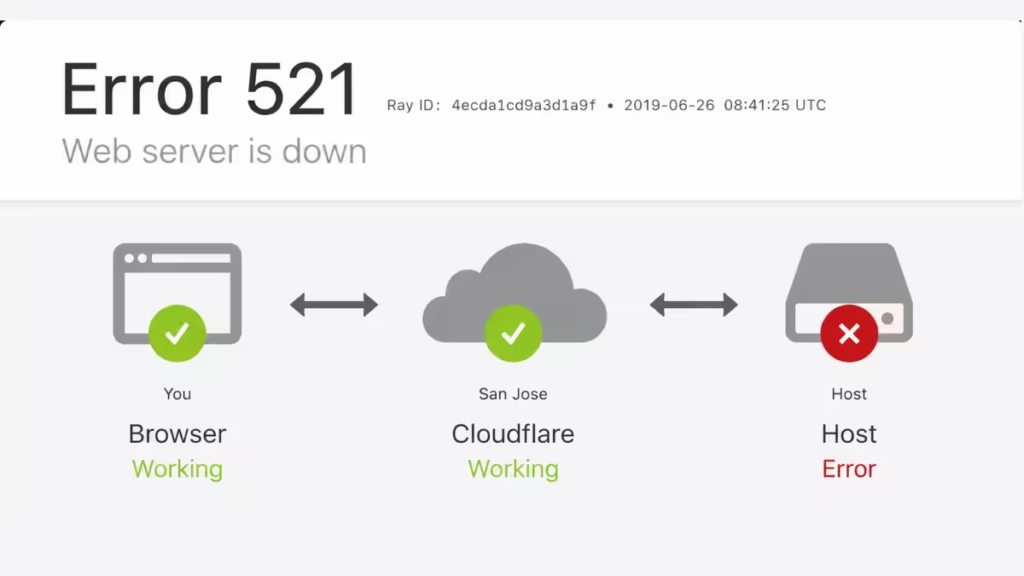
This guide walks you through every common cause and gives you clear steps to get your site back online fast.
Table of Contents
What Is Cloudflare Error 521?
Error 521 is a Cloudflare-specific HTTP status code. It tells you that Cloudflare successfully sent a connection request to your origin server, but the server rejected it instead of responding.
Think of it this way: Cloudflare knocked on the door, the server answered, and then slammed the door shut.
This is different from a DNS failure or a timeout. The server is reachable, but something is actively blocking or refusing the connection.
What Causes Cloudflare Error 521?
Several issues can trigger this error. Understanding the cause helps you pick the right fix.
| Cause | What Happens |
|---|---|
| Server is offline or unresponsive | Your origin server is down due to a crash, maintenance, or a hosting provider outage. |
| Firewall blocks Cloudflare IPs | Your server firewall or security plugin treats Cloudflare’s IPs as suspicious and blocks them. |
| SSL/TLS misconfiguration | A mismatch between Cloudflare’s SSL mode and your server certificate breaks the secure handshake. |
| Server not listening on the correct port | Cloudflare expects port 80 (Flexible) or port 443 (Full/Full Strict). A wrong port means no connection. |
| Misconfigured DNS records | Incorrect A or CNAME records point Cloudflare to the wrong server IP entirely. |
| “Under Attack” mode is active | This Cloudflare security mode challenges all requests and can accidentally block its own origin connection. |
| Apache modules (mod_reqtimeout / mod_antiloris) | These throttle slow or suspicious HTTP requests and sometimes flag Cloudflare’s traffic as malicious. |
| Plugin or theme conflicts (WordPress) | A security plugin, caching plugin, or recently updated theme interferes with your server’s connections. |
How to Fix Cloudflare Error 521
Work through these steps in order. Most users resolve the error within the first three steps.
Step 1: Check If Your Server Is Actually Down
Before touching any settings, confirm whether your origin server is online.
Ping your server: Open a terminal (Mac/Linux) or Command Prompt (Windows) and run:
ping yourdomain.comA response means the server is reachable. No response means it is offline.
Check with cURL:
curl -I http://yourdomain.comA 200 OK response confirms your server is responding. A 521 or no response points to a server-side problem.
- Bypass Cloudflare entirely: Find your server’s IP address in your hosting control panel. Type it directly into your browser. If your site loads, the issue lives in your Cloudflare configuration, not on the server itself.
- Use an external monitoring tool: Services like UptimeRobot, Pingdom, or GTmetrix check your server from multiple global locations. They confirm whether downtime is widespread or isolated.
If your hosting provider confirms an outage, you need to wait for them to resolve it. Contact their support team and share the error details.
Step 2: Whitelist Cloudflare IP Addresses in Your Firewall
Your server firewall may block Cloudflare’s traffic. You need to allow all Cloudflare IP ranges explicitly.
Get the official Cloudflare IP list: Visit https://www.cloudflare.com/ips/ to find the full, up-to-date list of Cloudflare IP ranges.
Add IPs via .htaccess (Apache):
Open your .htaccess file in your public_html or www folder. Add Cloudflare IP addresses using this format:
allow from 103.21.244.0/22
allow from 103.22.200.0/22
allow from 103.31.4.0/22
Add each IP range on a separate line.
Use cPanel’s IP Blocker:
- Log into cPanel.
- Go to Security > IP Blocker.
- Look for any Cloudflare IPs listed as blocked.
- Click Delete next to each blocked Cloudflare range.
- Click Remove IP to confirm.
Check your hosting firewall dashboard: Many hosts provide a dedicated firewall manager. Look for rules that block or rate-limit the Cloudflare IP ranges and remove them.
Disable aggressive security plugins temporarily: If you run a WordPress security plugin (like Wordfence or Sucuri), temporarily disable it. If that resolves the error, add Cloudflare IPs to the plugin’s whitelist and re-enable it.
Step 3: Fix Your SSL/TLS Configuration
A mismatch between Cloudflare’s SSL mode and your server’s certificate setup breaks the connection.
Check your current Cloudflare SSL mode:
- Log into your Cloudflare dashboard.
- Select your domain.
- Go to SSL/TLS > Overview.
Match the SSL mode to your server setup:
| SSL Mode | When to Use |
|---|---|
| Flexible | Your server has no SSL certificate. Cloudflare connects via HTTP. Least secure. |
| Full | Your server has an SSL certificate (self-signed is acceptable). |
| Full (Strict) | Your server has a valid SSL certificate from a trusted CA or a Cloudflare Origin Certificate. Most secure. |
Create a Cloudflare Origin Certificate (recommended for Full Strict):
- In your Cloudflare dashboard, go to SSL/TLS > Origin Server.
- Click Create Certificate.
- Follow the prompts and install the certificate on your server.
Verify your certificate is not expired: Use SSL Labs (https://www.ssllabs.com/ssltest/) to test your domain. It flags expired or misconfigured certificates immediately.
After changing SSL settings, clear your Cloudflare cache: go to Caching > Configuration and click Purge Everything.
Step 4: Confirm Your Server Listens on the Correct Port
Cloudflare connects on specific ports depending on your SSL mode. If your web server binds to a different port, it will reject the connection.
- Flexible SSL: Server must listen on port 80
- Full SSL / Full (Strict): Server must listen on port 443
Check on Linux via SSH:
sudo netstat -tlnp | grep -E '80|443'This command shows which ports your server actively listens on. If port 443 is missing from the output and you use Full SSL, restart your web server after confirming HTTPS is configured.
Restart Apache:
sudo systemctl restart apache2Restart Nginx:
sudo systemctl restart nginxStep 5: Disable mod_reqtimeout and mod_antiloris (Apache Only)
These Apache modules protect against slowloris attacks by throttling slow or suspicious HTTP requests. They sometimes misidentify Cloudflare’s connection pattern as an attack and block it.
Temporarily disable both modules to test if they cause the error.
Disable via terminal:
sudo a2dismod reqtimeout
sudo a2dismod antiloris
sudo systemctl restart apache2
If disabling them fixes the error, you can re-enable them with adjusted timeout thresholds that allow Cloudflare through.
Step 6: Review Cloudflare Security Settings
Overly strict Cloudflare settings can block legitimate traffic and disrupt the connection to your server.
Lower the Security Level temporarily:
- Go to your Cloudflare dashboard.
- Select Security > Settings.
- Change Security Level from “High” to “Medium” or “Low” for testing.
Disable “Under Attack” mode:
- Go to Security > Settings.
- Scroll to Under Attack Mode and turn it off.
Review custom firewall rules:
- Go to Security > WAF > Firewall Rules.
- Check for any rules that accidentally block your server’s IP or Cloudflare’s own IP ranges.
- Delete or modify rules that conflict.
Enable Development Mode (temporary): Go to the Overview tab in your Cloudflare dashboard. Toggle Development Mode on. This bypasses Cloudflare’s cache and helps you identify whether the issue comes from Cloudflare settings or your origin server. Turn it off once you finish testing.
Step 7: Restart Your Web Server
A simple server restart clears temporary connection issues, stale cache states, and minor glitches that can trigger Error 521.
Via cPanel: Log into cPanel and use the Server Reboot option under the server management section.
Via SSH:
sudo rebootAfter the restart, wait one to two minutes, then check whether the error is gone.
Step 8: Troubleshoot WordPress-Specific Issues
If your site runs WordPress and the steps above do not resolve the error, the problem may live inside your installation.
1. Deactivate all plugins: Log into your WordPress dashboard. Go to Plugins > Installed Plugins. Select all plugins and choose Deactivate from the bulk action menu. Reload your site. If the error disappears, reactivate plugins one by one to find the culprit.
2. Switch to a default theme: Go to Appearance > Themes and activate a default WordPress theme like Twenty Twenty-Four. Test if the error persists. A broken or poorly coded theme can cause server-side failures.
3. Clear all caches: Go to Caching in your Cloudflare dashboard and purge everything. If you use a WordPress caching plugin like W3 Total Cache or WP Rocket, clear its cache too and temporarily disable it for testing.
4. Enable WordPress debug mode: Open your wp-config.php file via FTP or your host’s file manager. Add these lines before the /* That's all, stop editing! */ line:
define( 'WP_DEBUG', true );
define( 'WP_DEBUG_LOG', true );
define( 'WP_DEBUG_DISPLAY', false );
Check your /wp-content/debug.log file for PHP errors or plugin conflicts. Disable debug mode once you finish.
Step 9: Contact Your Hosting Provider
If none of the steps above resolve the error, escalate to your hosting provider. They have direct access to your server logs, network configuration, and infrastructure.
When you contact them, share:
- The error code (521) and when it started
- Steps you already completed (IP whitelisting, SSL checks, firewall review)
- Any error log snippets you found
- Whether the issue affects all visitors or only specific locations
Your hosting provider can check for server overload, network routing issues, and hardware problems that you cannot access from the outside.
How to Prevent Cloudflare Error 521 in the Future
Fixing the error once is not enough. These habits keep it from coming back:
- Set up uptime monitoring: Use UptimeRobot or Freshping to get an immediate alert when your server goes offline.
- Keep Cloudflare IPs whitelisted permanently: Update your whitelist whenever Cloudflare publishes new IP ranges.
- Use Full (Strict) SSL mode: It is the most stable and secure configuration long-term.
- Audit WordPress plugins after updates: A plugin update that introduces a server conflict is a common cause of sudden 521 errors.
- Monitor server resource usage: CPU or RAM spikes can make your server too busy to accept Cloudflare connections. Upgrade your hosting plan if you consistently hit resource limits.
Cloudflare Error 521 has clear causes and clear fixes. Start by checking whether your server is actually online. Then work through firewall rules, SSL settings, and port configuration in that order. Most users resolve the error before reaching step four.
If you run WordPress, plugin conflicts and caching issues deserve a close look once the server-level checks pass. Keep Cloudflare IPs permanently whitelisted and use Full (Strict) SSL to prevent the error from coming back.
Have a question or a fix that worked for you? Drop a comment below.
FAQs: Cloudflare Error 521
What is Cloudflare Error 521?
Error 521 means Cloudflare reached your origin server, but the server refused the connection. Your site appears offline to all visitors until you fix it.
What causes Cloudflare Error 521?
The most common causes are a firewall blocking Cloudflare IPs, a misconfigured SSL/TLS mode, an offline origin server, or your server not listening on the correct port.
How do I fix Error 521 quickly?
First, whitelist all Cloudflare IP ranges in your server firewall. Then check your Cloudflare SSL mode matches your server certificate. Restart your web server after making changes.
Does Cloudflare Error 521 affect SEO?
Yes. Search engine crawlers hit the error instead of your content. Extended downtime signals an unreliable site and can drop your rankings.
Is Error 521 a Cloudflare problem or a server problem?
It is almost always a server or configuration problem. Cloudflare only reports what your server returns. The fix lives on your server or in your Cloudflare settings, not with Cloudflare itself.

