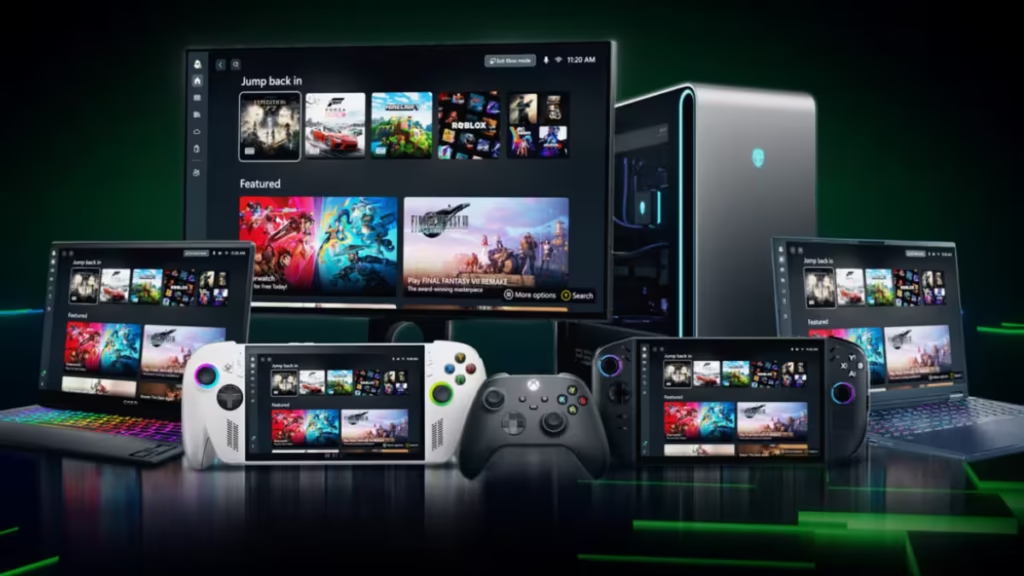
Xbox Mode is now rolling out to Windows 11 PCs through the April 2026 optional update KB5083631. The feature adds a controller-optimized, full-screen gaming experience similar to an Xbox console, letting you browse your game library and launch titles without touching a mouse or keyboard.
The problem is that Microsoft uses a Controlled Feature Rollout (CFR) to release Xbox Mode gradually. That means your PC may have the update installed but still show no Xbox Mode toggle in Settings. This guide covers how to check your build, confirm the update is installed, and force-enable Xbox Mode using ViVeTool if the toggle is missing.
What Is Xbox Mode in Windows 11
Xbox Mode transforms your Windows 11 desktop into a controller-first gaming hub. When you activate it, Windows disables non-essential background components and frees up roughly 1 to 2 GB of system memory. The interface reorganizes the Xbox app into a full-screen dashboard with large tiles and horizontal rows for your Library, Game Pass, Cloud Gaming, and the Store.
You can switch between Xbox Mode and your regular Windows 11 desktop at any time by pressing Windows Key + Tab and selecting Windows desktop. No restart required.
Requirements Before You Start
Before enabling Xbox Mode, confirm these three things:
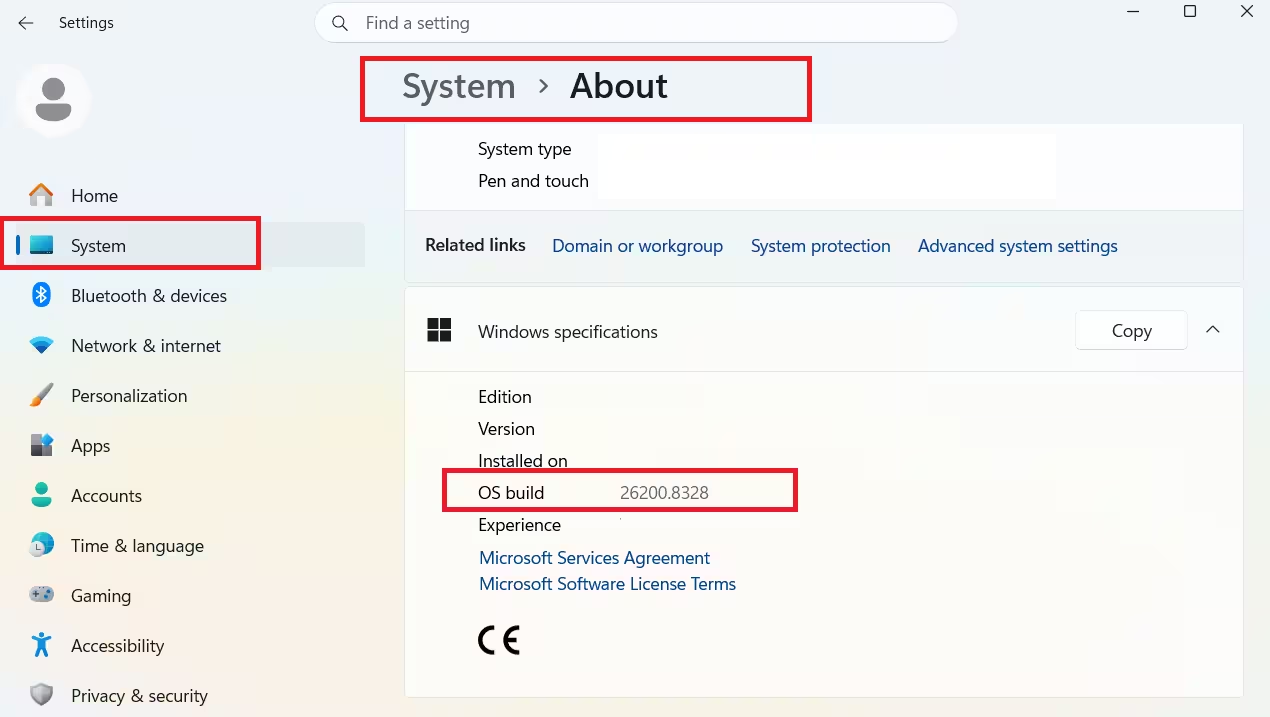
- Windows 11 build 26200.8328 or higher is installed: Go to Settings > System > About and check the OS Build number.
- KB5083631 (2026-04 Preview Update) is installed: Go to Settings > Windows Update > Update history to verify.
- The Xbox app is updated from the Microsoft Store: Xbox Mode requires the latest version of the Xbox app.
Note: Xbox Mode may not be available in the European Economic Area yet. Microsoft says availability will expand to more regions soon.
Step 1: Check If Xbox Mode Is Already Available
- Open Settings.
- Go to Gaming.
- Look for Xbox Mode at the top of the list, above Game Bar.
If you see the Xbox Mode option, you can skip straight to the How to Use Xbox Mode section below.
If the option is missing, continue to Step 2 to install the update or Step 3 to force-enable it.
Step 2: Install KB5083631
If you have not installed the April 2026 optional update yet, follow these steps:
- Open Settings.
- Go to Windows Update.
- Turn on the toggle Get the latest updates as soon as they are available.
- Click Check for updates.
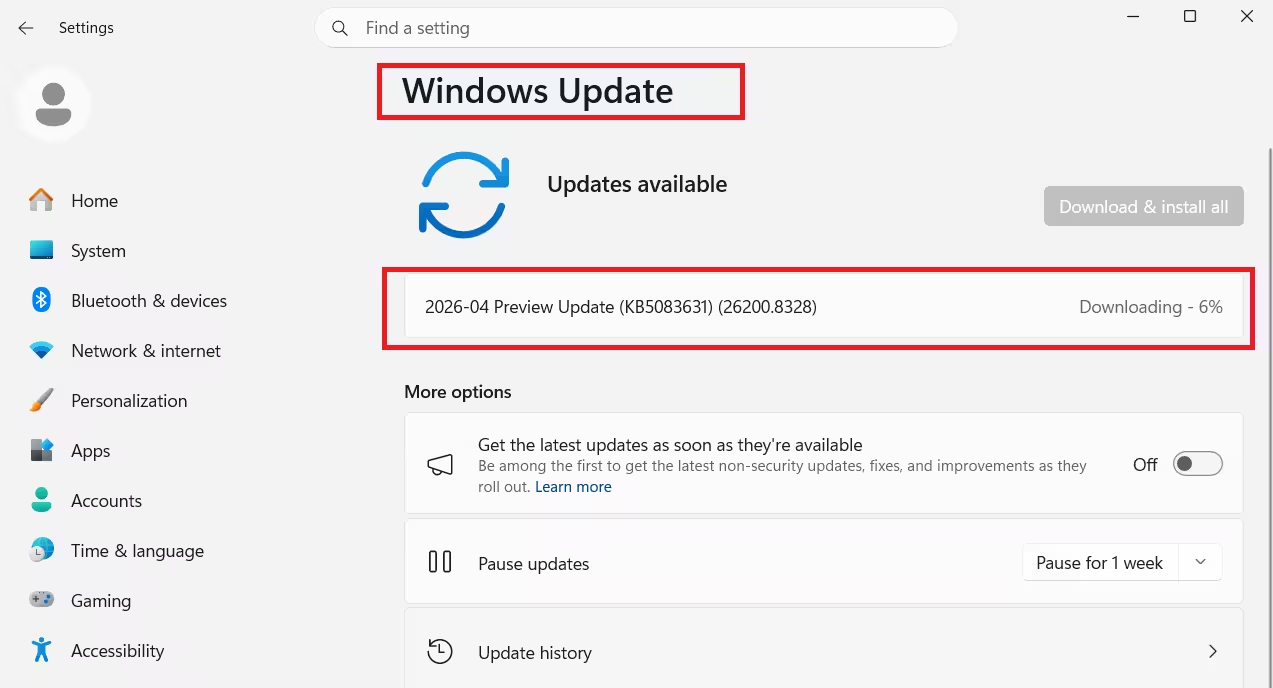
- Install 2026-04 Preview Update (KB5083631).
- Restart your PC when prompted.
After restarting, go back to Settings > Gaming and check for the Xbox Mode toggle. If it still does not appear, proceed to Step 3.
You can also download KB5083631 manually from the Microsoft Update Catalog if it does not show up in Windows Update. Check your Windows version with Run > winver before downloading: use the 26200 build for Windows 11 25H2 and the 26100 build for 24H2. Download the 64-bit version for Intel or AMD processors.
Step 3: Force-Enable Xbox Mode Using ViVeTool
Microsoft hides Xbox Mode behind a feature flag on PCs that have not received it through CFR yet. ViVeTool is a free, open-source command-line utility that lets you enable these hidden feature flags directly.
Download and Set Up ViVeTool
- Open a browser and go to the official ViVeTool GitHub repository.
- Download the latest .zip release from the Releases page.
- Extract the contents of the zip file.
- Move the extracted folder to your C: drive and rename it ViVeTool so the full path is C:\ViVeTool.
Run the Enable Command
- Open the Start menu, search for Command Prompt, and select Run as administrator. Admin rights are required or the command will fail.
- In the Command Prompt window, navigate to the ViVeTool folder by typing the following and pressing Enter:
cd C:\ViVeTool- Type the following command and press Enter:
vivetool /enable /id:58989070,59765208You should see a confirmation message: Successfully set feature configuration.
- Close Command Prompt and restart your PC.
After restarting, open Settings > Gaming. Xbox Mode now appears at the top of the list.
How to Use Xbox Mode
Once the toggle is available, here is how to configure and launch Xbox Mode:
- Go to Settings > Gaming > Xbox Mode.
- Make sure Enable Xbox mode is turned on. Microsoft enables it by default after installation.
- You will also see two optional toggles below:
- Show Xbox mode in Task View (recommended: turn on)
- Show accessibility control hints in Task View (recommended: turn on)
- Open the Xbox app. A new button appears in the top-right corner to jump directly into Xbox Mode.
- Click that button to enter Xbox Mode.
Note: If you use more than one monitor, your external display will go dark automatically when you enter Xbox Mode. Xbox Mode is a single-screen, full-screen environment. To return to your regular desktop at any time, press Windows Key + Tab and select Windows desktop.
How to Disable Xbox Mode
Option 1: Through Settings
Go to Settings > Gaming > Xbox Mode and toggle off Enable Xbox mode.
Option 2: Undo the ViVeTool Command
If you used ViVeTool to force-enable Xbox Mode, open Command Prompt as administrator, navigate to C:\ViVeTool, and run:
vivetool /disable /id:58989070,59765208Restart your PC for the change to take effect.
Frequently Asked Questions
Why is Xbox Mode not showing after installing KB5083631?
Microsoft uses a Controlled Feature Rollout to release Xbox Mode gradually. Your PC has the code installed, but the feature flag is off. Use the ViVeTool steps in this guide to enable it manually.
Does Xbox Mode work without a controller?
Xbox Mode is designed as a controller-first environment and does not work well with just a keyboard and mouse. A gamepad gives you the full experience.
How much RAM does Xbox Mode free up?
Xbox Mode disables several background desktop components during a gaming session, freeing up roughly 1 to 2 GB of system memory.
Is Xbox Mode available on Windows 10?
No. Xbox Mode is exclusive to Windows 11 with build 26200.8328 or higher, delivered through the April 2026 optional update KB5083631.
Can I switch back to the Windows desktop while in Xbox Mode?
Yes. Press Windows Key + Tab and select Windows desktop to return to your normal desktop without restarting.
Does Xbox Mode work in the European Economic Area?
Not yet. Microsoft says the rollout will expand to the EEA and other regions soon.

