The original Secure Boot certificates issued in 2011 expire in June 2026. Microsoft started rolling out updated 2023 certificates through Windows Update beginning in April 2026. Most Windows 11 PCs receive these automatically, but a portion of devices face hardware or firmware limitations that block the update.
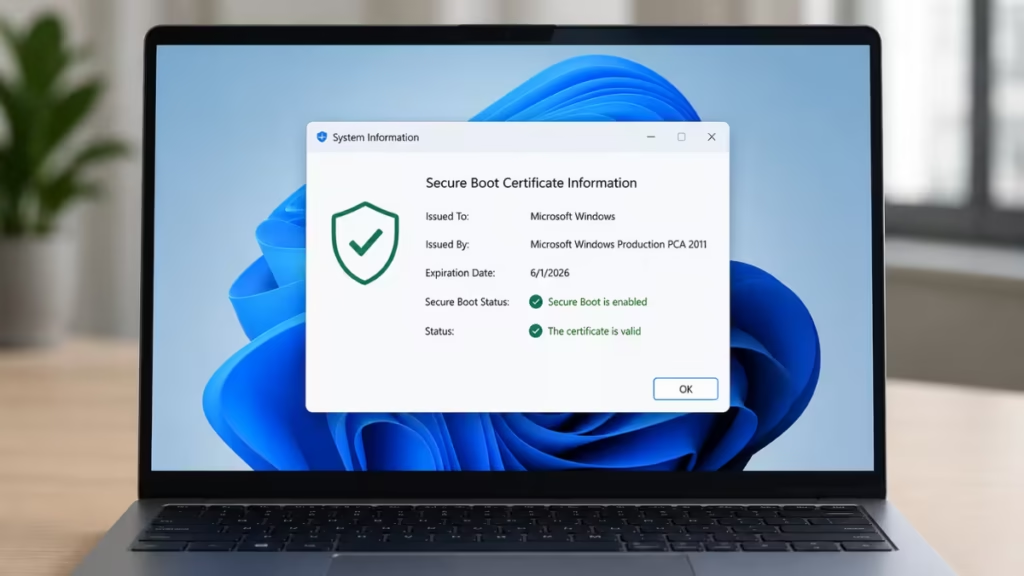
Devices that miss the new certificates lose the ability to receive future Secure Boot security updates after expiry. The PC keeps booting, but the protection layer covering the early startup process degrades over time, leaving the system exposed to rootkits and pre-OS malware.
This guide shows you how to check your Secure Boot certificate status, what each badge color means, and what steps to take if your device shows a warning.
How Secure Boot Certificates Protect Your PC at Startup
Secure Boot validates every component that loads during startup against trusted certificates. If anything fails that check, Windows blocks it from loading, which stops malware from hijacking the boot process before the operating system even starts.
The certificates originally deployed in 2011 underpin that validation chain. When they expire in June 2026, devices still running them lose the ability to receive future Secure Boot updates for early boot components such as the boot manager. The PC does not stop working, but it becomes easier to compromise at the hardware level.
Microsoft issued updated 2023 UEFI CA certificates. These replace the 2011 versions and push out automatically through Windows Update on supported devices.
How to Check Your Status in the Windows Security App
Starting in April 2026, the Windows Security app shows your Secure Boot certificate update status under Device security. Here is how to find it:
- Open Windows Security from the Start menu.
- Click Device security.
- Click Secure Boot.
A badge icon next to the Secure Boot section reflects your current certificate state.
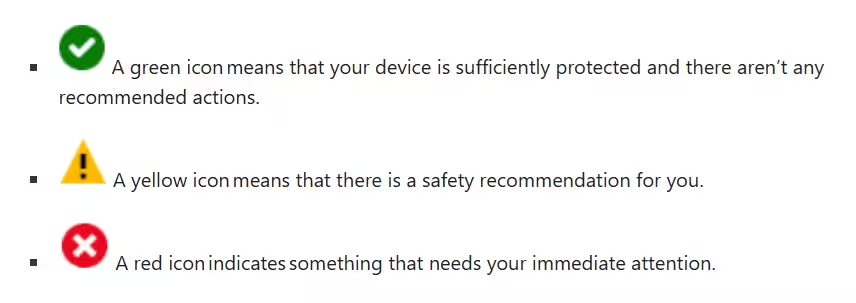
Green Checkmark
Your device received all required Secure Boot certificate updates. No action is needed.
Important: A green checkmark alone does not confirm the update is complete. Read the status text underneath. It must say: “Secure Boot is on and all required certificate updates have been applied. No further certificate changes are needed.”
Yellow Exclamation Mark
Your device still runs an older certificate, or a hardware/firmware limitation is preventing the automatic update from applying. Starting in May 2026, a yellow badge also appears when the update stalls due to a device-side compatibility issue.
Check for pending Windows updates first. If that does not resolve it, see the fix steps below.
Red Stop Icon
A security vulnerability exists in your current boot configuration that cannot be serviced without the updated certificate. This state typically appears after June 2026 once old certificates begin to expire. Visit aka.ms/getsecureboot for next steps.
How to Confirm Certificate Status via PowerShell
PowerShell gives you a direct True or False answer without navigating through the Security app.
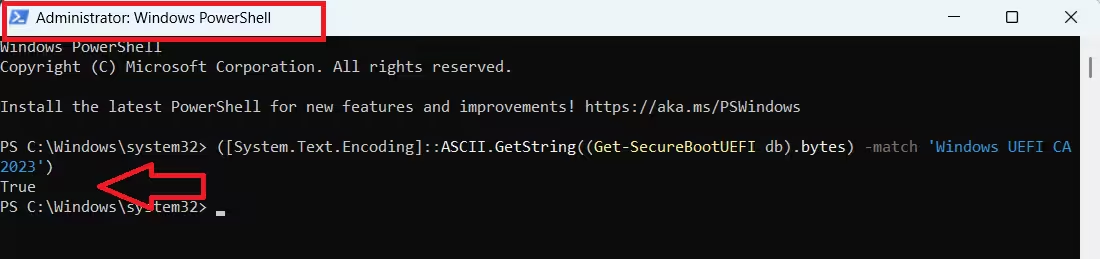
- Press Windows + S, type PowerShell, and select Run as administrator.
- Paste the command below and press Enter:
([System.Text.Encoding]::ASCII.GetString((Get-SecureBootUEFI db).bytes) -match 'Windows UEFI CA 2023')- True: Your PC carries the updated 2023 certificate. Nothing to do.
- False: Your PC still uses the 2011 certificate. Follow the steps in the next section.
What to Do If Your Certificate Is Not Updated
Step 1: Install All Pending Windows Updates
Open Settings > Windows Update and install every available update. Restart when prompted.
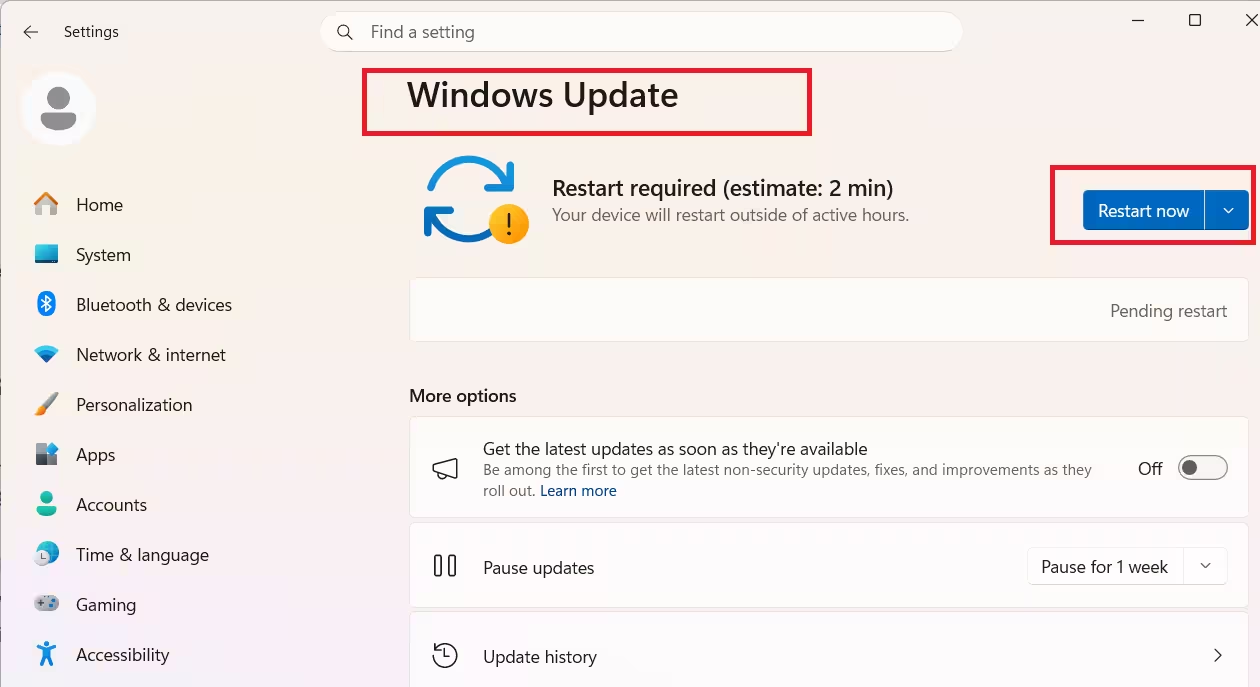
Monthly Windows updates that include security fixes now bundle Secure Boot certificate changes. After installing, some devices restart two or three times. That multiple-reboot behavior is normal and expected. It signals that the certificate update task ran, not that something went wrong.
After the restart cycle completes, run the PowerShell check again to confirm the result.
Step 2: Force the Certificate Update Manually
If Windows Update does not apply the certificate automatically, you can trigger it by setting a registry value and running the built-in scheduled task. This method works on any device that can boot Windows and install updates.
- Press Windows + S, type PowerShell, and select Run as administrator.
- Run this command:
reg add HKEY_LOCAL_MACHINE\SYSTEM\CurrentControlSet\Control\Secureboot /v AvailableUpdates /t REG_DWORD /d 0x40 /f- Then run:
Start-ScheduledTask -TaskName "\Microsoft\Windows\PI\Secure-Boot-Update"- Restart your PC twice after the task finishes.
- Run the PowerShell check again to verify.
For a complete manual update walkthrough with BIOS-level steps, see how to manually update Secure Boot certificates in Windows 11.
Step 3: Contact Your Device Manufacturer
If the Windows Security app shows “your device does not support the automated Secure Boot certificate update due to hardware or firmware limitations,” the fix requires a firmware update from your PC manufacturer. Visit your brand’s support site and search for a BIOS or UEFI firmware update for your exact model.
Older models from brands like Dell and Lenovo may have firmware updates available. PC brands generally drop meaningful support after five years, so systems older than that may not receive any manufacturer update at all.
How to Dismiss Secure Boot Warnings
Dismissing a warning removes the badge but does not fix the underlying issue. Do this only if you understand the risk.
For yellow (caution) warnings:
- Go to Windows Security > Device security > Secure Boot.
- Select the Dismiss button under the status message.
For red (action required) warnings:
- Go to Windows Security > Device security > Secure Boot.
- Select I accept the risks, don’t remind me. This requires administrator privileges.
After dismissing, the badge reverts to its default state. The status text inside the app stays visible. If the status changes again, notifications resume.
What About Windows 10 Users
Windows 10 devices not enrolled in the Extended Security Update (ESU) program will not receive the new Secure Boot certificates. Microsoft will not push updated certificates to unsupported Windows versions.
Windows 10 PCs enrolled in the ESU program do receive the updated certificates through Windows Update, the same way Windows 11 devices do. ESU enrollment stays open until October 13, 2026.
If you run Windows 10 outside ESU, the safest path is upgrading to Windows 11 on any eligible PC. If your hardware blocks the upgrade, you may also encounter issues like Windows 11 25H2 error 0xc1900101 if driver compatibility fails during the process.
What Happens If the Certificate Expires Without an Update
Your PC keeps working after June 2026 even without the updated certificate. The immediate risks are:
- The device loses the ability to receive future Secure Boot updates for early boot components.
- Future operating systems, firmware, or Secure Boot-dependent software may refuse to load on the old certificate.
- Rootkits and pre-OS malware become harder for the system to detect and block.
Microsoft’s Windows Security app guides you through next steps if the situation escalates to a red badge state.
Frequently Asked Questions
What does a yellow Secure Boot badge mean in Windows 11?
A yellow badge means your PC still uses the older 2011 Secure Boot certificate. Install all Windows updates first. If it stays yellow, check for a BIOS or UEFI firmware update from your PC manufacturer.
Will my PC stop working after the Secure Boot certificate expires in June 2026?
No. Your PC will still boot normally. However, it may stop receiving future Secure Boot security protections against threats like rootkits.
How can I check if my PC has the 2023 Secure Boot certificate?
Run this PowerShell command as administrator: ([System.Text.Encoding]::ASCII.GetString((Get-SecureBootUEFI db).bytes) -match 'Windows UEFI CA 2023')
If it returns True, the new certificate is installed.
Why did Windows 11 restart multiple times during updates?
Secure Boot certificate updates may require extra restarts. This is normal and usually means the update installed correctly.
Does Windows 10 get the updated Secure Boot certificate?
Windows 10 devices enrolled in the Extended Security Update (ESU) program receive the updated certificate through Windows Update. Windows 10 devices outside the ESU program do not receive the new certificates at all. ESU enrollment stays open until October 13, 2026.

