Bluetooth Error Code 43 appears in Device Manager with the message: “Windows has stopped this device because it has reported problems (Code 43).” This means Windows detected a failure in the Bluetooth hardware or its driver and shut the device down to prevent further issues.
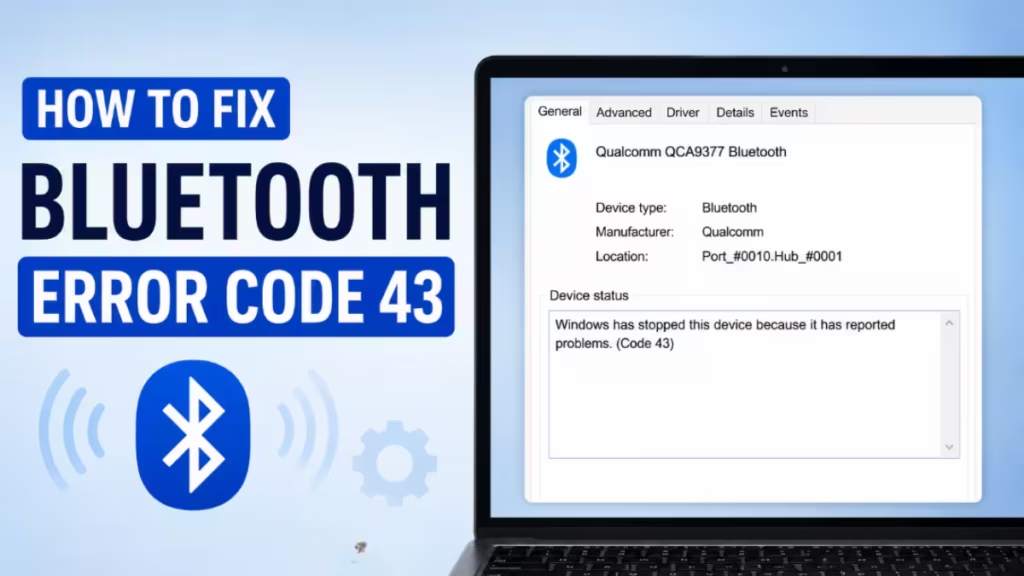
The error shows up most often after a Windows update, a driver installation that went wrong, or a conflict between USB devices. In some cases, the Bluetooth adapter still appears in Device Manager but stops responding entirely, leaving you unable to pair or connect any device.
This guide walks you through every fix, starting with the fastest options and moving to deeper solutions if the error persists.
What Causes Bluetooth Error Code 43
Windows throws Code 43 when it receives an unspecified failure signal from the device itself. That signal can come from several sources:
- A corrupted or outdated Bluetooth driver
- A Windows update that broke driver compatibility
- A conflicting unknown USB device
- The Bluetooth Support Service stopped or failed to start
- Outdated system BIOS causing hardware communication issues
- Rarely, a hardware fault in the Bluetooth adapter itself
Fix 1: Run the Bluetooth Troubleshooter
The built-in Bluetooth troubleshooter checks whether all required services are running and can apply basic fixes automatically. Start here before touching drivers or services manually.
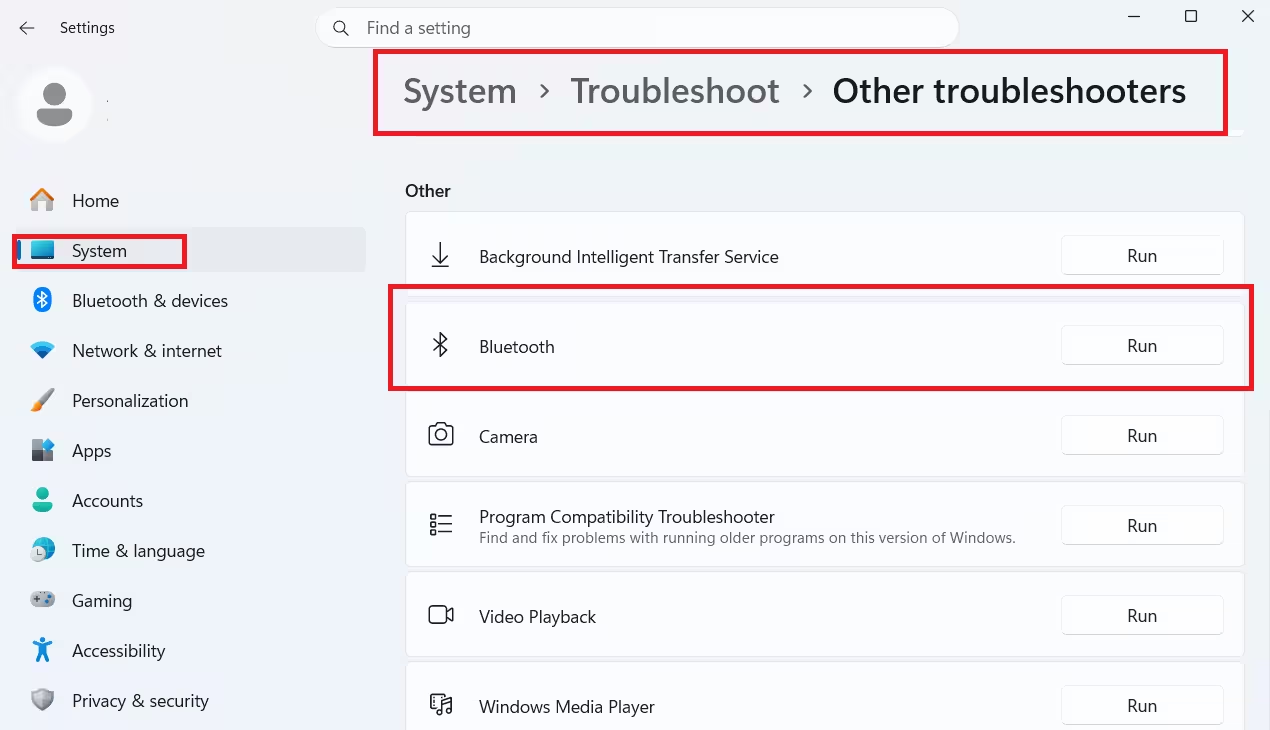
- Press Windows + I to open Settings.
- Click System in the left panel.
- Scroll down and click Troubleshoot, then click Other troubleshooters.
- Find Bluetooth in the list and click Run.
- Wait for the scan to finish. If it finds an issue, click Apply this fix.
- If it reports no problems found, click Close the troubleshooter and move to the next fix.
- Restart your PC and check whether the Bluetooth Error Code 43 is gone.
Fix 2: Restart the Bluetooth Support Service
The Bluetooth Support Service handles wireless connectivity for audio streaming, file transfers, and wireless printing. If this service stops or crashes, the Bluetooth adapter loses functionality and triggers Code 43.
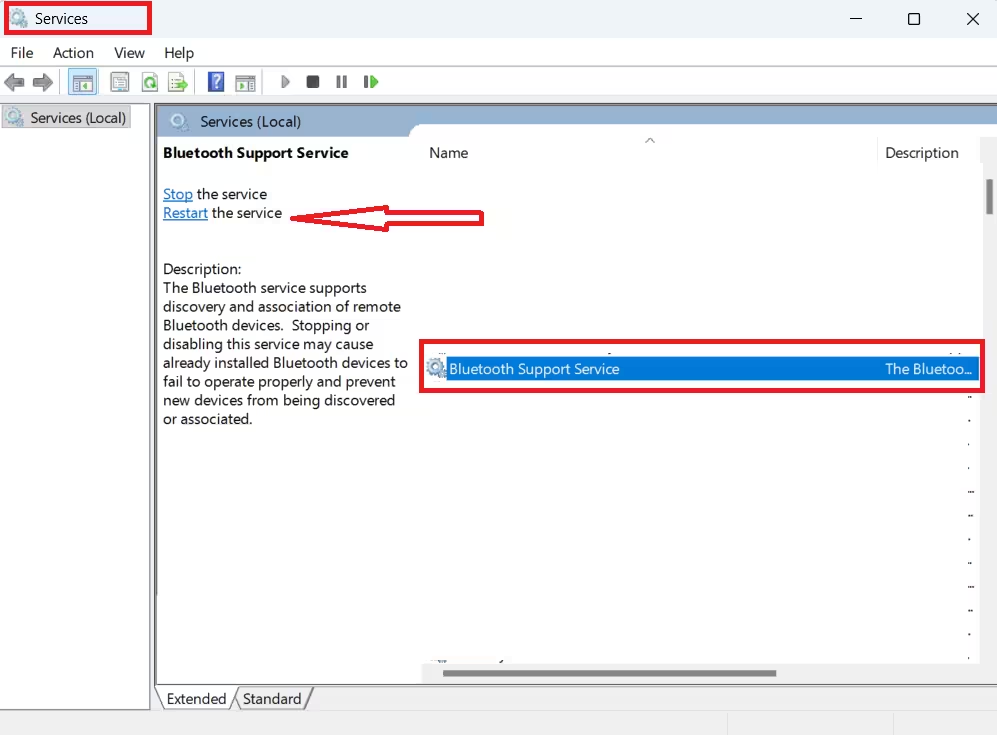
- Press Windows + R, type
services.msc, and press Enter. - Scroll down and locate Bluetooth Support Service.
- Right-click it and select Restart. If you see Start instead of Restart, click Start.
- When the confirmation dialog appears, click Yes.
- After the service restarts, right-click each remaining Bluetooth-related service and restart it as well.
- Open Device Manager and check whether the Code 43 warning is gone.
Fix 3: Disable and Re-Enable the Bluetooth Adapter
Toggling the Bluetooth adapter in Device Manager forces Windows to reinitialize it. This clears temporary driver states that can cause Code 43 without requiring a full reinstall.
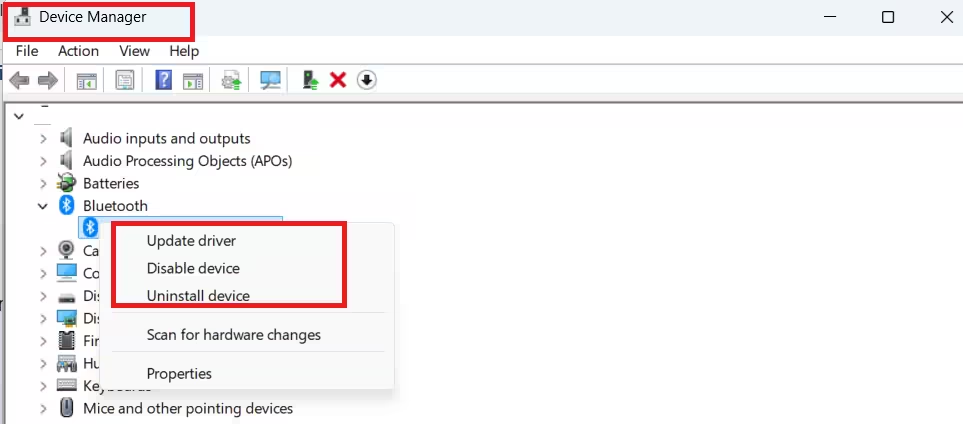
- Right-click the Start button and select Device Manager.
- Expand the Bluetooth section.
- Right-click your Bluetooth adapter and select Disable device.
- Wait 10 seconds.
- Right-click the same adapter and select Enable device.
- Restart your PC and check whether the error is resolved.
Fix 4: Update the Bluetooth Driver
An outdated Bluetooth driver is one of the most common triggers for Code 43, especially after a major Windows update changes how the OS communicates with hardware. Updating the driver through Device Manager or directly from the manufacturer fixes this.
Method A: Update via Device Manager
- Open Device Manager.
- Expand Bluetooth, right-click your adapter, and select Update driver.
- Click Search automatically for drivers.
- If Windows finds an update, install it and restart.
Method B: Download from the Manufacturer’s Website
This method gets you the most current and compatible driver version.
- Go to your PC manufacturer’s website (Dell, HP, Lenovo, Asus, etc.).
- Enter your model number in the support or drivers section.
- Navigate to the Drivers category and find the Bluetooth driver.
- Download the installer for your Windows version.
- Run the installer and follow the on-screen instructions.
- Restart your PC after installation.
If WiFi stopped working after reinstalling Windows 11, the same missing-driver situation applies to Bluetooth. Always grab drivers directly from the manufacturer’s support page for the cleanest result.
Fix 5: Reinstall the Bluetooth Driver
If updating the driver does not fix Code 43, uninstall and reinstall it from scratch. This removes any corrupted driver files completely.
- Open Device Manager.
- Expand Bluetooth and right-click your adapter.
- Select Uninstall device.
- In the confirmation dialog, check Delete the driver software for this device and click Uninstall.
- Restart your PC. Windows will attempt to reinstall the driver automatically on startup.
- If the driver does not reinstall automatically, download it from the manufacturer’s site using the steps in Fix 4 and install it manually.
Fix 6: Roll Back the Bluetooth Driver
If the Bluetooth Error Code 43 started appearing right after a driver update, rolling back to the previous version often resolves it immediately. Windows 11 25H2 error 0xc1900101 follows the same driver rollback logic, and the fix path is similar here.
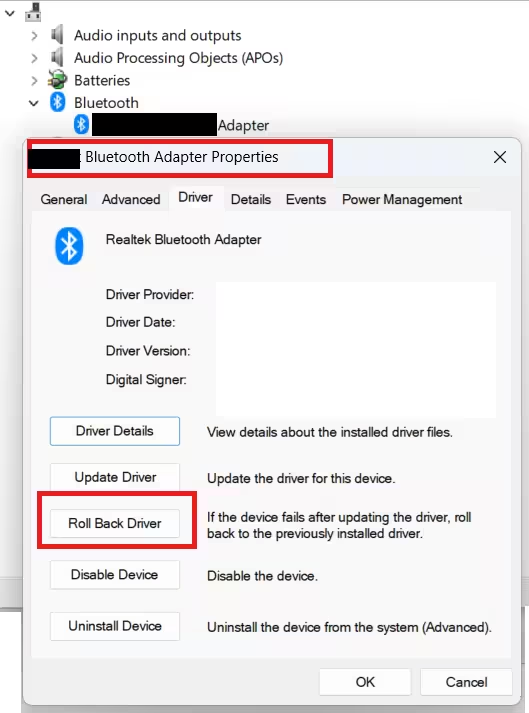
- Open Device Manager.
- Expand Bluetooth and right-click your adapter.
- Select Properties.
- Click the Driver tab, then click Roll Back Driver.
- Choose a reason when prompted and click Yes.
- Restart your PC.
If the Roll Back Driver button is greyed out, Windows has no previous driver stored. In that case, use Fix 5 to reinstall manually.
Fix 7: Update Windows
Outdated Windows builds sometimes contain bugs that cause driver communication failures. Microsoft regularly releases patches that fix known hardware compatibility issues, including Bluetooth Code 43 errors.
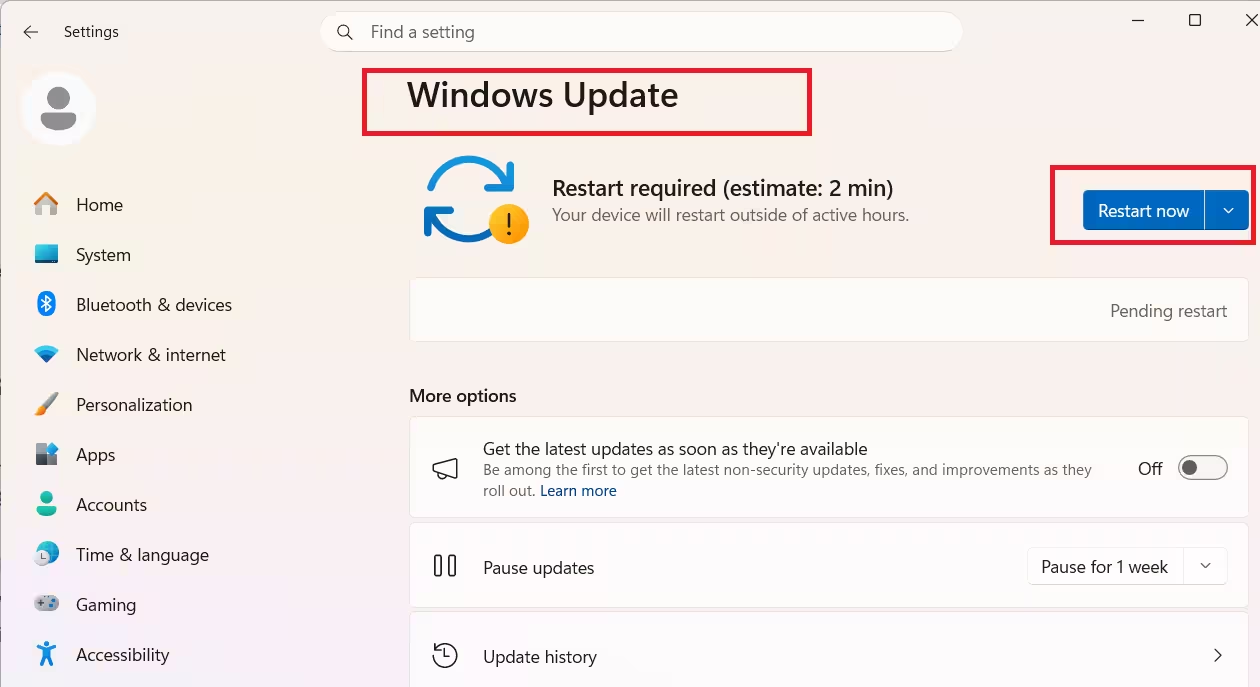
- Press Windows + I to open Settings.
- Click Windows Update in the left panel.
- Click Check for updates.
- Install any available updates.
- Restart your PC when prompted and check whether the error persists.
Frequently Asked Questions
How do I fix Code 43 on Bluetooth?
Start by restarting your PC. Then open Device Manager, disable and re-enable the Bluetooth adapter, and restart the Bluetooth Support Service via services.msc. If the error stays, update or reinstall the Bluetooth driver from your manufacturer’s website and check for pending Windows updates.
Why did Bluetooth Error Code 43 appear after a Windows update?
Windows updates sometimes replace or modify driver files in ways that break compatibility with existing Bluetooth drivers. The adapter loses its communication path with Windows and triggers Code 43.
How do I fix Bluetooth Error Code 43 without reinstalling Windows?
Open Device Manager, disable and re-enable the Bluetooth adapter, then restart the Bluetooth Support Service via services.msc. If that does not clear it, update or reinstall the Bluetooth driver from your PC manufacturer’s website.
Does Bluetooth Error Code 43 mean my Bluetooth adapter is broken?
Not usually. The error is almost always a driver or software issue. A hardware failure is only likely if every driver fix fails and the adapter disappears entirely from Device Manager.
Can outdated drivers cause Bluetooth Error Code 43?
Yes. An outdated Bluetooth driver is one of the most common causes. Downloading the latest driver directly from your manufacturer’s support page and installing it fresh resolves the error in most cases.

