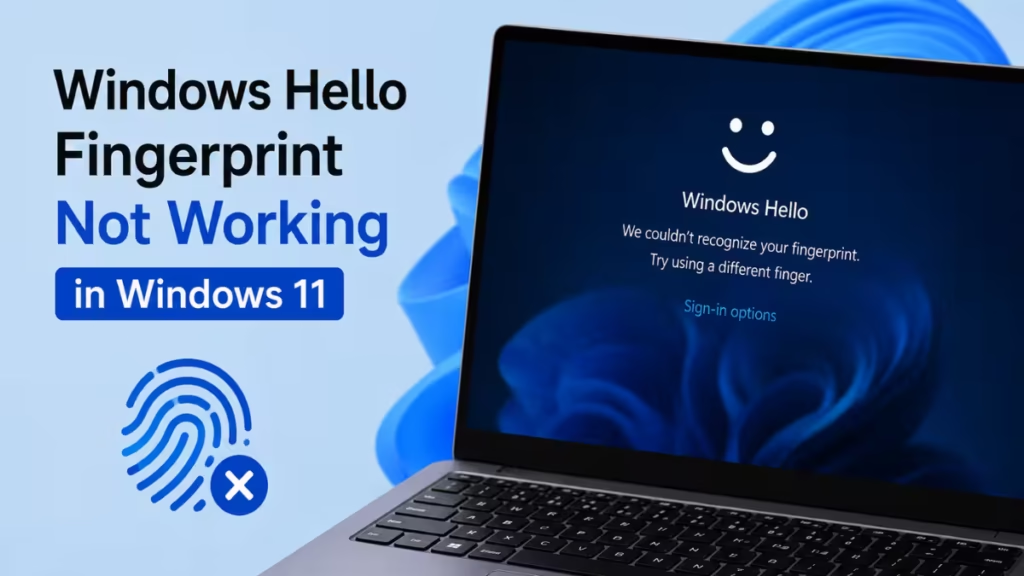
Windows Hello fingerprint recognition stops working for several reasons. A recent Windows update, a corrupted driver, or a stopped biometric service can all break fingerprint sign-in without warning. This guide covers every fix in order of likelihood, starting with the fastest solutions.
What Causes Windows Hello Fingerprint to Fail
Before jumping to fixes, it helps to know what typically triggers this problem:
- A Windows update replaced or modified the biometric driver
- The Windows Biometric Service stopped or crashed
- Fingerprint enrollment data became corrupted
- TPM (Trusted Platform Module) is disabled in BIOS
- A driver conflict appeared after a hardware or software change
Fix 1: Restart the Windows Biometric Service
The Windows Biometric Service controls all fingerprint authentication. If it stops, Windows Hello fingerprint stops responding entirely.
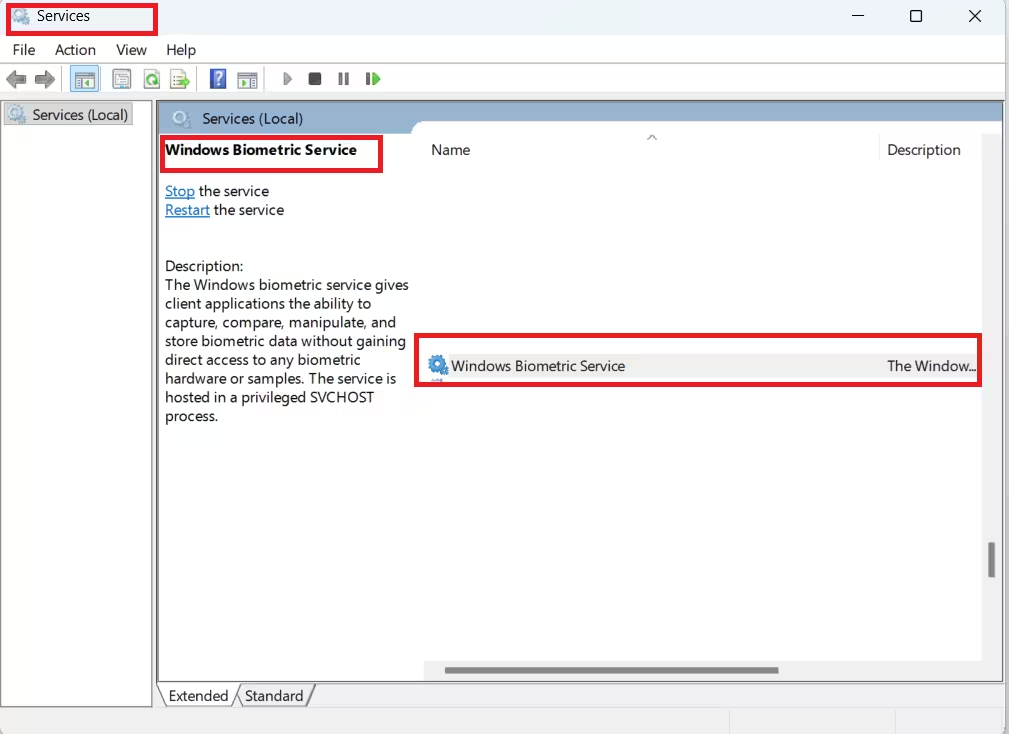
- Press Win + R, type
services.msc, and press Enter. - Scroll down to Windows Biometric Service.
- Right-click it and select Restart.
- If the status shows Stopped, right-click and select Start.
- Set Startup type to Automatic.
- Click OK and test fingerprint sign-in again.
Fix 2: Update or Reinstall the Fingerprint Driver
An outdated or corrupted fingerprint driver is one of the most common causes, especially after a Windows update pushes a new driver version that conflicts with the existing one.
- Right-click the Start button and select Device Manager.
- Expand Biometric devices.
- Right-click your fingerprint reader and select Update driver.
- Choose Search automatically for drivers.
- If no update appears, right-click the device again and select Uninstall device.
- Check Delete the driver software for this device and confirm.
- Restart your PC. Windows will attempt to reinstall the driver automatically.
If Windows does not reinstall the driver after reboot, go to your laptop manufacturer’s support page (Dell, HP, Lenovo, or ASUS) and download the latest fingerprint driver manually for your model.
Fix 3: Re-enroll Your Fingerprint
Corrupted fingerprint enrollment data causes repeated recognition failures even when the hardware and driver work correctly. Removing and re-adding your fingerprint clears that corrupted data.
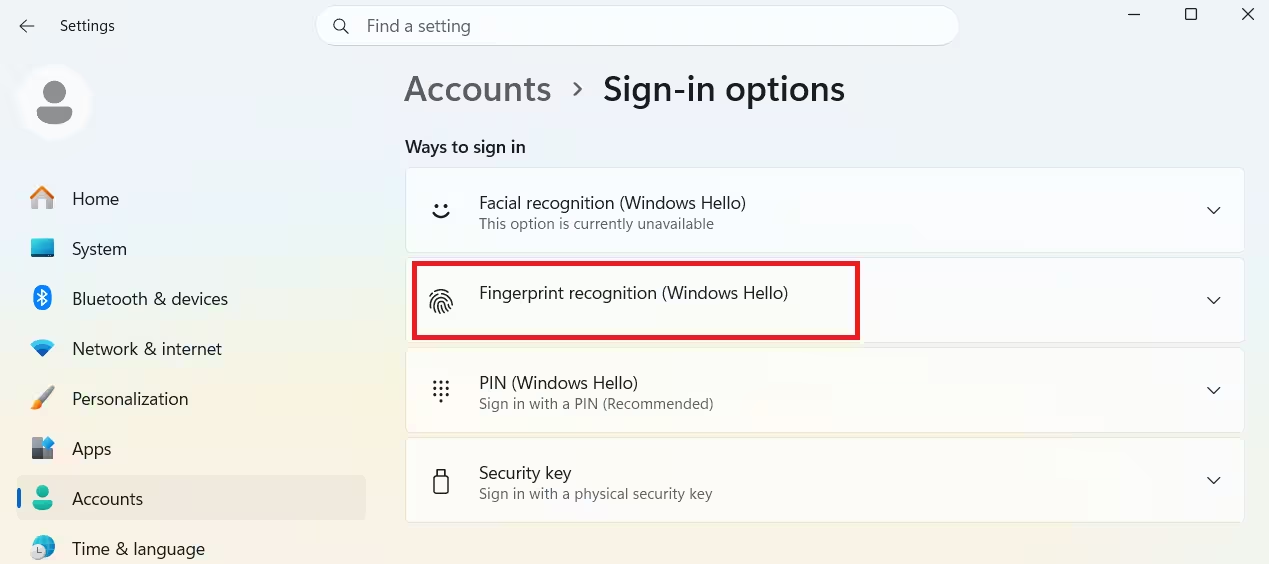
- Open Settings with Win + I.
- Go to Accounts > Sign-in options.
- Under Windows Hello Fingerprint, click Remove.
- After removal, click Set up to re-enroll.
- Follow the on-screen prompts to scan your finger from multiple angles.
Take your time during re-enrollment. Scanning the same finger from 5 to 6 different angles improves recognition accuracy significantly.
Fix 4: Check Windows Hello Settings in Sign-in Options
Windows updates and Group Policy changes can disable Windows Hello without any visible notification.
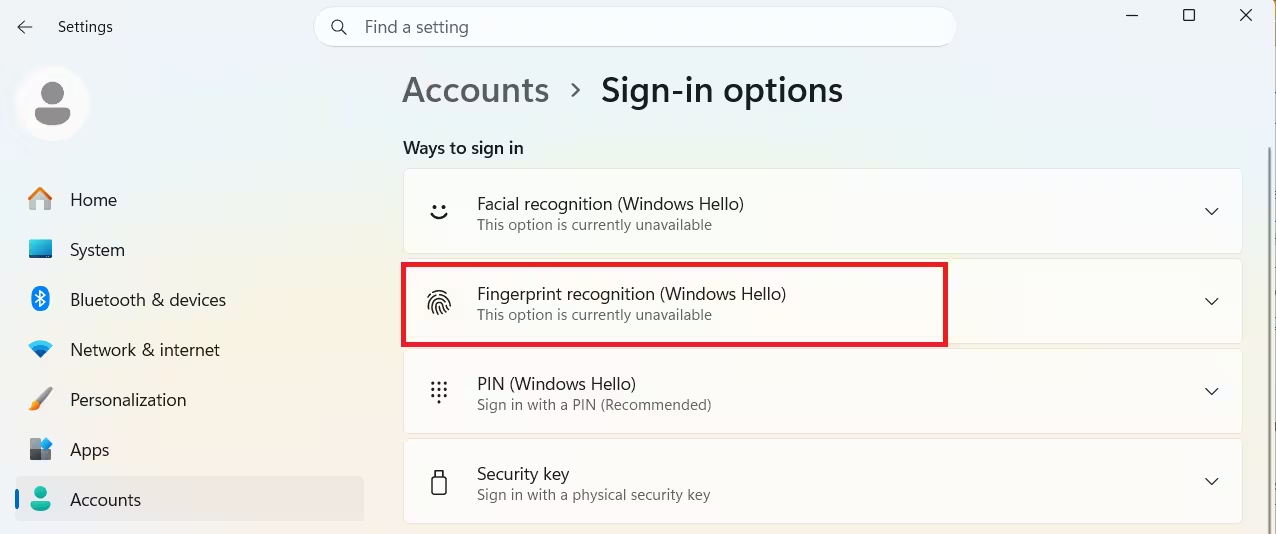
- Open Settings and go to Accounts > Sign-in options.
- Check whether Windows Hello Fingerprint shows a Set up button or an error message.
- If you see “This option is currently unavailable,” a Group Policy restriction or a missing driver is blocking it.
- If the option disappears entirely, complete Fix 2 first to reinstall the driver.
Fix 5: Run the Hardware and Devices Troubleshooter
Windows includes a built-in troubleshooter that detects hardware configuration problems automatically.
- Press Win + R, type the following, and press Enter:
msdt.exe -id DeviceDiagnostic- Click Next and let the troubleshooter scan.
- Apply any fixes it recommends.
- Restart your PC and test fingerprint sign-in.
Fix 6: Repair System Files with SFC and DISM
Corrupted system files break the Windows Biometric Service and its dependencies. Running SFC and DISM together repairs both surface-level and deep system file corruption.
- Open Command Prompt as administrator. Search for “cmd,” right-click it, and select Run as administrator.
- Run this command first:
sfc /scannow- Wait for the scan to complete. Then run:
DISM /Online /Cleanup-Image /RestoreHealth- Restart your PC after both scans finish, then check fingerprint sign-in.
Fix 7: Check TPM Status in BIOS
Windows Hello stores biometric credentials in the TPM chip. If TPM is disabled in BIOS, Windows Hello fingerprint will not work regardless of your driver or software configuration.
- Restart your PC and enter BIOS. The key is usually F2, F10, Del, or Esc during startup.
- Go to Security or Advanced settings.
- Look for TPM, PTT (Intel Platform Trust Technology), or fTPM (AMD firmware TPM).
- Enable it if disabled.
- Save and exit BIOS, then check fingerprint sign-in after Windows boots.
Windows 11 requires TPM 2.0. If you bypassed the TPM requirement during setup, Windows Hello may not function at all. Check the Windows 11 compatibility guide if you are unsure whether your PC meets the requirements.
Fix 8: Install Pending Windows Updates
Microsoft releases driver and service patches through Windows Update. If a cumulative update broke your fingerprint reader, a follow-up patch may already be available.
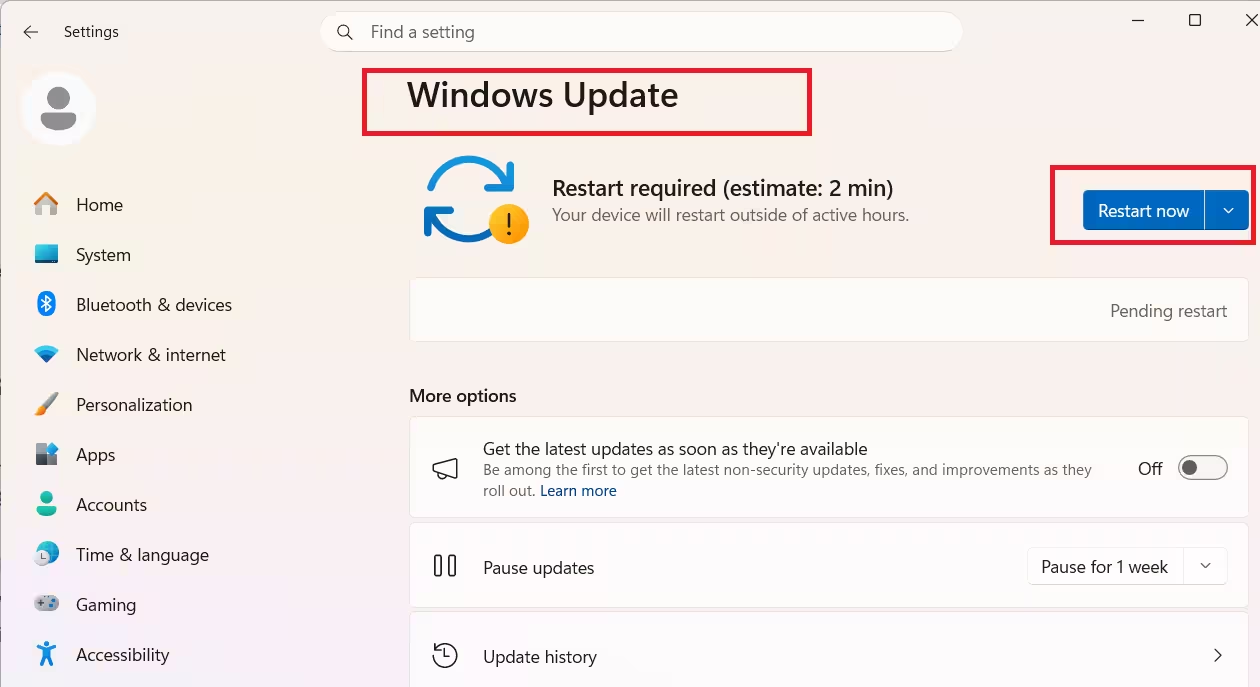
- Open Settings > Windows Update.
- Click Check for updates.
- Install all available updates including optional driver updates.
- Restart your PC and test fingerprint sign-in.
If your fingerprint stopped working after a specific update, check the KB5083769 boot loop fix guide. That April 2026 update has known issues with multiple Windows 11 components including sign-in features.
Fix 9: Reset Windows Hello Completely
If nothing above works, resetting all Windows Hello data removes any deeper corruption tied to your biometric profile.
- Open Settings > Accounts > Sign-in options.
- Remove all fingerprint enrollments under Windows Hello Fingerprint.
- Also remove your PIN under Windows Hello PIN.
- Restart your PC.
- Return to Sign-in options and set up your Windows 11 PIN first.
- After the PIN is active, set up your fingerprint again.
Windows Hello requires a PIN as a backup before it enables fingerprint sign-in. Always set the PIN first, then add the fingerprint on top.
When to Replace the Fingerprint Reader
If every fix above fails, the fingerprint sensor itself may be damaged. Fingerprint sensors on laptops degrade over time and can fail after physical damage or liquid exposure. If your device is still under warranty, contact the manufacturer. Otherwise, a USB fingerprint reader works as a direct replacement and Windows Hello supports external readers natively.
Frequently Asked Questions
Why is Windows Hello fingerprint not working after a Windows update?
Windows updates sometimes replace or corrupt biometric drivers. Open Device Manager, uninstall the fingerprint driver under Biometric Devices, restart your PC, and reinstall the latest driver from your laptop manufacturer’s website.
How do I fix Windows Hello fingerprint that keeps failing to recognize?
Remove your current fingerprint enrollment in Settings > Accounts > Sign-in options, then re-enroll by scanning the same finger from multiple angles. Corrupted enrollment data is the most common cause of repeated recognition failures.
Why does Windows Hello fingerprint say “Something went wrong”?
This error means the Windows Biometric Service crashed or the driver is corrupted. Press Win + R, open services.msc, find Windows Biometric Service, and restart it. If the error persists, reinstall the fingerprint driver from Device Manager.
Does Windows Hello fingerprint require TPM 2.0?
Yes. Windows Hello stores biometric credentials inside the TPM chip. If TPM is disabled in BIOS, fingerprint sign-in will not work regardless of driver or software fixes. Enable TPM, PTT, or fTPM in your BIOS security settings to restore Windows Hello.
My fingerprint reader is not showing in Device Manager. How do I fix it?
For external USB readers, try a different USB port. For built-in laptop readers, check your manufacturer’s support page for a BIOS or firmware update. If the device still does not appear, the hardware may be physically damaged.

