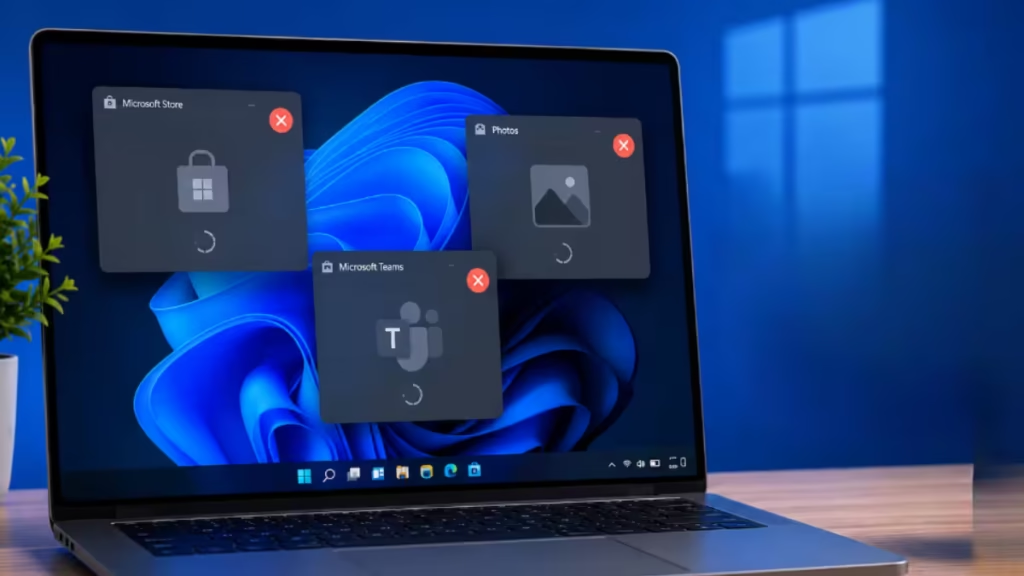
When you log into Windows 11 and no applications open except File Explorer, a corrupted system component, a bad Windows update, or a damaged user profile is almost always the cause. The fix depends on which part broke. This guide covers every working solution in order of speed, starting with the fastest repairs and ending with a full reset.
What Causes Apps to Stop Opening After Login
Windows 11 blocks app launches after login when one of the following things goes wrong:
- A Windows Update corrupts the Shell Experience Host or system files
- The user profile becomes damaged and cannot initialize apps
- A third-party program interferes with the Windows shell
If your PC boots normally into Safe Mode but fails in normal mode, the problem is almost always a corrupted Windows component, a failed service, or a bad update not a hardware fault.
Fix 1: Run SFC and DISM in Safe Mode
Corrupted system files are the most common reason apps stop launching. Run both scans from Safe Mode, since normal mode may block you from opening a terminal.
How to boot into Safe Mode from the login screen:
- Hold Shift and click Restart from the login screen power button
- Go to Troubleshoot > Advanced Options > Startup Settings > Restart
- Press 4 to boot into Safe Mode
Run the scans:
- Right-click Start and select Windows Terminal (Admin) or Command Prompt (Admin)
- Run SFC first:
sfc /scannow- After SFC completes, run DISM:
DISM /Online /Cleanup-Image /RestoreHealth- Restart normally and test
SFC repairs individual corrupted files. DISM repairs the Windows component store itself. Running both in sequence covers the most common cause of broken app launching.
Fix 2: Restart Shell Infrastructure Host and Windows Explorer
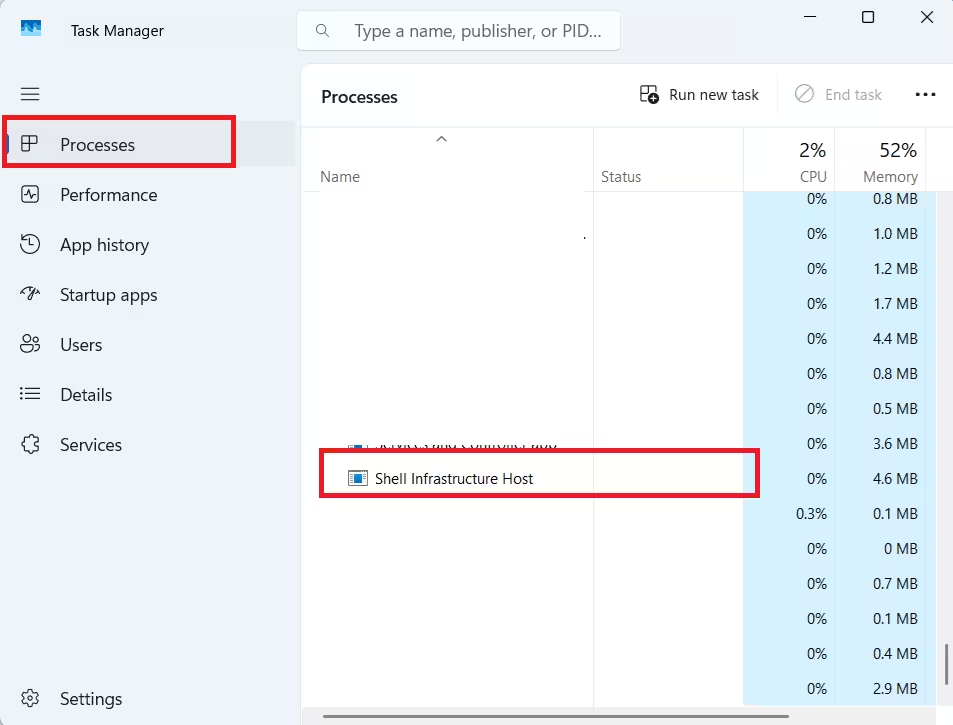
The Shell Infrastructure Host (sihost.exe) and Windows Explorer (explorer.exe) control the entire desktop environment. When either crashes silently at startup, no apps launch and the power button stops responding. If your power options also disappeared after login, this is almost certainly the cause.
- Boot into Safe Mode
- Open Task Manager (Ctrl + Shift + Esc)
- Under the Processes tab, find Shell Infrastructure Host
- Right-click it and select Restart
- Find Windows Explorer and right-click it, then select Restart
- Restart the PC normally and test
If Windows 11 shows no power options available alongside the app launch failure, a crashed Shell Infrastructure Host is causing both symptoms. Restarting the shell fixes both problems at the same time.
Fix 3: Uninstall the Problematic Windows Update
A bad Windows update is one of the most reported triggers for apps failing to open after login. Microsoft’s April 2026 cumulative update KB5083769 caused several system-level failures on Windows 11 24H2 and 25H2. If this problem started right after a Windows Update, roll it back.
- Boot into Safe Mode
- Open Settings > Windows Update > Update History
- Click Uninstall updates
- Find the most recent cumulative update, right-click it, and select Uninstall
- Restart normally and test
If your system entered a KB5083769 boot loop after the April 2026 update, that guide covers full recovery using Windows RE and DISM rollback steps.
Fix 4: Re-register All Windows Apps
Corrupted app registrations block Store and built-in UWP apps from launching. Re-registering them through PowerShell resets their launch state without deleting any data. Note that this fix only targets UWP and Microsoft Store apps. It does not affect Win32 desktop programs like Notepad or third-party software.
- Boot into Safe Mode
- Open PowerShell as Administrator
- Run this command:
Get-AppXPackage -AllUsers | Foreach {Add-AppxPackage -DisableDevelopmentMode -Register "$($_.InstallLocation)\AppXManifest.xml"}- Let the command finish (red error lines are normal and expected)
- Restart normally and test
Microsoft Store error 0x80073CF9 often appears when app registrations break in the same way. If you see that error after this fix, that guide covers the next steps for store-specific repair.
Fix 5: Create a New User Account
A damaged user profile prevents every app from launching on that account. Creating a new account lets you confirm whether the profile is the problem.
- Boot into Safe Mode
- Open Settings > Accounts > Other users
- Click Add account and create a new local account
- Sign out and log into the new account
- Test if apps open normally
If apps open on the new account, the original profile is corrupted. Move your files from C:\Users\YourOldName to the new profile folder and use the new account going forward.
Fix 6: Use System Restore
If apps worked before a recent change or update, System Restore rolls Windows back to a point when everything ran correctly.
- Boot into Safe Mode
- Press Win + R, type
rstrui, and press Enter - Select Choose a different restore point
- Pick a restore point dated before the problem started
- Follow the prompts and let the restore finish
- Restart normally
System Restore does not delete personal files. It reverses system-level changes including updates, driver installs, and registry modifications.
Fix 7: Reset Windows 11 Without Removing Files
A full reinstall works, but Windows 11 includes a built-in reset option that keeps your personal files. This is faster and avoids wiping everything.
- Boot into Safe Mode
- Go to Settings > System > Recovery
- Click Reset this PC
- Choose Keep my files
- Follow the prompts
If the reset fails from Safe Mode or the reset process itself shows your PC did not start correctly, use the Windows 11 Media Creation Tool to create a bootable USB and run a repair upgrade instead. A repair upgrade reinstalls Windows over itself without deleting files or apps.
After a reset or reinstall, WiFi not working after reinstalling Windows 11 is a common follow-up problem since network drivers do not carry over automatically.
Which Fix to Try First
| Situation | Start Here |
|---|---|
| Power options also missing | Fix 2 (Shell Infrastructure Host) |
| Problem started after a Windows Update | Fix 3 (Uninstall update) |
| Works fine on a different account | Fix 5 (New user profile) |
| No recent update or change triggered this | Fix 1 (SFC and DISM) |
| All fixes failed | Fix 7 (Reset Windows 11) |

