The STATUS STACK BUFFER OVERRUN error crashes Chrome or Edge mid-session and blocks the page from loading. This error appears because Windows Defender’s Exploit Protection flags the browser process as a threat, or because the browser is running in Compatibility mode that conflicts with its internal stack handling. Corrupted cache data and problematic extensions can trigger it too.
What Causes STATUS STACK BUFFER OVERRUN in Chrome or Edge
The error originates from a stack buffer overflow detection inside the Chromium engine. Windows Defender’s Exploit Protection sometimes enforces stack protection policies too aggressively on Chrome or Edge, causing a forced crash. Running the browser in Windows Compatibility mode adds a second conflict layer that triggers the same crash code. Corrupted cookies or a cache conflict can also produce it, though less commonly.
Fix 1: Override Exploit Protection Settings for Chrome or Edge
This is the primary fix for most users. Windows Security’s Exploit Protection treats certain Chrome and Edge memory operations as exploit attempts and terminates the process. You need to override two specific settings at the program level, not system-wide.
- Open the Start menu, search for Windows Security, and open it.
- Go to App and Browser Control, then click Exploit protection settings.
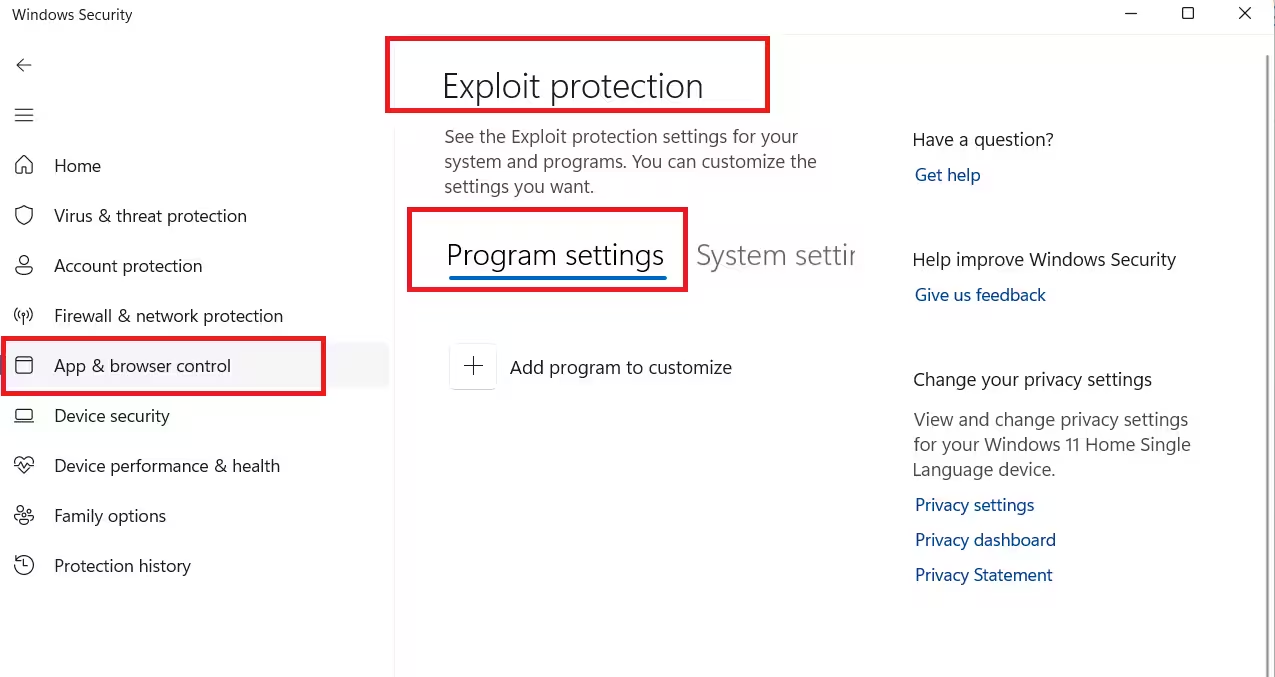
- Open the Program settings tab and click Add a program to customize.
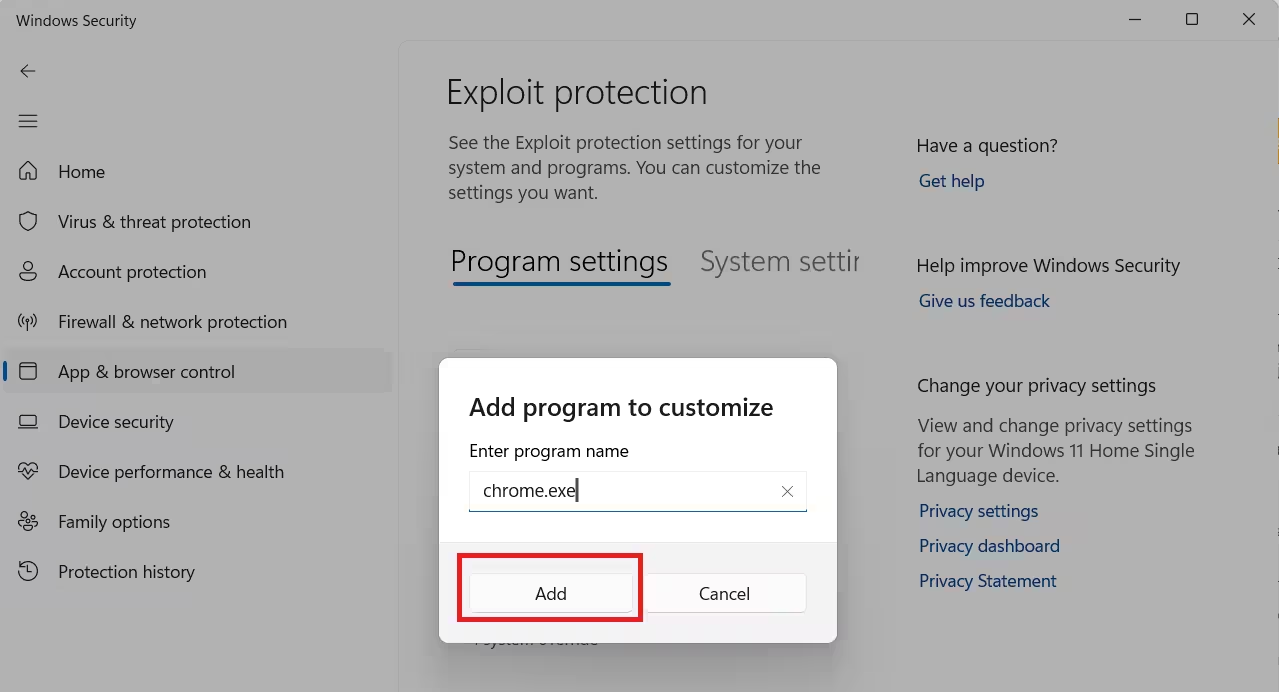
- Choose Add by program name and type
chrome.exe(for Chrome) ormsedge.exe(for Edge).
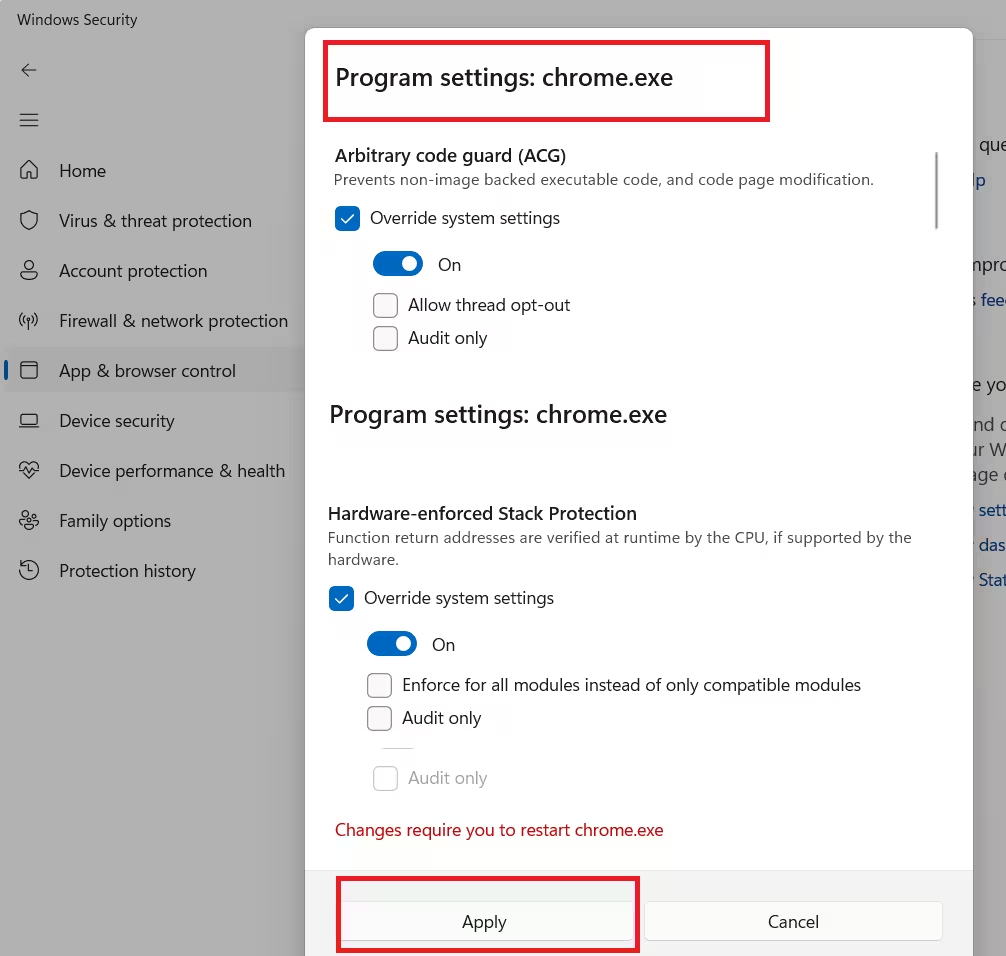
- Scroll to Arbitrary Code Guard and set the override to On.
- Scroll to Hardware-enforced Stack Protection and set the override to On.
- Leave all other settings at their defaults and click Apply.
- Restart your PC and reopen the browser.
Do not touch system-wide Exploit Protection settings. Only the per-program override matters here.
If you use both Chrome and Edge, repeat this for both executables.
Fix 2: Turn Off Compatibility Mode on the Browser
Running Chrome or Edge in Compatibility mode forces the browser to behave as if it runs on an older Windows version. This setting conflicts with Chromium’s stack management and produces the STATUS_STACK_BUFFER_OVERRUN crash on modern Windows 10 and 11 systems.
- Right-click the Chrome or Edge shortcut on your desktop and select Properties.
- Go to the Compatibility tab.
- Uncheck the box next to Run this program in compatibility mode for.
- Click Apply, then OK.
- Open Task Manager, go to the Details tab, and end all running instances of
chrome.exeormsedge.exe. - Relaunch the browser and check if the error returns.
Fix 3: Disable Extensions One by One
Malicious or poorly coded extensions can push the browser’s memory stack into an overflow state. Unlike a full reset, disabling extensions individually lets you find the exact culprit without losing your settings.
Chrome:
- Open Chrome and go to
chrome://extensions. - Toggle off each extension and reload the page that triggered the crash.
- Repeat until the error stops appearing.
Edge:
- Open Edge and go to
edge://extensions. - Toggle off each extension and test the browser.
Remove the extension that caused the crash. Do not reinstall it unless the developer releases an updated version.
If you want a browser built specifically around tighter extension controls and safer browsing, Norton Secure Browser is worth looking at.
Fix 4: Clear Cache and Cookies
A corrupted cache file can cause repeated crashes on the same page. Clearing it removes the corrupted data without touching your passwords or extensions.
Chrome:
- Press Ctrl + Shift + Delete.
- Set the time range to All time.
- Check Cached images and files and Cookies and other site data.
- Click Clear data and restart Chrome.
Edge:
- Press Ctrl + Shift + Delete.
- Set the time range to All time.
- Check Cached images and files and Cookies and other saved site data.
- Click Clear now and restart Edge.
This fix also resolves issues like Too Many Redirects errors in Microsoft Edge where stale cache data loops the browser.
Fix 5: Reset the Browser (Last Resort)
If all previous fixes fail, resetting the browser removes all locally modified settings, extensions, and cached data. You keep your bookmarks and saved passwords.
Chrome:
- Open Chrome and go to
chrome://settings/reset. - Click Restore settings to their original defaults.
- Click Reset settings in the prompt.
Edge:
- Open Edge and go to
edge://settings/reset. - Click Restore settings to their default values.
- Confirm with Reset.
After resetting, reinstall only the extensions you trust. Avoid reinstalling anything that was active during the crash until you verify it does not cause the error again.
FAQs
Does STATUS_STACK_BUFFER_OVERRUN only appear on specific websites?
It can appear on any page, but JavaScript-heavy sites and pages with large ad scripts put more pressure on the browser stack and trigger it more frequently.
Will changing Exploit Protection settings reduce my PC security?
No. You are only adjusting the override for chrome.exe or msedge.exe at the program level. System-wide Exploit Protection stays fully active and unchanged.
Can this error appear on other Chromium-based browsers like Brave or Opera?
Yes. Any browser built on Chromium can produce this error. Apply the same Exploit Protection override using that browser’s executable name in Windows Security.
Does this error mean my PC has malware?
Not always. Windows Defender misidentifying Chromium memory operations is the most common cause. If the error started after installing an extension or downloading a file, run a full Windows Defender scan before applying the fixes.
What if the error comes back after applying all fixes?
Uninstall and reinstall Chrome or Edge completely. A clean install replaces any corrupted browser files that survive a reset and removes leftover settings that the reset does not touch.

