If your Windows 11 PC went silent after a recent update, or if apps stopped launching and notifications stopped arriving on 24H2 or 25H2, a confirmed Microsoft bug is the cause. Microsoft acknowledged both issues on May 19, 2026, and released Release Preview builds 26100.8521 (24H2) and 26200.8521 (25H2) with direct fixes for both.
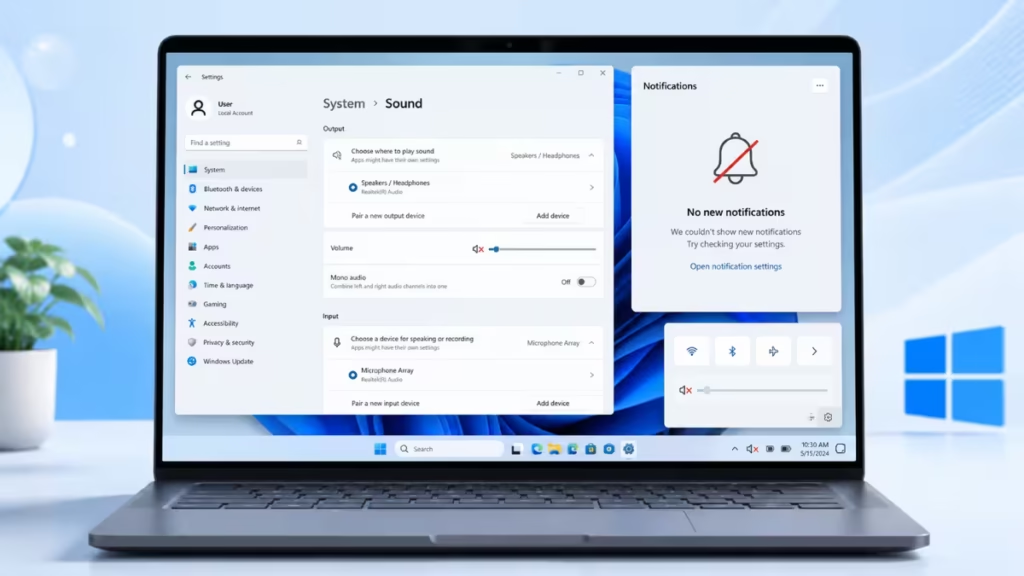
This guide explains what broke, when the official fix reaches your device, and what you can do right now to restore audio and notifications while you wait.
Windows 11 Audio Muted and Notifications Stopped After Update: What Microsoft Confirmed
Microsoft confirmed two separate bugs in Windows 11 24H2 and 25H2.
Audio volume muted on certain devices: After installing recent updates, the audio volume on some Windows 11 devices drops to muted without the user touching the volume controls. The update itself triggers the mute, not a hardware fault or user setting.
Windows Push Notification service (WPN) hang: A bug in the WPN service causes it to hang, which stops some apps from launching and blocks all notification delivery. If you open an app and nothing happens, or if toast notifications stopped appearing entirely, this hang is the likely cause.
Both bugs affect Windows 11 versions 24H2 and 25H2.
Microsoft’s Fix and When It Arrives
Microsoft released Release Preview builds 26100.8521 (24H2) and 26200.8521 (25H2) on May 19, 2026. Both builds contain confirmed fixes for the audio mute bug and the WPN hang.
Here is the rollout timeline:
- Release Preview (available now): Builds 26100.8521 and 26200.8521 are available today for devices enrolled in the Windows Insider Release Preview Channel.
- Optional update (late May 2026): Microsoft will release the May 2026 non-security update in the last week of May. This update is optional, so your device only downloads and installs it if you check for updates manually or have optional updates enabled.
- Mandatory update (June 9, 2026): All fixes roll into the June 2026 Patch Tuesday on June 9, 2026. Every eligible Windows 11 24H2 and 25H2 device receives this update automatically.
If you can wait until June 9, 2026, the fix arrives on its own. If you need audio and notifications working sooner, use the steps below.
How to Get the Fix Early
The fastest path to the official fix is the optional late-May update.
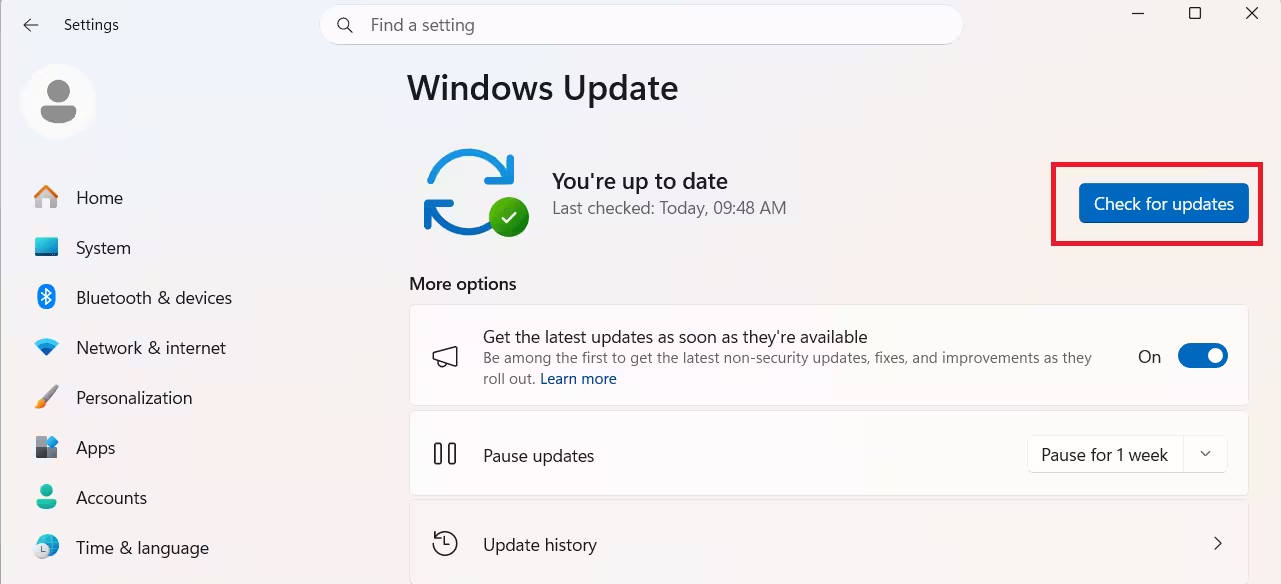
- Open Settings (Win + I).
- Go to Windows Update.
- Click Check for updates.
- If an optional update appears (KB5089573 or a later build in the same family), select Download and install.
- Restart your PC when prompted.
Microsoft delivers these updates through a gradual rollout, so the update may not appear on every device on the same day. If nothing appears, check again the following day.
Fix Windows 11 Audio Muted After Update (While You Wait)
If the optional update is not yet available on your device, these steps restore audio manually.
1. Unmute Audio in the Volume Mixer
The bug mutes the system volume directly. Check every channel in the Volume Mixer first.
- Right-click the speaker icon in the taskbar.
- Select Open volume mixer.
- Look for the mute icon (a red circle with a line) on the main output slider or any app-specific slider.
- Click any muted channel to unmute it and raise the volume above zero.
2. Run the Audio Troubleshooter
Windows includes a built-in troubleshooter that detects and resets common audio problems.
- Open Settings (Win + I).
- Go to System > Troubleshoot > Other troubleshooters.
- Find Playing Audio and click Run.
- Follow the steps and apply any fixes the troubleshooter suggests.
- Restart your PC after the troubleshooter finishes.
3. Restart the Windows Audio Services
Restarting the audio services resets the volume state without a full reboot.
- Press Win + R, type
services.msc, and press Enter. - Find Windows Audio in the list.
- Right-click it and select Restart.
- Find Windows Audio Endpoint Builder and restart it the same way.
- Check your audio after both services restart.
4. Roll Back or Update the Audio Driver
If the mute bug started immediately after a driver update, rolling back the driver can restore audio.
- Press Win + X and select Device Manager.
- Expand Sound, video and game controllers.
- Right-click your audio device and select Properties.
- Go to the Driver tab.
- Click Roll Back Driver if the option is available. If it is grayed out, click Update driver and choose Search automatically for drivers instead.
- Restart your PC.
5. Disable Audio Enhancements
Audio enhancements occasionally conflict with the volume state after an update.
- Press Win + R, type
mmsys.cpl, and press Enter. - On the Playback tab, right-click your audio device and select Properties.
- Go to the Enhancements tab (labeled Advanced on some devices).
- Check Disable all enhancements and click OK.
- Test audio playback.
Fix Windows 11 Notifications Not Working (While You Wait)
The WPN hang blocks both app launches and notification delivery. These steps force the service to restart and restore normal behavior.
1. Check Notification Settings
Confirm that notifications are enabled in Settings before restarting any services.
- Open Settings (Win + I).
- Go to System > Notifications.
- Make sure the Notifications toggle at the top is on.
- Scroll down and confirm that the affected app has its toggle turned on.
2. Turn Off Do Not Disturb
Do Not Disturb silences all notifications and can activate automatically on a schedule.
- Open Settings (Win + I).
- Go to System > Notifications.
- Find Do not disturb and turn it off if it is active.
- Select Turn on do not disturb automatically and disable any scheduled rules that activated without your input.
3. Restart the Windows Push Notification Service
This step directly addresses the WPN hang that Microsoft confirmed.
- Press Win + R, type
services.msc, and press Enter. - Find Windows Push Notifications System Service.
- Right-click it and select Restart. If Restart is grayed out, select Stop, wait five seconds, then select Start.
- Find Windows Push Notifications User Service (it may have a long alphanumeric suffix) and restart it the same way.
- Test app launches and notifications.
4. Re-register Windows Apps via PowerShell
If apps still fail to launch after restarting the WPN service, re-registering app packages resets their push notification registration.
- Press Win + X and select Terminal (Admin) or PowerShell (Admin).
- Run this command:
Get-AppxPackage -AllUsers | Foreach {Add-AppxPackage -DisableDevelopmentMode -Register "$($_.InstallLocation)\AppXManifest.xml"}- The command takes a few minutes. Non-critical errors in red are normal and can be ignored.
- Restart your PC when it completes.
If apps still will not open after this step, the guide on applications not opening after boot in Windows 11 covers additional causes beyond the WPN hang.
5. Check Per-App Notification Permissions
Some apps lose their notification permissions after an update. Restore them individually.
- Open Settings (Win + I).
- Go to System > Notifications.
- Find the affected app in the list.
- Toggle its notifications on.
- Click the app name to expand its settings and confirm that Show notification banners and Show notifications in notification center are both enabled.
Frequently Asked Questions
Why are Windows 11 notifications not working after update on 24H2 and 25H2?
A bug in the Windows Push Notification service (WPN) causes it to hang after recent updates on Windows 11 24H2 and 25H2. This hang stops some apps from launching and blocks all notification delivery. Microsoft confirmed the fix in Release Preview builds 26100.8521 and 26200.8521, with a mandatory rollout on June 9, 2026.
Why did my Windows 11 audio get muted after a Windows update?
A confirmed update-side bug mutes the system volume on certain Windows 11 devices after installing recent cumulative updates on 24H2 and 25H2. The mute is not caused by a driver fault or user setting. Restarting the Windows Audio and Windows Audio Endpoint Builder services restores audio until the official fix arrives.
Will Windows 11 notifications start working again without doing anything?
Yes, but only after June 9, 2026. Microsoft will push the fix as a mandatory Patch Tuesday update on that date, and all eligible Windows 11 24H2 and 25H2 devices receive it automatically. If you need notifications working sooner, restarting the Windows Push Notification service is the fastest manual fix.
Does the WPN hang affect all apps or only certain ones?
The WPN hang affects apps that depend on push notifications to initialize. Apps with no push notification dependency continue to open normally. If only certain apps stopped launching or stopped sending notifications after the update, the WPN hang is the most likely cause.
How do I know if the official fix is installed on my device?
Open Settings, go to Windows Update, and check your update history. Look for build 26100.8521 (Windows 11 24H2) or 26200.8521 (Windows 11 25H2). If either build appears as installed, both the audio mute fix and the WPN notification fix are already on your device.

