Windows 11 devices that installed KB5077181 cannot download or install any updates from March 2026 onward. Microsoft confirmed this is a bug on its end, not a problem with the device. Affected users see a 0x80010002 error when Windows Update tries to start a download through the Settings app.
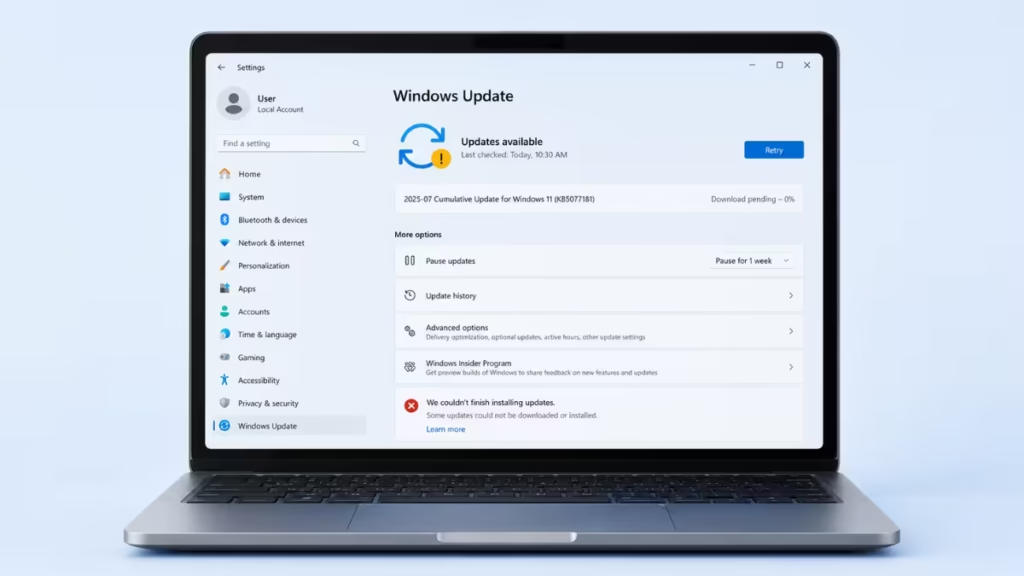
This article explains exactly what went wrong, which updates are blocked, why it matters, and how to apply the fix.
What KB5077181 Changed That Broke Windows Update
KB5077181 is the January 2026 optional non-security preview update for Windows 11. Microsoft uses these monthly preview updates to ship non-security fixes and improvements ahead of the next Patch Tuesday cycle.
This particular update introduced a change in download timeout requirements that affects how Windows Update initiates download operations. On standard home networks the change caused no visible issues at the time. The problem surfaced when the March 2026 Patch Tuesday update arrived and users tried to download it through Settings. The new timeout logic prevented the download from starting, returning the 0x80010002 error instead.
Microsoft confirmed in a support service alert that the issue is entirely on its side: the bug is not related to device integrity or the device’s ability to install Windows updates, only to its ability to download updates from the internet via the Windows Update page under Settings.
Which Updates Are Blocked
Users who installed KB5077181 report that the following updates failed to download through Windows Update in Settings:
- KB5079473 (March 2026 Patch Tuesday): the first update to fail for most affected users
- KB5086672 (emergency out-of-band update): also blocked on affected devices
- KB5091157 (out-of-band fix): also blocked on affected devices
- April 2026 Patch Tuesday: blocked
- May 2026 Patch Tuesday KB5089549: blocked
Affected devices can download the February 2026 security update because February’s download was already in progress before the timeout change fully took effect. Every update from March onward hits the broken timeout logic and stalls.
Why This Bug Is More Serious Than a Typical Update Failure
Missing one or two months of Windows updates is inconvenient. Missing several months of security patches is a real exposure. Affected users are without security fixes from March through May 2026.
On top of the missing security patches, Windows Update also delivers the updated Secure Boot certificates through the same channel. The original Secure Boot certificates issued in 2011 expire in June 2026. Microsoft started shipping the replacement 2023 certificates via Windows Update beginning in April 2026. Devices that cannot download updates through Settings are also missing these certificates and need to resolve the download issue before June 2026.
How to Fix Windows 11 Updates Not Downloading After KB5077181
Microsoft’s fix is a Known Issue Rollback (KIR). A KIR reverses the specific timeout change introduced by the January 2026 preview update without touching any other change from that release.
Download the KIR .msi file for your Windows version:
- Windows 11 26H1: KB5083806 Known Issue Rollback
- Windows 11 24H2 and 25H2: KB5083631 Known Issue Rollback
Steps to apply the fix on a single device:
- Download the KIR .msi file that matches your Windows 11 version from the links above.
- Confirm the OS version in the file name matches your device.
- Run the .msi file. This installs the KIR policy definition into the Administrative Template on your PC.
- Press Win + R, type
gpedit.msc, and press Enter to open the Local Group Policy Editor. - Navigate to Local Computer Policy > Computer Configuration > Administrative Templates > KB5083806 (or KB5083631) Issue Rollback > Windows 11.
- Right-click the policy and select Edit.
- Set the policy to Disabled and click OK.
- Restart your PC.
After the restart, open Settings and run Windows Update again. The download should proceed normally.
Note: The Local Group Policy Editor is not available on Windows 11 Home. If your device runs Windows 11 Home, wait for Microsoft to push the KIR fix automatically to non-enterprise devices. No action is needed on Home editions.
For IT administrators managing multiple devices, the KIR deployment process via Group Policy domain infrastructure or Microsoft Intune is covered in full detail in the Windows Update error 0x80010002 fix guide.
What to Do While Waiting for the Fix
If you cannot apply the KIR immediately, download the monthly cumulative update packages directly from the Microsoft Update Catalog and install them offline using the standalone installer. This bypasses the Windows Update download mechanism entirely and gets your device current on security patches without waiting for the KIR.
Search the Update Catalog for your KB number, download the .msu file that matches your Windows version and architecture, and double-click it to install. Restart when prompted.
This is a workaround, not a permanent solution. Apply the KIR Group Policy fix as soon as possible so that future updates download normally through Settings.
Frequently Asked Questions
Can Windows 11 updates not downloading after KB5077181 damage the device?
No. Microsoft confirmed the bug affects only the ability to download updates through the Windows Update settings page. The device itself is fully functional and not corrupted.
Does uninstalling KB5077181 fix the problem?
Uninstalling KB5077181 is not the recommended approach. Microsoft’s supported fix is the KIR Group Policy deployment. Uninstalling a cumulative update can create other issues and does not guarantee the download behavior reverts cleanly.
Why did February 2026 updates work but March onward fail?
The timeout change in KB5077181 landed in January. February’s update was already downloading or cached before the change fully took effect on affected systems. Every fresh download attempt from March onward triggers the broken timeout logic and returns the 0x80010002 error.
Does Microsoft fix this automatically for home users?
Yes. For non-enterprise devices, Microsoft’s Windows Update process pushes the KIR automatically with no user action required. The manual Group Policy steps apply to enterprise-managed devices only.
Is this the same bug affecting restricted and air-gapped networks?
Yes. The root cause, error code, and KIR fix are identical. The 0x80010002 error guide covers the restricted network scenario in detail, including Group Policy domain deployment and Microsoft Intune methods

